Import Account Codes from a File
What is this?
Account codes sort your costs and revenue in Clue, including in Fleet Financials. You can load all of them from one spreadsheet. Upload a CSV or Excel file and Clue checks every row. You review a preview, then confirm. Nothing is saved until you do.
Who's this for?
Anyone who sets up or maintains your company's account codes.
- Company admins, load your full list of codes during setup in one go.
- Accounting and controllers, update descriptions, GL codes and sort order for many codes at once.
- Equipment managers, make sure owning and operating cost codes are in place for Fleet Financials.
How to use it
Step 1: Open Account Codes
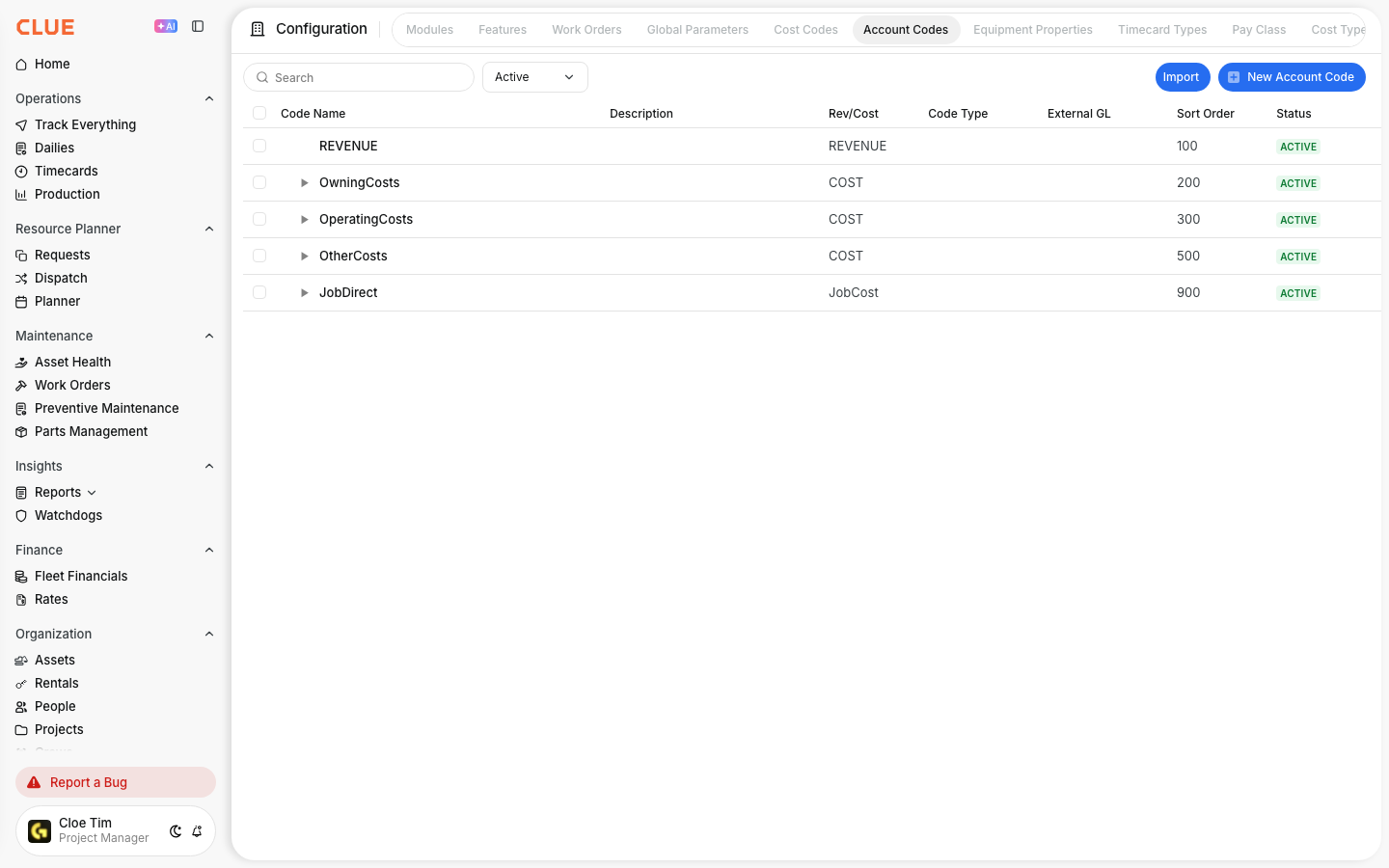
Go to Company Settings > Configuration > Account Codes. Click Import, next to New Account Code.
Step 2: Get the template
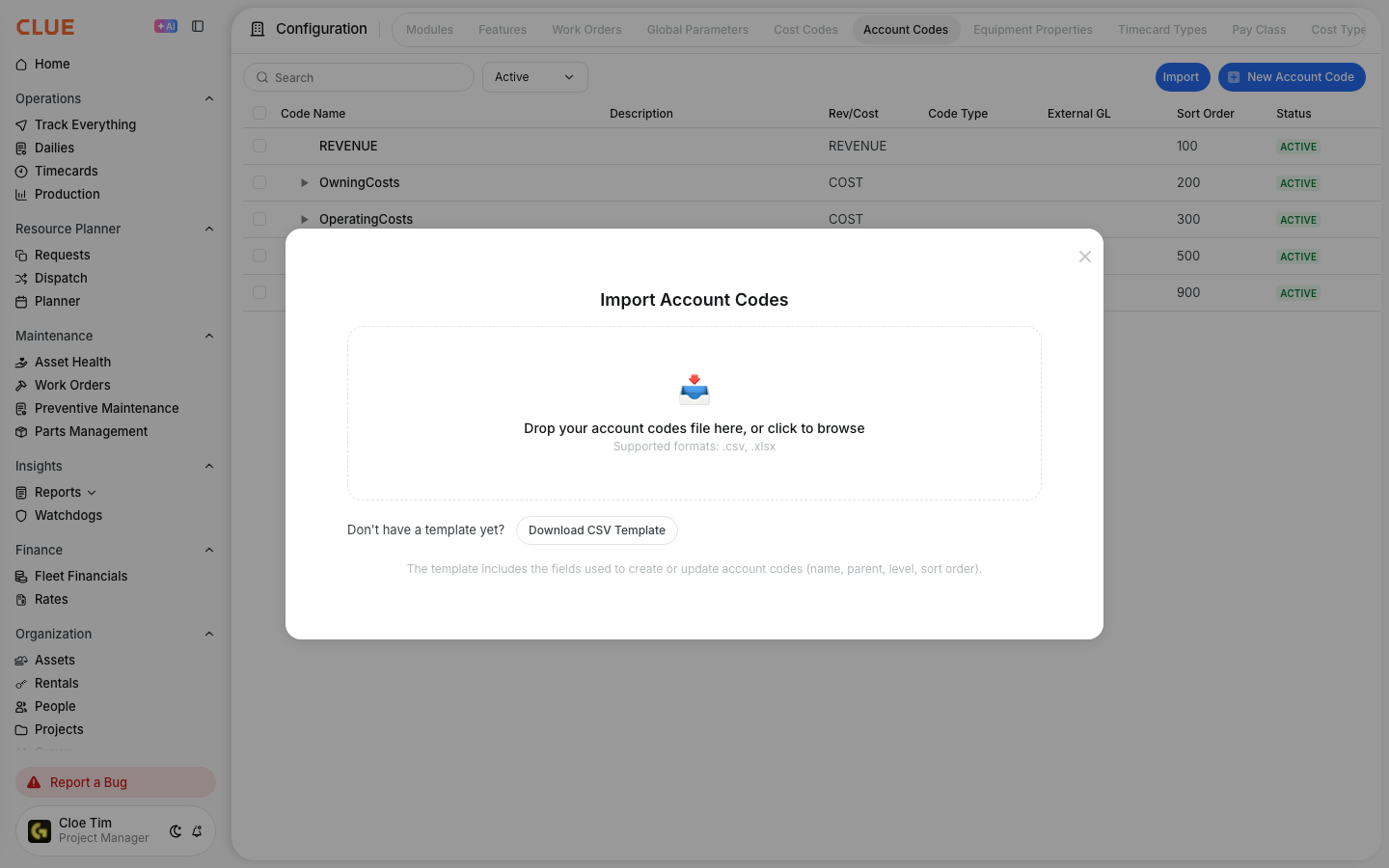
The Import Account Codes window opens. Click Download CSV Template and fill in one code per row.
Step 3: Upload, review and import
Drop your file on the upload area, or click to browse. Review the preview, then click Continue to Import and Yes, import. You can also start here from Company Settings > Import / Export by choosing Account Codes as the Import Type.
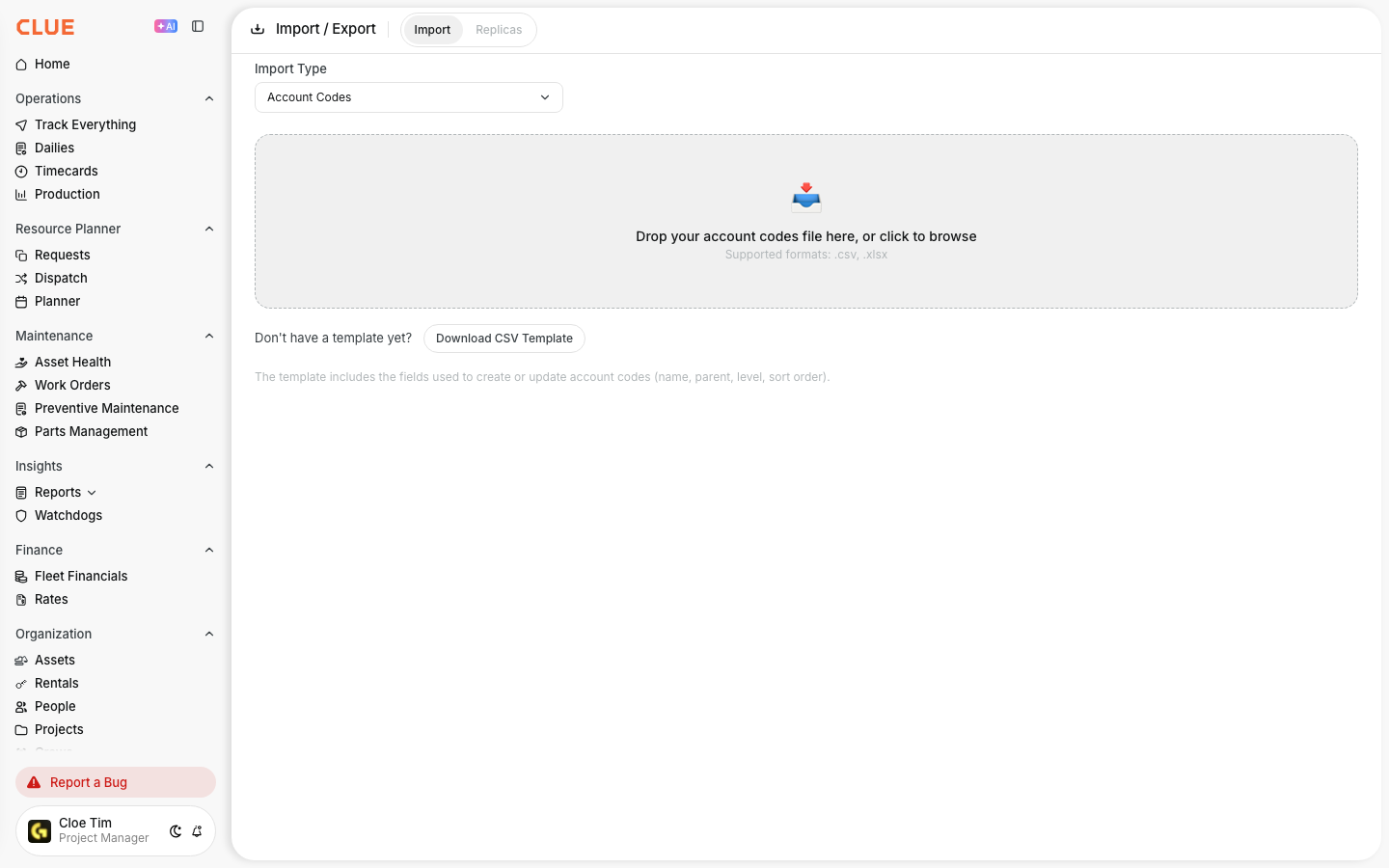
The full details
- Works on: Web app.
- Permission needed: Permission to create codes. Without it, the Import button does not appear.
- File types: CSV and Excel (.xlsx).
- Columns: Accounting Code (required), Description, Parent Code, Revenue/Cost, Code Type, External GL Code, Notes, Sort Order.
- Revenue/Cost: REVENUE or COST. An empty cell means COST.
- Code Type: owningCost or operatingCost.
- Matching: Rows match existing codes by name. Capital letters do not matter. A match updates that code, no match creates a new one.
- Inactive codes: A row that matches an inactive code makes it active again.
- Status: Every imported code is set to Active.
- Preview: Rows are counted as New, Updated, Unchanged or Errors. Click a count to show only those rows.
- Errors: A name used twice in the file, a Parent Code that matches nothing, two codes that are each other's parent, a value Clue does not accept, or a Sort Order that is not a whole number.
Tips
- Start from the downloaded template. The column names must match.
- Put a parent and its children in the same file. Clue links them for you.
- Fix a bad row in the preview with Edit row, or drop it with Delete row. No need to upload again.
- Click the Errors count first. Clear those rows, then import.