Set Your Own Units, Currency, and Timezone
What is this?
Everyone on your team can set their own timezone, units, and currency. Choose miles or kilometers. Choose Fahrenheit or Celsius. Choose your currency and date format. Your settings only change what you see. Nobody else's screen changes.
Who's this for?
- Fleet and equipment managers, view reports in the units you think in.
- Dispatchers and field supervisors, see times in your own timezone, always.
- Mechanics and operators, read fuel and volume in liters or gallons, your choice.
- Finance and office staff, view costs in your own currency, converted automatically.
How to use it
Step 1: Open your preferences
Click the gear icon next to your profile in the bottom-left corner. This opens User Preferences.

Step 2: Choose your units
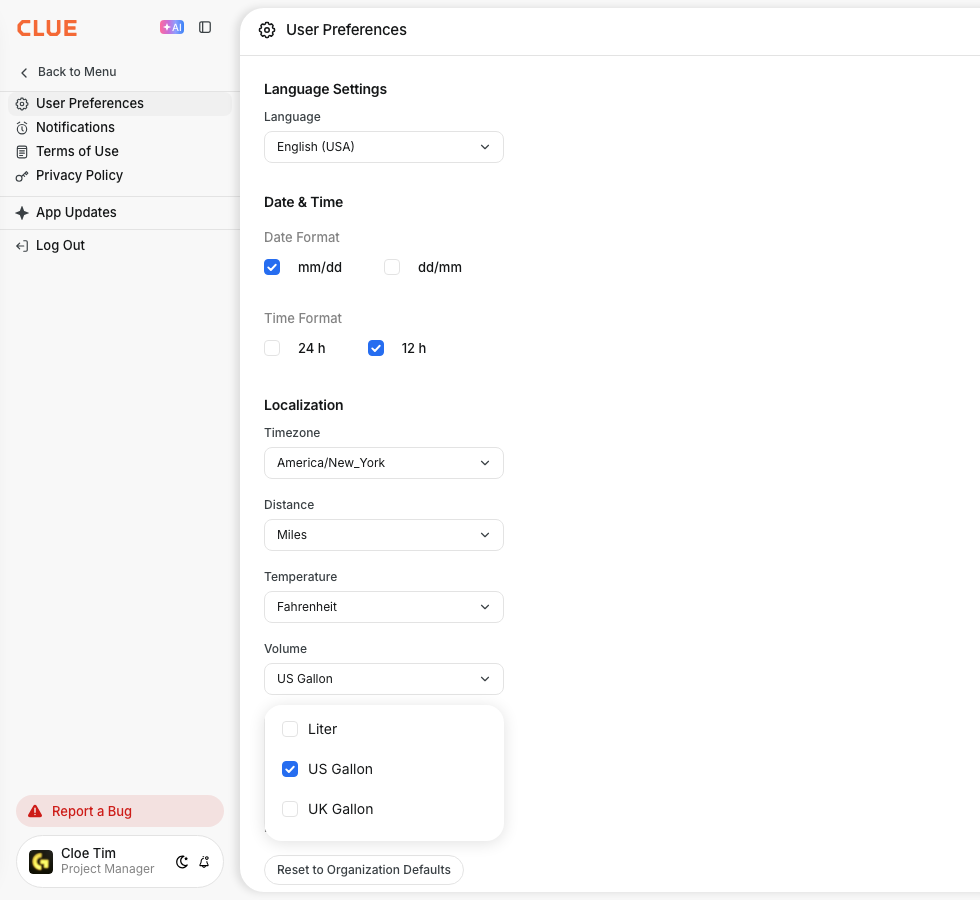
Pick Distance in miles or kilometers. Pick Temperature in Fahrenheit or Celsius. Pick Volume in liters, gallons, or imperial gallons from the dropdown.
Step 3: Choose your currency
Choose your currency from the dropdown. Start typing to search the list. Date and time format, like mm/dd and 24-hour, are set in the Date & Time section on the same screen.

Step 4: Set your timezone
Type in the Time Zone field to search. Pick from about 400 zones. Select yours and it saves right away.

Step 5: Reset to defaults, if you want to
Click Reset to Organization Defaults to return your timezone, units, and currency to your company's standard settings. A "(default)" label shows next to any field still using that setting.

The full details
- Works on: Web app and mobile app.
- Mobile access: Open User Settings in the app. Same preferences, same screen layout.
- Applies to: Timecards, Rentals, Work Orders, Parts, and Project KPIs.
- Currency conversion: Dollar amounts convert to your chosen currency using exchange rates your admin manages. A cost stored in USD shows correctly in EUR or MXN, a real conversion, not just a symbol swap.
- New team members: Get sensible defaults based on their country at signup. Nothing to configure on day one.
- Team impact: Your choices apply only to your own view. Coworkers keep their own settings.
Tips
- Set your timezone first. It affects how every date and time displays across the app.
- Switch your currency before reviewing cost reports, so totals match what you expect.
- Forgot what you changed? Look for the "(default)" hint. It marks any setting still on the company standard.
- Mechanics working with fuel logs should confirm Volume matches the units on the equipment gauge.