Operating Hours and Operating Assets
Available now on Beta, This feature is in beta testing and will roll out to everyone soon.
What is this?
Operating Hours show how long each asset worked during a shift. The Operating Asset count shows how many assets worked out of all the assets on the project. Use these numbers to see idle equipment fast.
Who's this for?
- Superintendents, to see which machines worked and which sat idle.
- Foremen, to check that every truck ran the full shift.
- Project managers, to compare equipment hours with the work done.
How to use it
Step 1: Open the project and pick a day
Go to Operations > Production and click your project. Open the date box and pick the day you want. The shift box shows Day Shift.

Step 2: Read the Operating Asset count
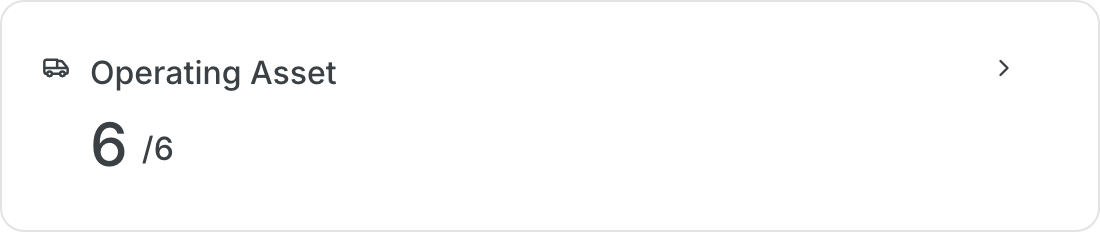
Find the Operating Asset tile. The big number is the assets that worked. The number after the slash is all assets on the project.
Step 3: See hours for each asset
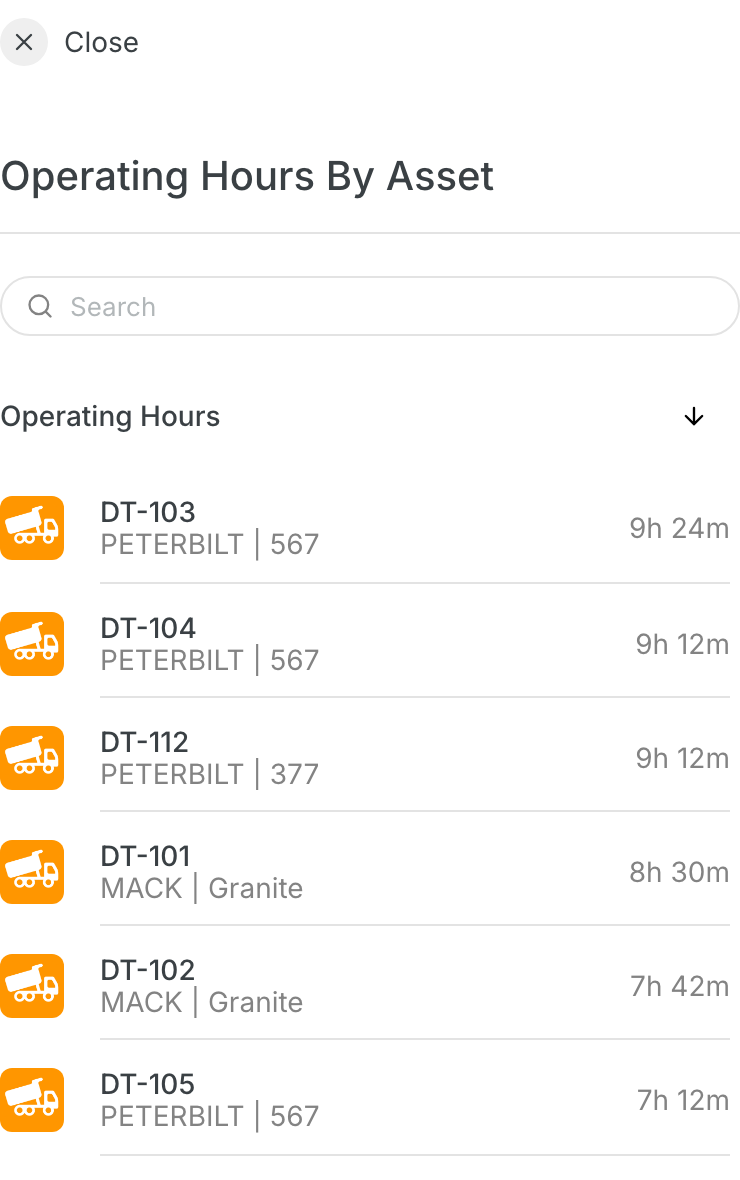
Click the Operating Asset tile. The Operating Hours By Asset list opens with the hours for each asset.
The full details
- Operating Asset: the assets that worked in the shift, out of all project assets.
- Operating Hours: the hours each asset worked in the shift, for example 9h 24m.
- Asset row: the asset name with its make and model.
- Search: type an asset name to find it in the list.
- Sort: click the arrow next to Operating Hours to change the order.
- Date and shift: the numbers follow the shift and date you pick.
Tips
- Compare the hours with the shift length to find idle time.
- Check assets at the bottom of the list first. They worked the least.
- Click Close to go back to the project page.