Track Required Items with the Inspection Progress Bar
What is this?
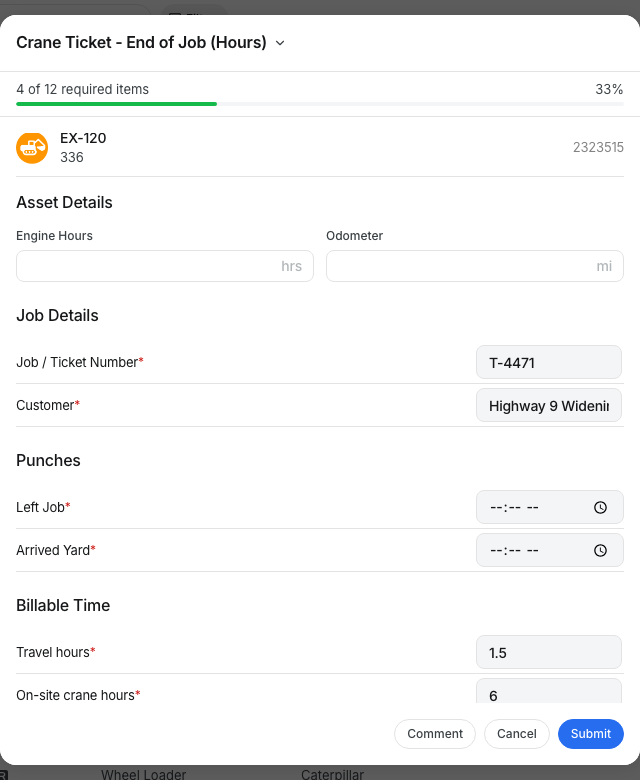
Every inspection with required items shows a progress bar at the top of the form. It reads like "4 of 12 required items" with a percentage next to it. The bar moves as you answer items and stays in view while you scroll. At 100%, every required item has an answer and you are ready to submit.
Who's this for?
Anyone who fills out inspections or checklists, on the web or on the phone.
- Operators and field crew, see how many required items are left on the daily walkaround.
- Mechanics, work through long service checklists without missing a required item.
- Equipment managers, get complete inspections back from the field.
How to use it
Step 1: Start an inspection
On the web app, go to Assets and click the asset. Open the ... menu and click Inspect Asset. On the mobile app, start an inspection the way you always do.
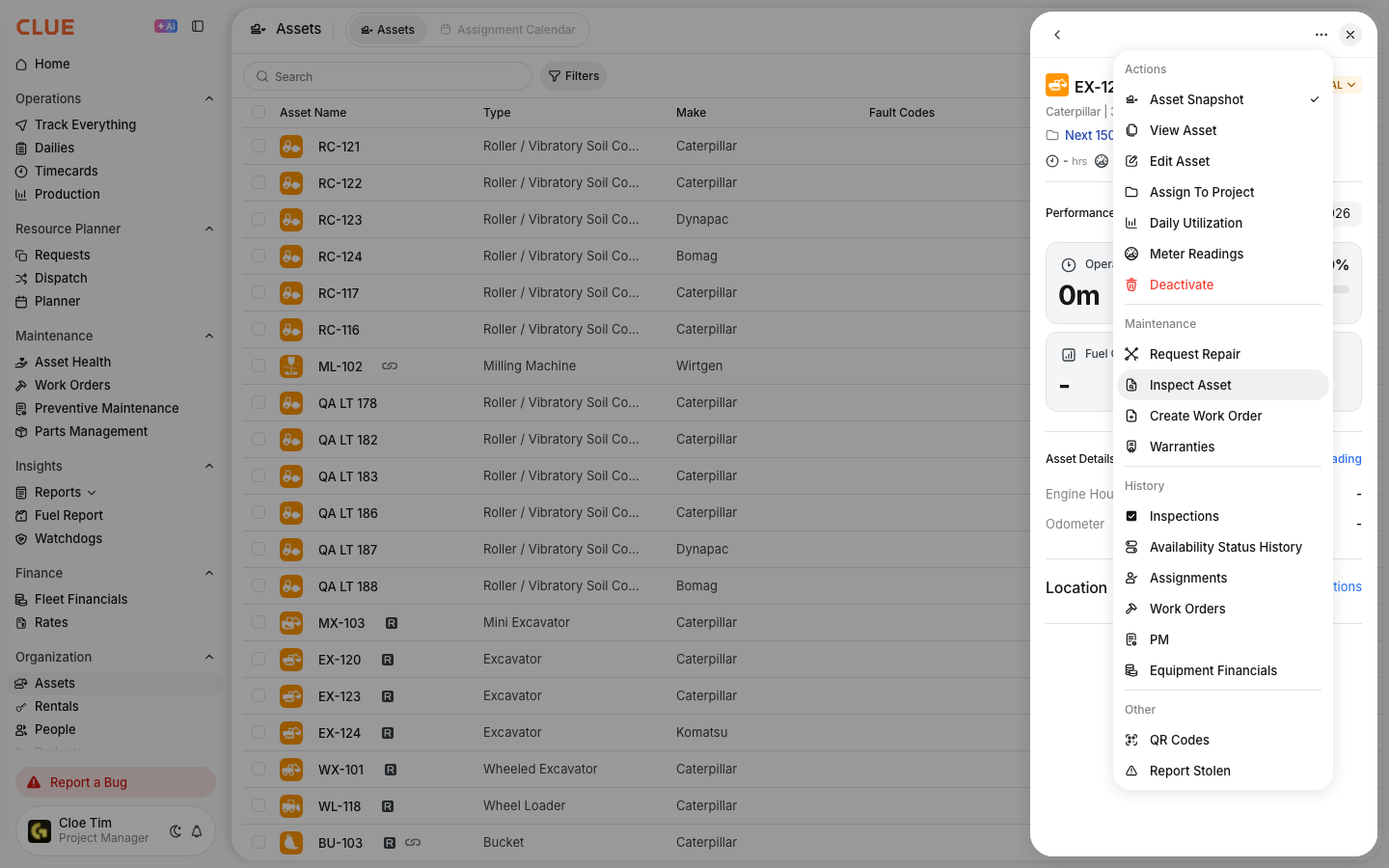
Step 2: Check the count
Pick the template. The bar shows how many required items it has, starting at 0%. Required items have a red asterisk.
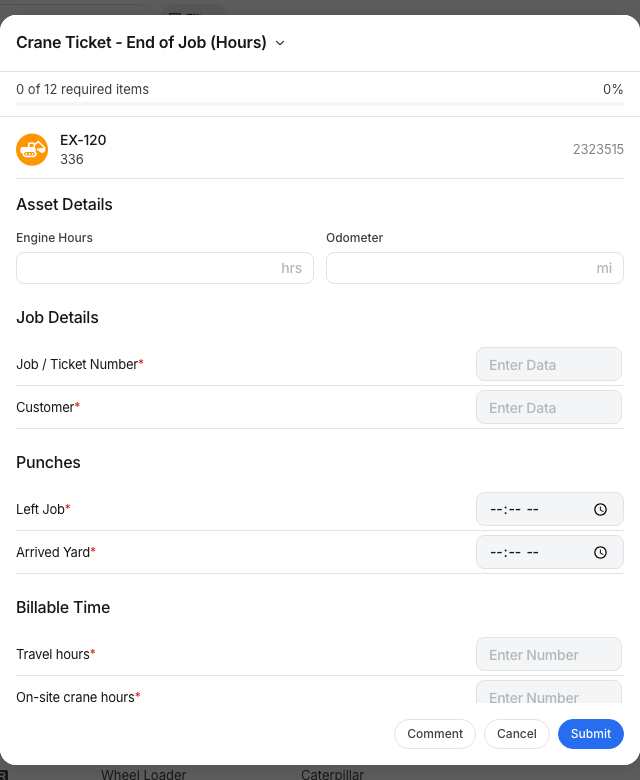
Step 3: Answer the required items
Each answer moves the bar forward. Clear an answer and the count goes back down.
Step 4: Scroll and finish
The bar stays at the top while you scroll. When it reads 100%, click Submit.
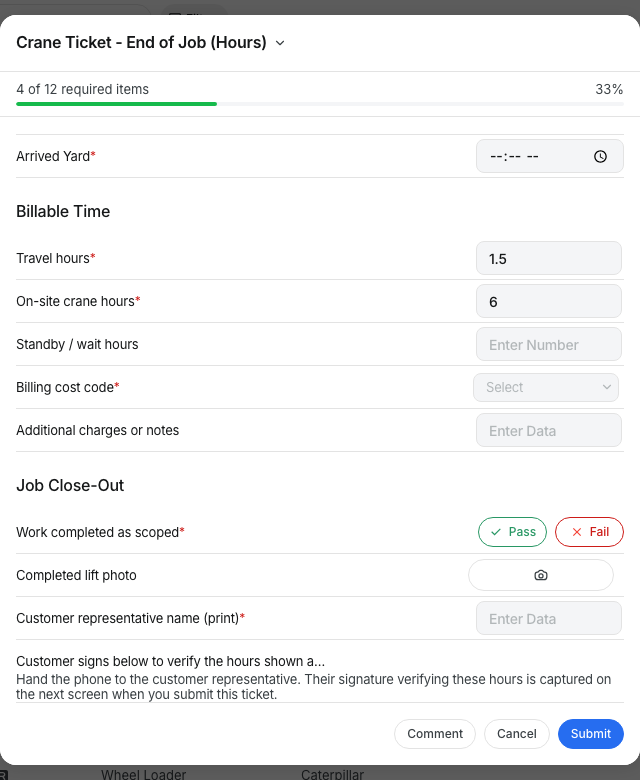
The full details
- Works on: Web app and mobile app.
- What counts: Required items only. Optional items and instruction lines are not counted.
- What counts as answered: Pass, Fail, N/A, a typed value, a photo or a reported issue.
- On/off switches: Always count as answered, because they always have a value.
- No required items: The bar does not show.
- Setup: None. It shows on its own for every template with required items.
Tips
- Stuck below 100%? Scroll up and look for an empty item with a red asterisk.
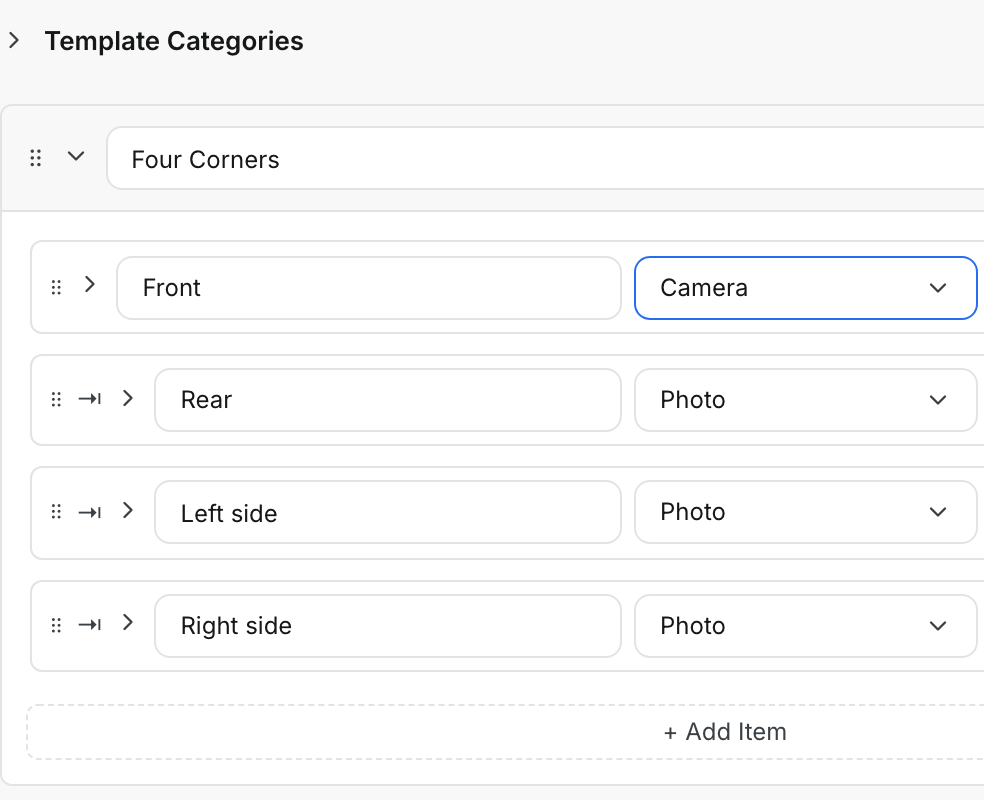
- Want the bar to mean more? Mark the items that matter as required in your inspection template.
- A Fail answer still counts as answered. The bar tracks what is filled in, not what passed.