Import Parts Inventory from a File
What is this?
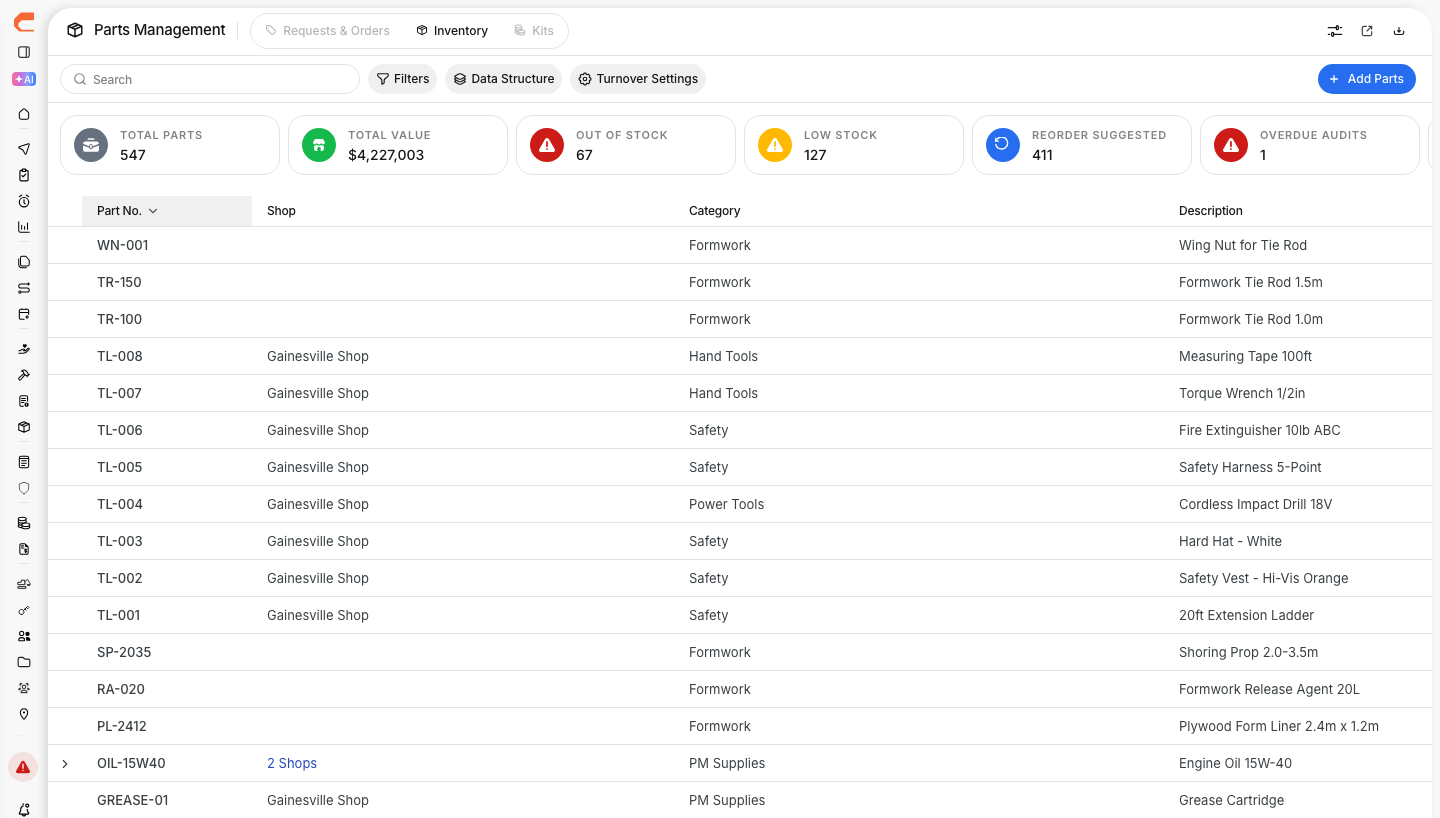
You can add your whole parts list to Clue from one spreadsheet. Each row is one part in one shop. Clue checks every row before it saves anything. You fix the problems, then import the rest in one click.
Who's this for?
- Equipment managers, load the full parts catalog when you start with Parts Management.
- Parts managers and shop foremen, stock a new shop, down to aisle, row and bin.
- System admins, move parts over from an old system without retyping them.
How to use it
Step 1: Open the Import tab
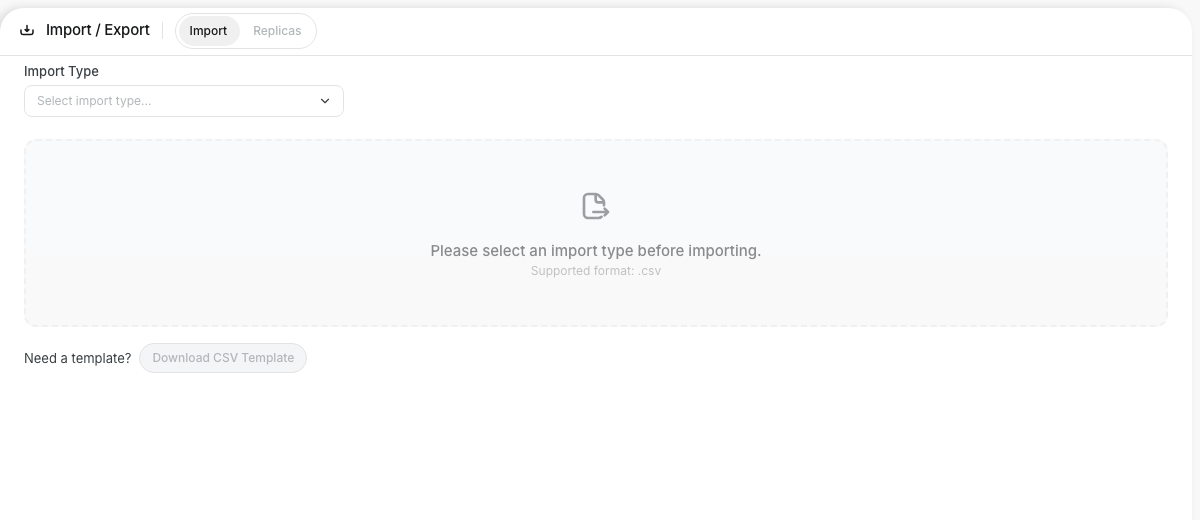
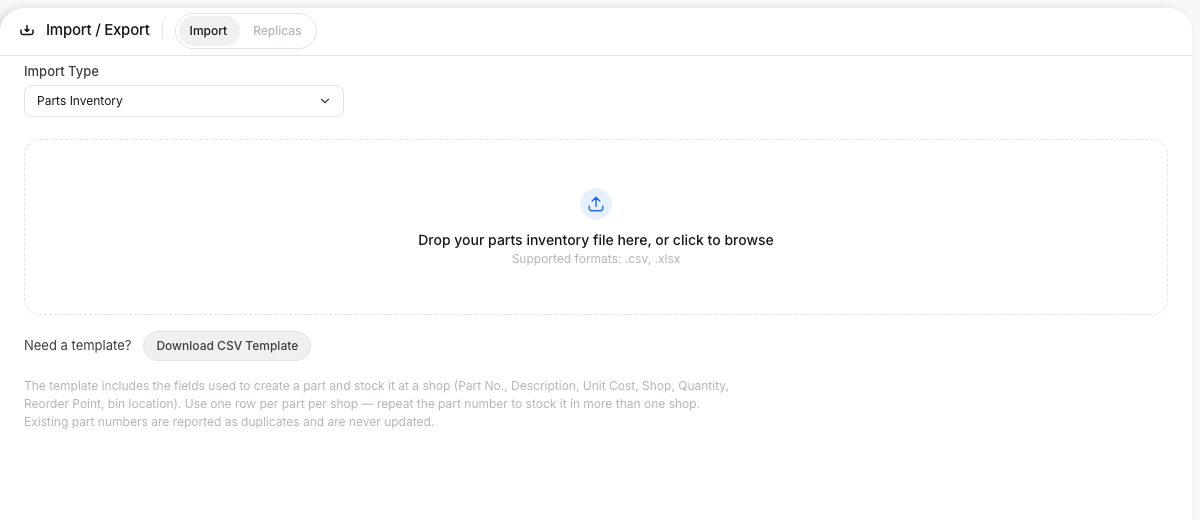
Go to Company Settings > Import / Export. Stay on the Import tab.
Step 2: Choose Parts Inventory
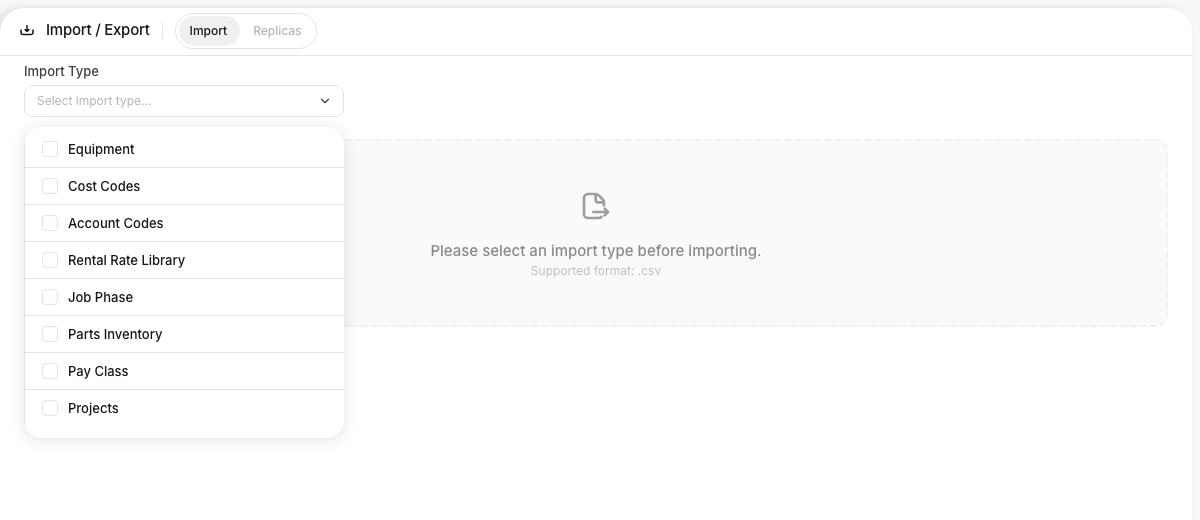
Open the Import Type list. Select Parts Inventory.
Step 3: Fill in the template and upload it
Click Download CSV Template and fill in one row per part per shop. Drop the file on the upload area. Clue shows a preview with each row marked New or Errors. Fix any errors, then click Import Rows.
The full details
- Works on: Web app.
- Files: CSV or Excel (.xlsx), up to 3,000 rows per file.
- Required columns: Part No. and Description. Reorder Point is required when Track Inventory is Yes.
- Shops: The Shop column must match a shop or dealership you can see in Clue.
- Several shops: Repeat the Part No. on one row per shop. Clue creates one part with stock in each shop.
- Existing parts: A Part No. you already have is flagged as a duplicate and never changed.
- Quantity: Decimals are fine, for example 2.5. Blank means 0.
- Track Inventory: Yes or No. Y/N and 1/0 also work.
- Audit Frequency: MONTHLY, 2-MONTHS, 3-MONTHS, 4-MONTHS, 5-MONTHS, 6-MONTHS or YEARLY.
- Results: Import Complete shows how many parts were created, how many failed, and why.
Tips
- Fix small mistakes right in the preview. Click Validate Changes after editing, then import.
- Use the Errors filter to see only the rows that need work.
- Uploading the same file twice is safe. Nothing is created the second time.
- Set up your shops in Clue first, so the Shop column matches.