Understanding Parts Management
Parts Management helps you track inventory, submit part requests, and follow orders from request through delivery. It gives maintenance teams one place to manage stock and keep repairs moving without losing track of part costs.
Accessing Parts Management
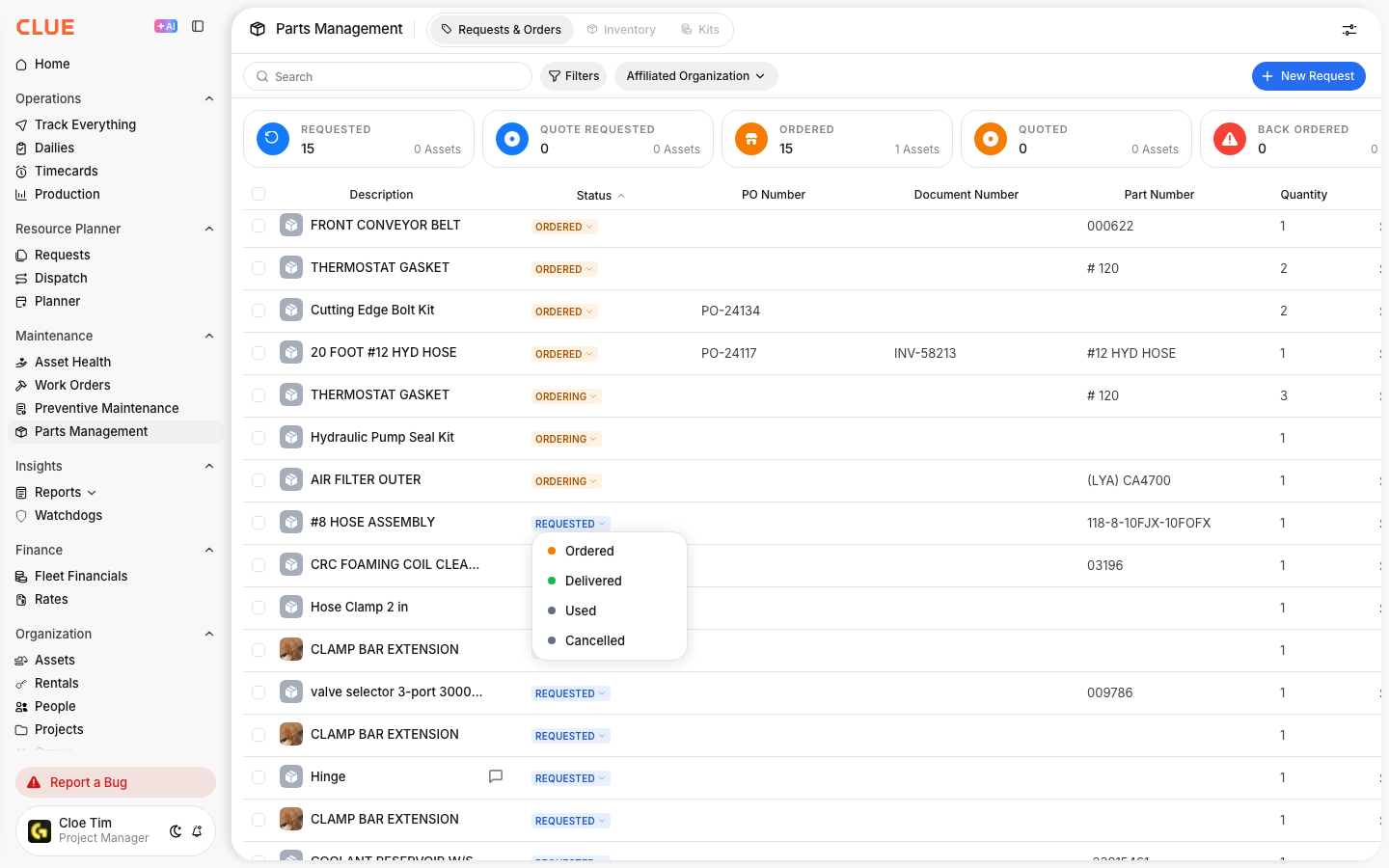
Open Maintenance > Parts Management from the main menu. CLUE’s Parts Management area includes two main tabs: Requests & Orders and Inventory. If your team is just getting started with the module, this article fits naturally with Creating Parts Requests, Managing Parts Orders, and Viewing Parts Inventory.
Status cards at the top show the open parts activity. Click a card to filter the table by that status.
- Breakdown - the equipment is down and waits for parts
- Requested - the parts are requested but not ordered
- Ordered - the parts are ordered from the vendor
- Delivery Scheduled - the parts are on the way
Use the buttons at the top of the page to search, filter, create a purchase order (Order), log a delivery (Delivery) or add a parts request (New Request).

Requests & Orders Tab
Use the Requests & Orders tab to follow parts through the purchasing process. This is where teams can see what has been requested, what has already been ordered, and what has been received. If someone needs to submit a new request, send them to Creating Parts Requests. If they need to follow a vendor order through delivery, Managing Parts Orders is the right next step.

Common stages include:
- Pending Requests - parts that are needed but not ordered yet
- Open Orders - parts that have been ordered and are still on the way
- Received - parts that have arrived.
Inventory Tab
Use the Inventory tab to review what is already in stock. This view helps teams check quantities, storage locations, and reorder points before requesting something new. For a closer walkthrough of the stock view, link this section to Viewing Parts Inventory. If the item is not in stock yet, users can move from here into Adding Parts to Inventory or Creating Parts Requests.
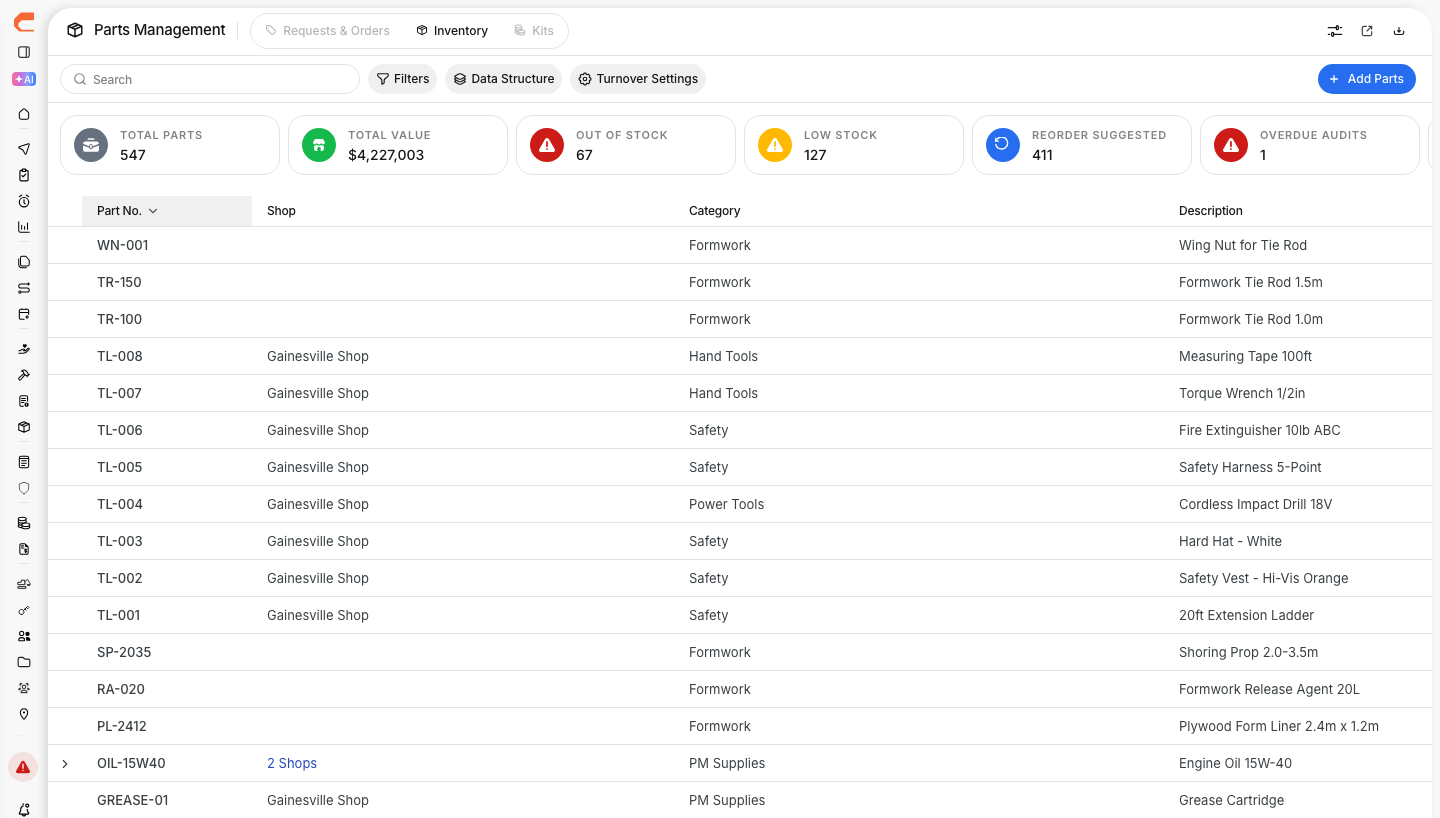
The inventory view typically shows:
- Part Name / Number - the part identifier
- Quantity on Hand - the current stock level
- Location - where the part is stored
- Reorder Point - the level where more stock should be ordered.
Parts Workflow
Parts Management supports the full parts flow from request to use. This helps teams keep repair work connected to the parts needed for that repair. When the part is actually used on a job, Adding Parts to Work Orders is the natural next step so the cost stays tied to the work order.

A typical workflow looks like this:
- Request - a mechanic requests the part
- Approve - a manager reviews and approves it
- Order - purchasing places the order
- Receive - the part arrives and is checked in
- Issue - the part is used on a work order.
Benefits
Using Parts Management gives the shop a clearer picture of what is in stock and what still needs to be ordered. It also helps reduce repair delays, improve cost tracking, and keep the team from over-ordering the same items. If your team reviews maintenance costs by repair, this section works well with Tracking Parts Costs and Adding Parts to Work Orders.
Tips
A few simple habits make Parts Management more useful over time. Keep inventory counts up to date, set reorder points on important parts, and make sure parts are linked back to the work orders where they were used. That keeps stock levels cleaner and gives you better repair cost history.
- Audit inventory regularly so counts stay accurate
- Set reorder points for critical or fast-moving parts
- Link parts to work orders so labor and parts costs stay together
- Use consistent part names and numbers so searching and reporting are easier.