What is this?
Geofence alerts tell you when equipment or people enter or leave a site. Now you can put those alerts on a schedule. Pick the days and hours you want to hear about, and Clue stays quiet the rest of the time.
Who's this for?
- Equipment managers, watch for gear leaving a yard or jobsite after hours.
- Dispatchers, skip the daytime noise and focus on off-hours movement.
- Field supervisors, get a heads up on weekends and holidays when nothing should be moving.
How to use it
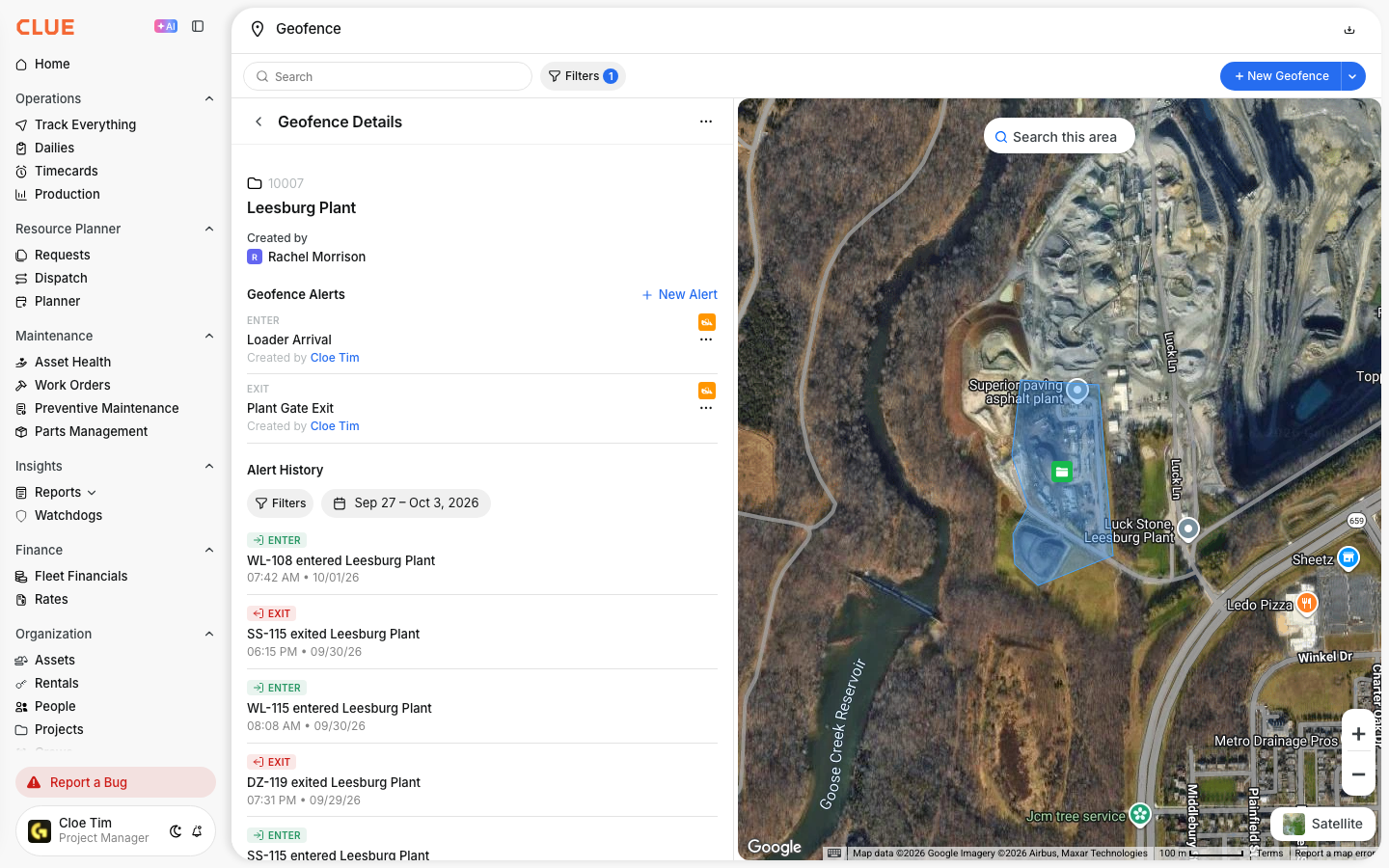
Step 1: Open a geofence
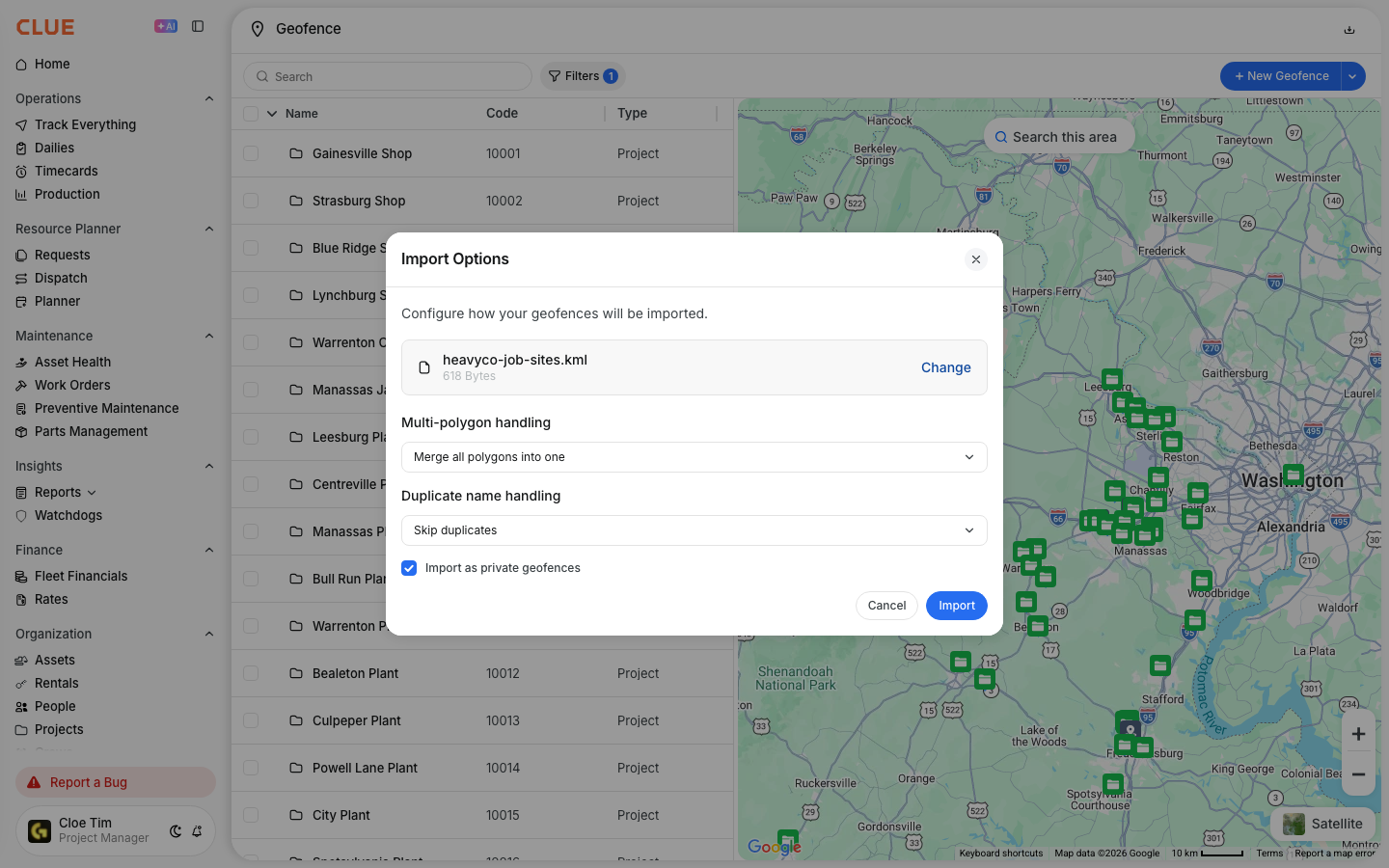
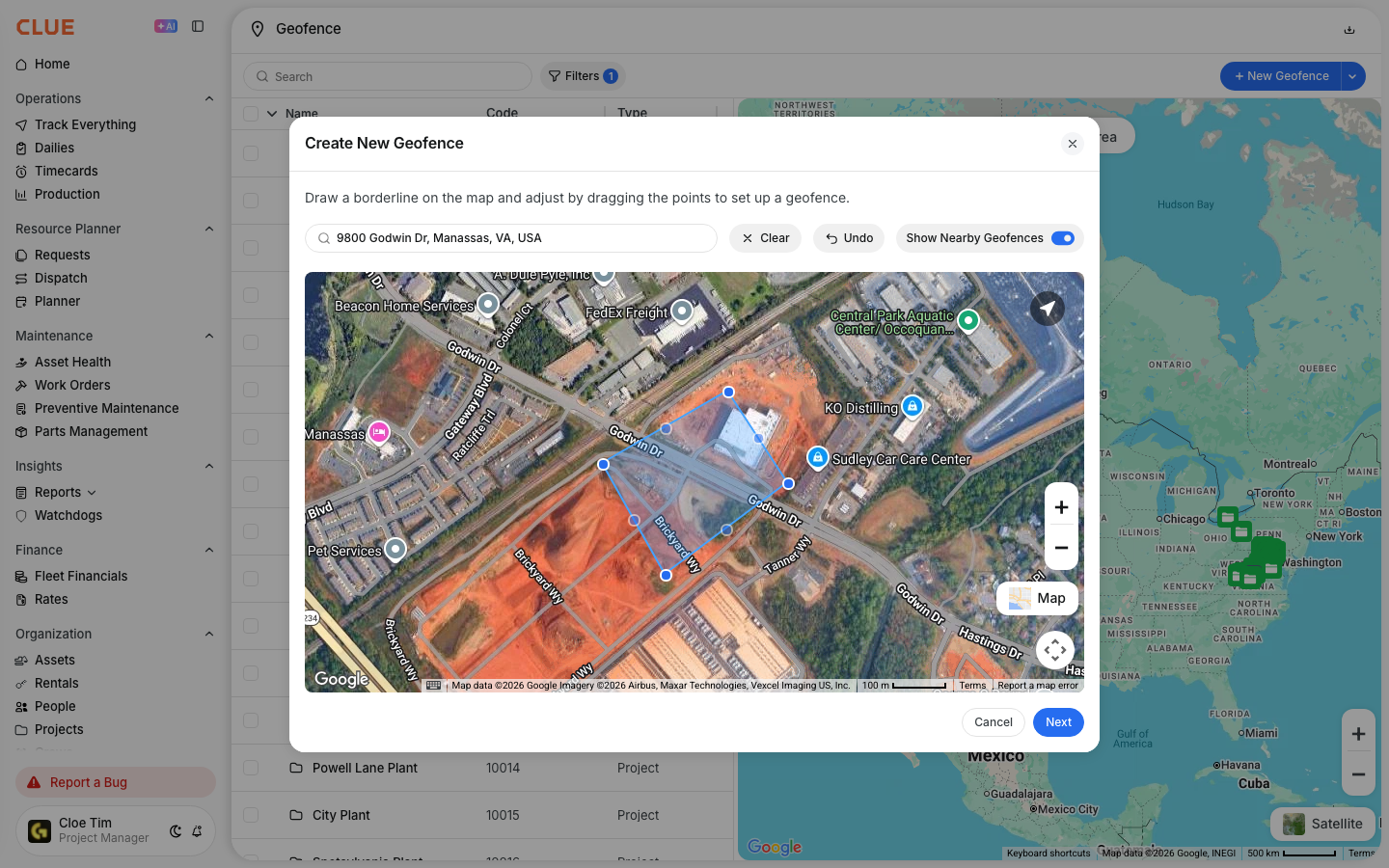
Go to Geofences. Open the geofence you want, then select Create Alert.

Step 2: Set the alert
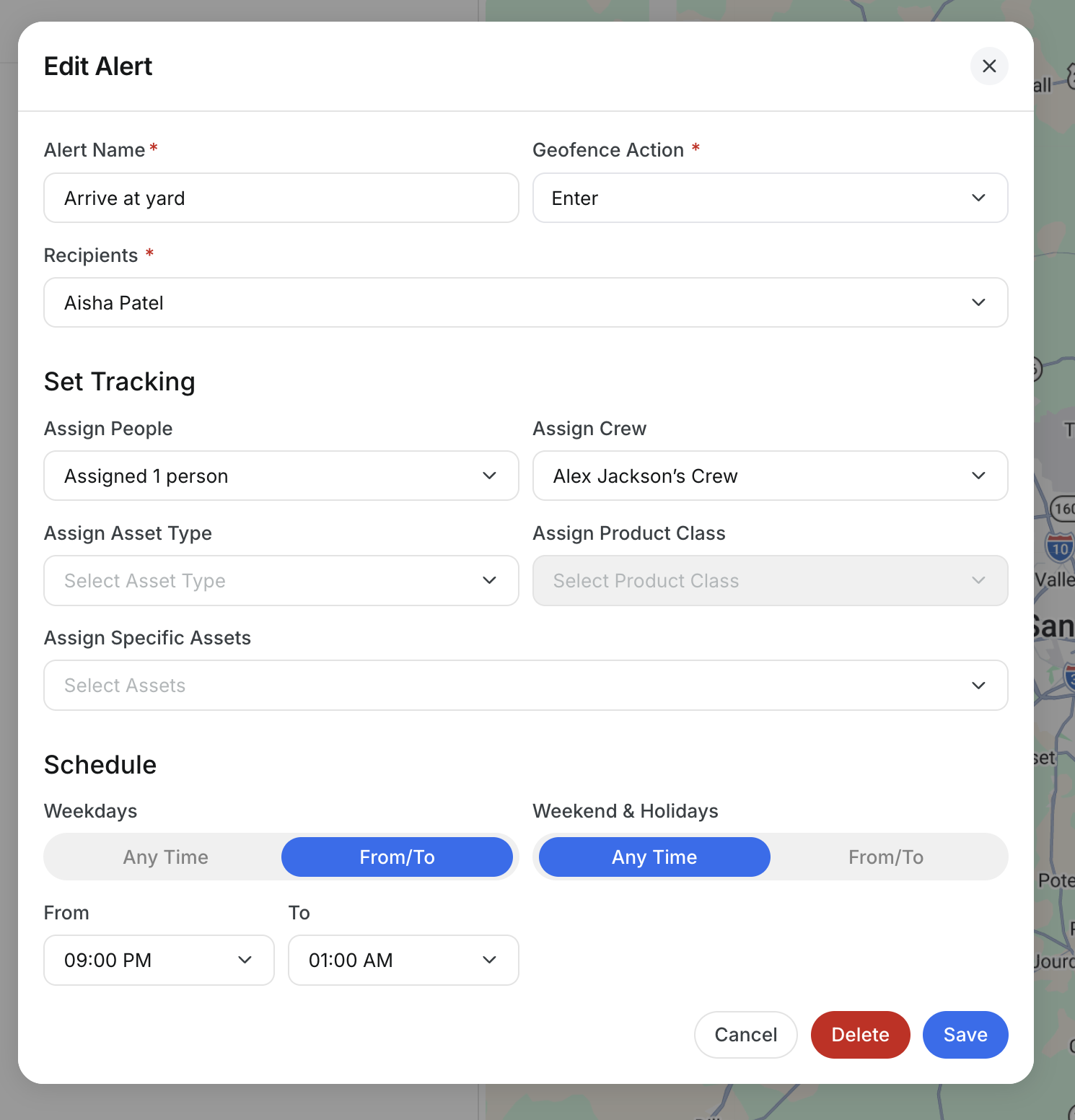
Give the alert a name. Choose the action: Enter, Exit, or Both. Pick who gets notified.

Step 3: Set the schedule
In the Schedule section, set Weekdays and Weekend and Holidays. Choose Any Time, or choose From/To and pick a start and end time. Then save.
The full details
- Works on: Web app. Alerts arrive as push notifications in the CLUE mobile app.
- Two windows: Weekdays and Weekend and Holidays are set separately.
- Overnight windows: supported. A window of 9:00 PM to 1:00 AM covers the evening into the early morning.
- Time zone: times use the site's local time.
- Days and holidays: weekends follow your company's working day settings, and holidays follow your company's country calendar.
Tips
- For after-hours exits, set Weekdays to a From/To window like 7:00 PM to 5:00 AM, and set Weekend and Holidays to Any Time.
- Leave both on Any Time to keep an alert running around the clock.
- Set the action to Exit for left the site, or Enter for arrived on site.