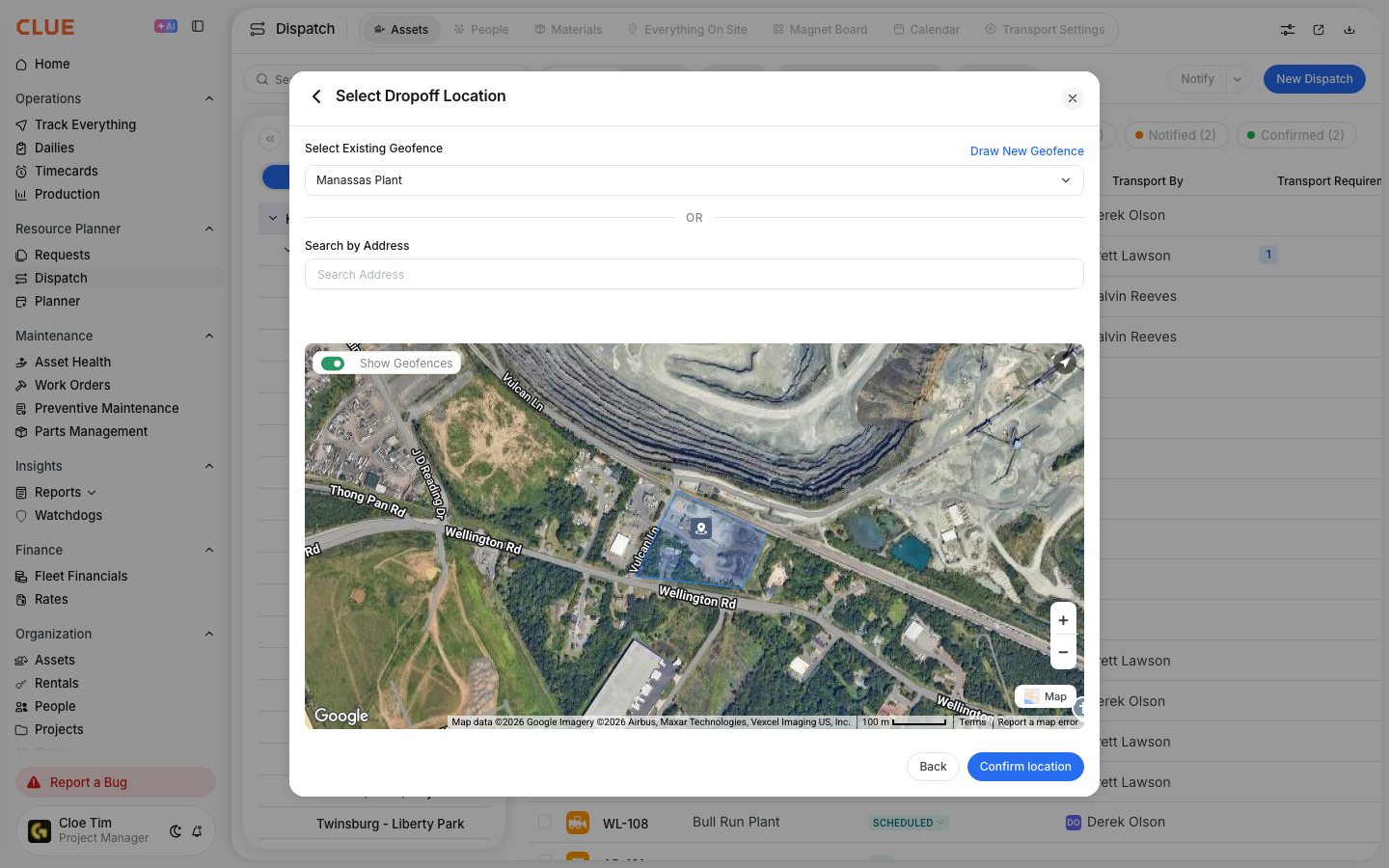
Create a geofence when you want CLUE to track a real-world location like a yard, job site, shop, or restricted area. Once the boundary is saved, CLUE can use it for location tracking, alerts, dispatch, and site-based reporting.
Overview
A geofence is a boundary you draw on the map around a location you want to monitor. CLUE uses that boundary to track when assets enter or leave the area. If you want the broader setup first, this article fits well with Understanding Geofences.
Step 1: Navigate to Geofences
Start in the Geofence Directory. This is where you can see existing geofences in a list and on the map.
Go to Directory > Geofence in the sidebar. The left panel shows your geofence list, and the map shows where each one is located. Clicking a geofence name zooms the map to that area.

Step 2: Click New Geofence
Once you are in the directory, open the create form to start drawing a new boundary.
Click New Geofence in the top-right corner. This opens the geofence form and the map tools you will use to draw the area.

Step 3: Fill Out Geofence Details
Add the basic geofence details before you save. Keep the name clear so dispatchers, field teams, and managers can recognize the location right away.
The main fields include:
- Geofence Name - the location name
- Type - such as yard, job site, or office
- Associated Project - links the geofence to a project
- Color - controls how the boundary appears on the map
- Radius - used for circular geofences
- Make this Geofence Private - limits visibility when needed.
If the boundary belongs to a job site that is still being set up, it makes sense to create the project first in Creating a New Project, then link the geofence to that project so reporting and dispatch stay aligned. CLUE’s project setup also supports location-based tracking through project geofences.

Step 4: Draw the Boundary
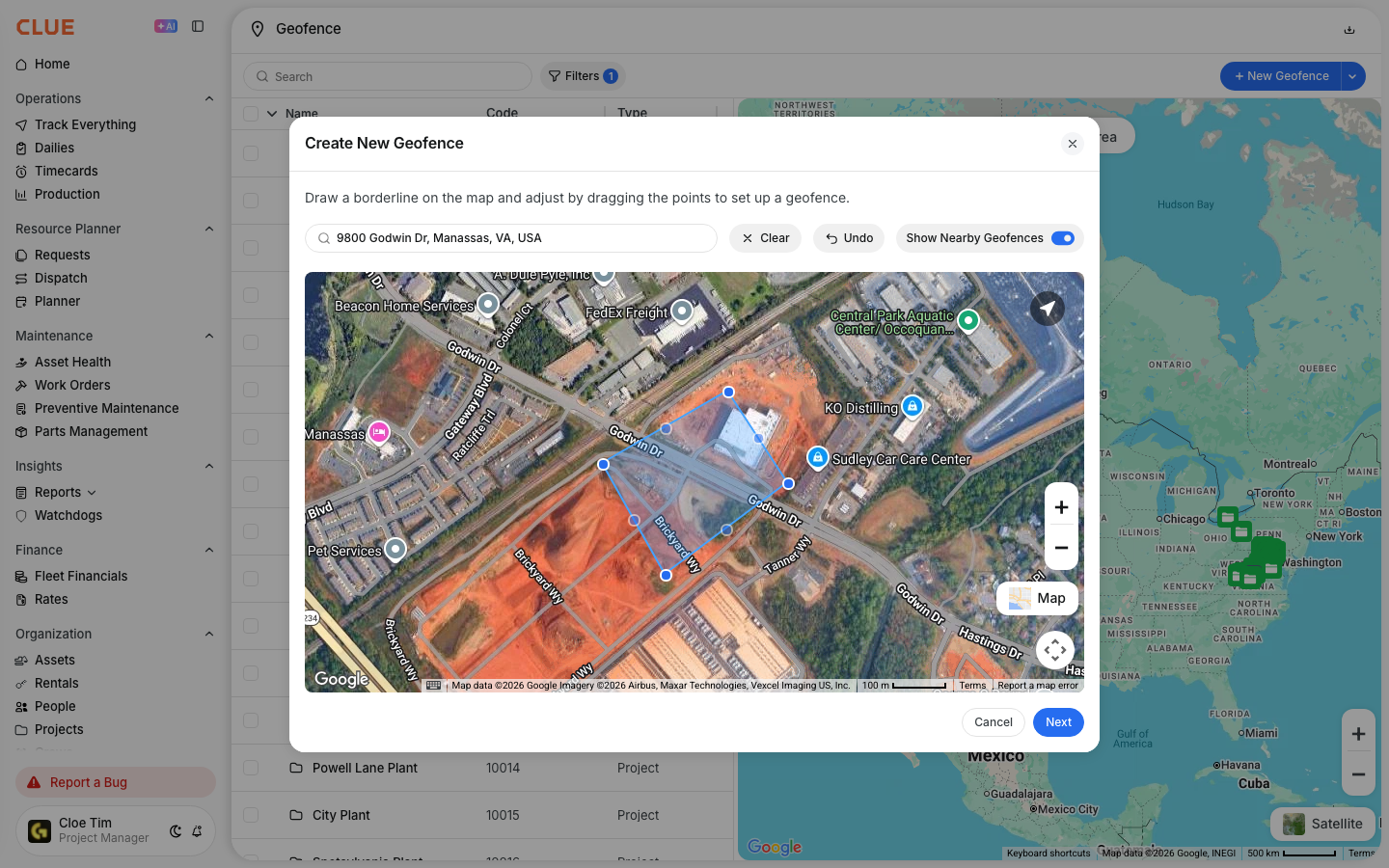
Use the map tools to outline the area you want CLUE to track. This can be a yard, a full job site, a staging area, or any other location your team needs to monitor.
You can draw the boundary by:
- searching for an address or location name
- clicking on the map to place points
- dragging points to adjust the shape
- clicking the first point again to close the boundary.
For a circular geofence, turn on the Radius option and drag to set the size. If the job site changes later, you can adjust the shape in Editing Geofence Boundaries instead of creating a new one from scratch.
Step 5: Save the Geofence
After the details and boundary are ready, save the geofence to make it available across CLUE.
Once saved, the geofence appears in the Geofence Directory and can be used in other location-based workflows.
What Geofences Enable?
A geofence does more than mark a spot on the map. It becomes part of how CLUE tracks field activity and location-based events.
After you create a geofence, CLUE can use it to:
- track arrivals and departures
- trigger location-based alerts
- filter assets by site
- support pickup and drop-off locations in Dispatch
- measure time spent at a location.
This is where the internal links fit naturally. If you want to see geofences on the live map, go to Using Track Everything. If the geofence will be used for project moves, continue using Geofences in Dispatch. If your team needs notifications when equipment crosses the boundary, Understanding Geofence Alerts is the next step.
Tips
A few simple habits make geofences more useful and easier to manage over time.
- Use names your team already recognizes
- Draw the boundary slightly larger than the exact site to allow for GPS drift
- Use colors consistently by site type
- Link job site geofences to projects when possible
- Start with your most common yards, shops, and active projects first.