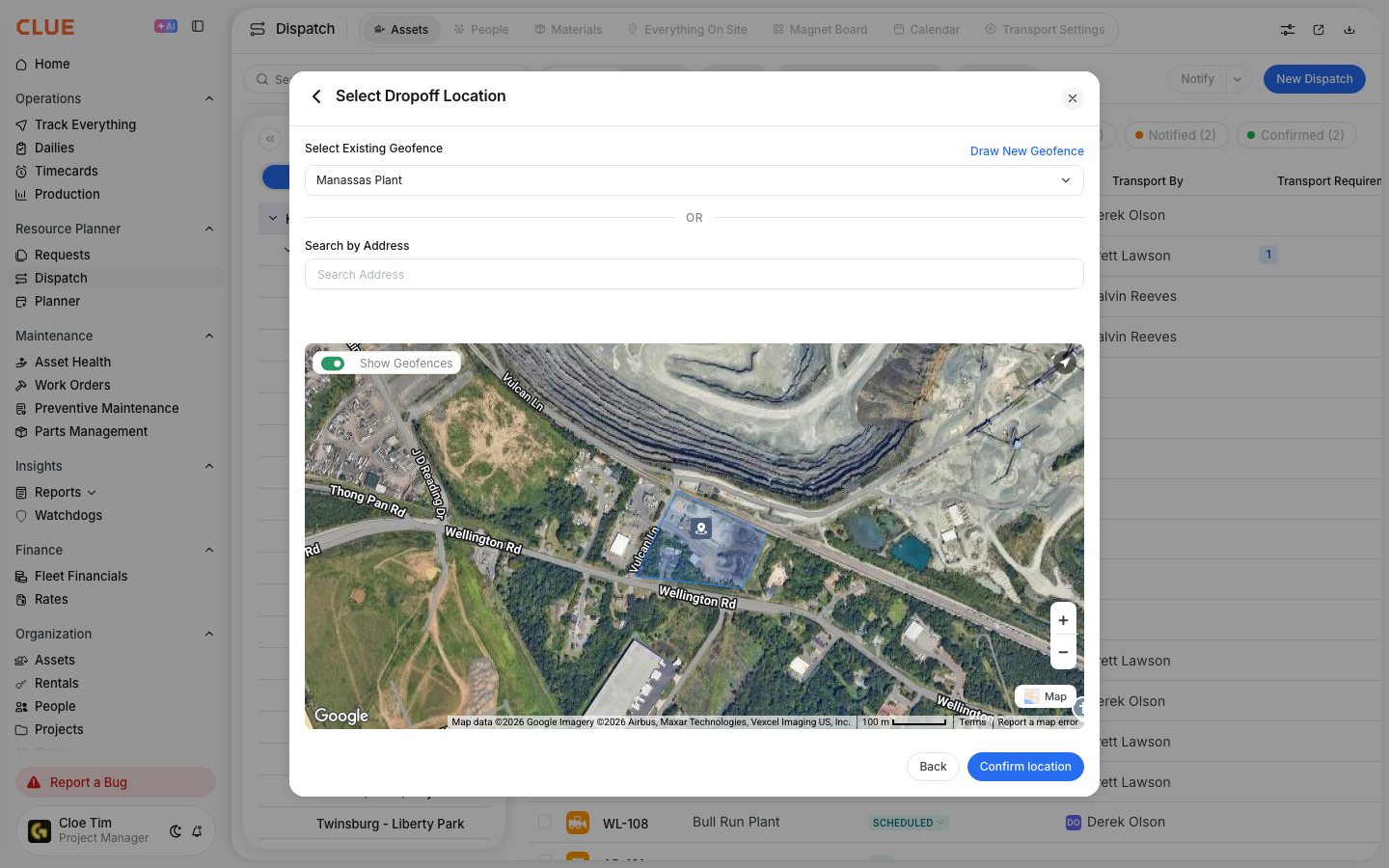
Import geofences in bulk with a KML or KMZ file when you need to set up many job sites, yards, or boundaries at once. This is usually the fastest way to build out a large geofence list without drawing each one by hand.
Geofences on the map
Geofences are used to define real locations on the map, such as job sites, yards, and restricted areas. Once they are in CLUE, your team can use them for tracking, alerts, and dispatch workflows. This is also a natural place to link to Understanding Geofences, Using Track Everything, and Using Geofences in Dispatch.

What are KML/KMZ Files?
KML and KMZ files are common map file formats used to store geographic shapes. They are often created in Google Earth, Google Maps, or GIS tools and can contain the polygon boundaries used to create geofences in CLUE.
- KML - a standard file format for geographic data
- KMZ - a compressed version of a KML file
- Both can contain polygons that define geofence boundaries
Preparing Your File
A clean file makes the import process easier and helps avoid shape or naming problems later. Before importing into CLUE, it is worth checking that the polygons and names are set up clearly.
In Google Earth
If you are building the file in Google Earth Pro, start by creating a polygon for each job site or boundary you want to import. Name each polygon clearly, because that name becomes the geofence name in CLUE. Then right-click the folder or polygon, choose Save Place As, and export the file as KML or KMZ.
File Requirements
Before importing, check that each polygon is a closed shape and that each one has a unique name. It also helps to keep shapes simple, because very complex boundaries can slow performance. If you are importing a large file, test with a smaller batch first.
Importing to CLUE
Once the file is ready, import it from the Geofence area in CLUE. This is the fastest option when you already have site boundaries built outside the system.
Step 1: Open Geofences
Go to Directory > Geofence.
This is the same area used in Creating a New Geofence when you want to draw boundaries by hand instead of importing them.
Step 2: Click Import
Click Import or the upload icon.
This opens the file upload flow for KML or KMZ imports.

Step 3: Select your file
Choose the KML or KMZ file you want to import.
CLUE reads the polygons in the file and prepares them for review before the geofences are created.

Step 4: Preview the geofences
Preview the geofences that will be created and confirm the names.
This is a good time to check for naming issues or shapes that do not look right before finishing the import.
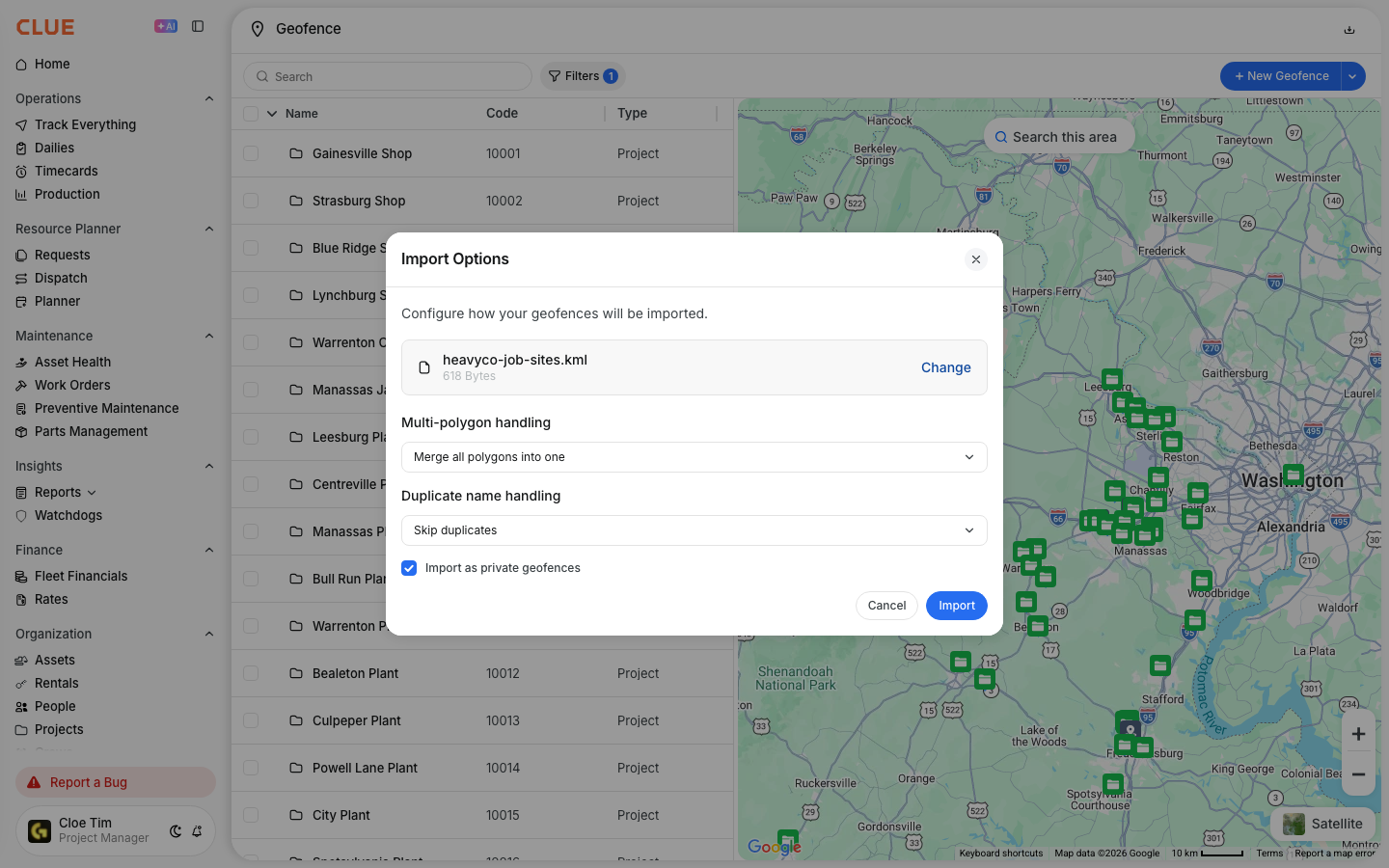
Step 5: Import the geofences
Click Import to create the new geofences.
Once the import is complete, the new boundaries will appear in CLUE and can be used in map views, alerts, and dispatch workflows.
After Import
After the import, review the new geofences to make sure the names and shapes are right. Imported geofences can still be updated later if a site changes or if the original file needs cleanup. This section connects naturally with Editing Geofence Boundaries and Understanding Geofence Alerts.
After import, you can:
- view the new geofences on the map
- edit boundaries if needed
- rename geofences for clarity
- set up alerts for specific geofences
Common Issues
Most import problems come from file formatting or shape setup. A quick review of the file usually fixes the issue before you try again.
Import Fails
If the import fails, first check that the file is a valid KML or KMZ file. Then confirm that the polygons are closed properly and that the file does not contain corrupt or invalid shapes.
Shapes Don’t Appear Correctly
If the shapes import but do not look right on the map, check that the file is using the expected coordinate system and simplify any overly complex polygons. It also helps to confirm the shapes are not too large or too detailed for the use case.
Tips
A few simple habits make bulk imports easier to manage. The main goal is to keep names clear, files organized, and shapes easy to maintain later.
- Organize geofences into folders before export if you are building them in Google Earth
- Use names that match your project naming rules
- Import sites in smaller batches by region, division, or team when possible
- Keep a backup copy of the original KML or KMZ file for future edits
- Use Editing Geofence Boundaries after import when site limits change over time