See HeavyBid Estimates in Dailies
Available now on Beta, This feature is in beta testing and will roll out to everyone soon.
What is this?
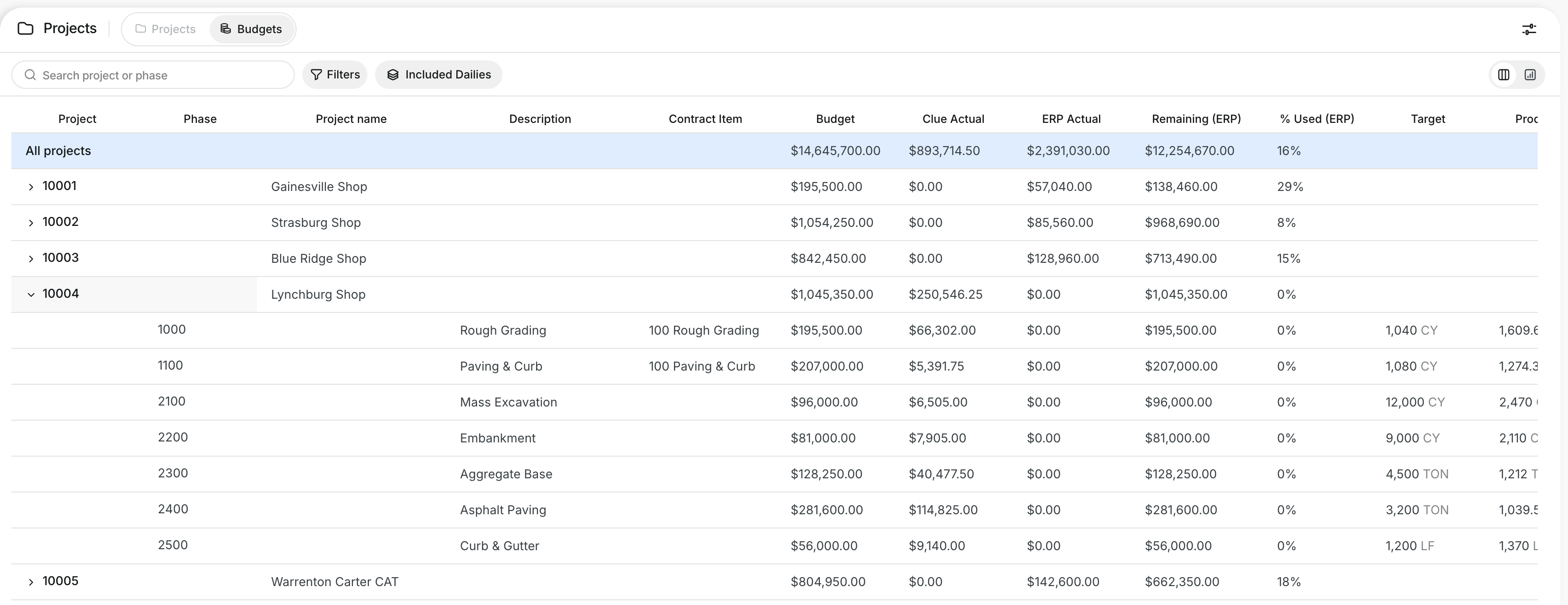
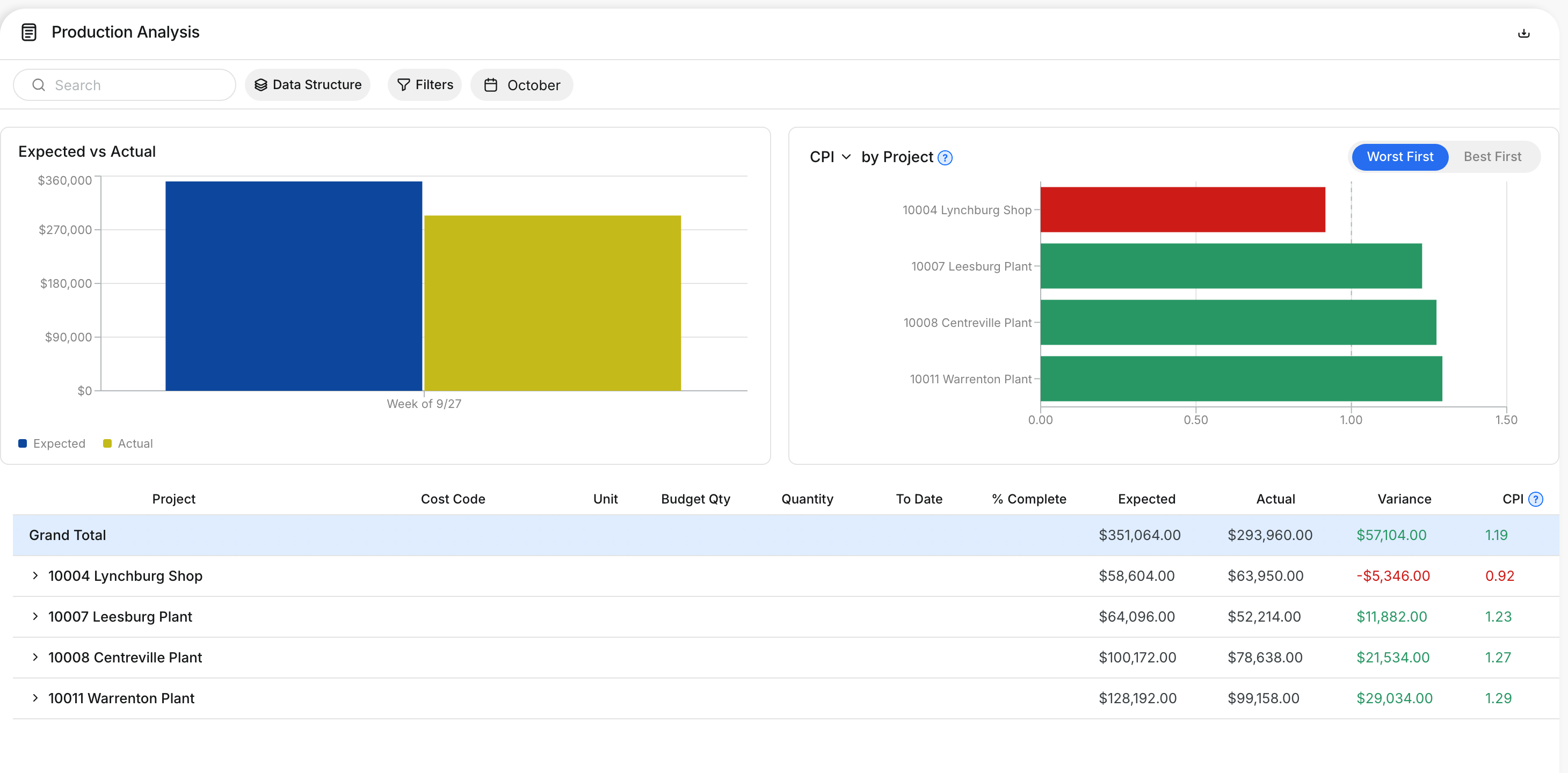
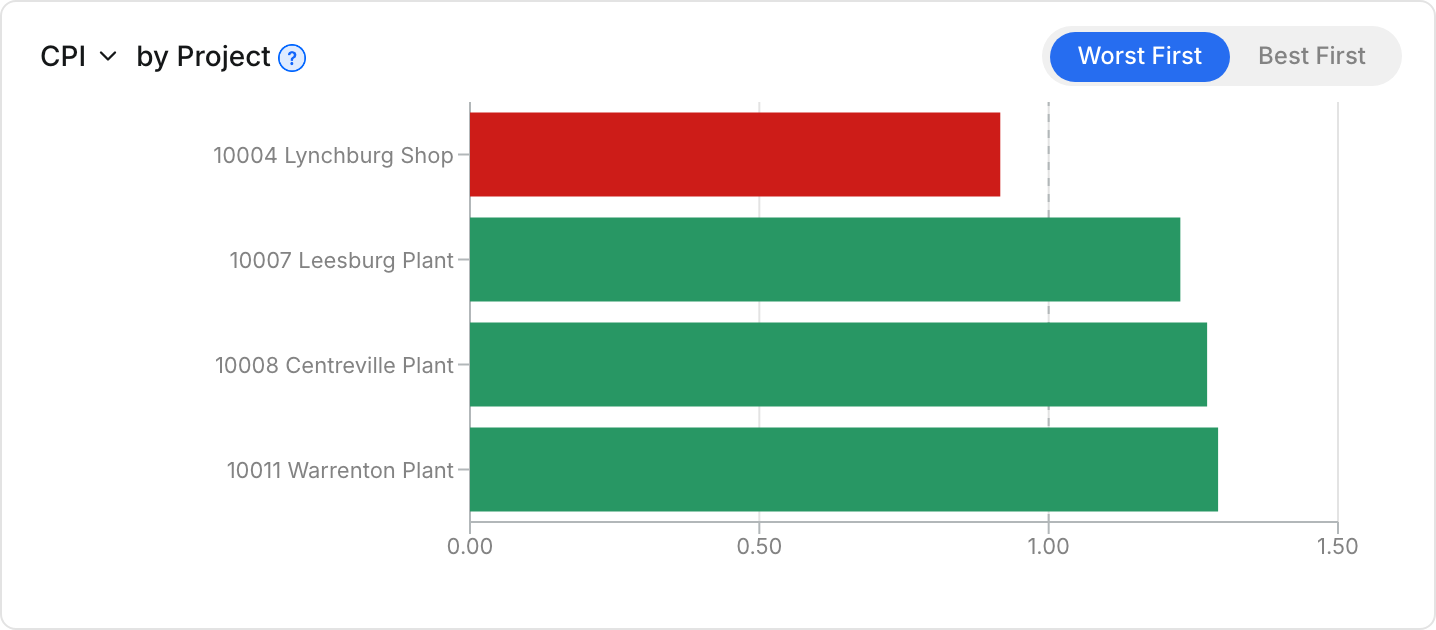
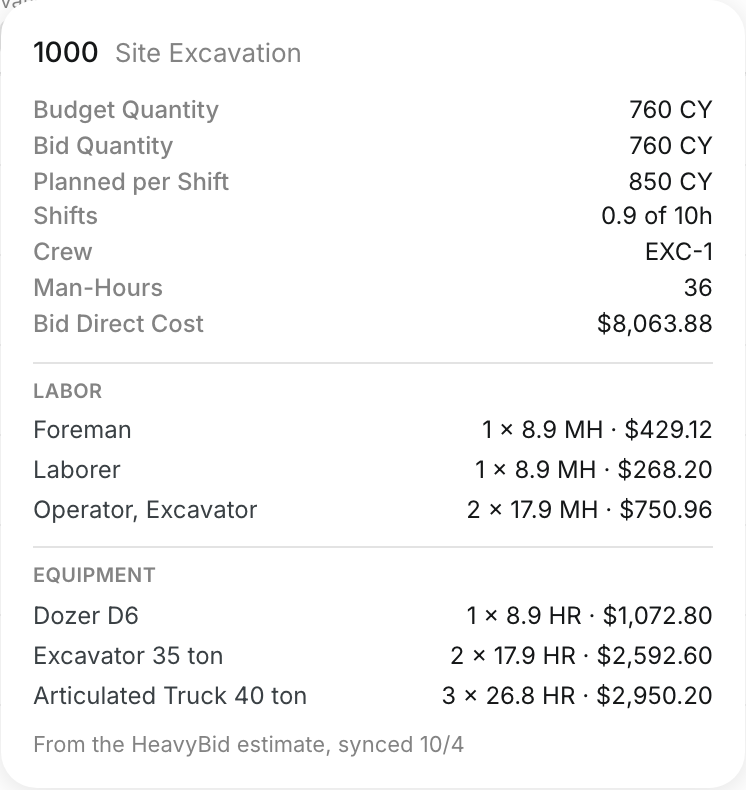
When your company connects HeavyBid, the estimate syncs into Clue. Foremen see the bid for each cost code inside the daily. The Cost Code Plan card shows the bid quantity, man-hours and the plan for each shift. It sits beside the budget target, so the crew knows what the job was bid at.
Who's this for?
- Foremen, to see the planned production for today's work.
- Superintendents, to compare field results with the bid.
- Estimators, to see how their estimate shows to the field.
How to use it
Step 1: Open a daily
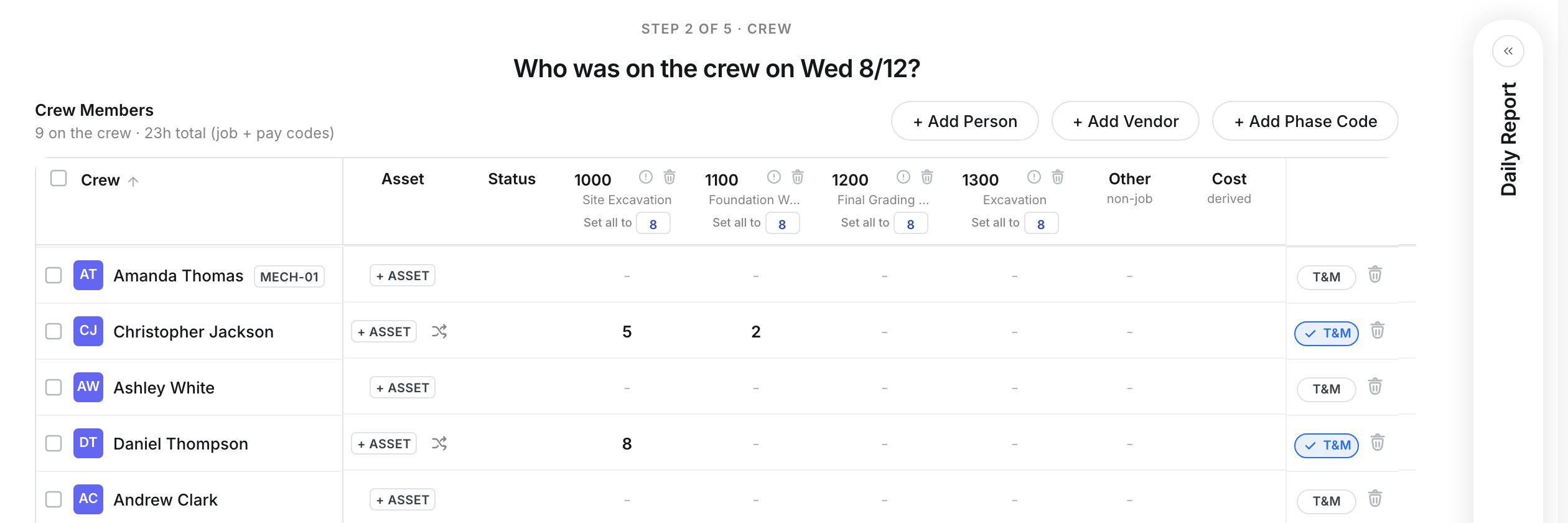
Go to Dailies and open a daily. Go to the Crew step.
Step 2: Open the Cost Code Plan
Click the info icon beside a cost code at the top of its column. The Cost Code Plan card opens.
Step 3: See the crew and equipment in the bid
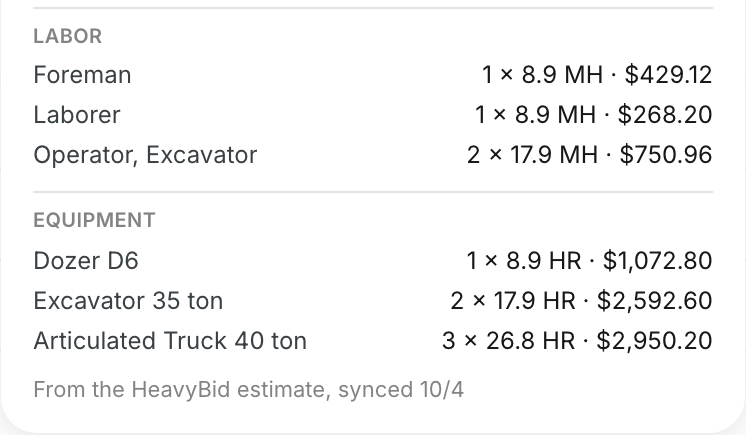
Scroll down the card to Labor and Equipment. Each line shows the count and the hours the bid plans.
Step 4: Compare with what got built
On the Production step, enter the quantity built today. Compare it with Planned per Shift on the card.

The full details
- Budget Quantity: the budget target for the cost code, the same target the Budgets tab uses.
- Bid Quantity: the quantity in the HeavyBid estimate for this cost code.
- Planned per Shift: the quantity the bid plans for one shift.
- Shifts: how many shifts the bid plans, and the hours in one shift, for example 0.9 of 10h.
- Crew: the crew code from the estimate.
- Man-Hours: the total man-hours in the bid for this cost code.
- Bid Direct Cost: the direct cost in the bid. Only people who can see budgets see costs.
- Labor, Equipment, Materials, Subcontract: the resources in the bid, with count, hours and cost.
- Synced date: the card ends with "From the HeavyBid estimate, synced" and the date.
- Current estimate only: the card shows the project's current estimate.
- No bid on file for this code: the estimate has no activity for this cost code.
- Code not on the project: the card says it has no budget or bid.
- Read-only: the card shows the plan. You cannot change it from the daily.
Tips
- Check the card at the start of the shift to set the crew's goal for the day.
- Check the synced date to make sure you see the latest estimate.
- The card also opens from the cost code columns in the asset and tool grids.