Track Project Budgets
What is this?
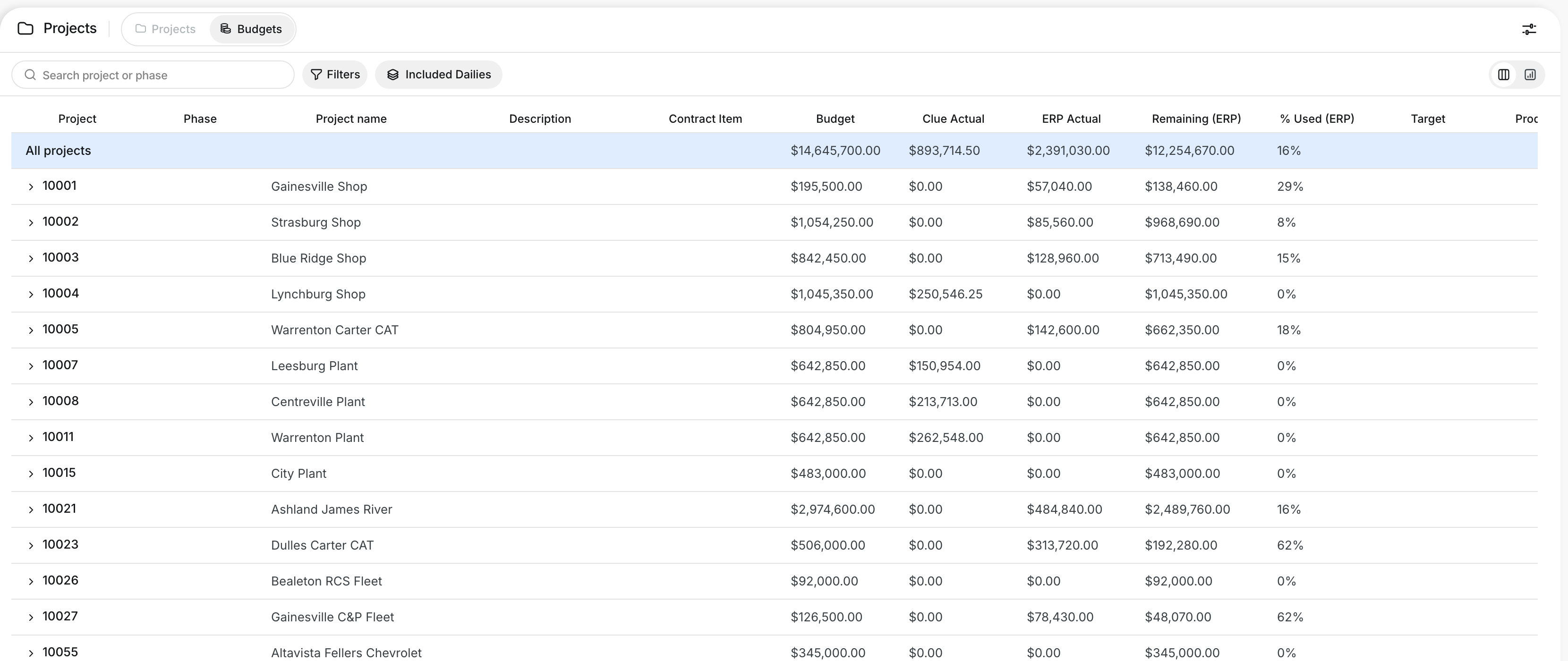
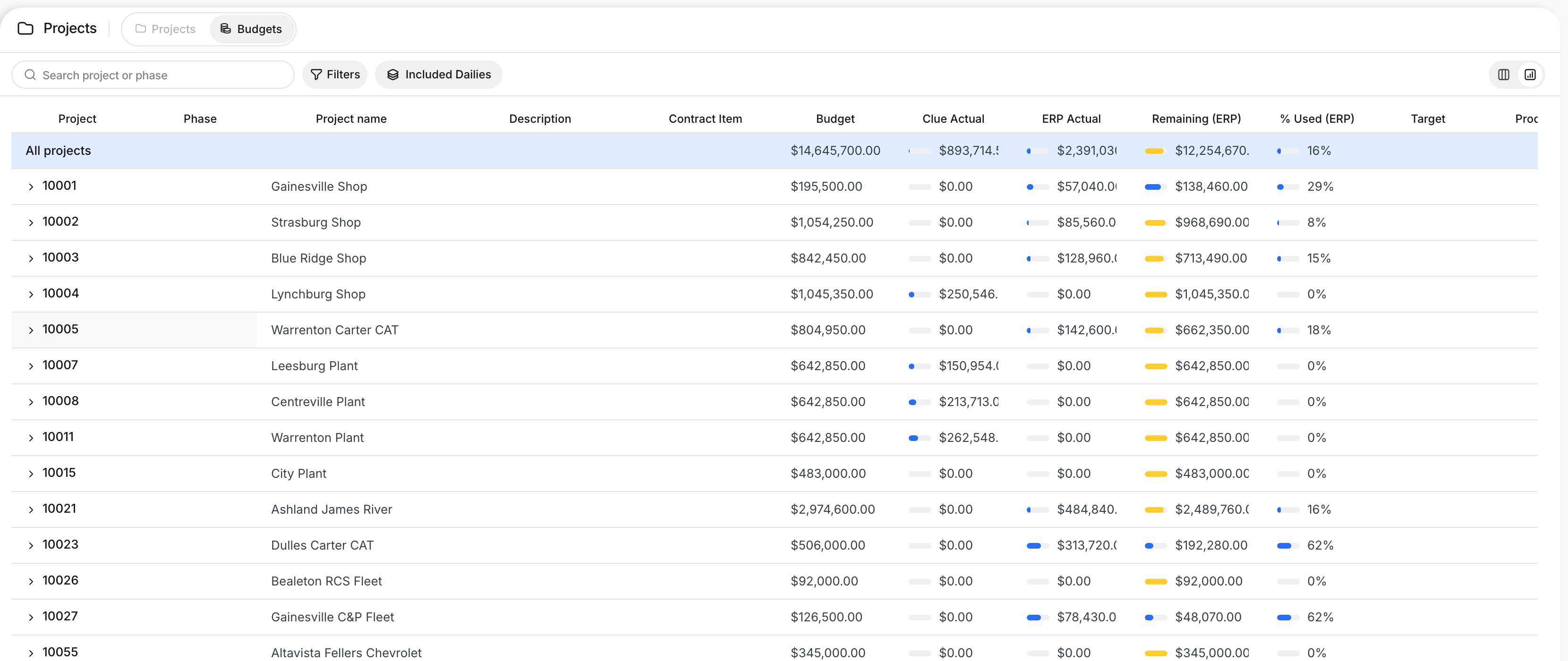
The Budgets tab shows each project's budget beside what it cost so far. Every project breaks down into its phases. You see the cost from Clue dailies and the cost from your accounting system side by side. Clue also shows progress, CPI and where each phase will likely finish.
Who's this for?
- Project managers, to track budget against cost for every phase.
- Superintendents, to see which phases need attention in the field.
- Accounting teams, to compare Clue costs with the accounting system.
How to use it
Step 1: Open the Budgets tab
Go to Projects > Budgets. The All projects row shows the totals.
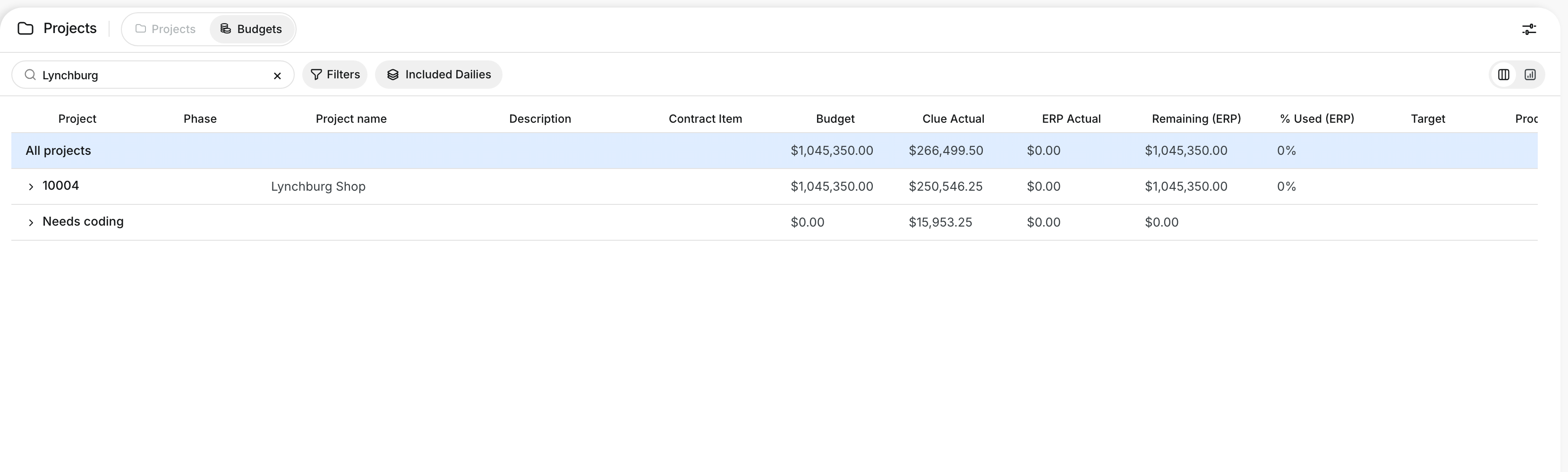
Step 2: Search for a project or phase
Type in Search project or phase. The table shows only the rows that match.
Step 3: Open a project
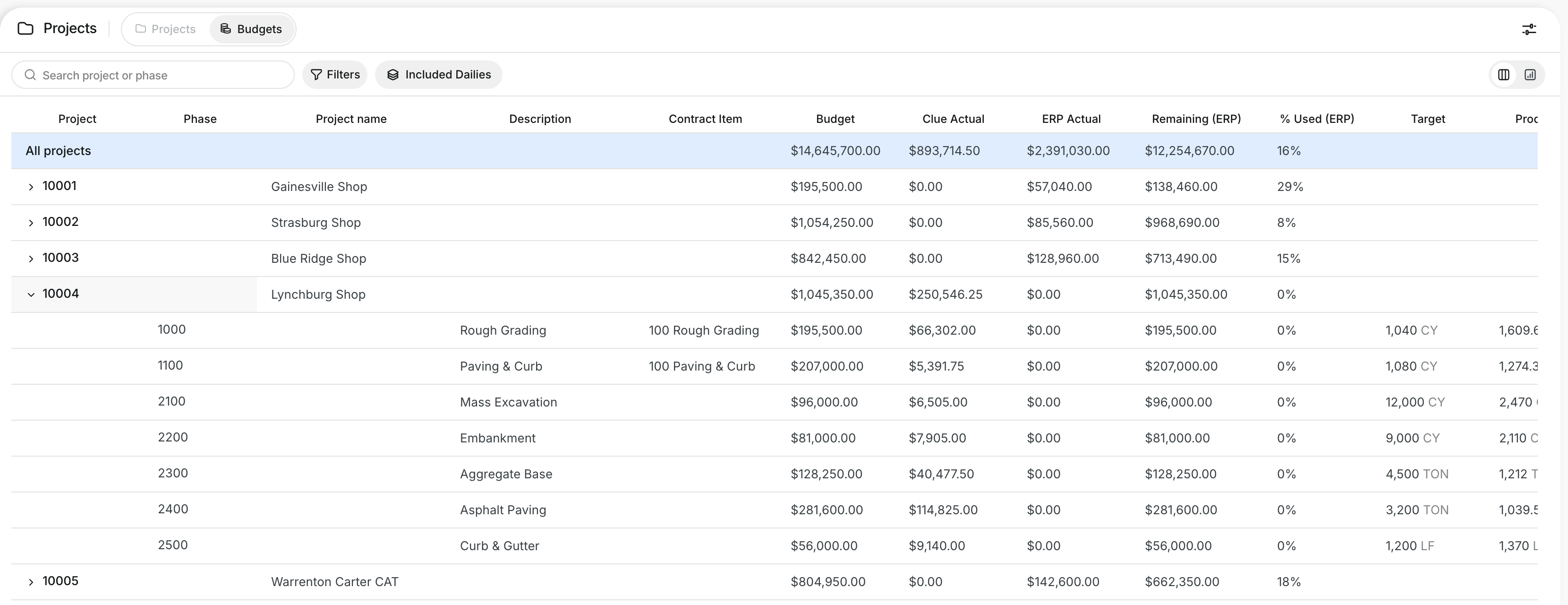
Click the arrow beside a project. You see each phase with its budget, Clue Actual and ERP Actual.
Step 4: Check progress and CPI
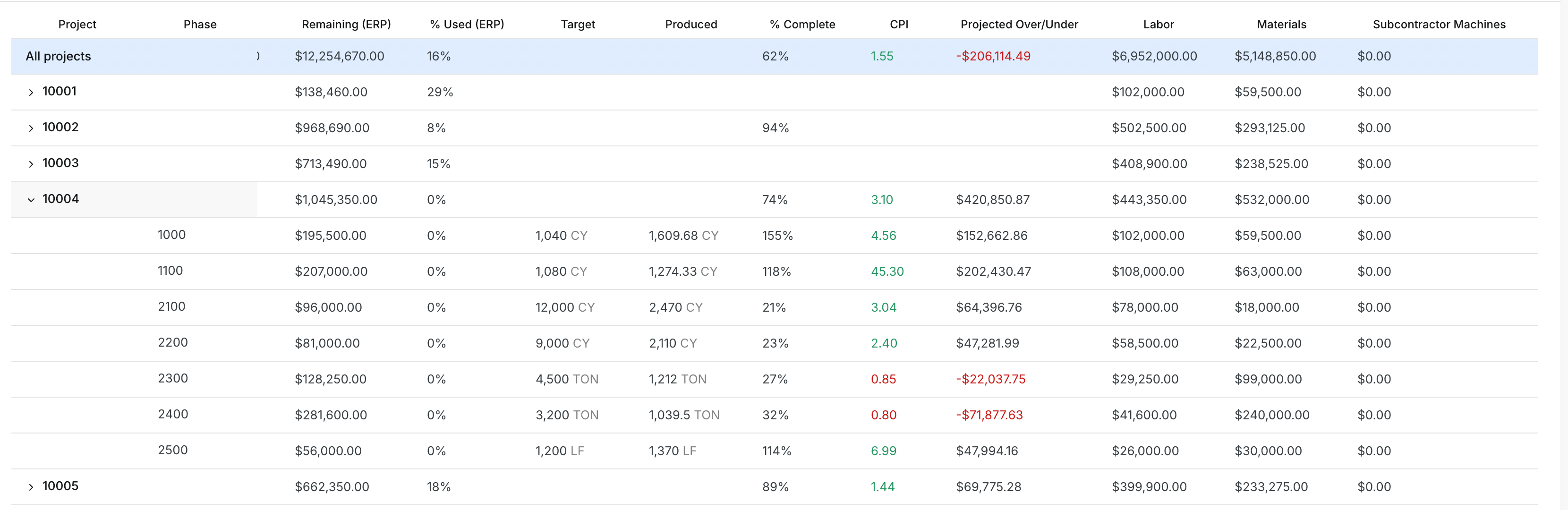
Scroll right to see Target, Produced, % Complete, CPI and Projected Over/Under.
Step 5: Choose which dailies count
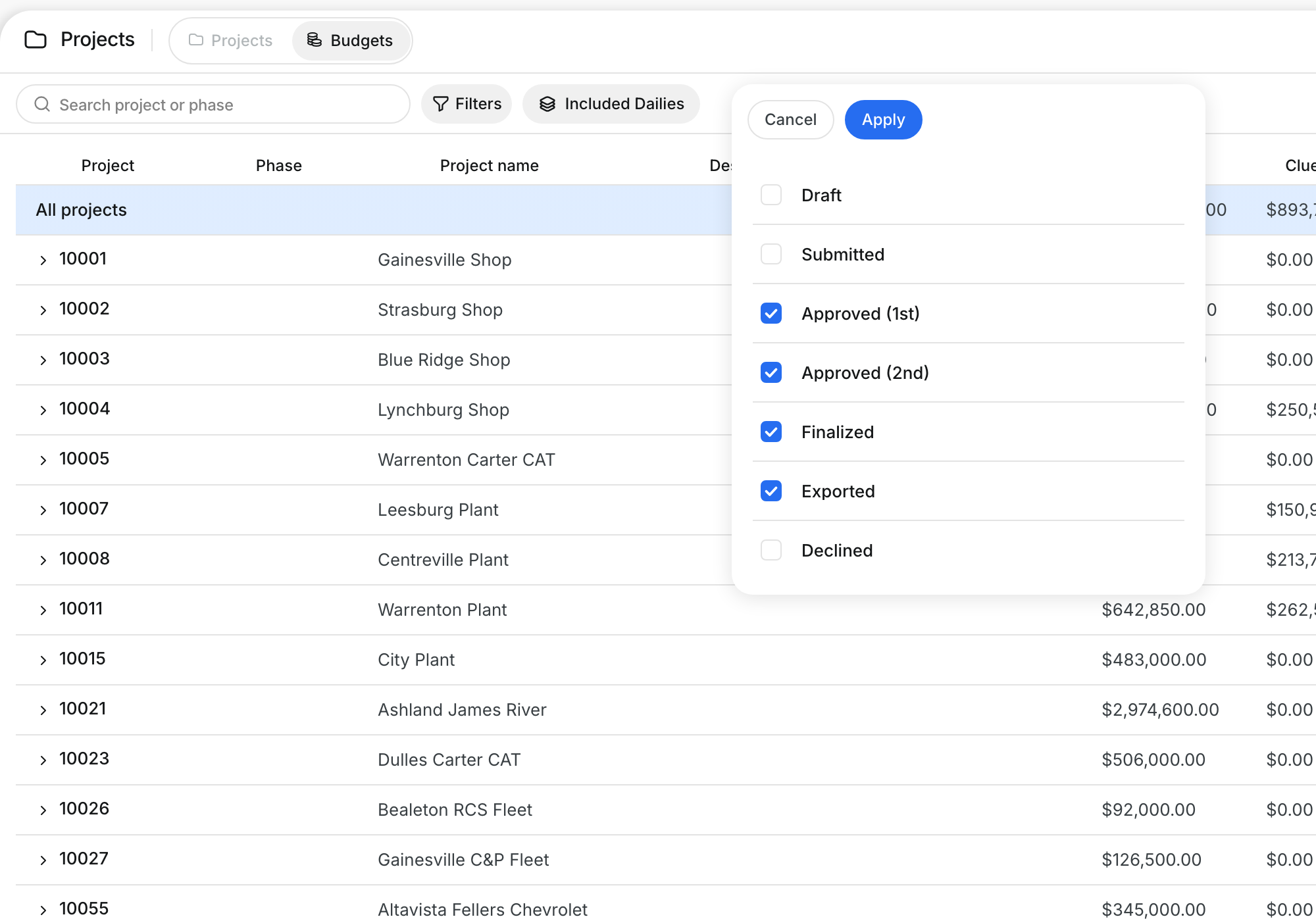
Click Included Dailies. Check the daily statuses that count toward Clue Actual, then click Apply.
Step 6: Switch to the WIP view
Click the chart icon at the right of the toolbar. The same rows show as bars, so you see how much of each budget is used.
Step 7: Edit a phase budget
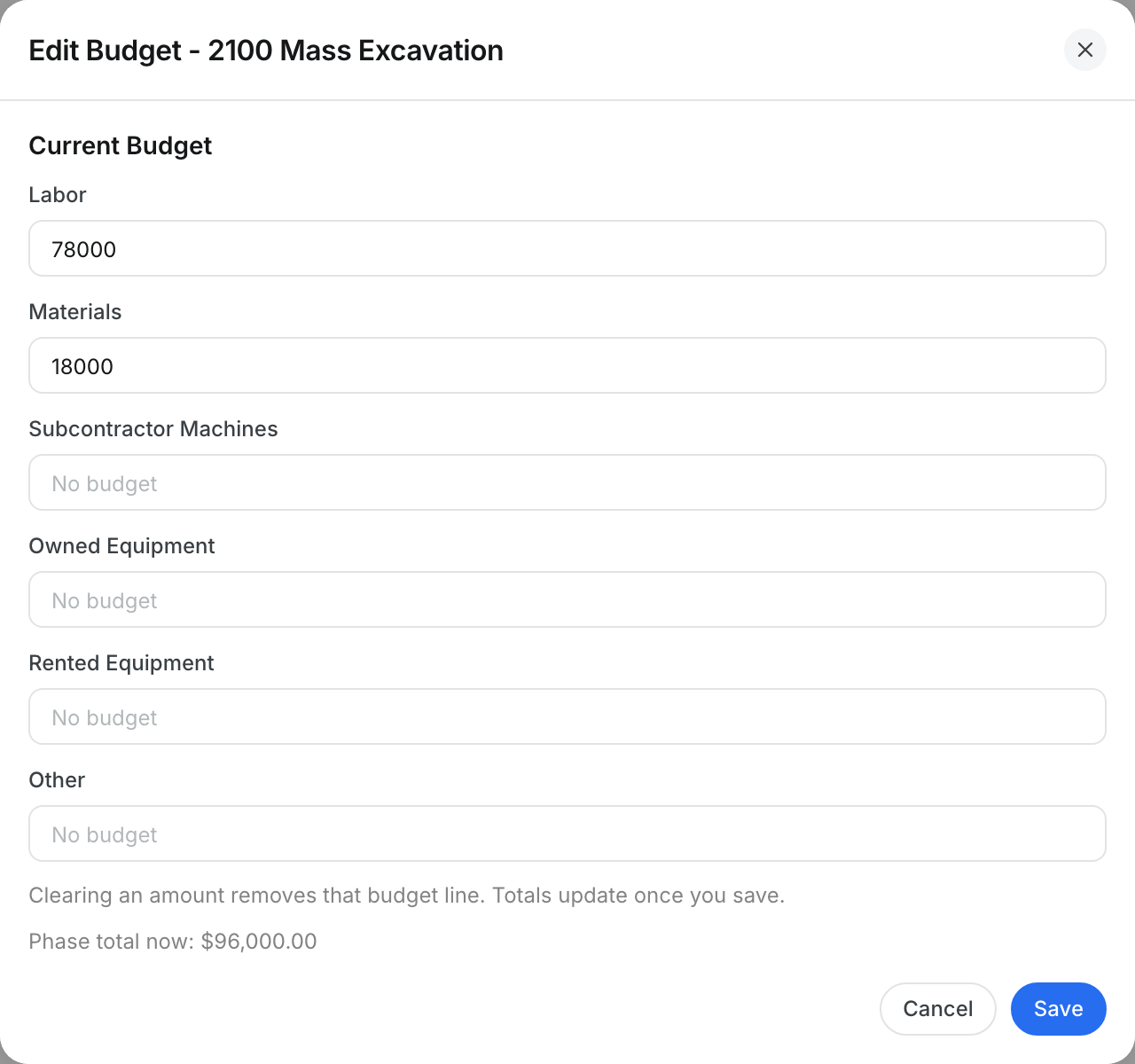
Click a phase row to open Edit Budget. Change an amount and click Save, or click Cancel to close with no change.
The full details
- Budget: the current budget for the phase.
- Clue Actual: the cost from Clue dailies.
- ERP Actual: the cost from your accounting system.
- Why two actuals: the accounting system costs each person at their own rate. Clue costs the crew by pay class.
- Remaining and % Used: shown for each actual, so you see both numbers.
- Target: the quantity the phase must build.
- Produced: the quantity built so far. It comes from the accounting system when it has one, otherwise from Clue dailies.
- % Complete: Produced divided by Target.
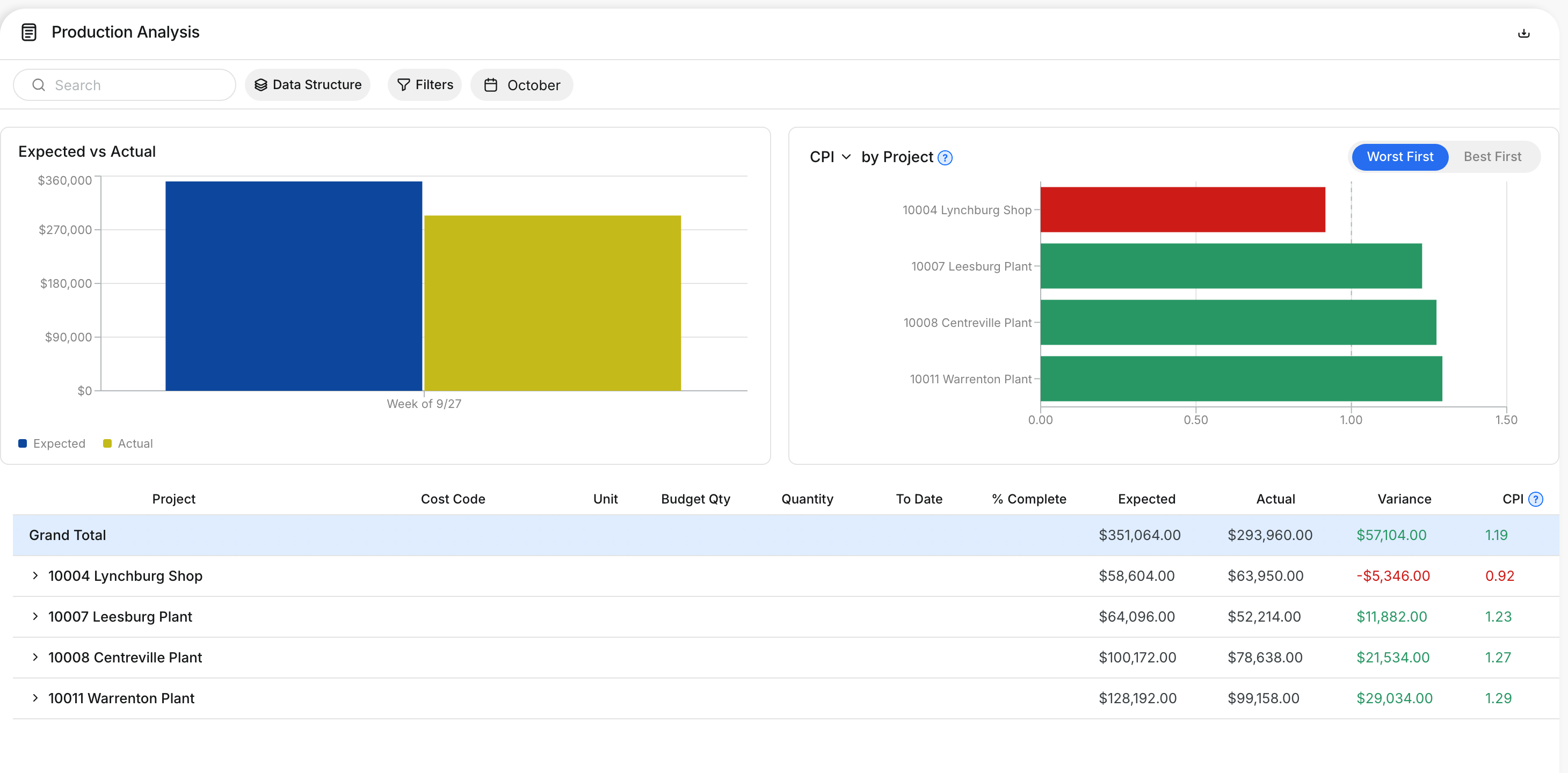
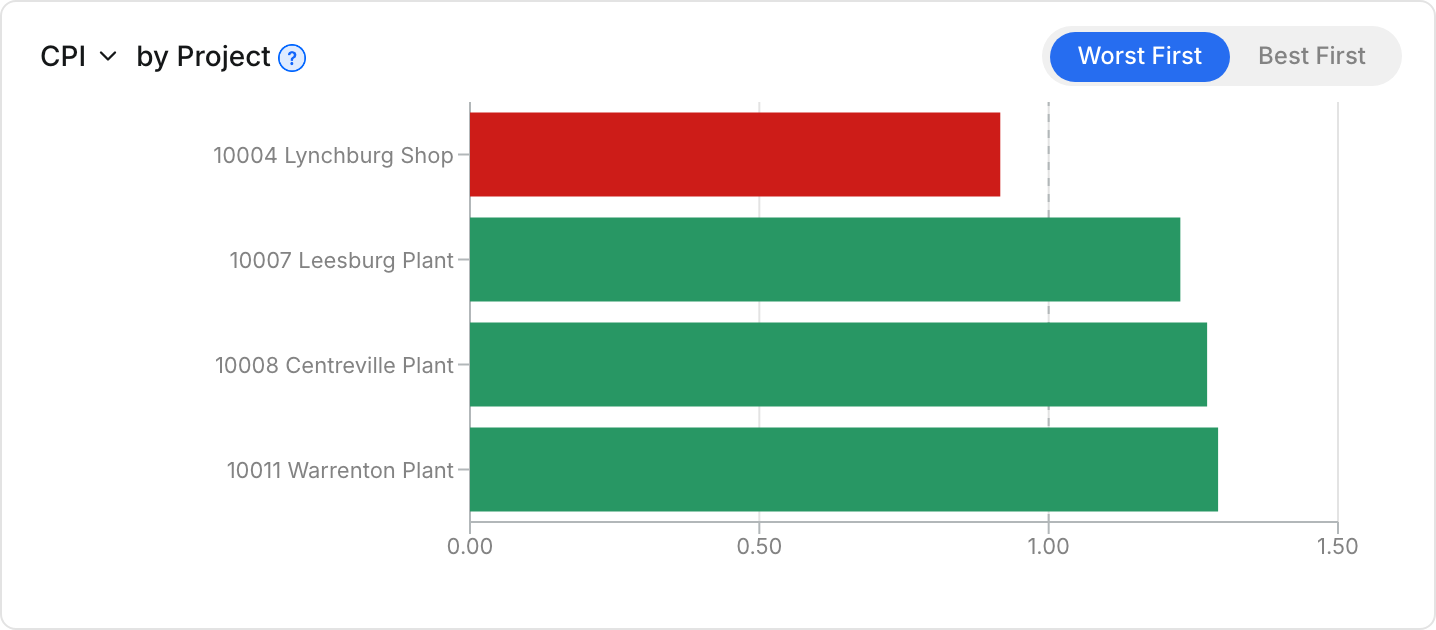
- CPI: the value of the work done divided by its cost. Above 1.00 is under budget.
- Projected Over/Under: where the phase will likely finish at today's cost rate. A positive number is under budget, a red number is over.
- No cost yet: a phase with no cost has no CPI and no projection.
- Lump sum phases: these have no target quantity.
- WIP colors: the bars change color as a budget nears and passes 100%. The value always shows next to the bar.
- Edit Budget: one field for each cost type. Clearing an amount removes that budget line.
Tips
- A big gap between Clue Actual and ERP Actual can point to missing or uncoded dailies.
- Look for red CPI and red Projected Over/Under values first.
- Use Filters to show only the projects you manage.