Equipment Statuses and Automations
What is this?
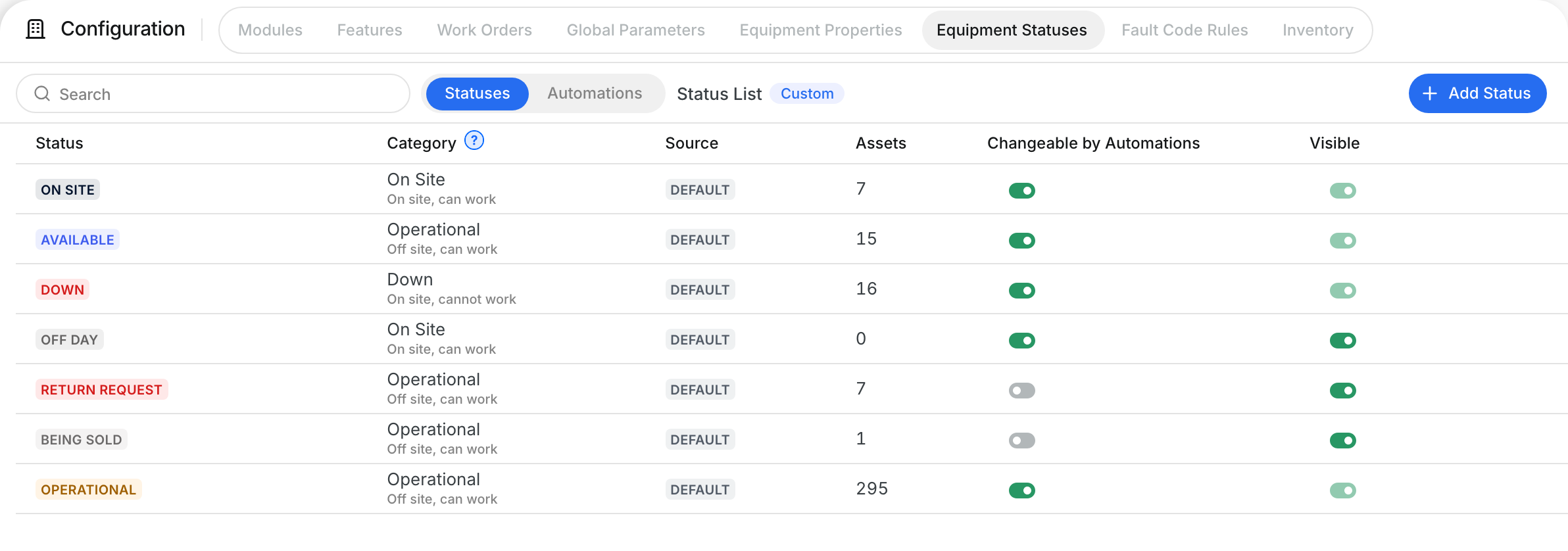
Equipment Statuses is the page where your company manages its asset statuses and turns on Automations. An automation changes an asset's status for you when something happens: the asset arrives at a shop, a dealer or a job, or its work order starts or ends. Your status board stays right without anyone updating it by hand.
Who's this for?
- Equipment managers, keep every asset's status current without chasing the shop and the field.
- Mechanics, start a work order and the asset goes Down by itself; finish it and the asset is Available again.
- Dispatchers, trust that Available really means free to send out.
- Company admins, add, rename, color, order and hide your own statuses.
How to use it
Step 1: Open Equipment Statuses
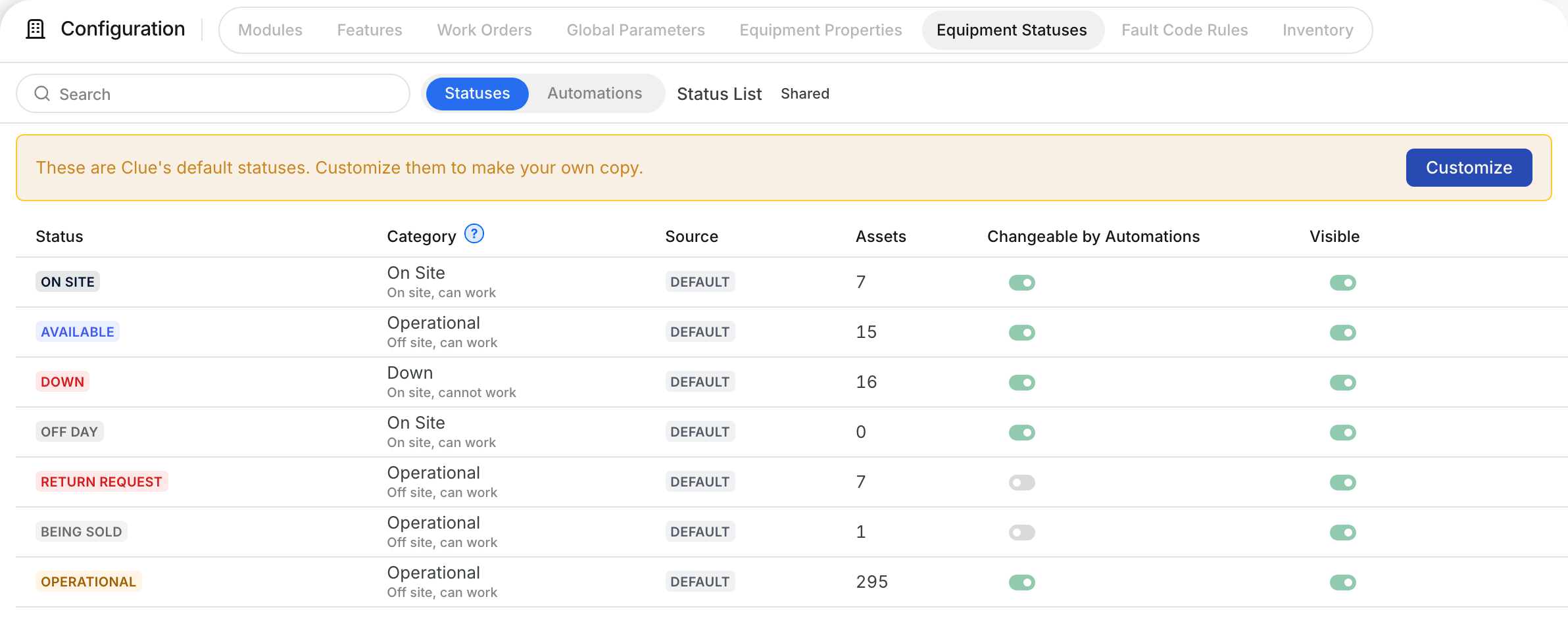
Go to Company > Configuration > Equipment Statuses. You see your status list. If it says Shared, your company uses Clue's default statuses.
Step 2: Customize your list
Click Customize to make your own copy. Nothing changes for your assets. Now you can rename, recolor, reorder and hide statuses, and add your own with Add Status.
Step 3: Turn on an automation
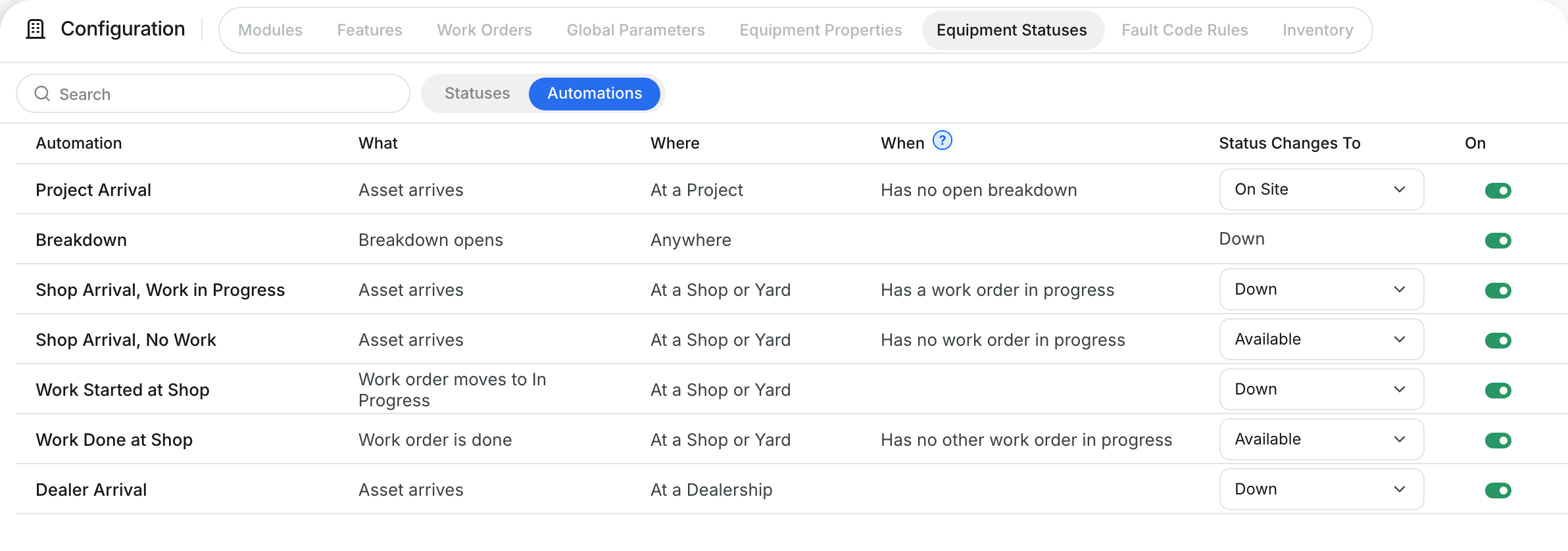
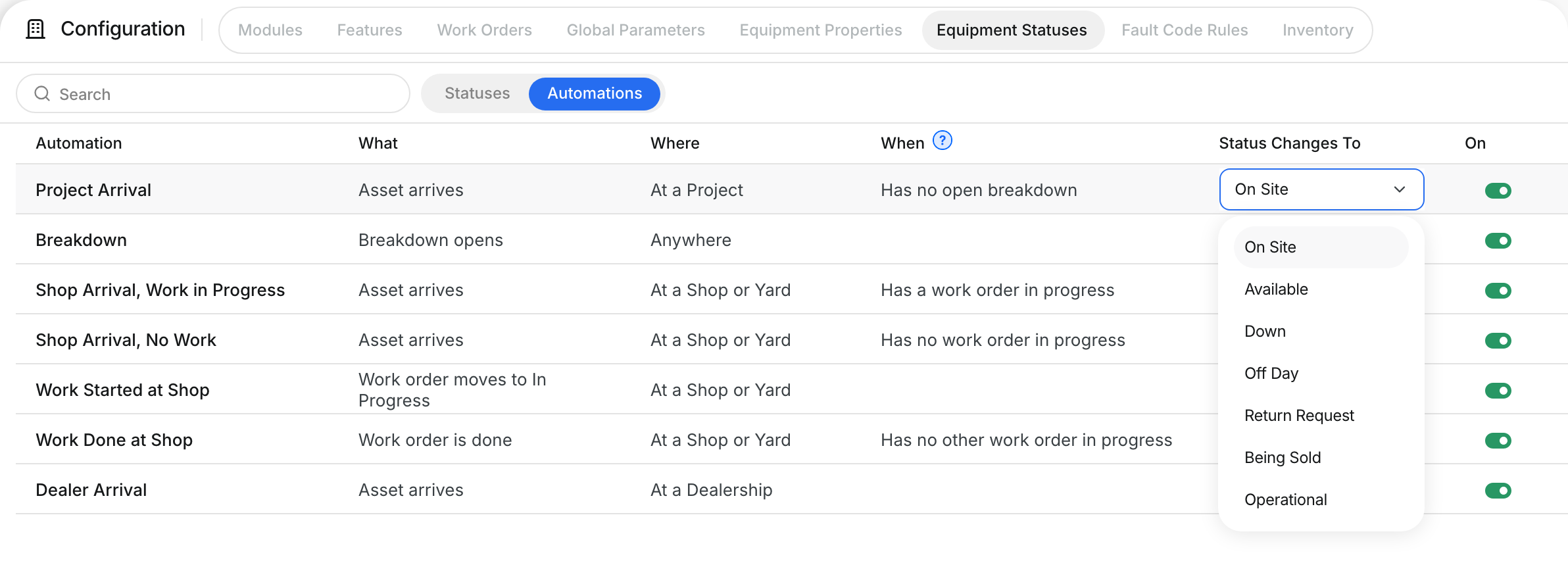
Click Automations. Each row reads as a sentence: what happens, where, and when. Pick the status in Status Changes To, then switch it On.
Step 4: Protect a status
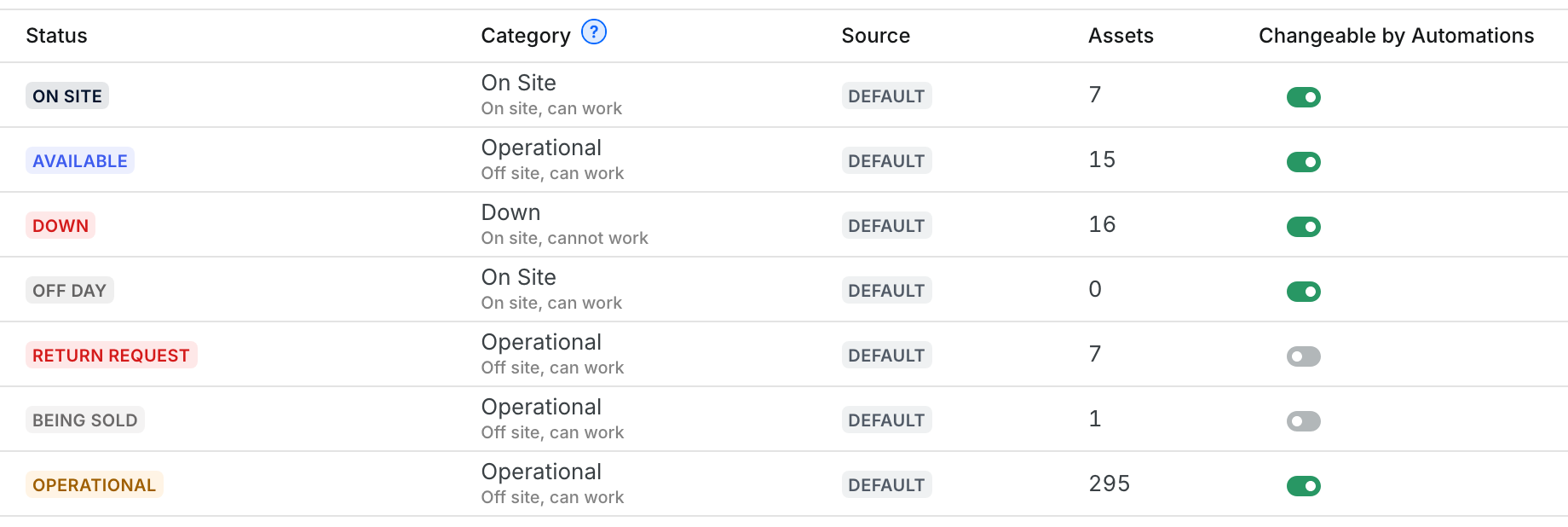
Some statuses must never change by themselves, for example Being Sold. On the status list, turn off Changeable by Automations for that status.
The full details
- The automations: Project Arrival (On Site), Breakdown (Down), Shop Arrival with work in progress (Down), Shop Arrival with no work (Available), Work Started at Shop (Down), Work Done at Shop (Available), Dealer Arrival (Down). You choose the status each one sets.
- Work in progress: a work order that is In Progress, On Hold or Waiting for Parts. A To Do work order does not count. Done includes Cancelled.
- Shop or Yard: a project of type Shop or Yard. Dealer: type Dealership. Job: type Project.
- Arrivals: Clue checks once an hour, so a status can change up to one hour after the asset arrives. Turning an automation on changes nothing at once; it acts on the next arrival or work order change.
- A Down set by a person stays until a person changes it, or until the work order is done.
- History: every automatic change shows in the asset's status history as "Automation" with the automation's name.
- Hidden statuses: leave every picker; assets that have one keep it. A status that an automation uses cannot be hidden.
- Permission needed: Company Configuration, Read to see the page, Update to change it.
- Works on: web app.
Tips
- Set your vendor shops to type Dealership and your own shops to Shop. The automations treat them differently.
- Use On Site for a working asset at a job. On Site counts as busy; Operational and Available count as free to send out.
- Check an asset's status history when a status surprises you. It names the automation that changed it.
- Keep the status list short. Ten statuses your crews use beat forty nobody touches.