Check an Asset's Telematics Connection
Linking telematics devices and GPS trackers to CLUE helps bring live equipment data into one place. Once a device is connected to an asset, you can use that data for location tracking, meter updates, and day-to-day fleet visibility.
Overview
CLUE can connect with telematics and GPS providers to pull equipment data directly into your asset records. This helps your team see where equipment is, how long it has been running, and whether the device is still reporting normally. CLUE’s live data flows from supported telematics and GPS providers into asset records, including location, hours, and other machine data.
This setup is useful if you want to reduce manual updates and keep asset information current. It also supports related workflows like GPS Tracking and Telematics Integrations, Understanding Asset Location Data, and Viewing Asset History on Map. Those lesson titles exist on CLUE Learn and are good internal linking opportunities for this section.
Understanding Telematics in CLUE
Telematics devices send data from your equipment into CLUE. When a device is linked correctly, CLUE can use that data to help your team monitor equipment without jumping between different systems.
Depending on the provider and device, CLUE may show:
- real-time GPS location
- engine hours and usage
- idle time and fuel data
- movement history
- last connected time
CLUE’s live telematics and GPS coverage includes location, engine hours, odometer readings, fault codes, idle time, and fuel data for supported integrations, although the exact data depends on the provider.
A natural internal link here is GPS Tracking and Telematics Integrations if the reader needs the full setup overview before checking device details.
Viewing Device Information
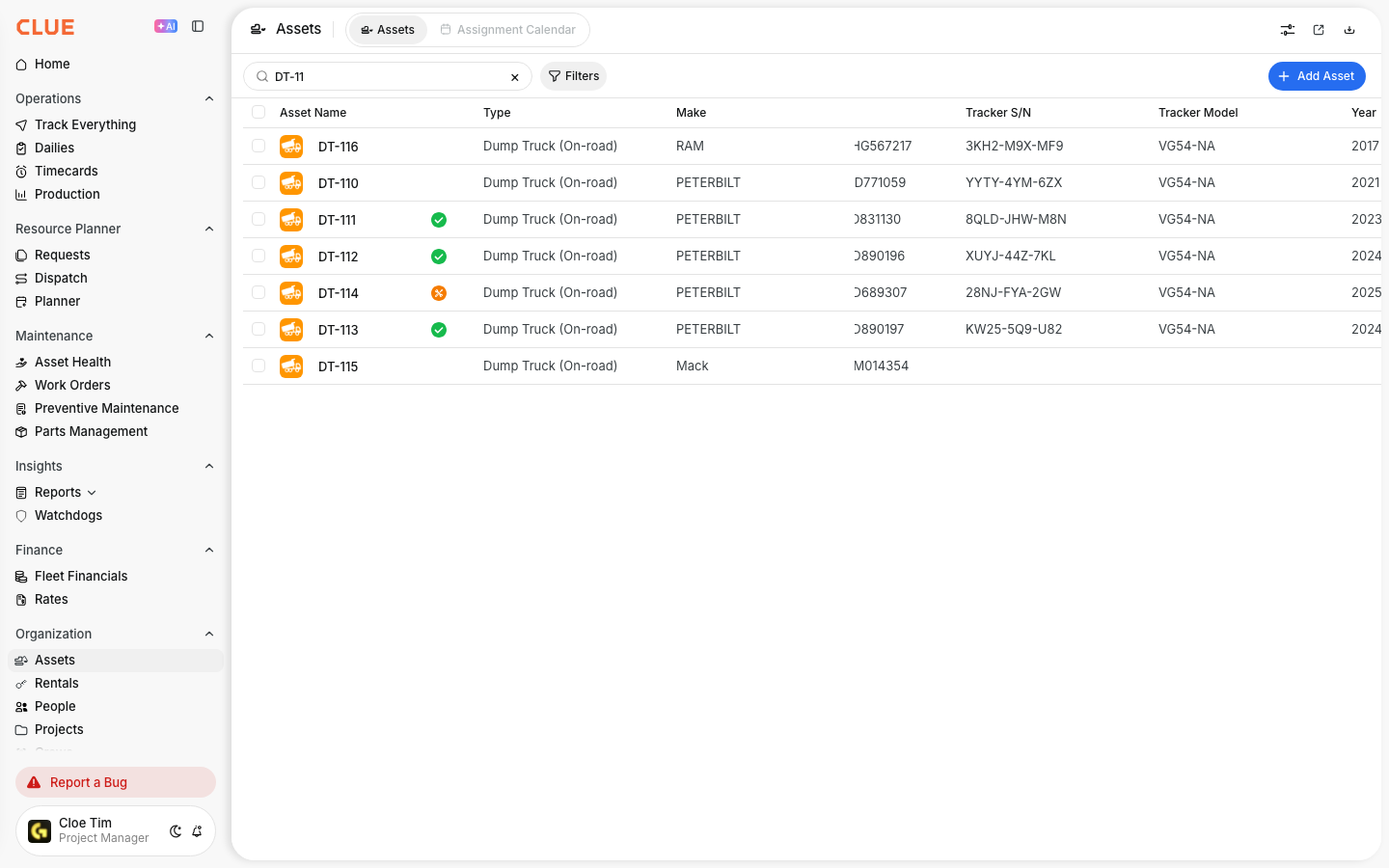
Once a device is linked, you can review the connection details from the asset record. This helps confirm that the device is attached to the right asset and still reporting data back to CLUE.
Step 1: Open the asset
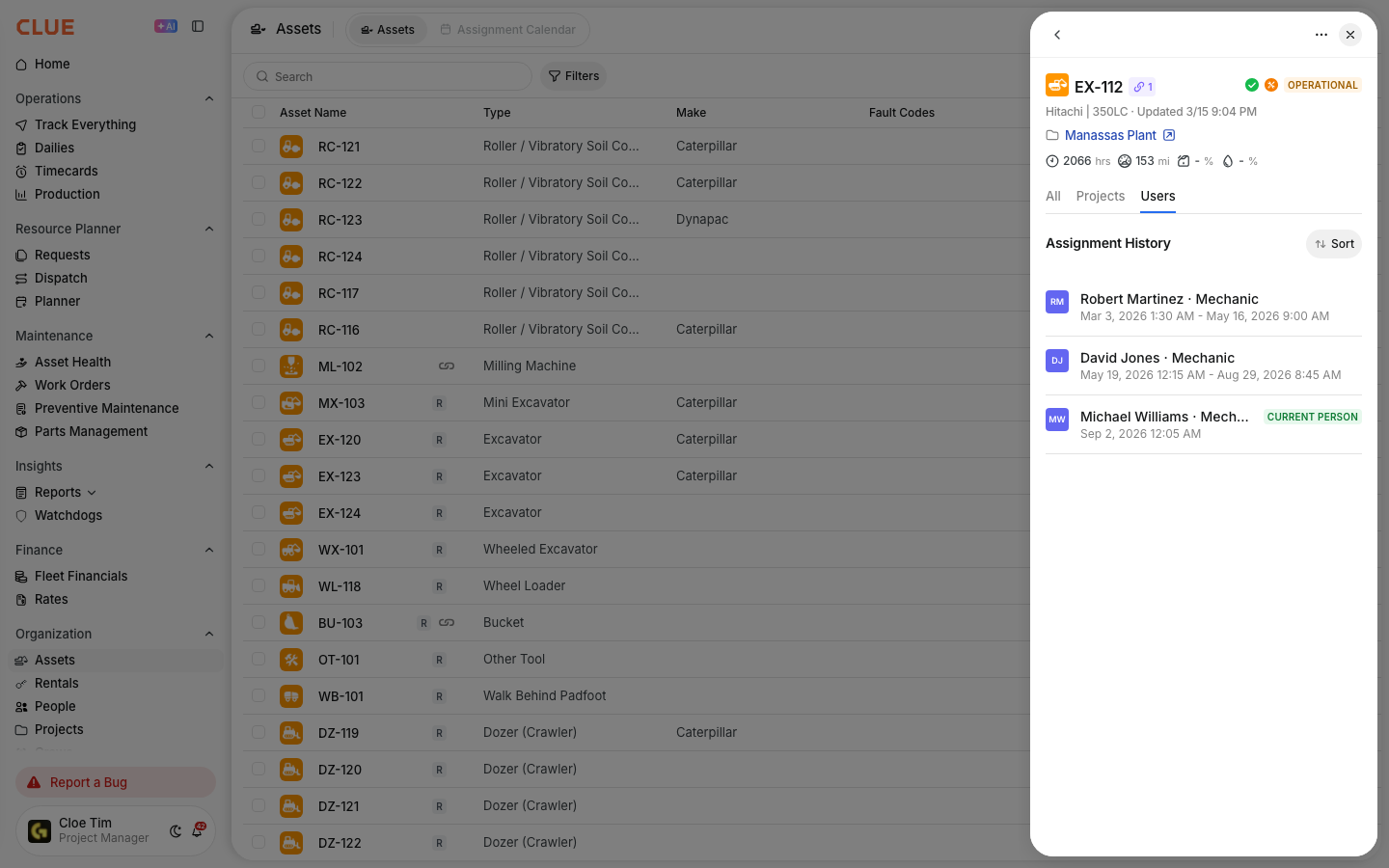
Go to Directory > Assets and select the asset you want to review.
This opens the asset details panel, where device and tracking information can be reviewed alongside the rest of the asset record.

Step 2: Check the telematics section
In the asset details panel, look for the telematics section.
This section may show details such as:
- Tracker S/N - the serial number of the connected device
- Tracker Model - the device make or model
- Last Connected - the most recent time the device reported data
If the user needs more detail about how CLUE uses location updates, a good internal link here is Understanding Asset Location Data. That lesson covers current location, last connected time, status, and reporting behavior.

Understanding Connectivity Status
Connectivity status helps your team quickly see whether a device is reporting as expected. This is useful when checking equipment that has gone quiet or seems to be showing old location data.
CLUE may show different device states, such as:
- Connected - the device is reporting normally
- Delayed - the device has not reported recently
- Offline - the device has not communicated for a longer period
The exact wording may vary by setup, but the key idea is the same: compare the current status with the Last Connected time to understand whether the device is active or stale. CLUE’s location data lessons explain that recent timestamps usually mean normal reporting, while older timestamps can point to a connectivity issue.
A natural internal link in this section is Understanding Asset Location Data. If the reader wants to work with map results after that, Using Search This Area and Filtering Assets by Status are also good follow-up links.

Troubleshooting Connection Issues
If a device shows as offline or delayed, start with a few basic checks before assuming the hardware has failed. Most connection issues come from power, coverage, or provider-side setup.
Check the following:
- make sure the equipment has power
- confirm the machine is in an area with cellular coverage
- verify the device subscription or provider setup is still active
- review the Last Connected time to see when reporting stopped
- contact the telematics or GPS provider if the issue continues
This section can also link naturally to Understanding Asset Location Data because that lesson explains how location updates are sent and how to read stale timestamps.
Tips
A few simple checks can make telematics data easier to trust and easier to use across the rest of CLUE.
- devices often report more frequently while equipment is moving or running
- parked equipment may report less often
- always check Last Connected if the location looks old
- use map-based lessons like Viewing Asset History on Map and Using Search This Area when you need more context around where an asset has been or where it is now
- if device data supports dispatch or assignment decisions, Asset Assignment History: User Tracking is another useful internal link nearby