The Asset Detail view shows the full record for one piece of equipment. It brings together key asset details, status, assignments, usage data, and related maintenance records in one place.
Accessing Asset Details
To open the Asset Detail view, start from the asset list in the Directory. If you need help finding the right record first, go to Managing Your Asset Directory.
- Go to Directory > Assets
- Click any asset row to open the detail slide-in.

Header Information
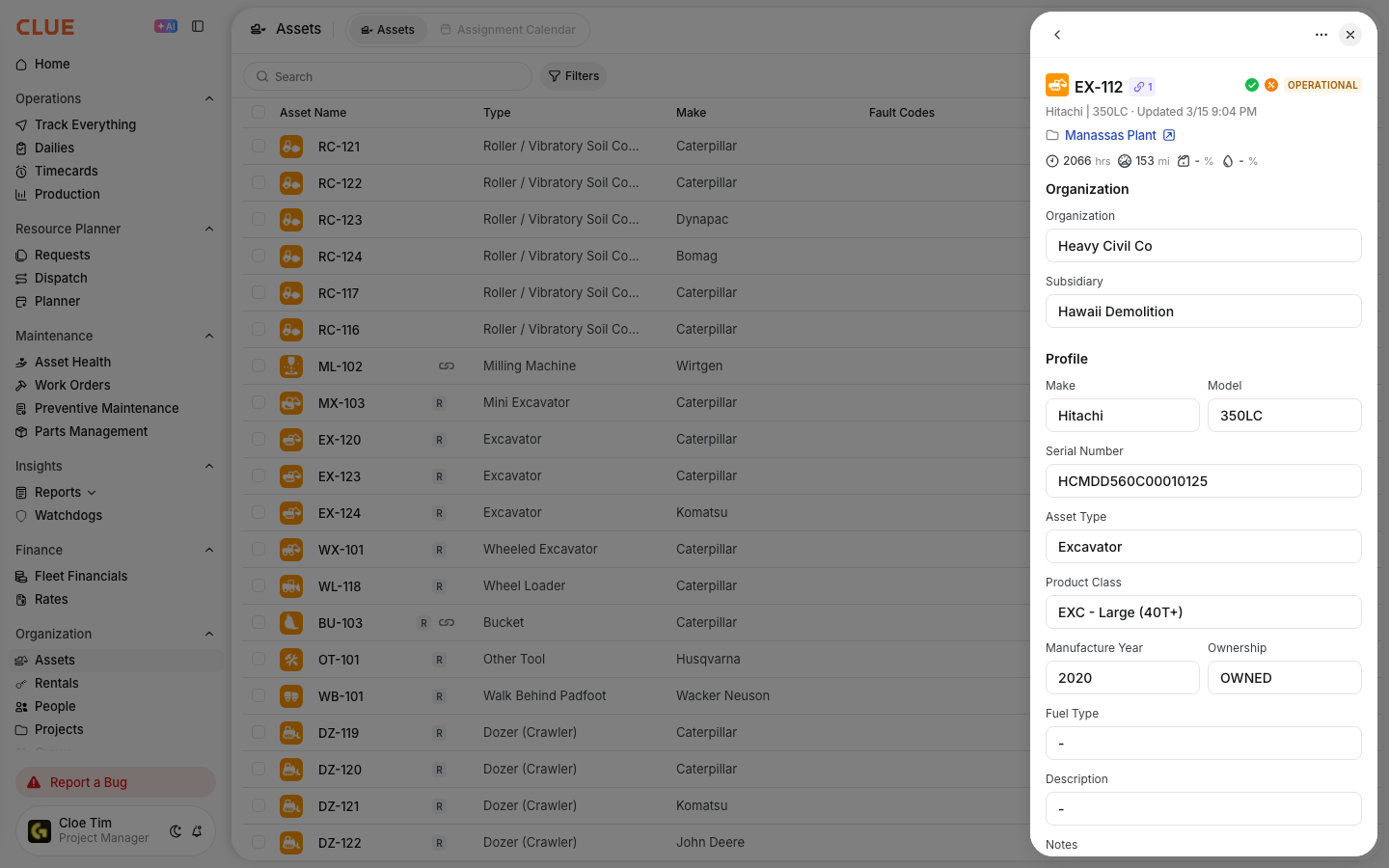
The header gives you a quick summary of the asset and a few actions you may need right away. This is usually the first place to check before opening the tabs below.
- Asset Name - the equipment display name
- Status badges - key status indicators such as operational status, connectivity, and PM status
- Quick actions - shortcuts like Edit, Create WO, and View on Map. If you need to update any of this information, open Editing Asset Information.

Overview Tab
The Overview tab shows the main asset information in one place. Use it when you want a quick summary without moving through multiple tabs.
Basic Details
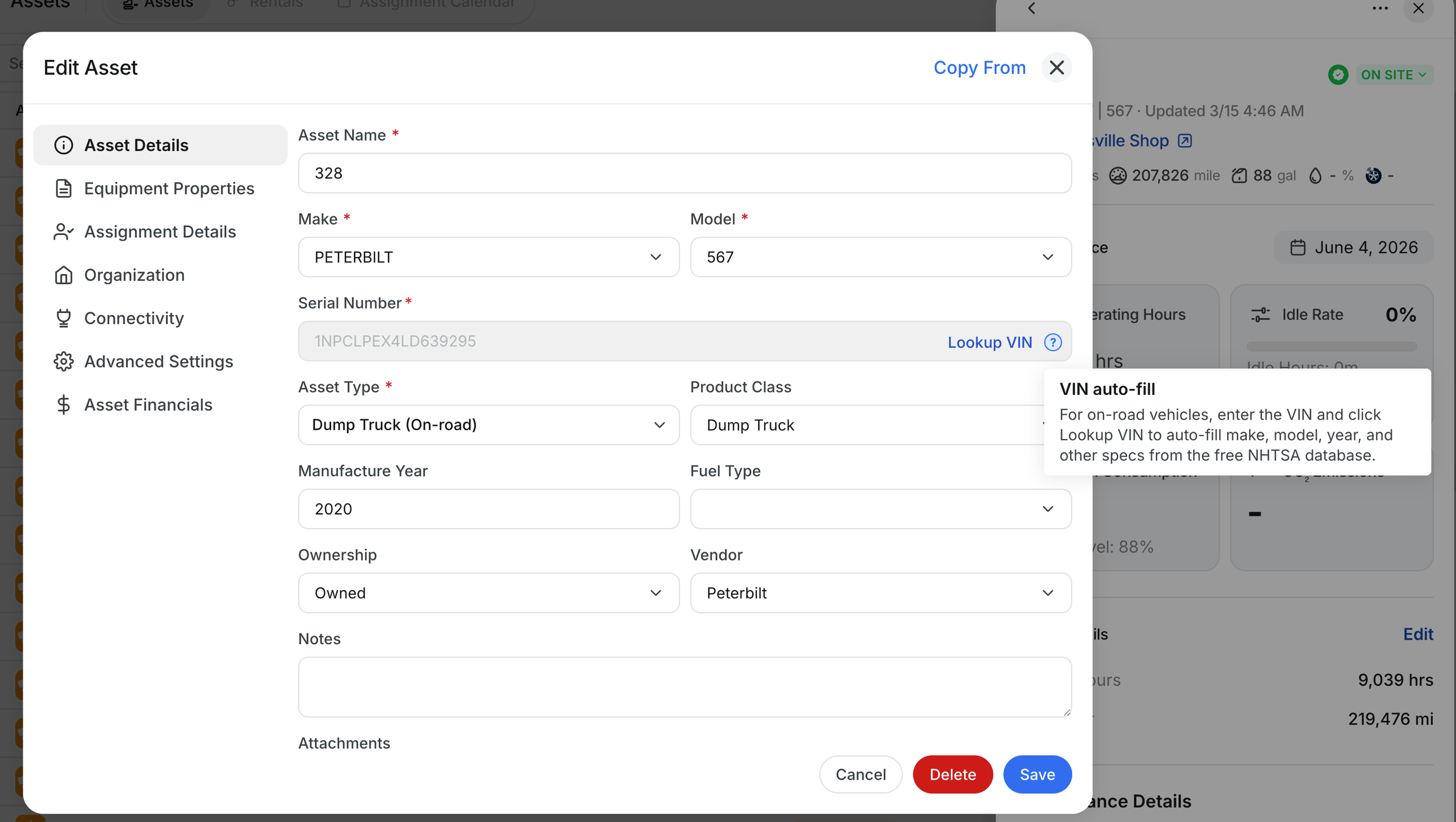
This section shows the main information used to identify the asset across CLUE.
- Make / Model / Year - equipment specifications
- Serial Number - the main equipment identifier
- Asset Type - the asset category
- Product Class - the more specific equipment grouping. If classification needs to be updated, see Equipment Classification: Categories, Types and Product Classes.
Operational Data
This section shows the asset’s current usage and status. These values are important for maintenance and reporting.
- Hour Meter - current engine hours
- Odometer - current mileage
- Operational Status - current state, such as active, down, or storage. If these values need to be corrected, use Editing Asset Information.
Assignment
This section shows where the asset belongs in the business and where it is currently being used.
- Division / Department - the internal team or business unit
- Project - the current job site or project
- Linked User - the primary operator or linked person. If the project or operator changes, update the record in Editing Asset Information.

Telematics
This section shows whether the asset is currently sending tracking data and when it last checked in. If the location looks out of date, this is the first place to review.
- Connectivity Status - current GPS or telematics connection state
- Tracker S/N - the tracker device serial number
- Last Connected - the most recent time data was received.

Additional Tabs
The other tabs give you more detail about the asset’s maintenance and assignment history. Use them when you need more than the basic overview.
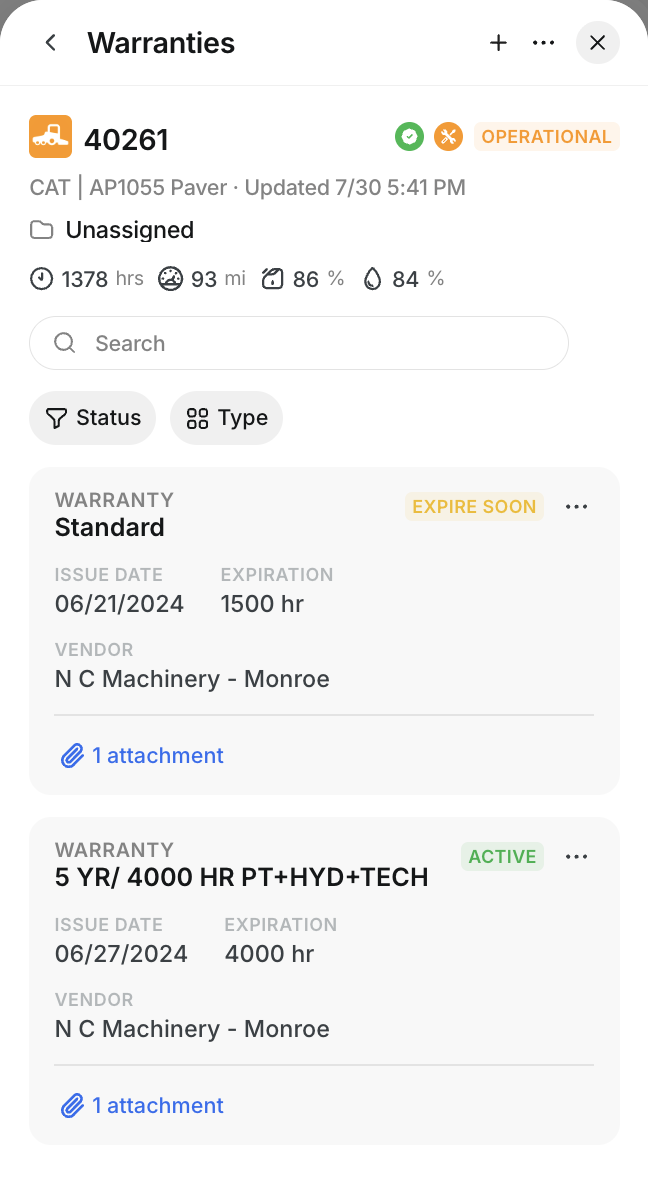
- Work Orders - shows maintenance history and open or completed repair work. For a broader review of past repairs and issues, see Viewing Asset Work History.
- PM Status - shows preventive maintenance status and upcoming service needs. If you need more detail on PM indicators, open PM Statuses Explained or Using PM Schedules.
- Inspections - shows inspection history tied to the asset. If an issue was reported, continue to Resolve Inspection Issues.
- Fault Codes - shows diagnostic alerts reported for the asset. If a code needs follow-up, go to Understanding Fault Codes.
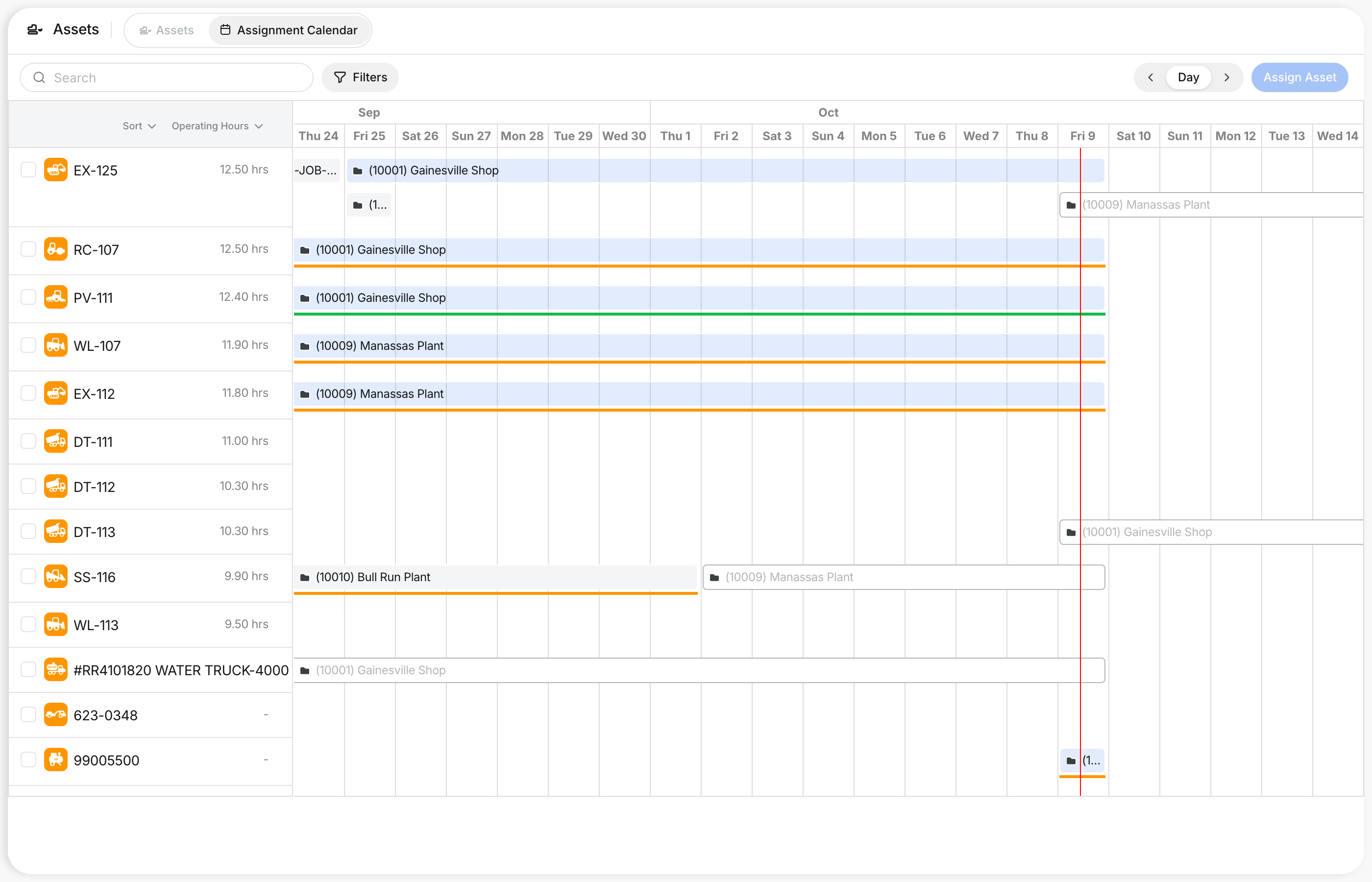
- Assignment Calendar - shows how the asset has been assigned over time.

Tips
A few quick checks in the Asset Detail view can help you catch issues faster and keep records accurate.
- Check PM Status before scheduling service
- Review Work Orders if the asset has repeat problems
- Check Connectivity Status if the map location looks stale
- Use the quick Create WO action when a fault or inspection issue needs repair. For that workflow, see Creating Work Orders from Issues.