What is this?
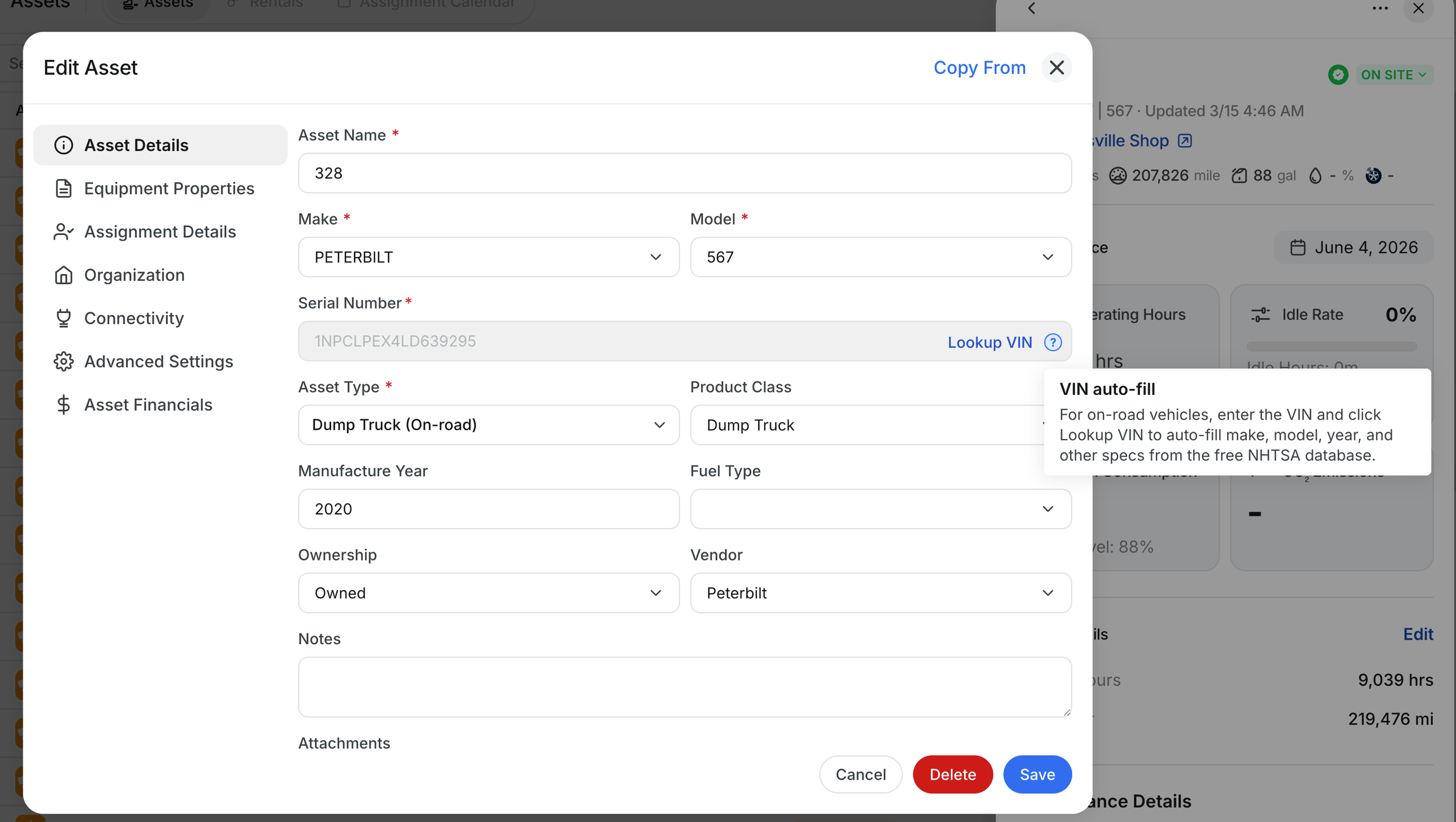
Adding a new on-road vehicle to Clue used to mean typing the make, model, year, and other specs by hand. Now you can paste a 17-character VIN into the Serial Number field, click Lookup VIN, and Clue fills in the make, model, year, fuel type, and asset type automatically. The data comes from the free public NHTSA database, so you get clean, consistent specs in one click.
Who is this for?
If you onboard vehicles into Clue, this saves you typing on every single one.
- Equipment Managers: bring in a new pickup, dump truck, or trailer in a few seconds instead of researching the model year and trim.
- Fleet Admins: clean up existing vehicle records. Open an asset that already has a VIN in the Serial Number field and click Lookup VIN to refresh the specs.
- Dispatchers: trust the make and model on every on-road asset, because they came straight from the manufacturer database, not someone's memory.
How to use it
Step 1: Open the asset
From Asset Directory, click an existing on-road vehicle to open Edit Asset, or click Add Asset for a new one.

Step 2: Enter the VIN in Serial Number
Paste or type the 17-character VIN into the Serial Number field. The Lookup VIN button next to it lights up when the value is a valid VIN shape.

Step 3: Click Lookup VIN
Clue calls the NHTSA database and fills in the empty fields: Make, Model, Manufacture Year, Fuel Type, and Asset Type. You see a confirmation banner along the bottom. If you already typed values that differ from the VIN lookup, your values are preserved and the banner tells you which ones were kept.

The full details
- Works on: Web app, Add Asset and Edit Asset.
- Permission: any user who can edit assets in your company.
- Source: the free U.S. NHTSA vPIC database. No subscription, no API key, no cost.
- Covers: on-road vehicles registered in North America. Pickups, vans, trucks, semis, trailers, buses, cars.
- Does not cover: off-road heavy equipment with manufacturer PINs (Caterpillar, Komatsu, John Deere). The Lookup VIN button still appears but the database will not recognize the PIN. Fill those in by hand as before.
- Locked Serial Number: even if the Serial Number field is locked for your role, the Lookup VIN button stays clickable. It only fills the surrounding fields, not the serial itself.
- Conflict handling: values you already typed are never overwritten. A snackbar tells you which fields kept your value vs. which were auto-filled.
- Trailers: VIN lookup populates Make, Model, and Year for trailers, but does not pick an Asset Type. Trailers come in many shapes (cargo, lowboy, tanker, water), so you pick the right one.
Tips
- Paste a VIN that includes spaces, hyphens, or lowercase letters. Clue cleans it up before looking it up.
- If the lookup says "VIN not recognized", check the value for typos. NHTSA validates the check digit (the 9th character), so an off-by-one typo is caught instantly.
- For trailer-only fleets, run a Lookup VIN on a few sample assets to confirm Clue picks up the right Make and Model. Trailer manufacturers are sometimes labeled differently in NHTSA than how your team calls them.
- The button only enables when you have exactly 17 characters in the Serial Number field. If it looks greyed out, count the characters.