Managing the Component Catalog is the first step in setting up component-level tracking in Clue. The Catalog is the master library of every component type your organization tracks, including engines, hydraulic pumps, transmissions, and any other system your equipment contains. Before you can build a template or track a component on a real asset, its type needs to exist here.
Clue ships with a standard set of catalog items based on the ISO-14224 international standard for equipment reliability. You can use those defaults as a starting point, customize them to match your fleet, or add your own. Everything built on top of it, including equipment templates and component instances on real assets, draws from this foundation.
Who Is This For?
- Equipment Managers own the Catalog as the authoritative reference for every component type the organization tracks. Keeping it clean and well-structured ensures that templates and instances built on top of it are consistent across the entire fleet.
- Shop Managers reference the Catalog when building templates and assigning failure codes to components. A well-configured catalog with accurate default children and failure code mappings reduces manual work every time a new template is created, which directly supports how Clue handles equipment maintenance at the component level.
How to Use It?
Step 1: Navigate to the Catalog
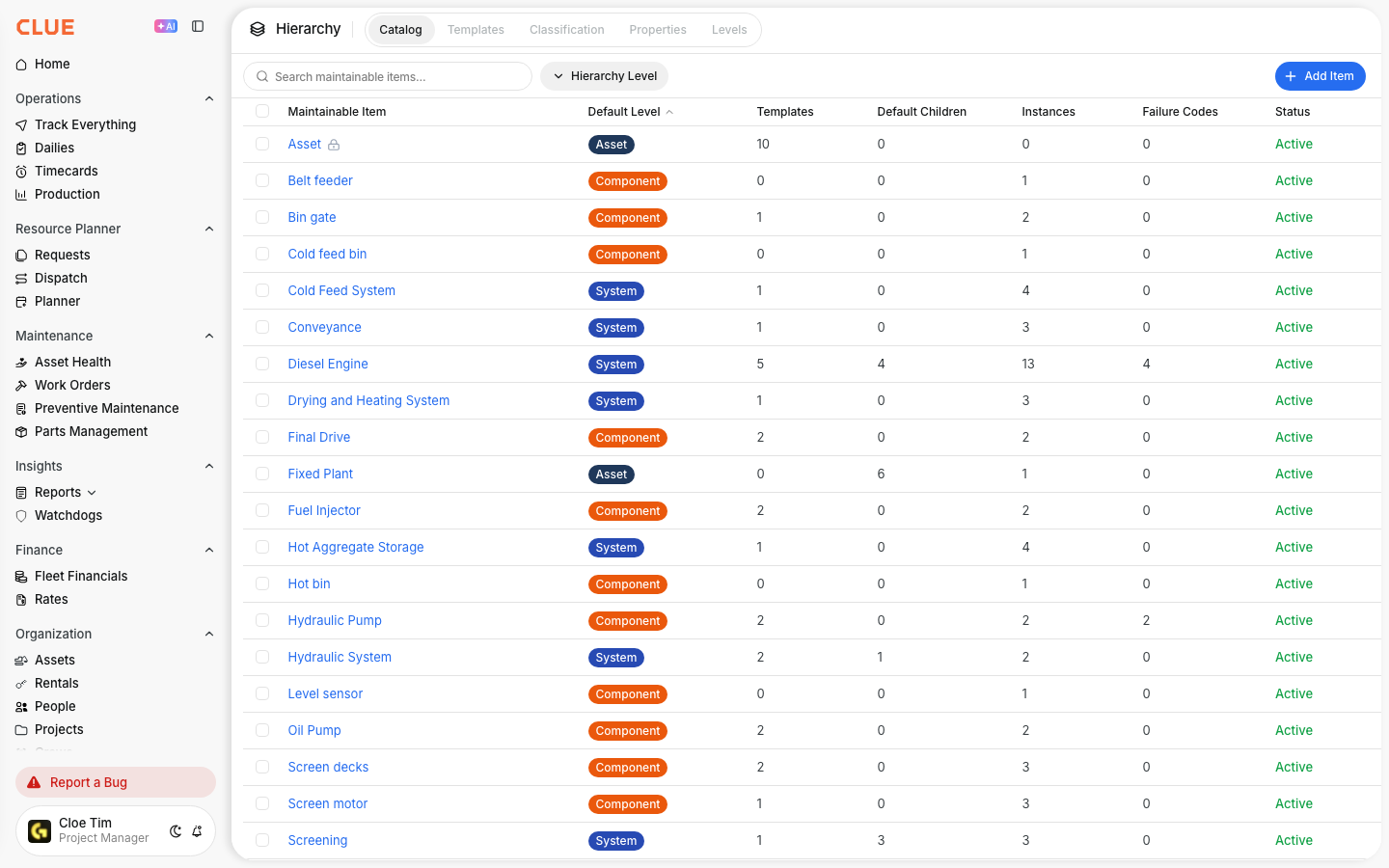
Go to Company Settings > Hierarchy > Catalog. The table lists every maintainable item in your organization's library. Each row shows:
- Item name and default hierarchy level
- Number of templates that reference this item
- Number of default children configured
- Number of live instances on real assets
- Failure codes linked to this component type
Step 2: Review existing catalog items
Clue provides a standard set of items based on ISO-14224 out of the box. Review this list before adding anything new. Items you do not need can be left unused without affecting anything. Deleting them is possible only if no templates or instances reference them.
Step 3: Edit a catalog item
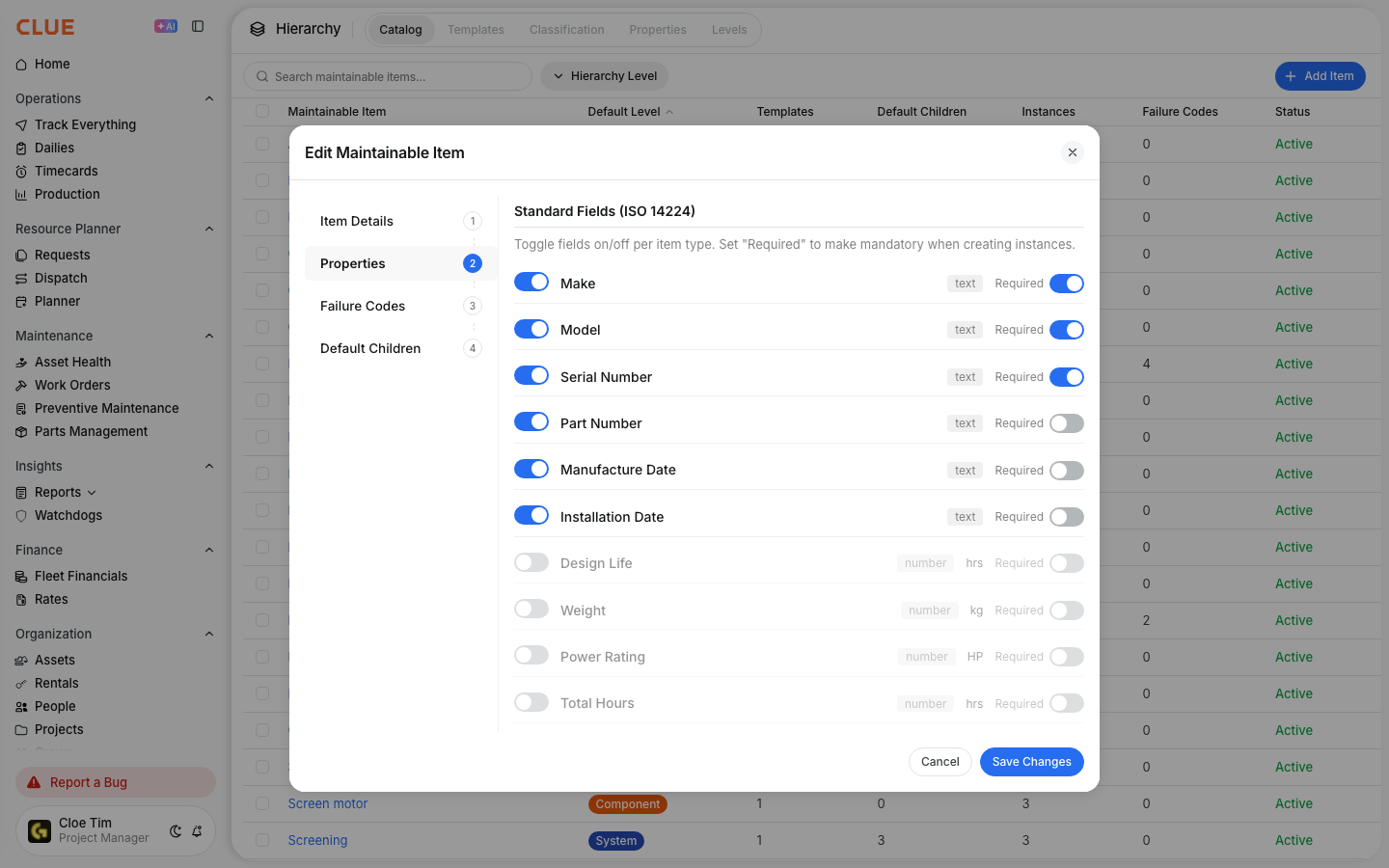
Click any item to open the edit dialog. The dialog has four tabs:
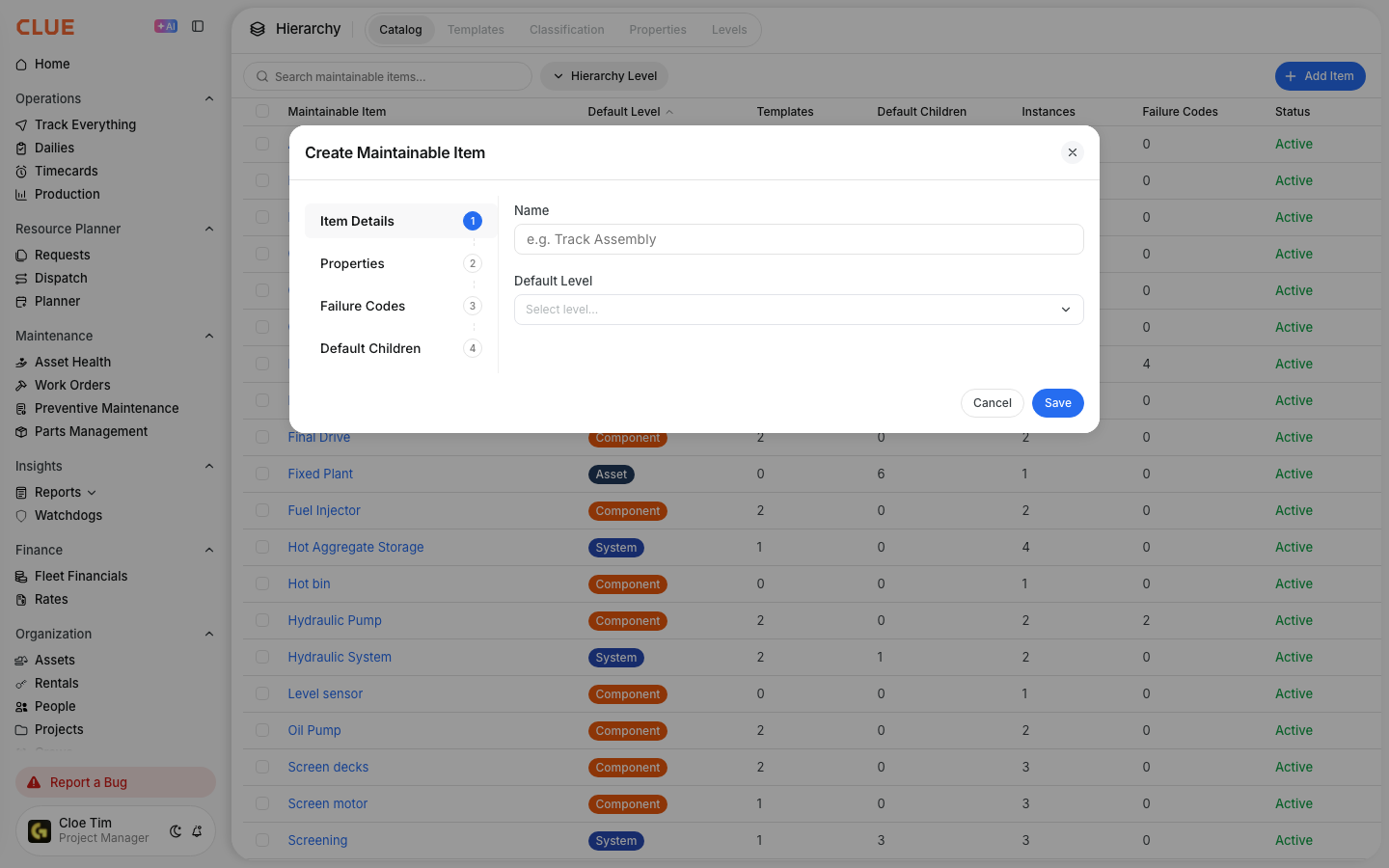
- Item Details: Name, description, and which hierarchy level this component sits at
- Properties: Custom fields to track on this component type, such as serial number, rated hours, or rebuild count
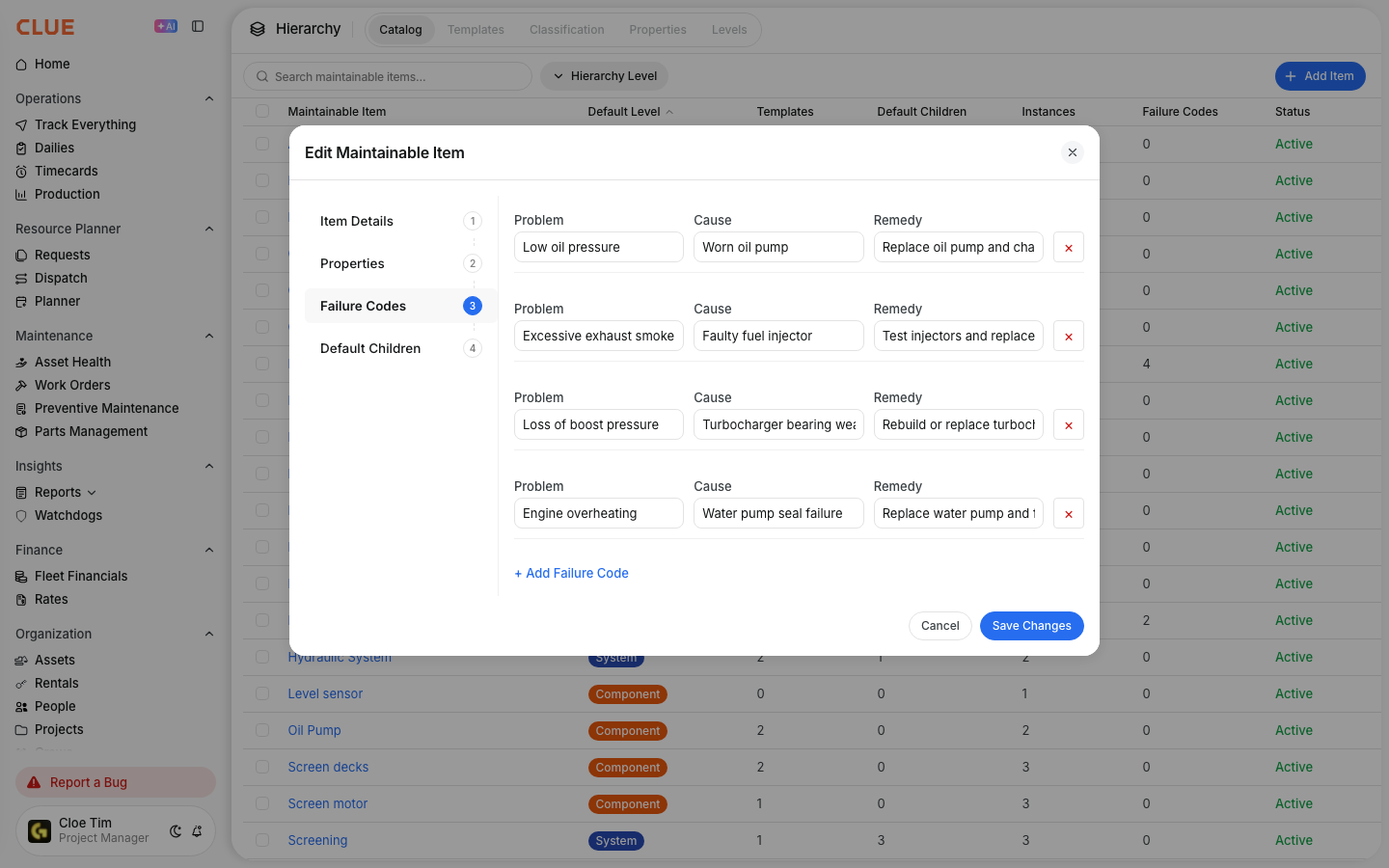
- Failure Codes: Fault codes associated with this component type so Clue can trace fault codes to the right component automatically
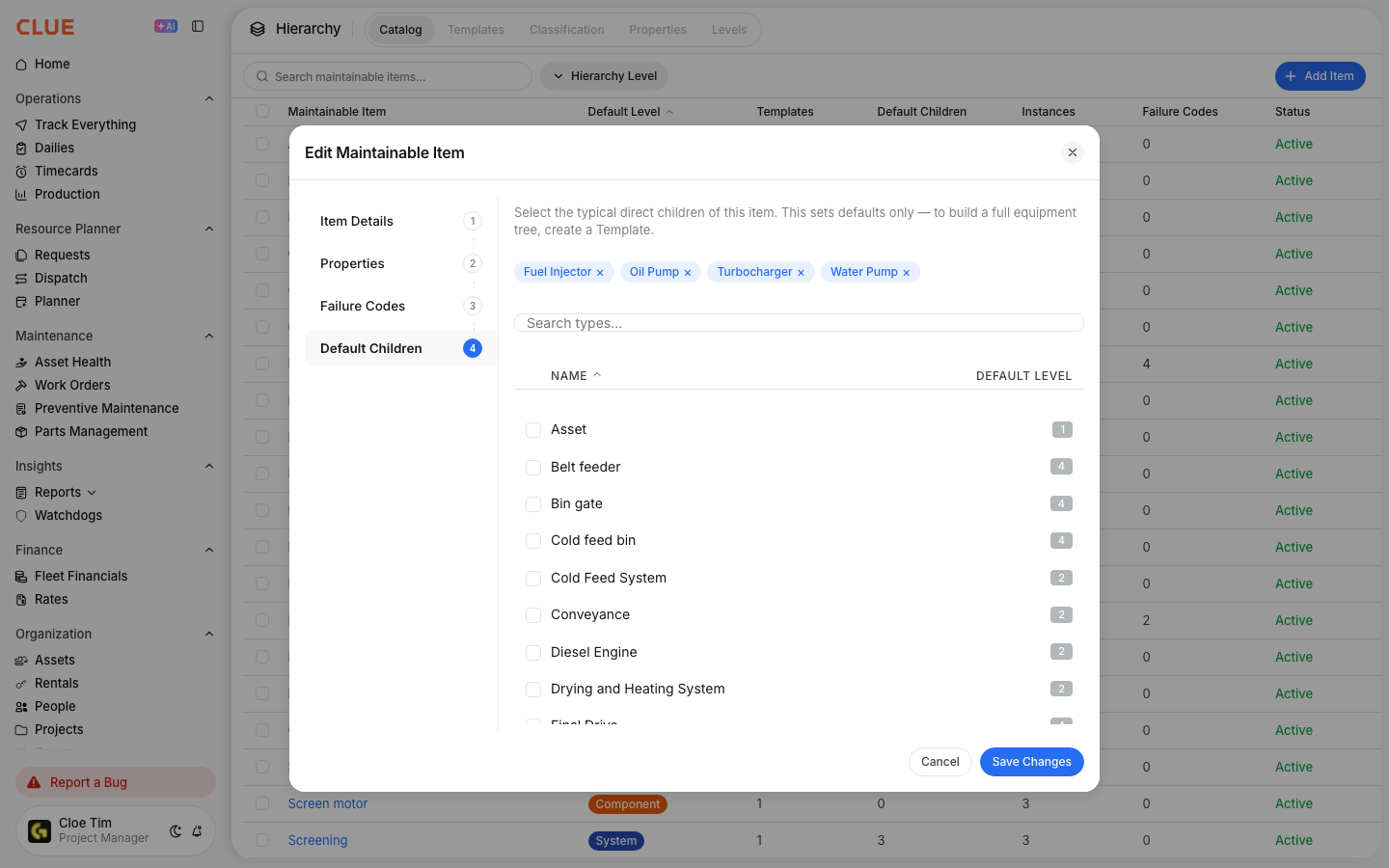
- Default Children: Sub-components that typically belong under this item

Step 4: Set default children
Default children are the biggest time-saver in the Catalog. If a Diesel Engine always contains a Turbocharger, Fuel Injector, and Oil Pump, mark those as default children on the Diesel Engine item. When someone adds a Diesel Engine to a template, those sub-components are included automatically without manual selection. Set default children before you begin building templates.
Step 5: Link failure codes to components
In the Failure Codes tab, map relevant fault codes to the component type. When Clue receives a fault code from a connected telematics provider, it can trace that code to the correct component on the asset automatically. This makes failure analysis by component type accurate and searchable without manual tagging on each work order.
Step 6: Add a new catalog item
If a component your fleet uses does not exist in the default library, click + New Item and fill in the Item Details tab. Set the correct hierarchy level, add default children if applicable, and link any relevant failure codes before saving.
Key Behaviors and Limitations
- Items with live instances cannot be deleted. If a catalog item has been applied to a real asset as a component instance, it is locked from deletion. The Instances column in the catalog table shows how many live records reference each item.
- The Templates column shows how many templates reference each item. Check this column before editing an item. Changes to a catalog item affect all future templates that use it but do not update existing instances already on assets.
- Filtering by hierarchy level keeps the catalog manageable. As the catalog grows, use the level filter to view only Systems, only Components, or only Sub-systems. This prevents the list from becoming difficult to navigate.
- Failure code mapping is per component type, not per asset. When you link a fault code to a catalog item, that mapping applies across every instance of that component type in your fleet. You do not need to configure it separately on each machine.
- Default children apply at template creation time, not retroactively. If you add default children to a catalog item after templates have already been built using that item, the existing templates are not updated. Only new templates created after the change will include the default children automatically.
Tips
- Set default children before you start building templates. This is the single biggest time-saver in the entire component tracking setup. Getting it right in the catalog means every template built from that point forward benefits automatically.
- Start with the ISO-14224 defaults and remove what you do not need. It is faster to delete unused items than to build a catalog from zero. Work through the default list and keep the items relevant to your fleet types.
- Link failure codes to components before going live. Once your telematics data is flowing into Clue, having fault codes pre-mapped to component types means failure analysis is accurate from the first day.
- Check the Templates column before editing any item. If a catalog item is referenced in many templates, understand that your edit affects all templates built from that item going forward.