Creating Equipment Templates is the second step in Clue's component-level tracking setup. A template is the bill of materials for a type of equipment. It defines which systems and components that machine type contains, how they are arranged in the hierarchy, and how many of each exist. Build the template once, then apply it to every machine of that type in your fleet.
Each machine you apply the template to gets its own set of individually tracked component instances with separate serial numbers, histories, and costs. Before building templates, your component types need to exist in the Component Catalog, which is the foundation layer templates draw from.
Who Is This For?
- Equipment Managers build and manage templates for each equipment type in the fleet. A well-structured template ensures every machine of that type is tracked consistently with the same component hierarchy applied across all instances.
- Shop Managers use templates to confirm that the right systems and sub-components are tracked on every asset before maintenance work begins. Templates make it possible to assign PM schedules and work orders at the component level, which connects to how Clue manages equipment maintenance for complex fleets.
How to Use It?
Step 1: Navigate to Templates
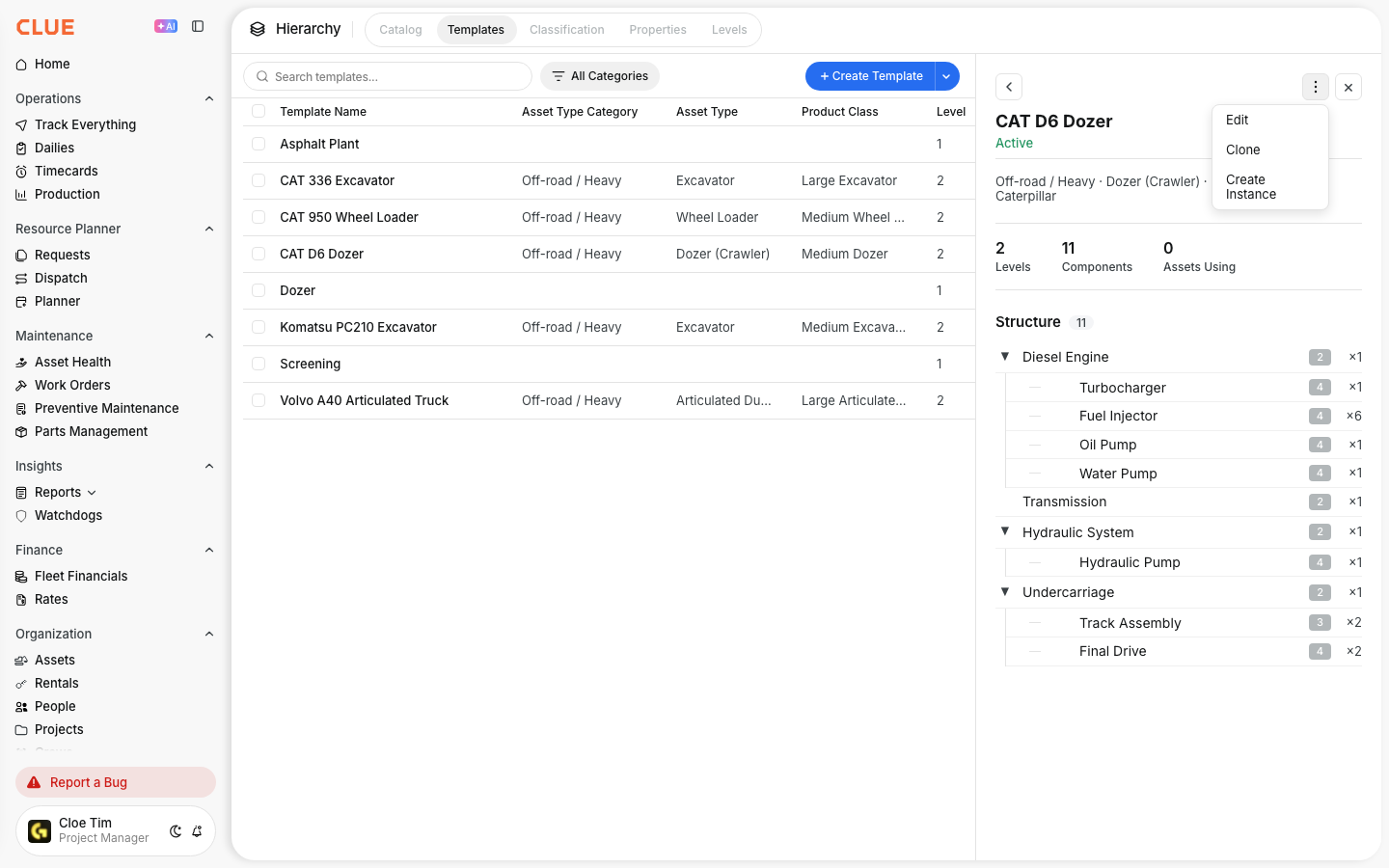
Go to Company Settings > Hierarchy > Templates. The table lists every template in your organization. Click any row to open the detail panel on the right, which shows the component structure for that template.

Step 2: Review the template structure
The detail panel displays:
- Template name, status, and manufacturer
- Key stats including number of levels, total components, and how many assets are currently using this template
- The full component list with hierarchy level badges showing where each item sits in the structure

Step 3: Create a new template or clone an existing one
To start from scratch, click + New Template. To base a new template on an existing one, open the three-dot menu on any template row and select Clone. Cloning is useful for equipment families that share most of the same components, such as different excavator models from the same manufacturer.
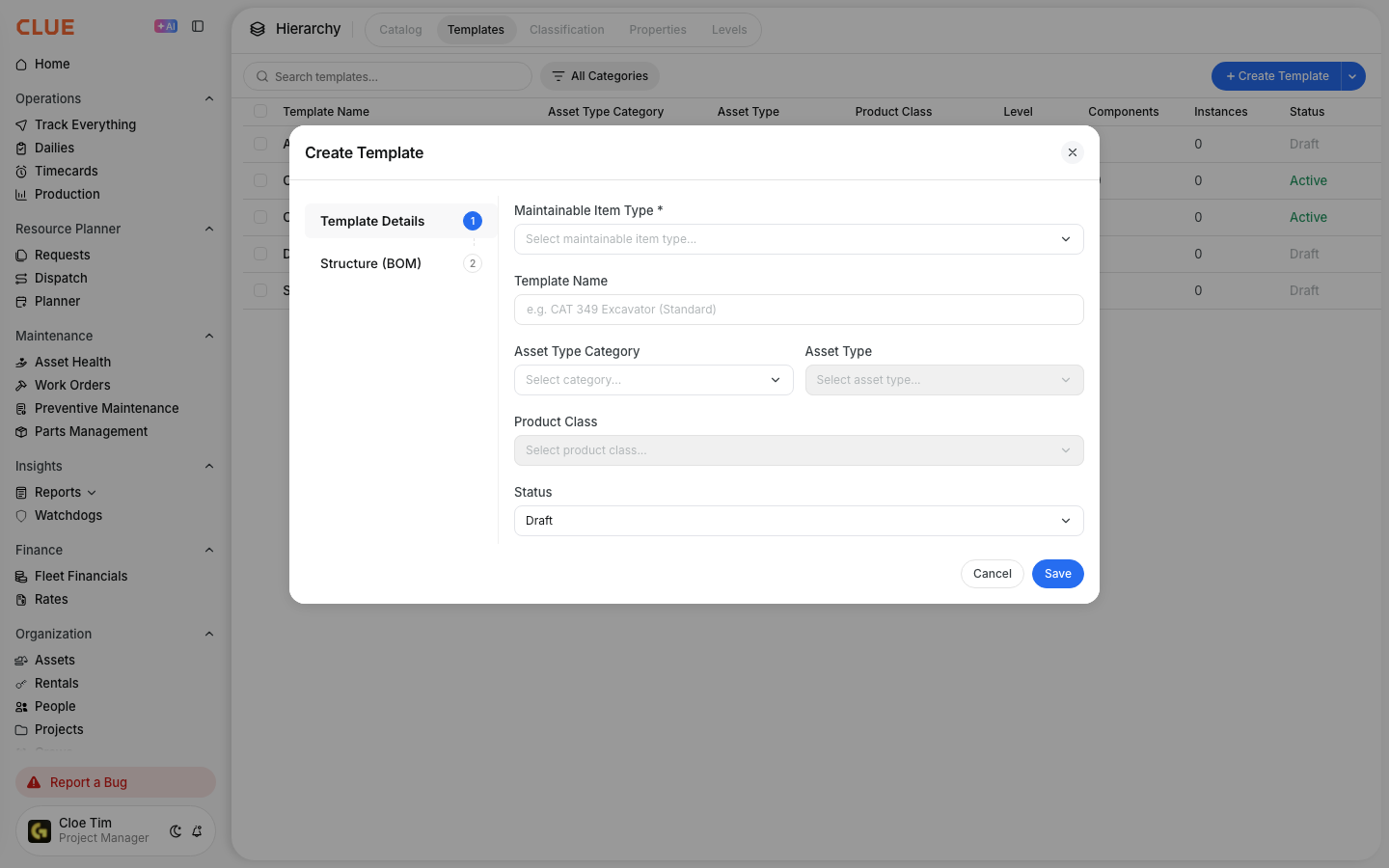
Step 4: Fill in template details
The Template Details tab sets the following fields:
- Maintainable item type and name
- Asset type and product class
- Status: keep it set to Draft while building
Set the status to Active only when the template is ready to be applied to real assets.

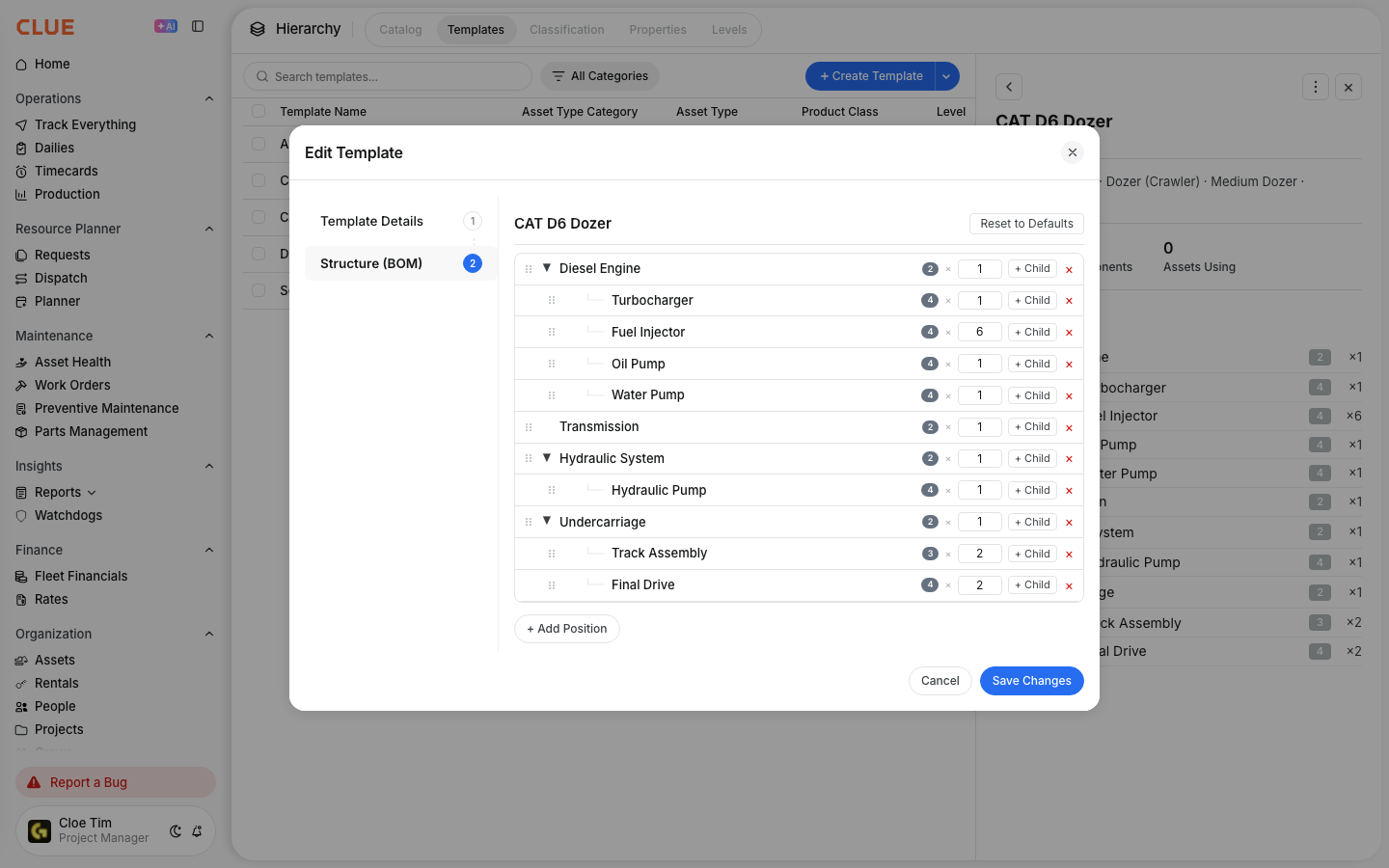
Step 5: Build the component structure in the BOM tab
Switch to the Structure (BOM) tab. This is where you define the component hierarchy:
- Each row is a component with its level badge and quantity
- Click + Add Position to add a top-level component to the structure
- Click + Child on any component to nest a sub-component underneath it using the searchable dropdown to select from your catalog
- Drag rows to reorder components within the same level
- Click Reset to Defaults to revert to the catalog defaults for any item
Step 6: Apply the template to an asset
Once the template is set to Active, open the three-dot menu and select Create Instance. This applies the template to a specific asset and generates individual component records for each position in the BOM. Each instance gets its own serial number field, history, and cost tracking from that point forward.
Key Behaviors and Limitations
- Templates must be set to Active before instances can be created. Draft templates are visible in the list but cannot be applied to assets. Change the status to Active in the Template Details tab when the structure is ready.
- Editing a template does not update existing instances. Changes made to a template after instances have been created only apply to new instances created after the change. Existing component records on assets keep their original structure.
- Cloning copies the full BOM structure. When you clone a template, the entire component hierarchy comes with it. Edit the clone to remove or adjust components before setting it to Active.
- The Assets Using count shows live exposure. Before editing a template, check the Assets Using stat in the detail panel. Edits will not affect existing instances but understanding the scope helps prevent confusion.
- Component types must exist in the catalog before being added to a template. If a component you need is not available in the BOM dropdown, it needs to be added to the Component Catalog first.
Tips
- Build templates for your highest-volume equipment types first. Twenty excavators tracked with a consistent template produces more useful data than two hundred machines tracked ad-hoc at the asset level.
- Use Clone for equipment families. If a CAT 320, 330, and 336 share 80 percent of their components, clone one template and adjust the differences rather than building each from scratch.
- Keep the status as Draft until the structure is confirmed. Since template changes do not flow to existing instances, getting the BOM right before creating instances saves significant rework later.
- Use child nesting for realistic structures. An Engine contains a Fuel System, which contains Fuel Injectors. Build the hierarchy as deep as your maintenance team actually needs it, not deeper.
- Check Assets Using before making edits to an active template. Only new instances will pick up the updated structure. Know the impact before proceeding.