Uploading files to an asset keeps manuals and other records attached to the equipment itself. That makes it easier for your team to find the right document when they are reviewing or working on that asset.
Overview
Use asset attachments to store parts manuals, service guides, warranty papers, and other reference files on the asset profile. Instead of keeping those files in separate folders, your team can open them right from the asset record in CLUE.
If your team also uses the full asset profile for specs, history, and status, this works alongside Understanding Asset Detail View.
Supported File Types
Before uploading, make sure the file is in a supported format. CLUE accepts the following file types for asset attachments:
- Documents - PDF, Word (.doc, .docx), Plain Text (.txt), Markdown (.md)
- Images - JPEG, PNG, WebP, GIF, HEIC, HEIF, AVIF
Step 1: Navigate to the Asset
Start by opening the asset you want to update. You will add the files from that asset’s profile.
From the main menu, go to Directory > Assets. Find the piece of equipment you want to add documents to, then click it to open the asset detail page.

Step 2: Open Edit Asset Profile
Once the asset detail page is open, switch to edit mode so you can add files to the record.
Click the three-dot menu in the top-right corner of the asset detail page. Then select Edit Asset Profile from the dropdown.

Step 3: Scroll to the Attachments Section
The upload area is lower in the form, so you will need to scroll down before adding files.
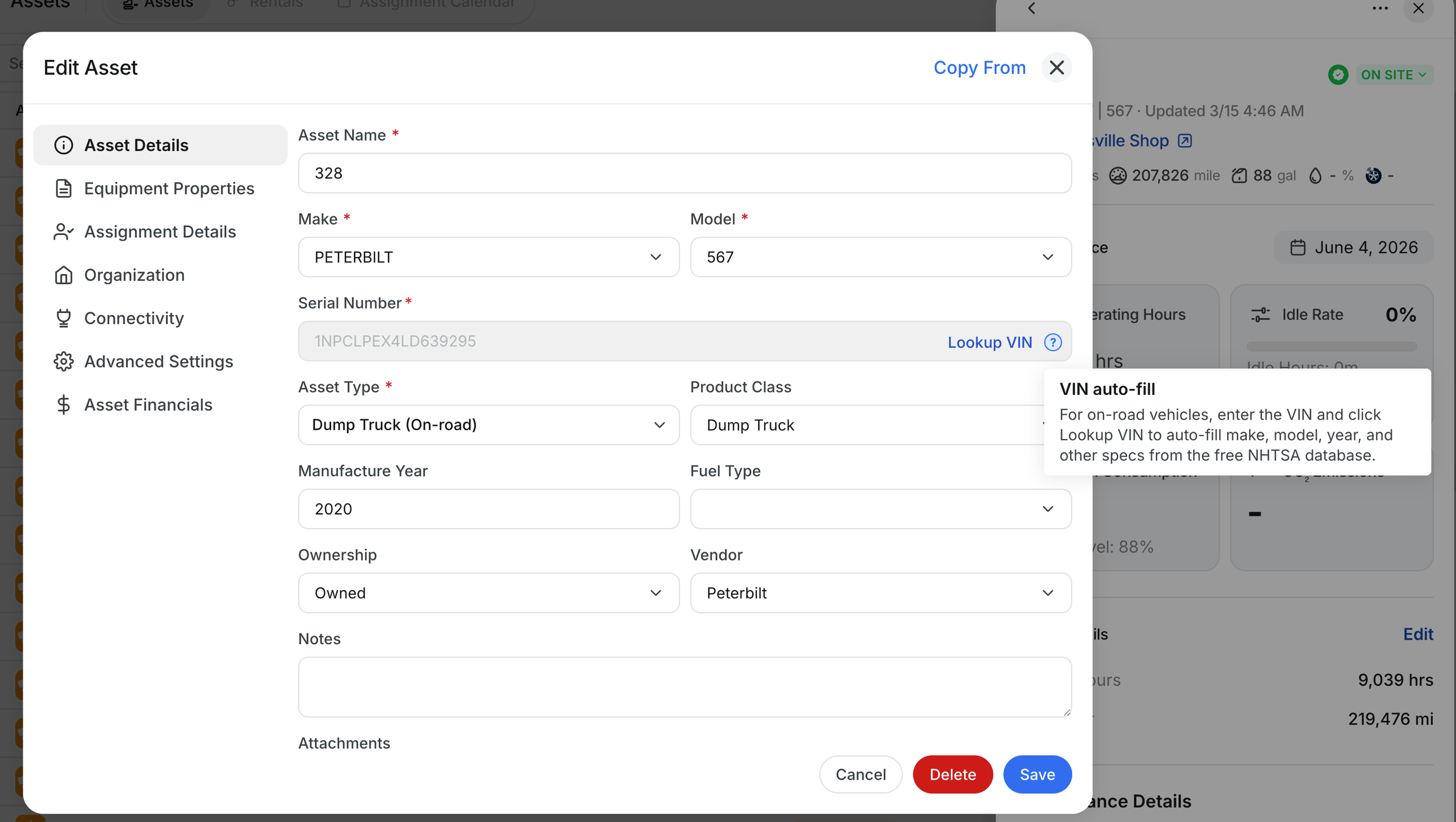
In the Edit Asset Profile form, scroll until you reach the Attachments section near the bottom.
Step 4: Upload Your Files
CLUE gives you two ways to add files. Use whichever is easier for your workflow.
You can upload files by:
- Drag and Drop - drag files from your computer into the attachments area
- Browse - click Browse to open your file picker and select one or more files
You can upload multiple files at the same time. After upload, each file will appear with a preview or file icon.

Step 5: Save Your Changes
After the files are uploaded, save the asset so the documents stay attached to the record.
Click Save at the bottom of the form. Your documents will then be attached to the asset and visible to anyone who can view that asset profile.
Viewing Attached Documents
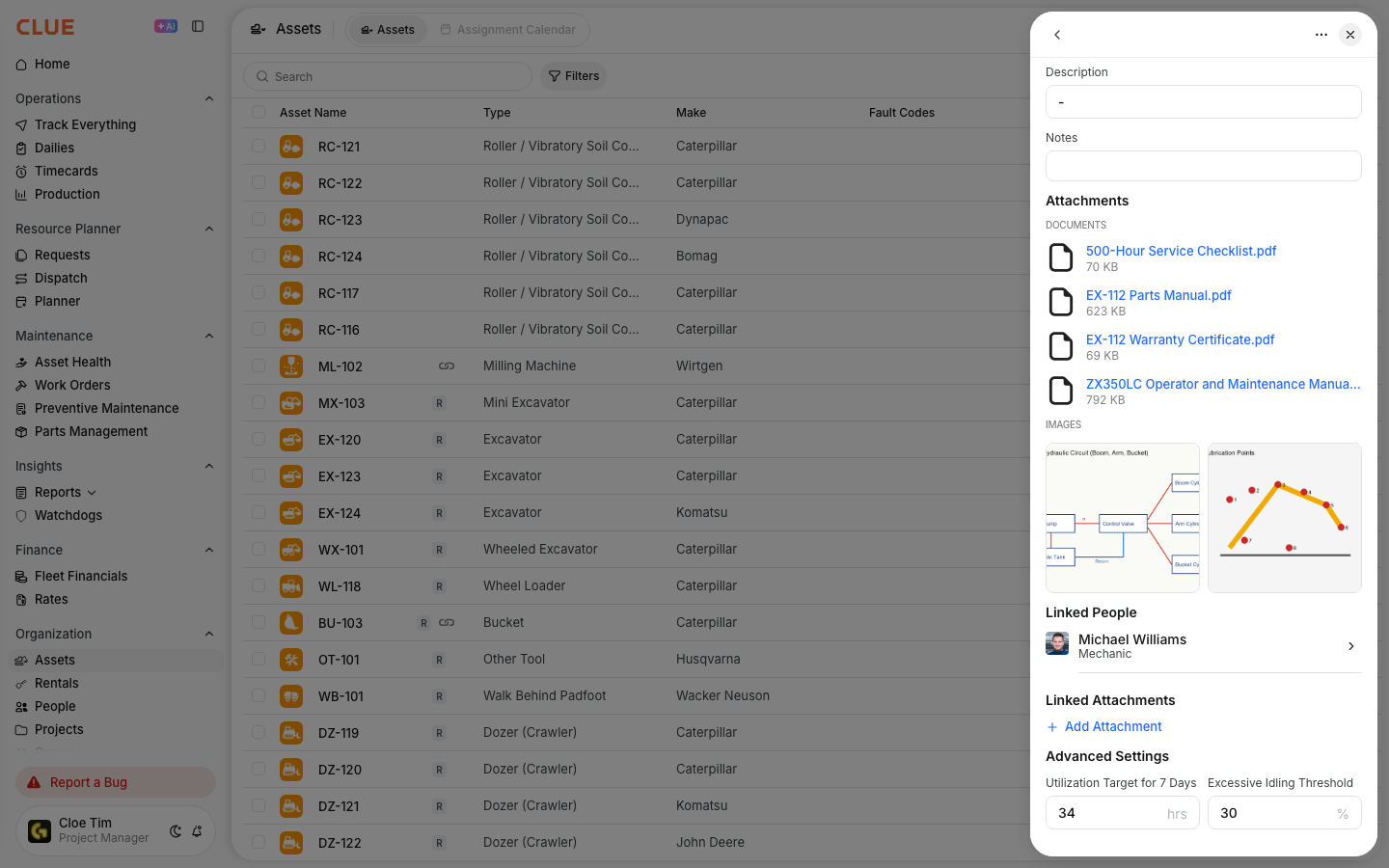
Once the asset is saved, attachments appear in the Attachments section of the asset detail page. If there are multiple files, team members can move through them using the left and right arrows.
If a document needs to appear inside an inspection checklist instead of only on the asset, use Viewing PDF Instructions on Checklists.
Tips
A few simple habits can make attachments easier to manage and easier for the team to use later.
- Name files clearly before uploading, so people can tell what each file is
- Upload one document per topic when possible
- Use PDF for manuals when you want consistent formatting across devices
- Team members with edit access to assets can upload and manage attachments
Troubleshooting
If something is not working, start with permissions and file type. Those are the two most common reasons uploads fail.
I don’t see the Edit Asset Profile option
You may not have permission to edit assets. Contact your CLUE administrator to check your role settings.
My file won’t upload
Make sure the file is one of the supported types listed above. If you are trying to upload a spreadsheet or another unsupported format, convert it to PDF first.