Asset Availability Status Colors Explained
What is this?
Every asset in Clue carries an availability status. It says whether the machine is working, sitting free, on a job site, or broken down. Each status has its own color.
Clue paints that color everywhere the asset shows up. The badge on the asset panel. The thin line under each bar in the Assignment Calendar. The availability cards on Home. Learn the seven colors once and you can read your whole fleet without opening a single record.
Who's this for?
Anyone who needs to know what the fleet is doing today.
- Equipment managers, see which machines are down or idle at a glance.
- Dispatchers, scan the Assignment Calendar for the colors that mean a machine is free.
- Mechanics, mark a machine Down the moment it stops so nobody schedules it.
- Fleet coordinators, filter the fleet by status to build a daily availability list.
The default colors
These are the seven statuses Clue ships with, in the order they appear in the list.
| Color | Status | What it means |
|---|---|---|
| Dark navy | On Site | The asset is at a job site and working there. |
| Blue | Available | Free and ready to be assigned to a job. |
| Red | Down | Out of service. Clue sets this automatically when someone reports a machine down breakdown. |
| Grey | Off Day | A planned non working day for that asset. |
| Red | Return Request | Flagged to come back from the job site. |
| Light grey | Being Sold | On its way out of the fleet. |
| Orange | Operational | The everyday working status. New assets start here. |
Two statuses share the same red: Down and Return Request. Read the name, not only the color.
How to use it
Step 1: Check the status on the asset
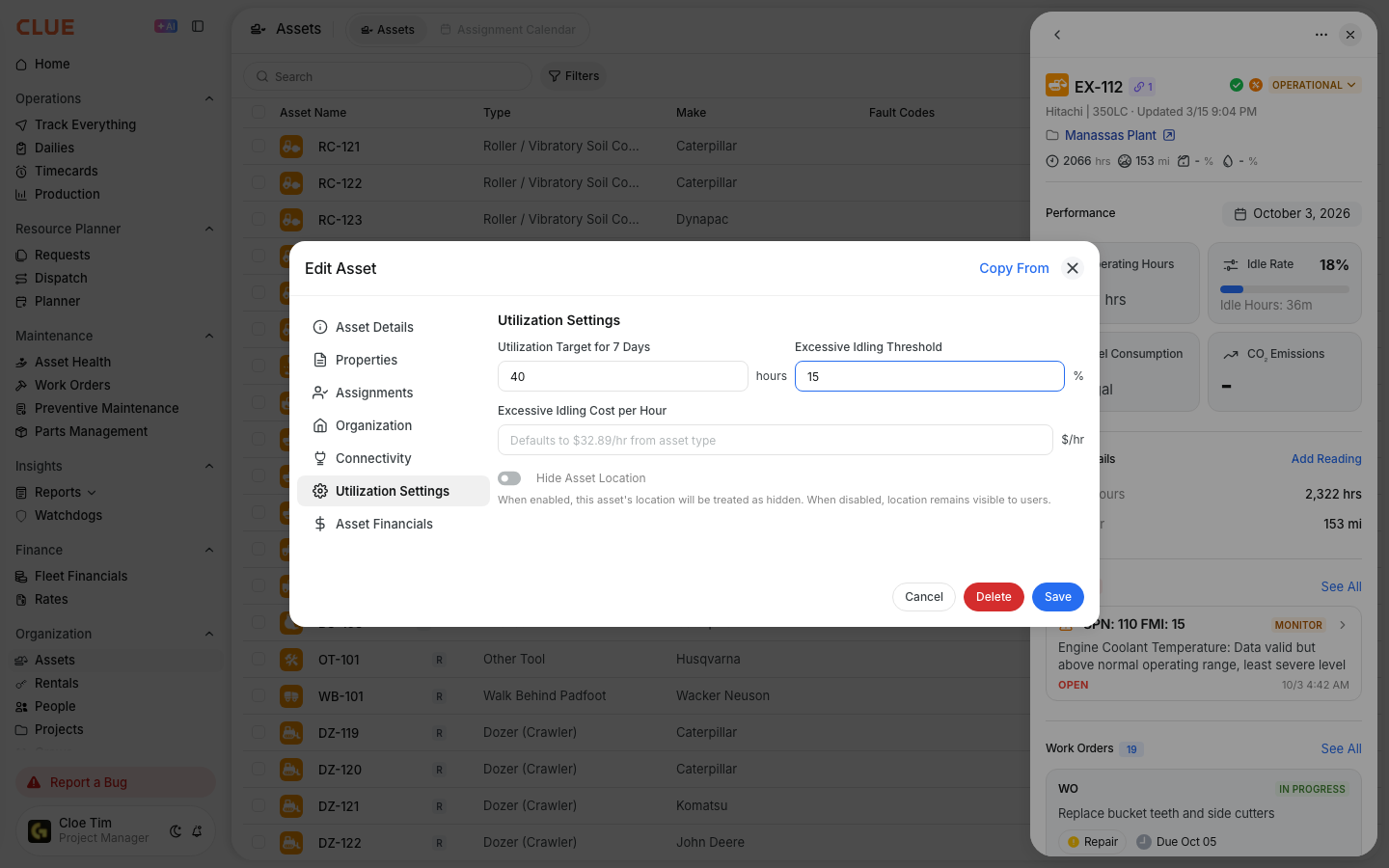
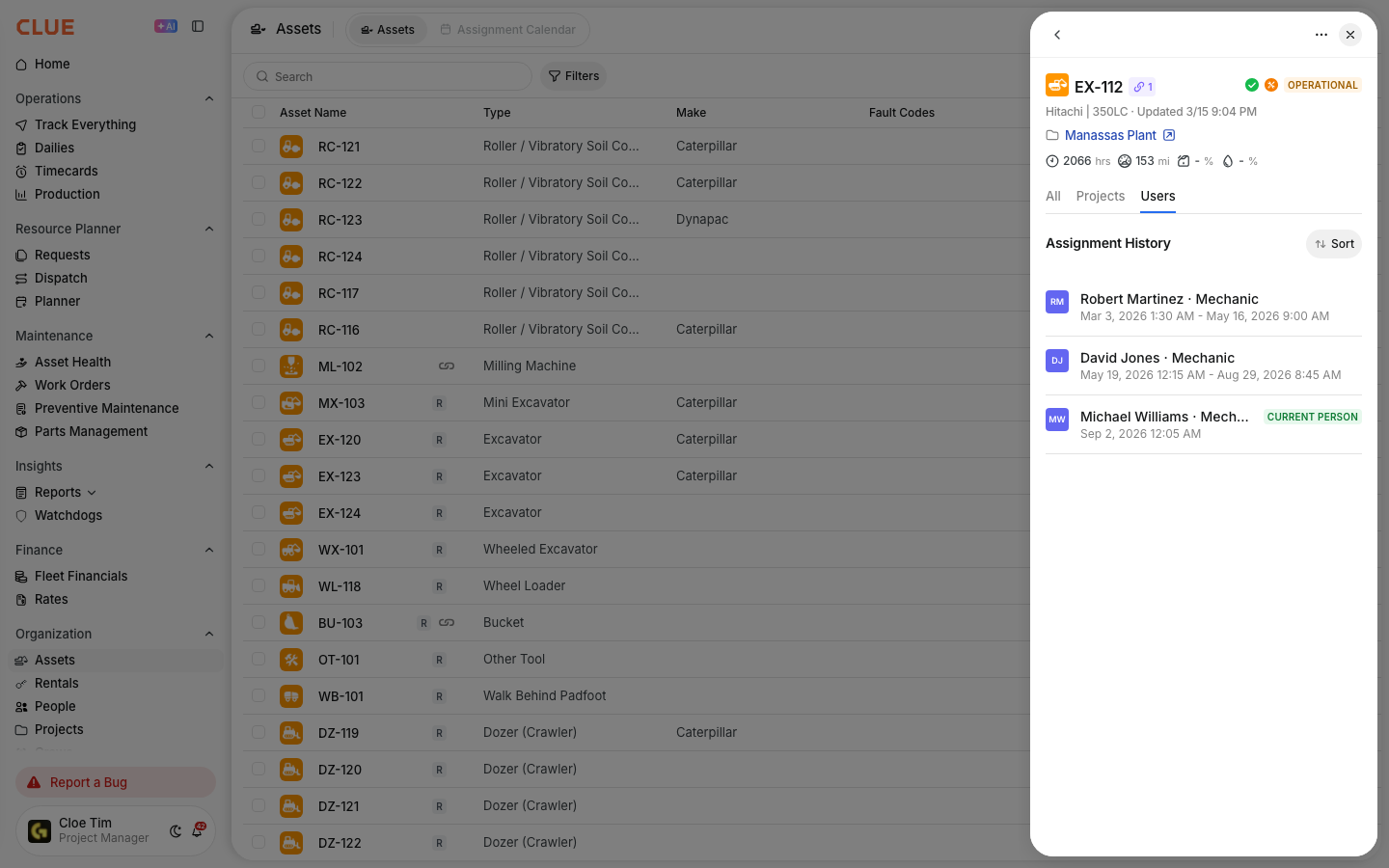
Go to Assets and click any asset to open its panel. The status badge sits at the top right, next to the asset name. Click the badge to see the full list with a colored dot beside each status.

Step 2: Read the colors in the Assignment Calendar
Go to Assets > Assignment Calendar. Each assignment shows as a bar, and under every bar runs a thin colored line. That line is the asset's availability status across those dates.
A line that changes color partway through an assignment is normal. In the example below, one asset runs green and then turns red, which means the machine went down in the middle of the job.

Step 3: Filter the fleet by status
Click Filters, then Equipment Status. Pick one or more statuses to see only those assets. This works on both the Assets table and the Assignment Calendar.

Step 4: Change an asset's status
Open the asset, click the status badge, pick the new status. It saves right away and the color updates everywhere.
Reporting a breakdown as machine down sets the asset to Down for you, so you do not have to change it by hand.
Your company can change this list
The seven statuses above are Clue's defaults. Your list does not have to look like that. Clue can set up a list built around how your company actually talks about equipment.
- Rename a status. "Available" becomes "Ready to Roll" if that is what your crews say.
- Change a color. Pick any color for any status.
- Add your own statuses. Things like Under Repair, In Storage, Standby, or Awaiting Transfer.
- Reorder the list so the statuses you use most sit at the top.
- Replace the defaults. Choose to keep Clue's statuses alongside yours, or show only your own list.
A custom list applies to your whole company, in every language your team uses, everywhere the color appears. The screenshot in Step 1 belongs to a company with a custom list, which is why it includes Under Repair. That one is not a Clue default.
To set this up, contact your Customer Success Manager or email support@getclue.com. Send the status names you want, the color for each one, and the order you want them in.
The full details
- Works on: Web app
- Permission needed to change a status: Asset availability status, Update
- Permission needed to see the colors: none beyond access to Assets
- Where the colors appear: asset panel badge, Assignment Calendar, Dispatch, Assets table, availability cards on Home
- Default status for a new asset: Operational
- Colors are set per company, not per user, so everyone on your team sees the same thing
- Optional rule: Clue can block moving an asset off Down while it still has an open machine down work order. Ask support to turn it on.
Tips
- If your Assignment Calendar is a wall of orange, nobody is updating statuses. Orange is Operational, the status every new asset starts on.
- Keep the list short. Ten statuses your crews actually use beat forty nobody touches.
- Before you ask for custom colors, check that anyone color blind on the team can tell them apart. Red and green side by side is the usual trap.
- Mark a machine Down the same day it stops. Dispatch reads these colors when deciding what to send out.
- Filter by Down first thing each morning. That list is your shop's work queue.