Setting Utilization Targets
Set utilization targets to measure whether equipment is being used the way you expect. These targets help you spot assets that are underused or spending too much time idling, so you can make better fleet decisions.
Overview
Utilization targets give CLUE a baseline to compare against actual equipment use. Once targets are set, CLUE can highlight assets that are falling short or idling more than they should. If you want to review the asset itself before setting targets, open Understanding Asset Detail View first.
What Are Utilization Targets?
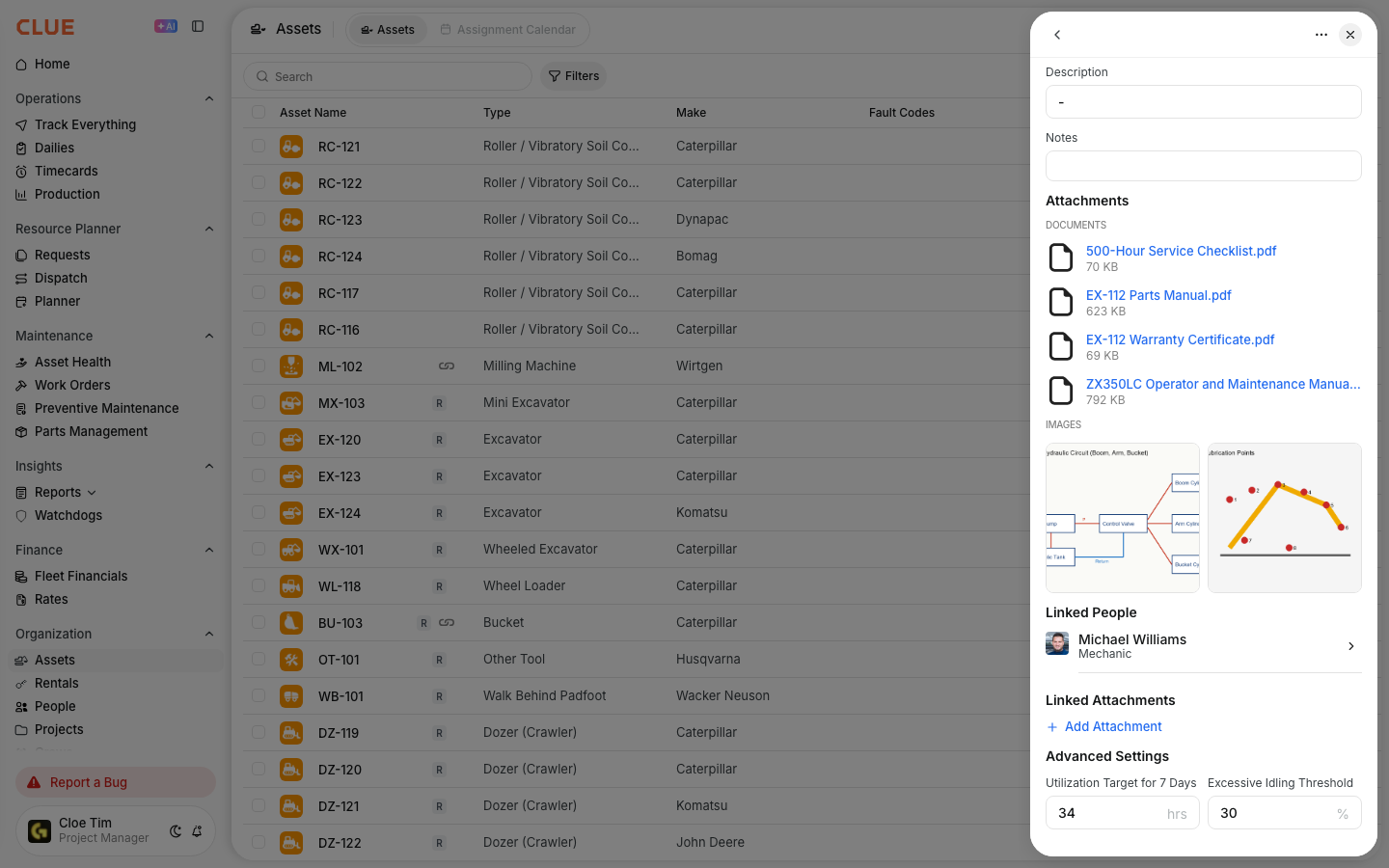
CLUE lets you set two utilization targets on each asset. These values are used to compare expected performance against actual telematics and usage data.
- Utilization Target (7 Days) - the number of operating hours you expect over one week
- Excessive Idling Threshold - the highest idle percentage you consider acceptable.
Setting Targets on an Asset
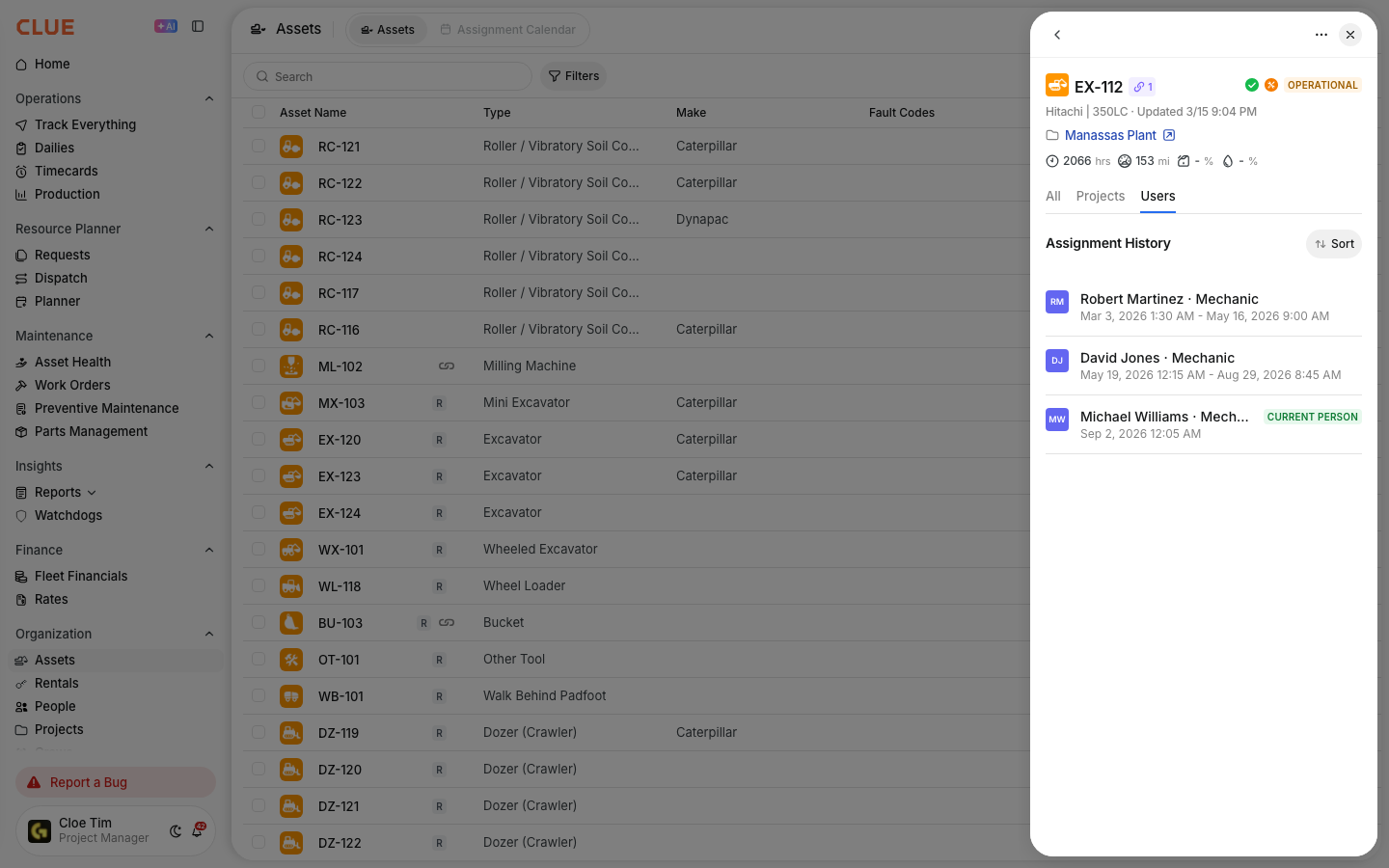
You set utilization targets from the asset record. If you need help finding the asset first, go to Managing Your Asset Directory. Once the asset is open, you can update the target values in the detail panel.
Step 1: Open the asset
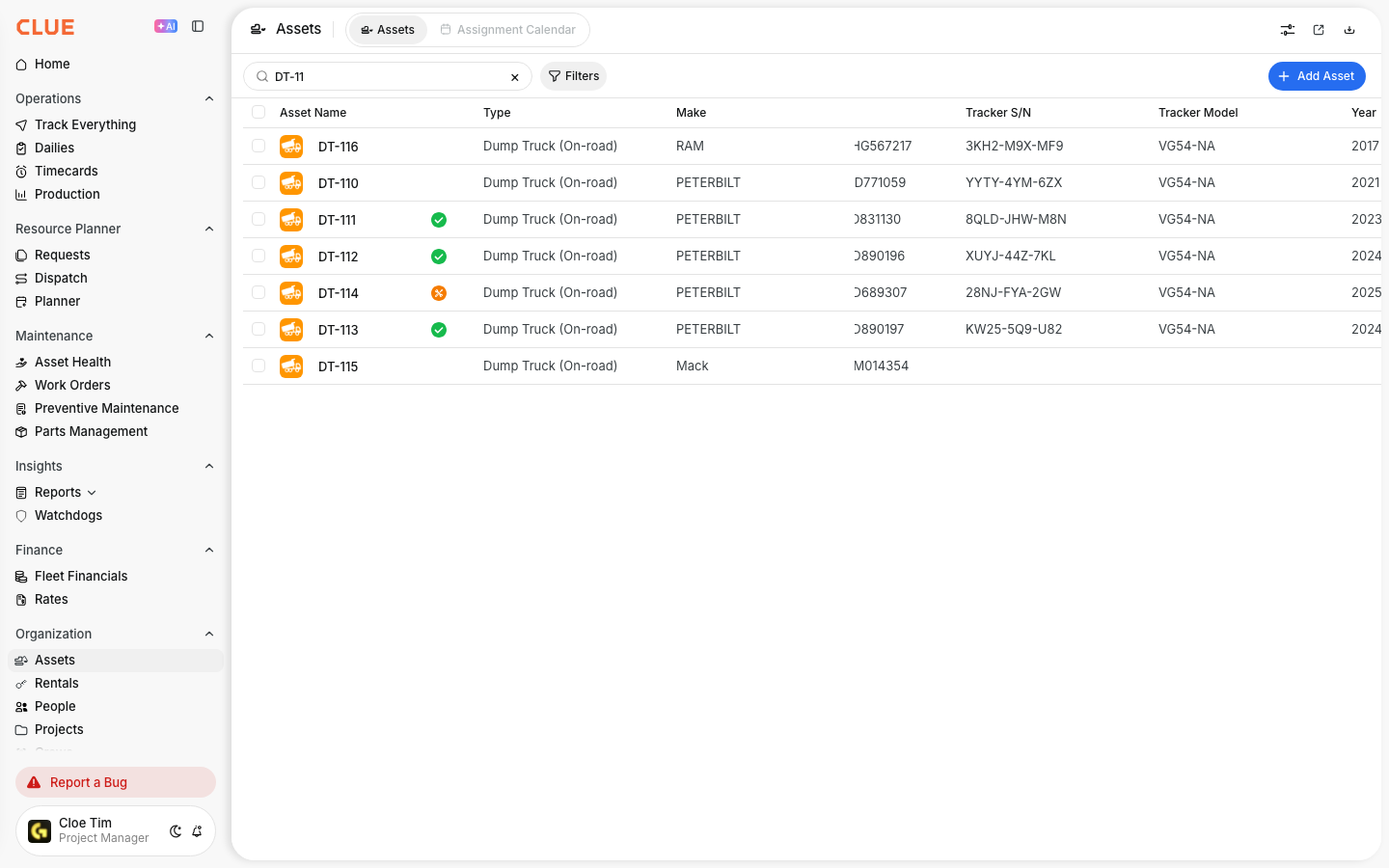
Go to Directory > Assets and select the asset you want to update.
Step 2: Find the utilization settings
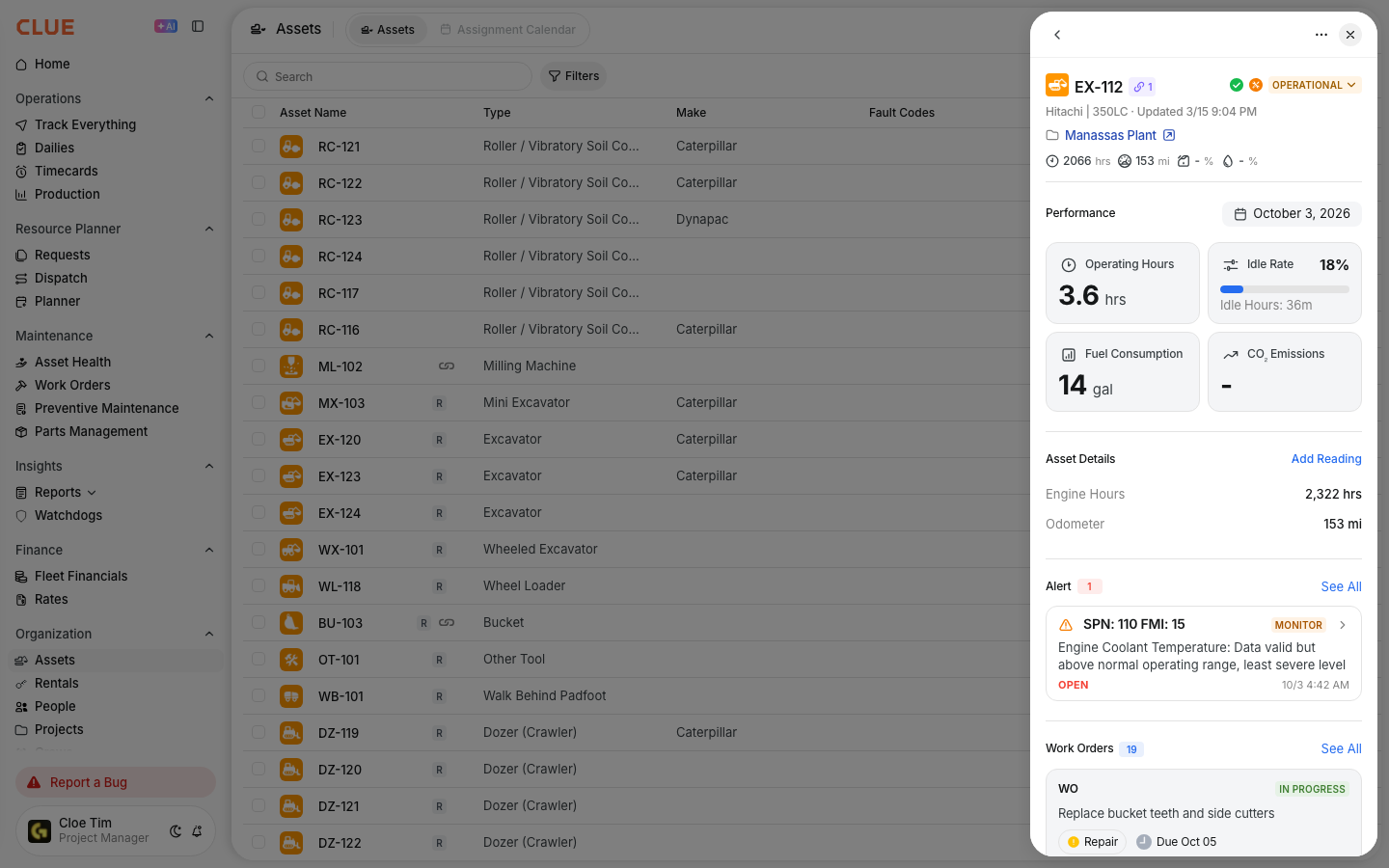
In the asset detail panel, locate the utilization settings section. If you are already reviewing asset information in the panel, Understanding Asset Detail View can help you find the right section faster.
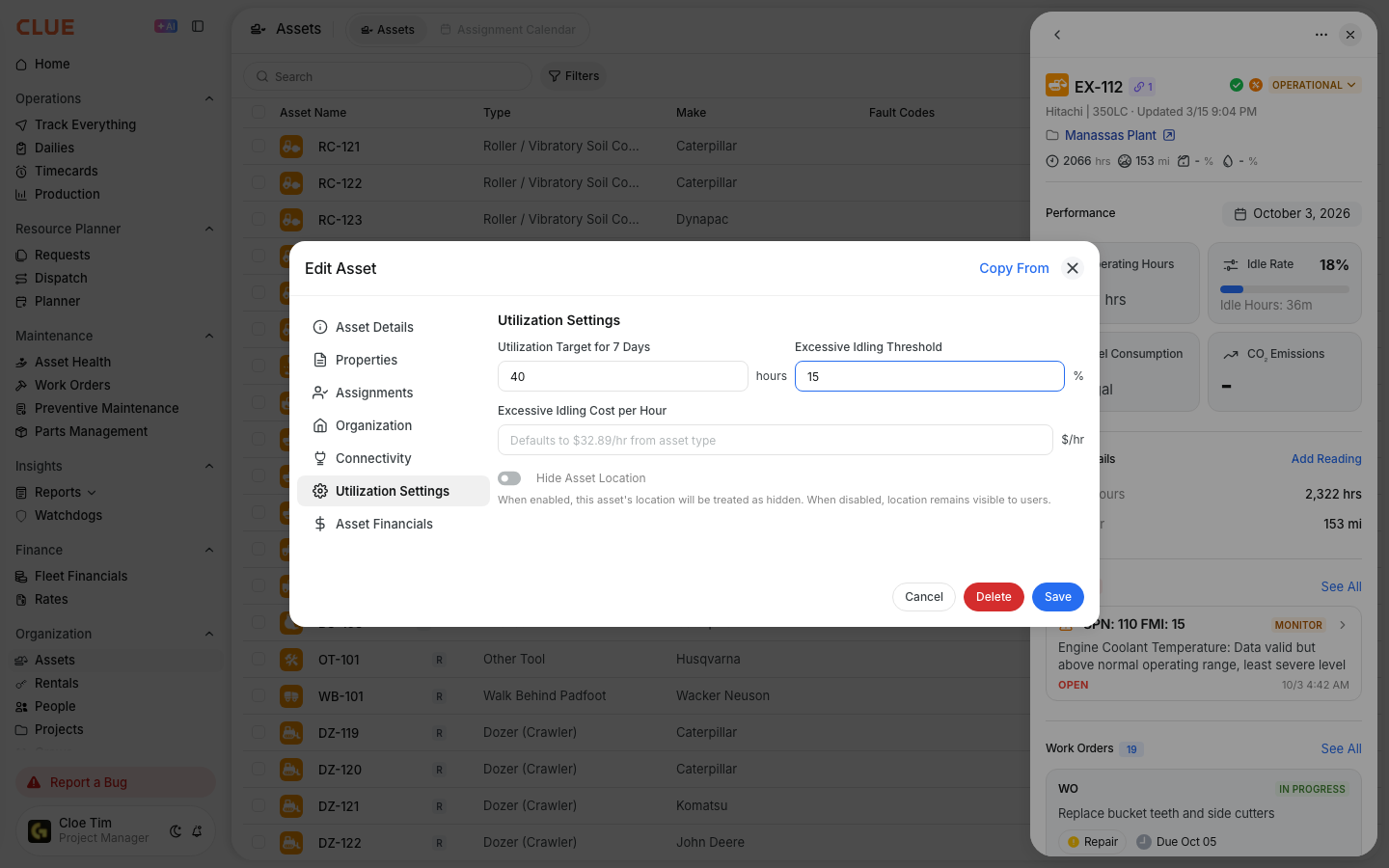
Step 3: Enter the target values
Enter the target values you want to use for that asset.
- For utilization, enter the expected weekly operating hours, such as 40 hours
- For idling, enter the maximum idle percentage, such as 15%.
Step 4: Save the changes
Click Save to apply the targets to the asset. The new values are then used in reporting and dashboard indicators.
How Targets Affect Reporting?
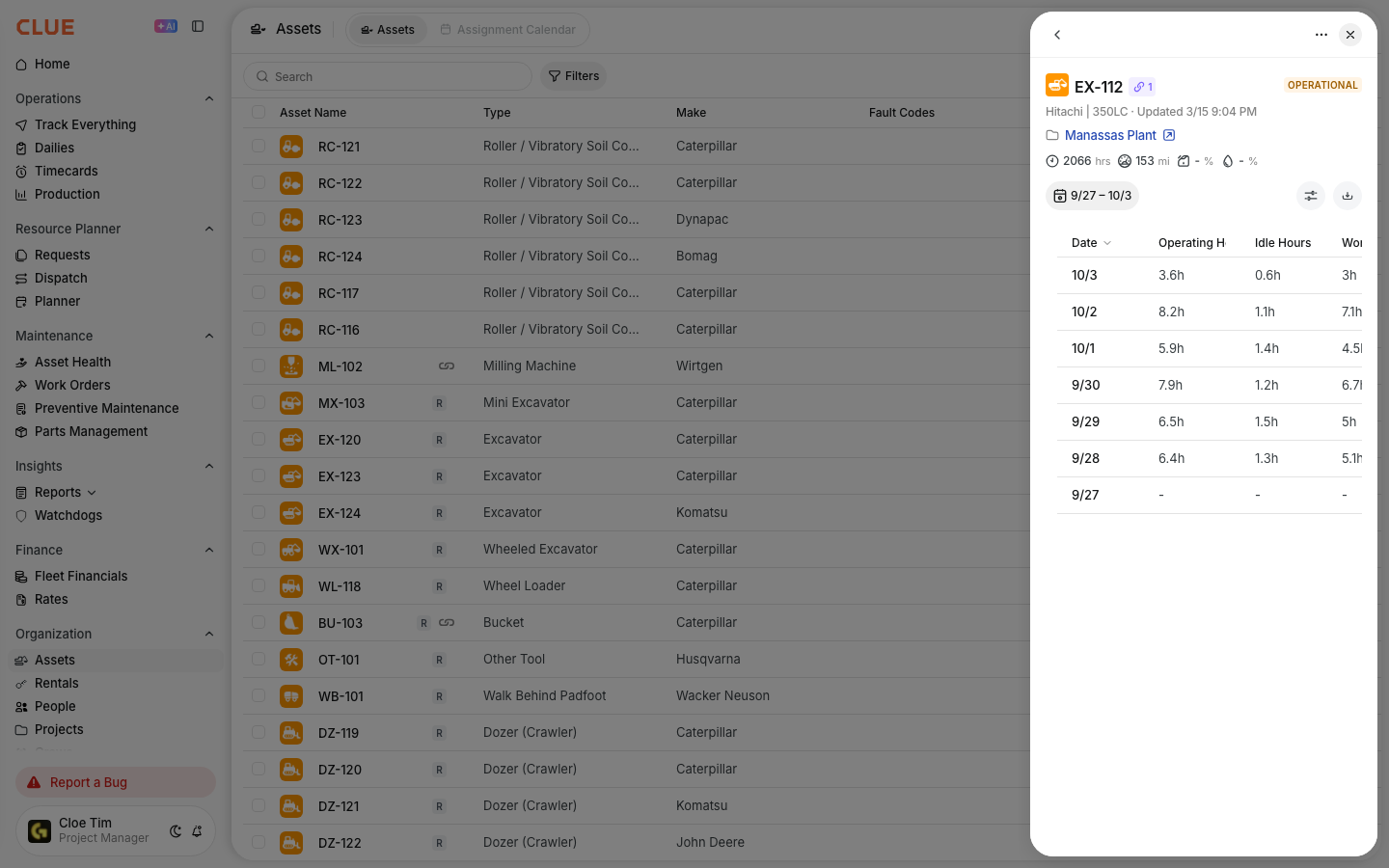
After targets are saved, CLUE compares actual asset performance against those values. This helps surface equipment that may need attention in reports and on the Home dashboard. For a deeper review, open Understanding Asset Utilization Report or Running the Utilization Report.
- Assets below the utilization target can appear in Under Utilized reporting
- Assets above the idle threshold can trigger excessive idling alerts
- Home dashboard widgets can highlight assets that are missing targets or need review.
Recommended Targets by Equipment Type
Target values should match the kind of equipment you are tracking and how it is used in the field. Start with a reasonable baseline, then adjust it to fit your operation.
- Heavy equipment such as excavators and loaders - 35 to 45 hours/week, with idle time around 20% max
- Vehicles such as trucks and pickups - 30 to 40 hours/week, with idle time around 15% max
- Support equipment such as generators and compressors - target values vary based on project needs and operating schedules. If usage depends on site hours, it may also help to review Setting Project Operation Hours.
Tips
Set targets that are realistic for the equipment and the type of work it supports. A good target helps you catch true problems without creating noise in reports.
- Start with a benchmark, then adjust it based on real operating patterns
- Review targets every few months as work changes
- Account for seasonal changes when setting yearly expectations
- If an asset is assigned to a new job with different demand, update the project in Assigning Assets to Projects and review the target again.