Asset Assignment History: User Tracking
Asset Assignment History helps you see where an asset has been assigned and who has been linked to it over time. You can check project history, user history, or both in one timeline, which makes it easier to answer questions like who was using a machine last week or what project it was on at that time.
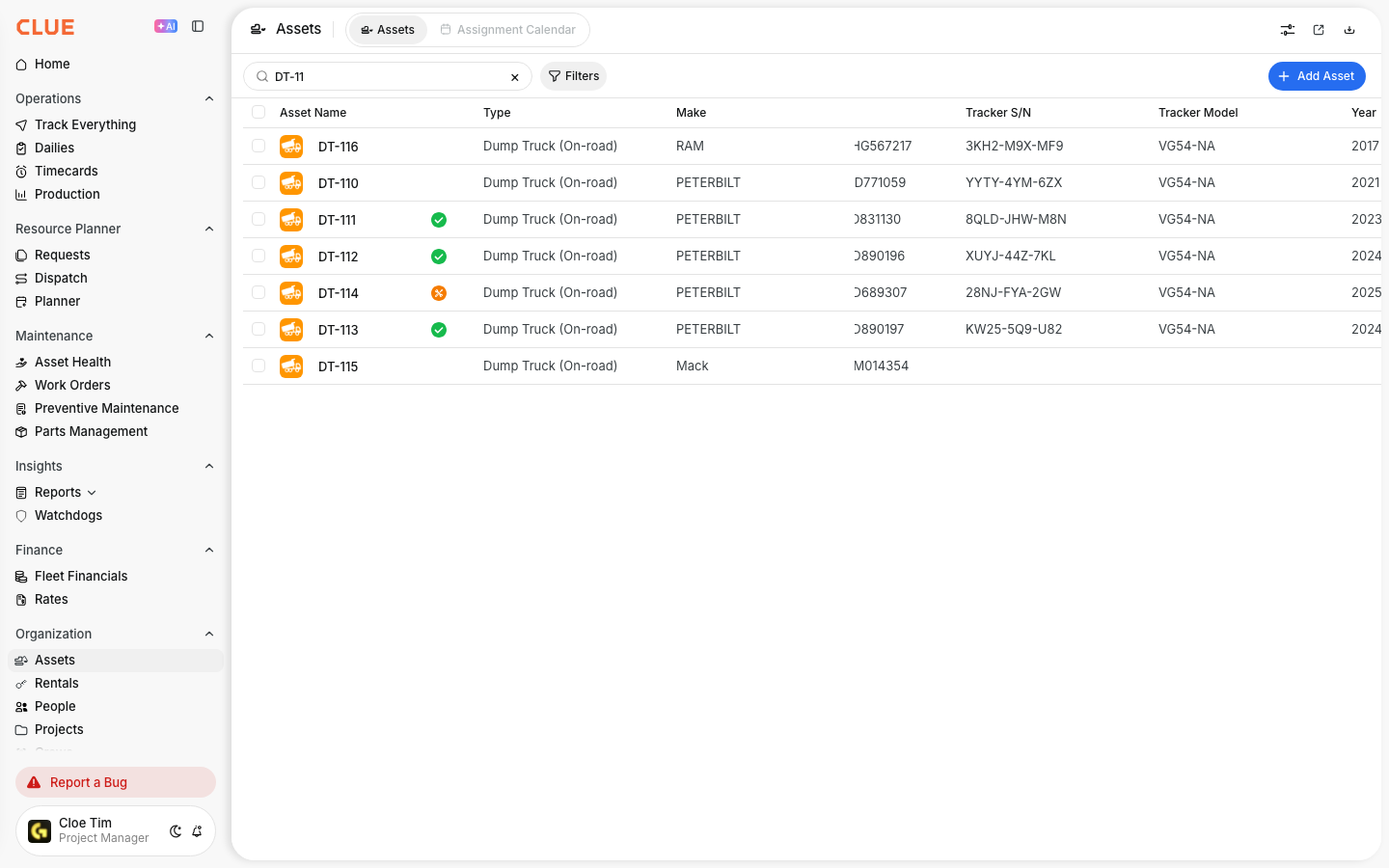
What’s New
This update adds more visibility to assignment history inside the asset record. You can now see a Users tab for operator history and a Both tab that combines user and project assignments in one timeline.
That means you no longer have to check separate views to understand who was linked to the asset and where it was assigned during the same period.
Key Benefits
This feature is useful when you need a quick answer about past or current assignments. It brings user and project history into the same place and makes the timeline easier to read.
- See the full user history for an asset, including names, job titles, dates, and current status
- View project assignment history in the same panel
- Use the Both tab to see one combined timeline
- Spot current assignments quickly with the green status badges
Where to Find It
You can open Assignment History from inside the asset record. If you are not familiar with that panel yet, this fits naturally with Understanding Asset Detail View.
Go to Asset Directory > select an asset > three-dot menu > Assignment History.
Step-by-Step Instructions
Use the steps below to open Assignment History and switch between the different views. The process starts from the Asset Directory and takes just a few clicks.
Step 1: Open the Asset Directory
Go to Asset Directory from the main navigation menu.
You will see a list of all your assets.

Step 2: Select an Asset
Find the asset you want to review and click it to open the details page.
You can use the search bar or filters to find the asset faster by name, number, or category.

Step 3: Open Assignment History
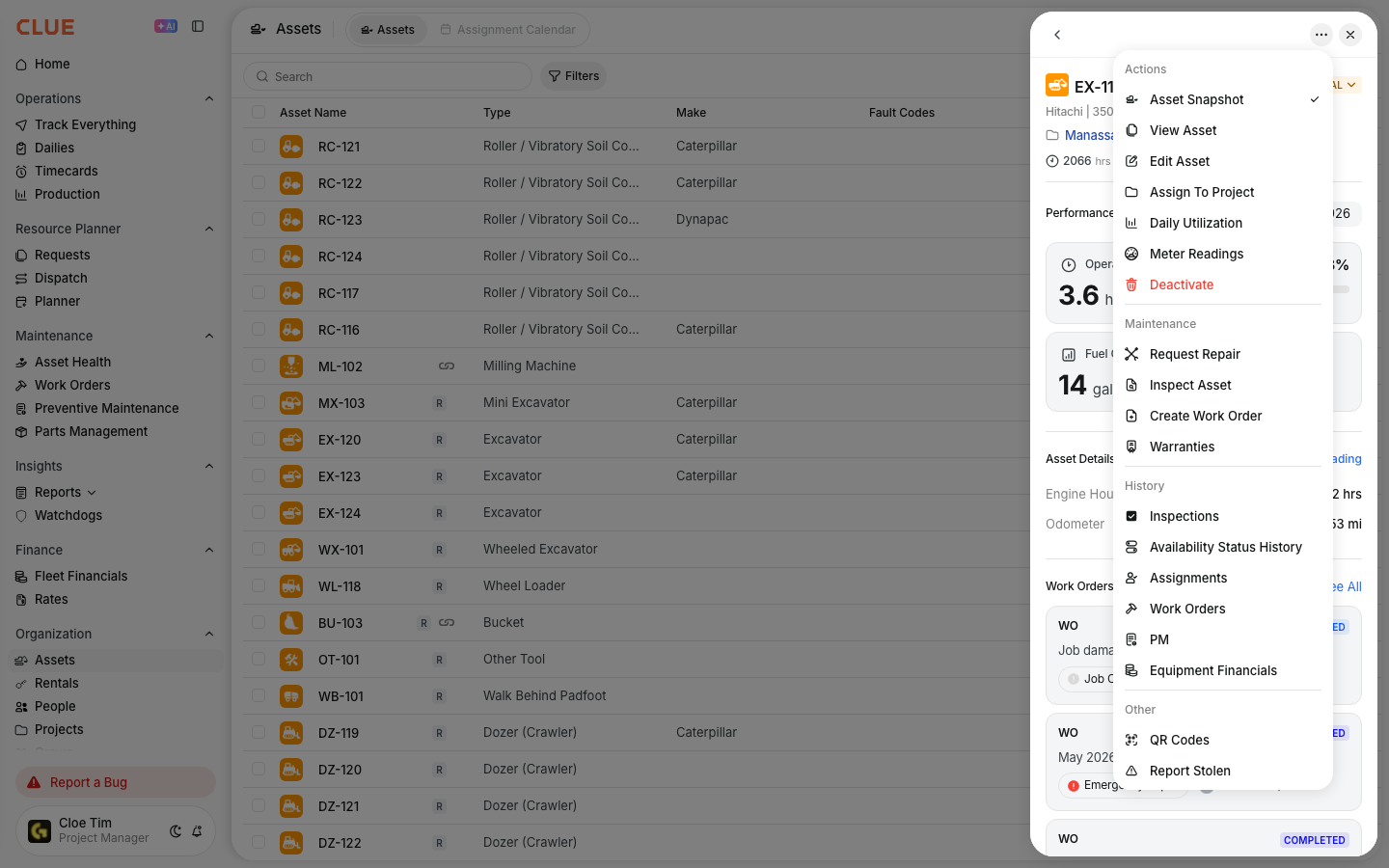
In the asset details view, click the three-dot menu in the top-right corner.
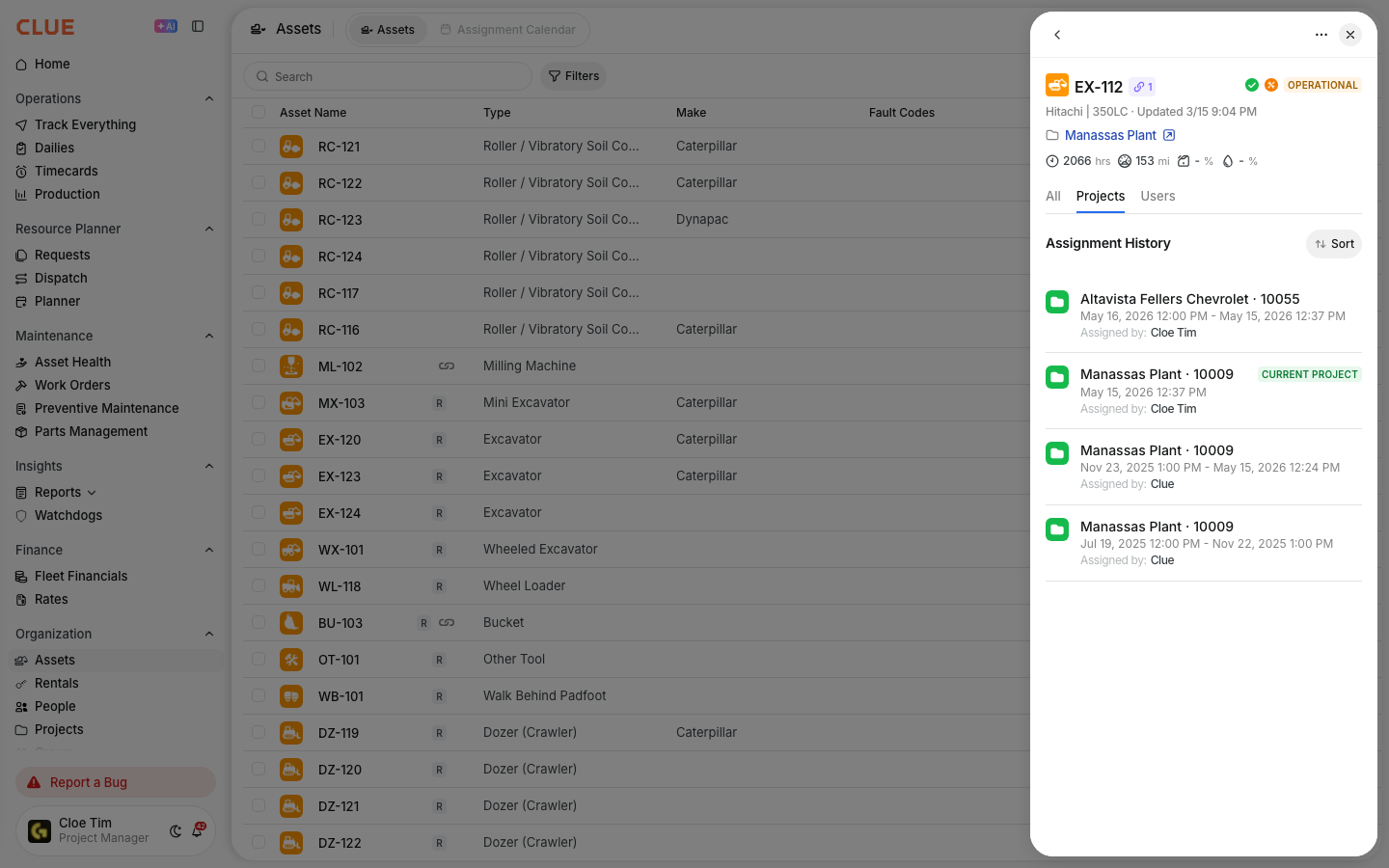
Select Assignment History from the dropdown. A panel will open with three tabs: Projects, Users, and Both.
Step 4: Choose Your View
Each tab answers a slightly different question. Pick the one that matches what you are trying to check.
- Projects - shows project assignments only
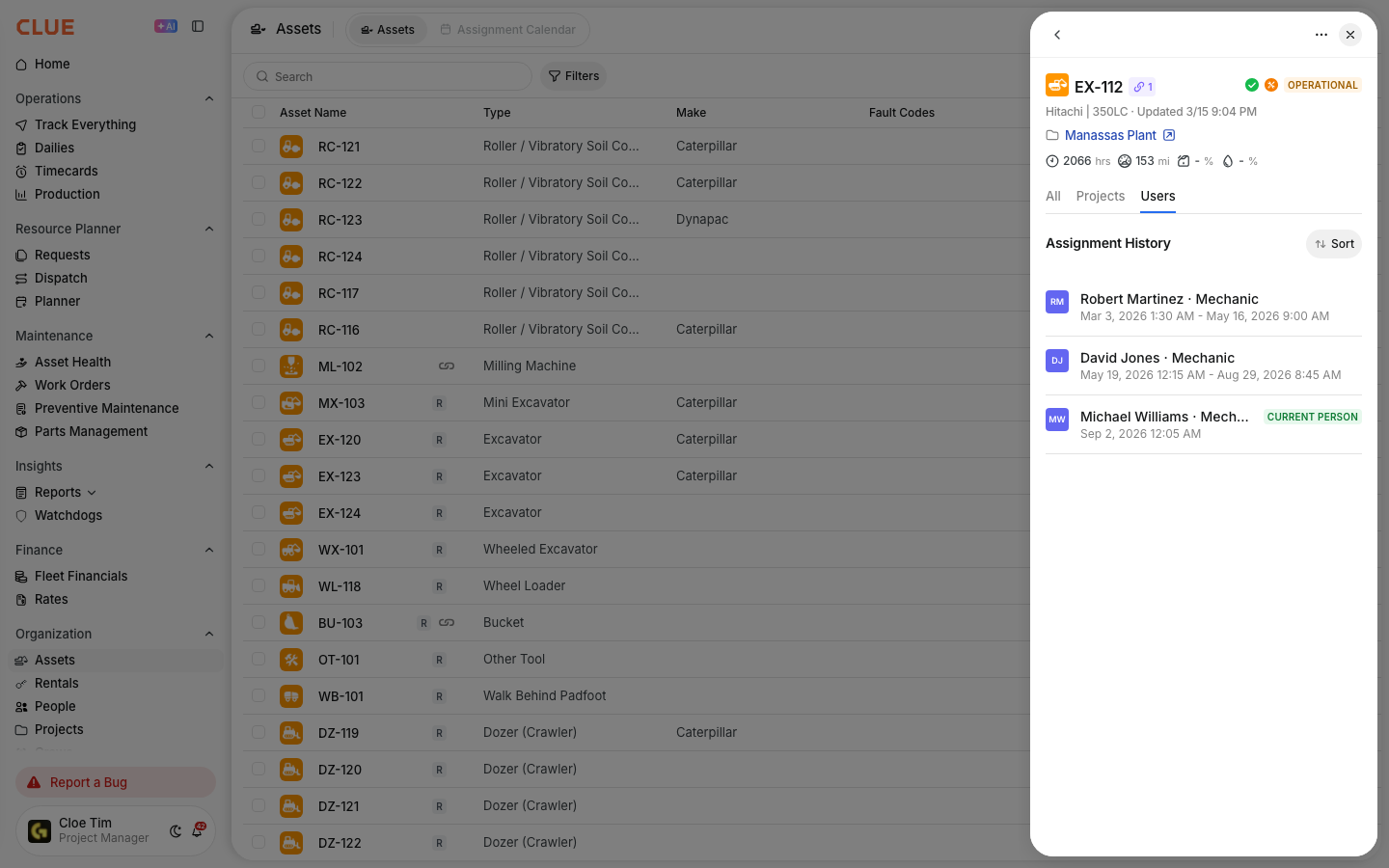
- Users - shows user or operator assignments only
- Both - shows one merged timeline with users and projects together, sorted by date
Step 5: Read the Timeline
Each entry shows the main details for that assignment. The exact information depends on whether the entry is for a user or a project.
For user entries, you will see:
- a blue person icon
- the user’s name and job title
- the date range they were linked to the asset
- a green Current Person badge if they are currently linked
For project entries, you will see:
- a folder icon
- the project number and name
- the date range for the assignment
- a green Current Project badge if the asset is currently assigned there
Understanding the Badges
The green badges help you see active assignments right away. This is the fastest way to check who or what is currently linked to the asset.
- Current Person - this user is currently linked to the asset
- Current Project - this asset is currently assigned to that project
If there is no green badge, there is no active user or project assignment at that moment.
Common Scenarios
This panel is most useful when someone needs a quick answer about an asset’s recent history. These are a few common ways teams use it.
1. Who was operating this excavator last Tuesday?
Open the asset’s Assignment History, click the Users tab, and look for the user entry whose date range covers that day.
2. Give me the full history of this asset
Open Assignment History and click the Both tab.
This gives you one timeline with user and project entries mixed together in date order.
3. Who is currently assigned to this machine?
Open Assignment History, then check the Users tab or the Both tab.
Look for the entry with the green Current Person badge near the top of the list. If you only need project timing, Using the Assignment Calendar is the better next page to read.
Troubleshooting
If something looks missing, start by checking whether the feature is enabled and whether the asset has any recorded user assignments yet. Most issues come down to one of those two things.
1. I don’t see the Users tab
Make sure your CLUE app is updated to the latest version.
If you still do not see the tabs, contact your CLUE administrator. Your organization may need to enable the feature.
2. The Users tab is empty
This usually means no users have been linked to that asset yet.
User assignments are recorded going forward, so older history from before the feature was enabled may not appear.
3. I can’t find Assignment History
Open the asset details page first, then click the three-dot menu in the top-right corner.
Assignment History is available from the individual asset view, not from the main Asset Directory list.
FAQ
These are the most common questions people have when they start using the new history view. The answers below keep the difference between the old and new views clear.
1. Does this replace the old Assignment History?
No. The project assignment history is still there under the Projects tab.
The Users and Both tabs are additions.
2. Can I edit or remove an assignment from the history?
No. Assignment History is read-only.
If you need to change a current assignment, use the normal asset assignment workflow instead.
3. How far back does the user history go?
User history is recorded from the time this feature was enabled for your organization.
4. Is this available on mobile?
The lesson says this feature is currently available on the web app, and mobile availability may be added later.
5. Is Assignment History available in other languages?
Yes. The lesson says it is available in English, Spanish (LATAM), French, and Portuguese, based on your CLUE language setting.