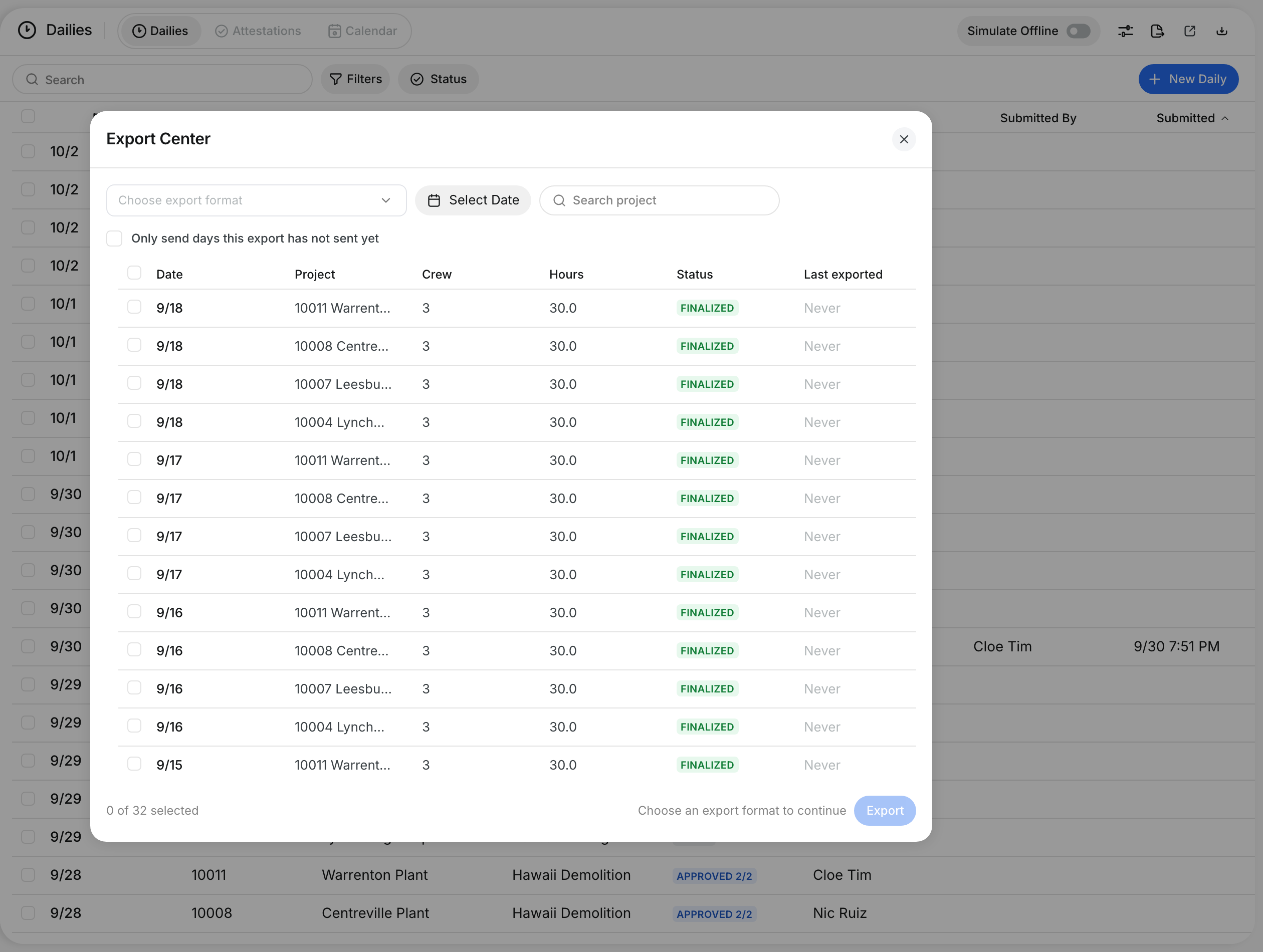
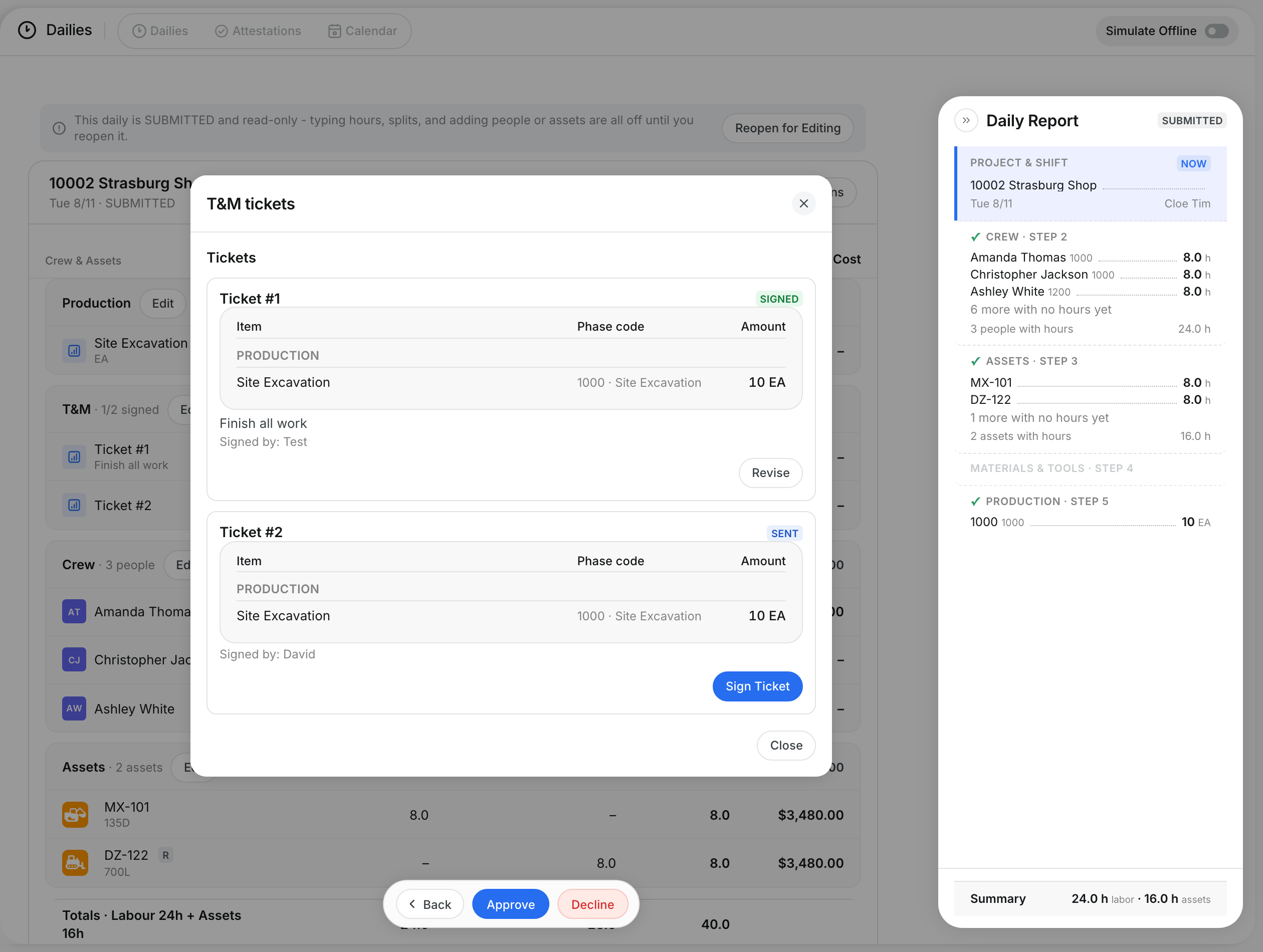
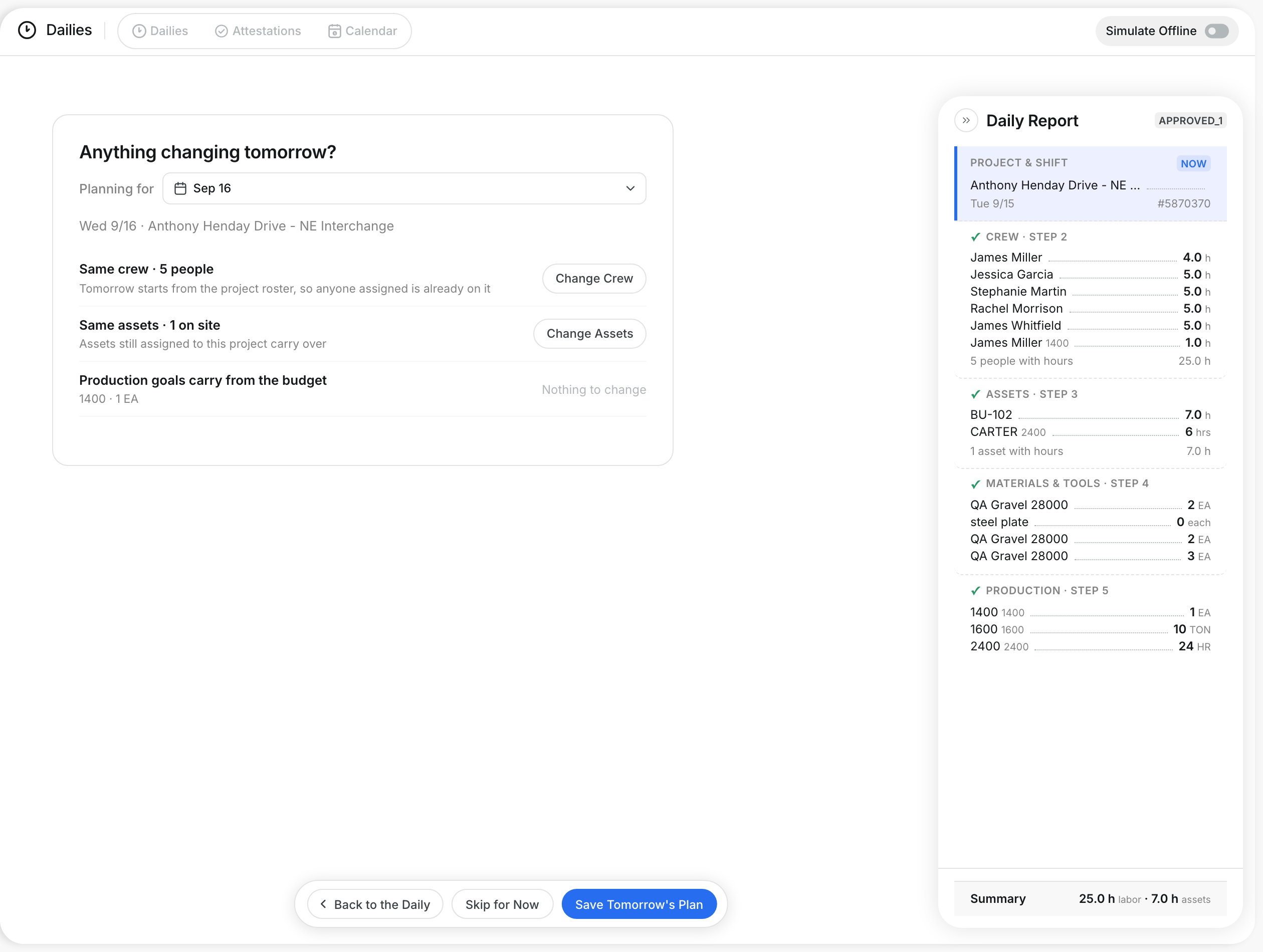
What is this?
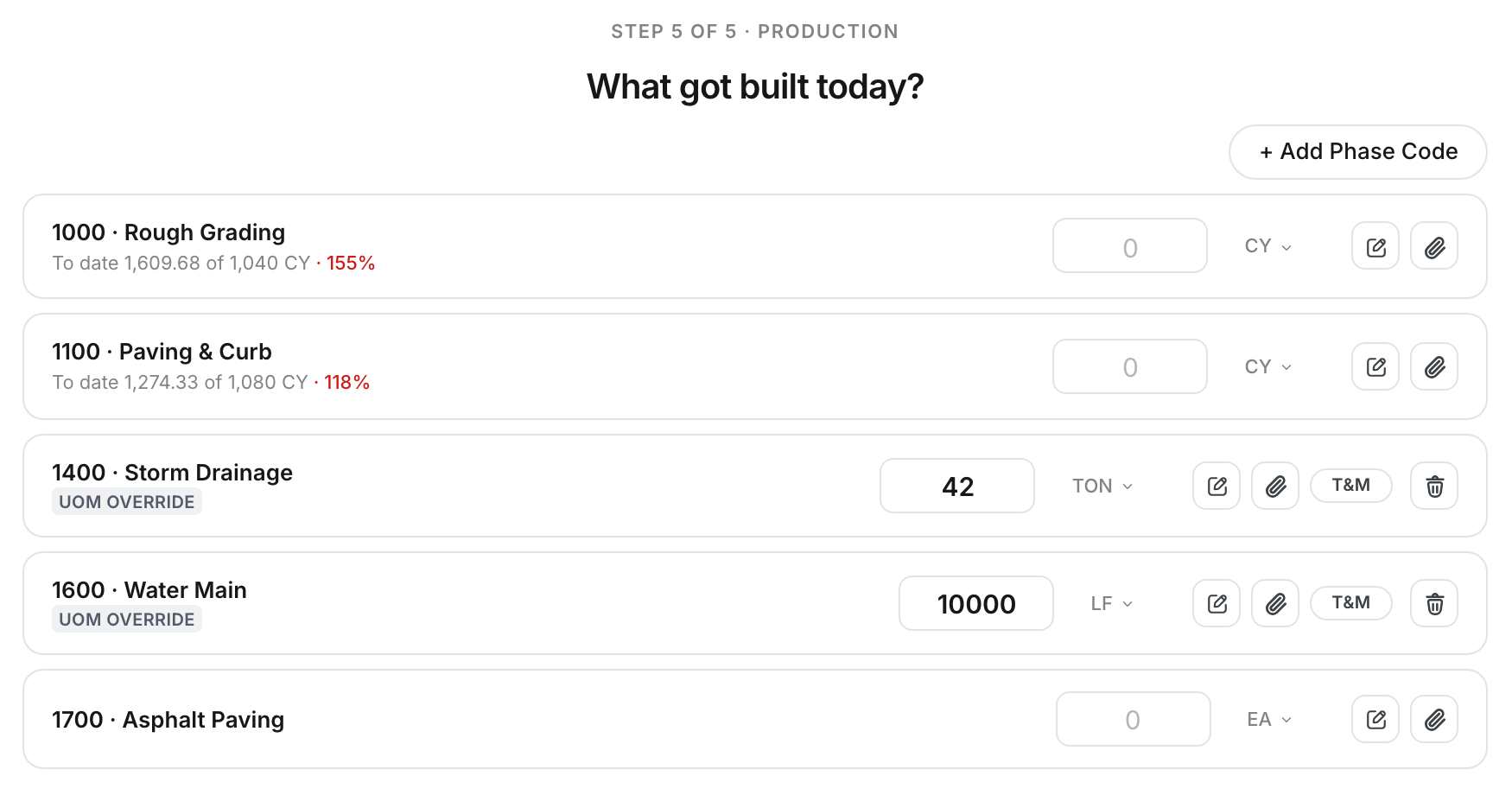
The production step records what got built today. You enter one number per phase code. The unit comes from the budget, so your numbers always compare clean. Each code shows the quantity to date against the budget.
Who's this for?
- Foreman, enter the quantities your crew installed.
- Project manager, track progress against the budget each day.
- Estimator, compare field production with the bid.
How to use it
Step 1: Open the production step
Go to Step 5 of 5 · Production. Each phase code is a card.
Step 2: Enter the quantity
Type today's quantity in the box. The line below shows the total To date, the budget and the percent complete.

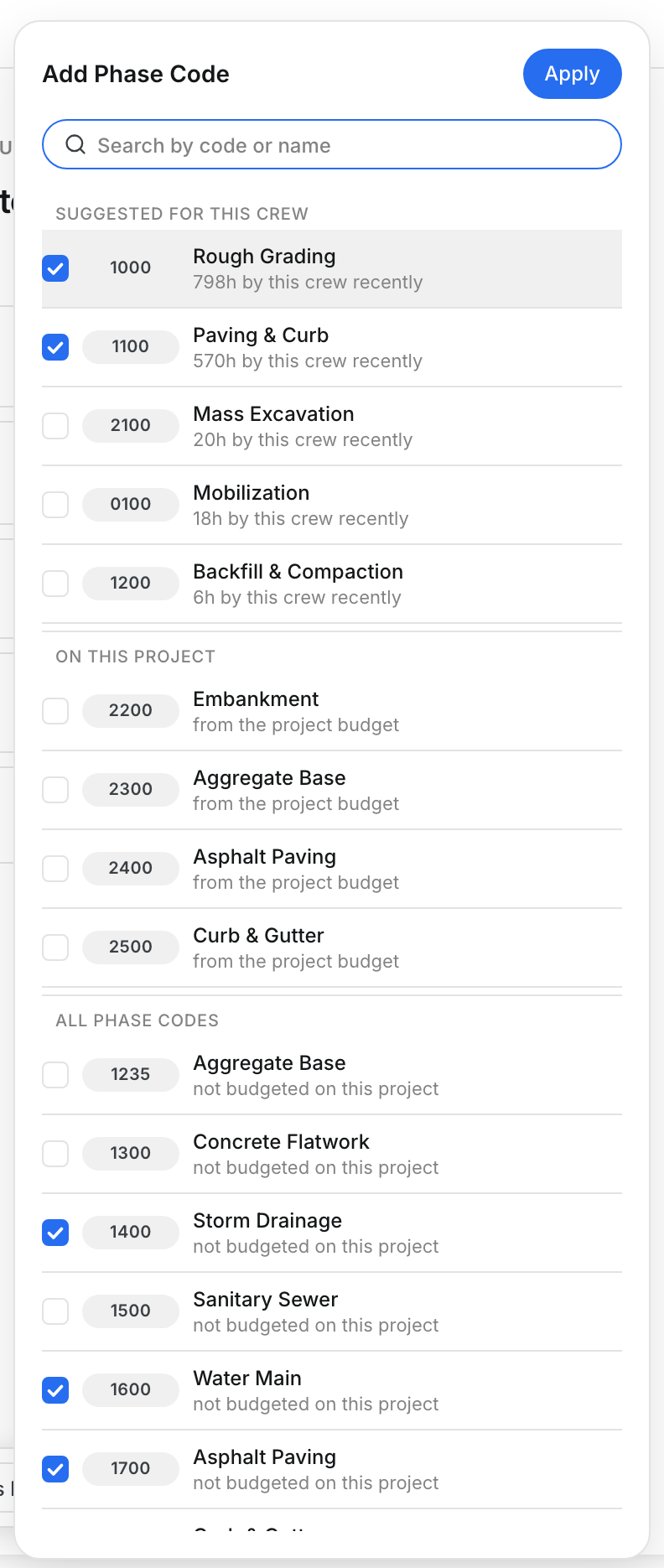
Step 3: Add a phase code
Click + Add Phase Code. Pick a code suggested for this crew, a code on this project, or any phase code.
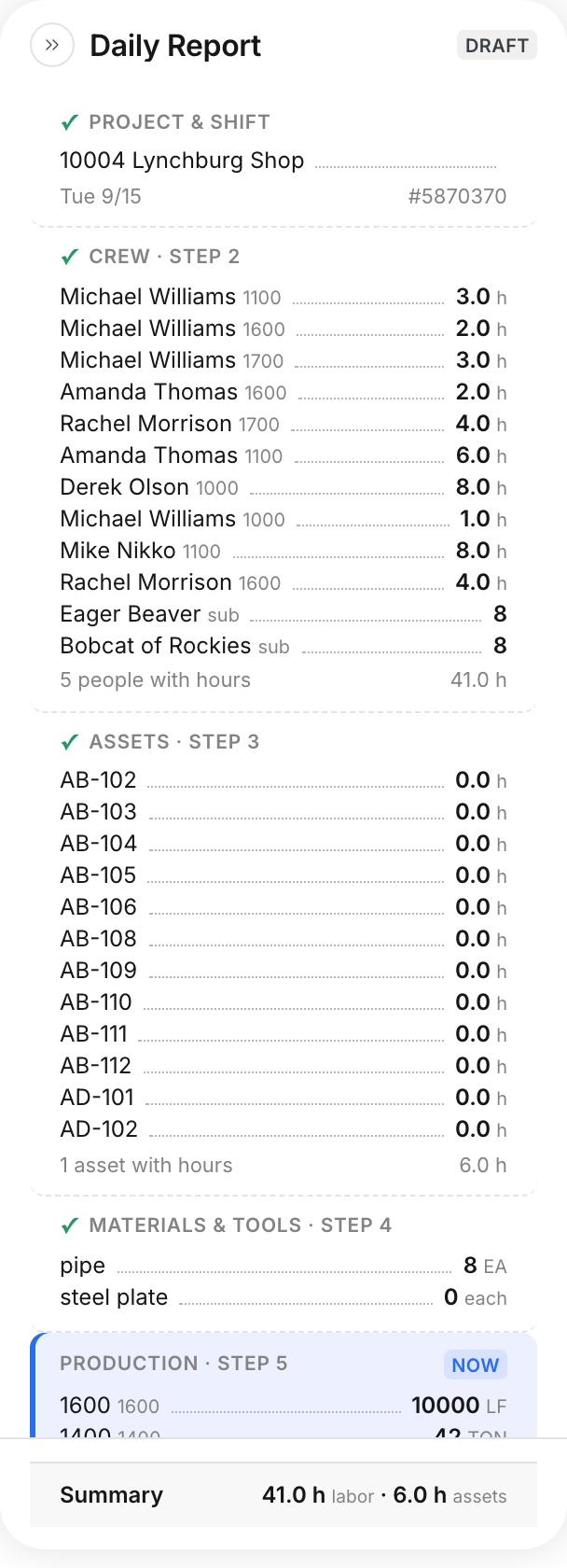
Step 4: Check the full day
The Daily Report panel lists crew, assets, materials and production for the day.
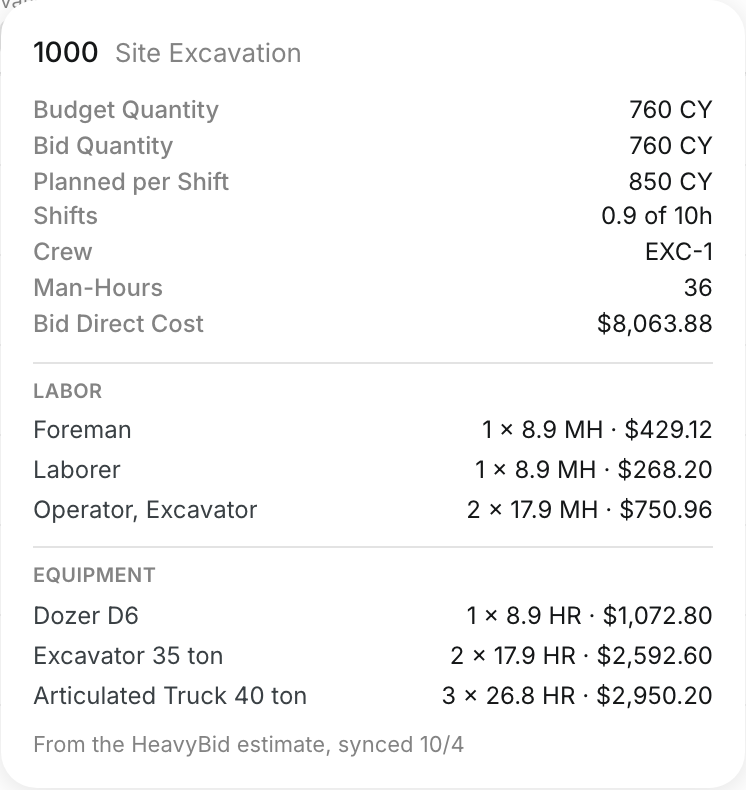
Step 5: Check the plan for a code
On the Crew step, click the info icon beside a cost code. The Cost Code Plan shows the budget target and, when your company connects HeavyBid, the bid quantity, man-hours and the plan for one shift.
The full details
- Unit: Comes from the project budget. A card marked UOM OVERRIDE uses a different unit.
- To date: Quantity reported so far, the budget quantity, and the percent. Red shows the code is over budget.
- Note and photo icons: Add a note or a file to the code.
- T&M: Marks the production as extra work.
- Cost Code Plan: The info icon on a phase code column in the crew, assets and materials steps opens the plan for that code. It shows the budget quantity. When the job has a HeavyBid estimate, it also shows the bid quantity, man-hours and the line From the HeavyBid estimate, synced with the sync date.
Tips
- Enter production every day. Clue builds the to date numbers from your dailies.
- Click Save Production to open the full report.