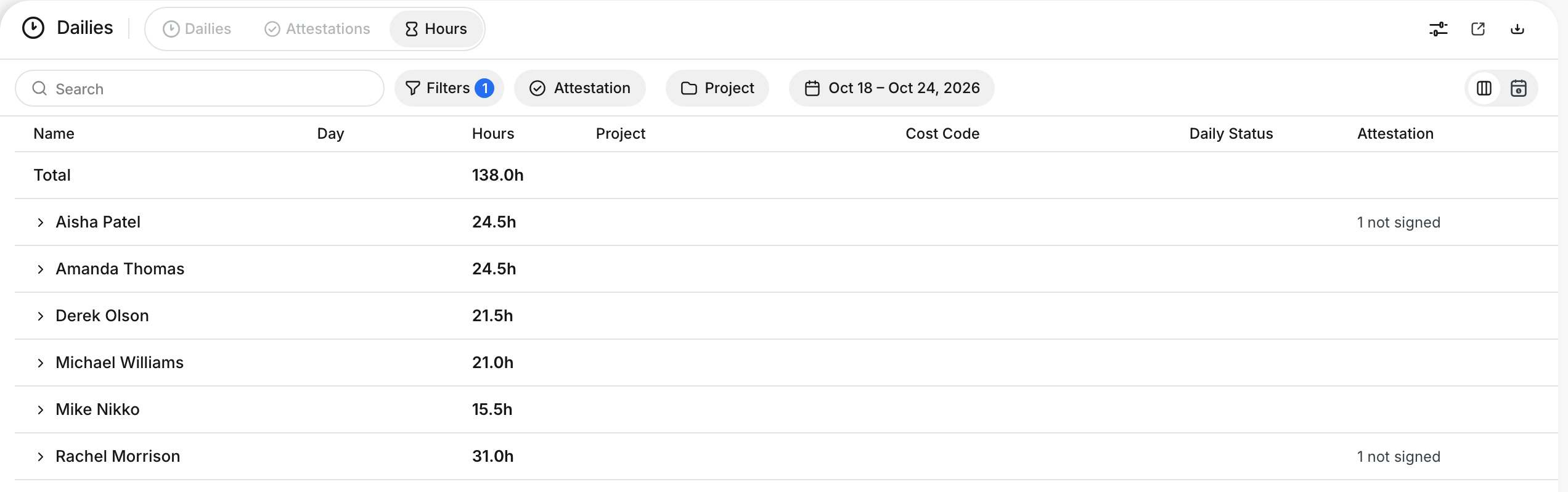
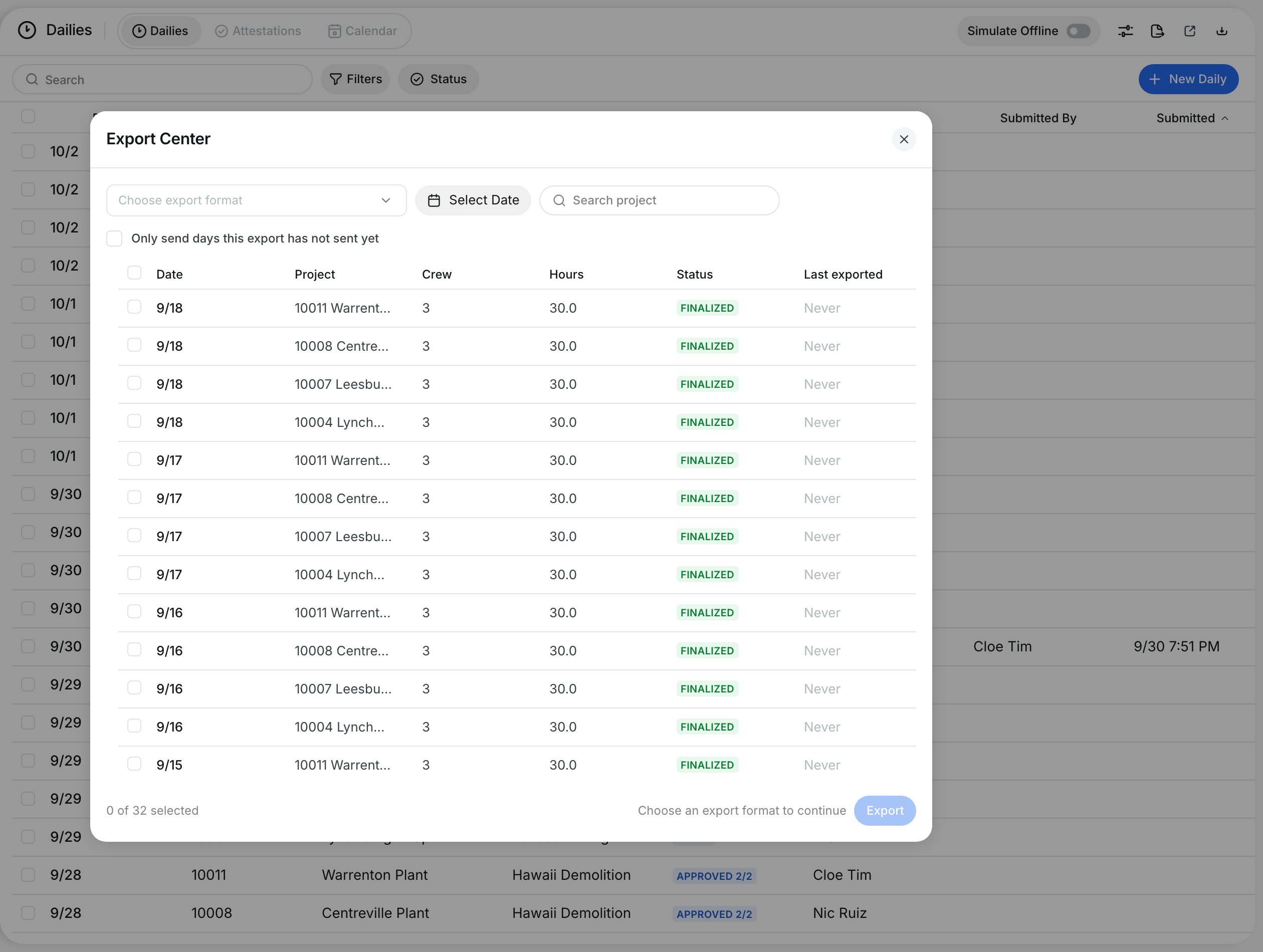
What is this?
You can attach files to each production line and to each material or tool line on a daily. For example, attach a photo of the work, a delivery ticket or a vendor invoice. The files stay with their line. The office sees them under that line on the daily report.
Who's this for?
- Foreman, attach the photo or the ticket to the line that it proves.
- Superintendent, open the proof of a quantity before you approve the daily.
- Accounting, find the vendor invoice under the material line that it bills.
How to use it
Step 1: Open the attachments of a production line
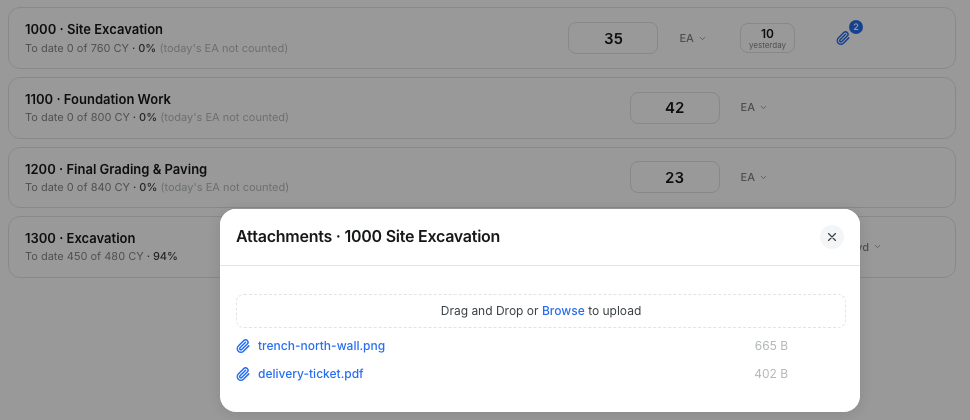
Open a draft daily and go to the Production step. Click the paperclip on the line of a phase code.

Step 2: Add files
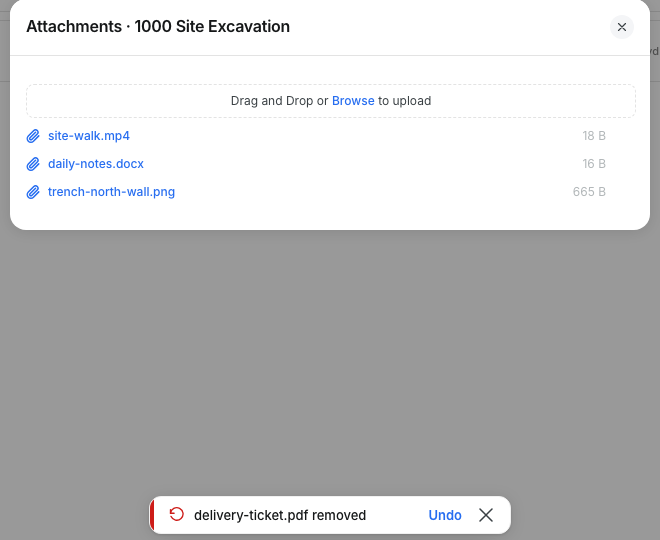
Drag files into the window, or click Browse. You can add photos, PDF files, Word files, text files and videos.
Step 3: Open a file
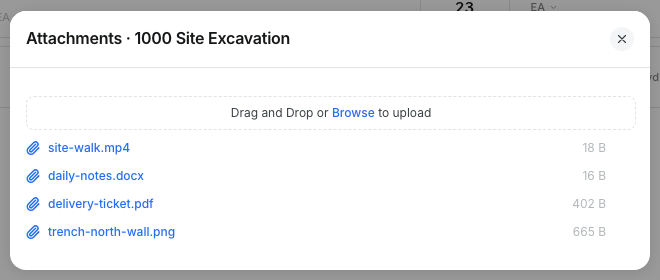
Click the name of a file to open it. The blue number on the paperclip shows how many files the line has.
Step 4: Remove a file
Point at a file and click the X at the right. The file goes away at once. A message shows with Undo. Click Undo to bring the file back.
Step 5: Attach a file to a material or tool
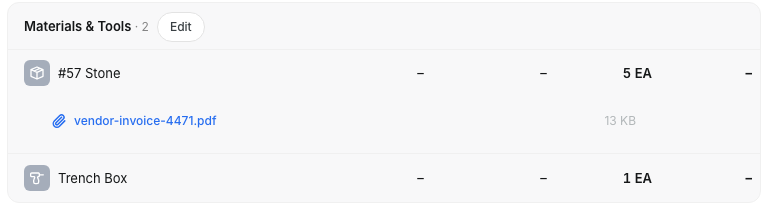
Go to the Materials & Tools step. Point at a row and click the paperclip. Add the files in the same way.

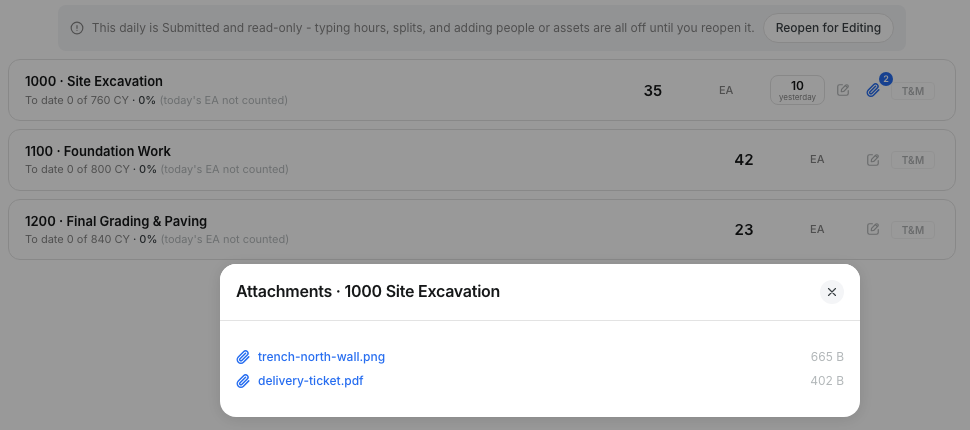
Step 6: See files on a locked daily
On a submitted, approved, finalized or exported daily, the paperclip opens the files to view only. You cannot add or remove files until the daily is reopened.
Step 7: Find the files on the report
On the daily report, the files of production lines show in Production Attachments, under their phase code. The files of a material or tool show under its row. The Attachments card holds the files for the whole daily.


The full details
- Works on: The web app.
- Where: Each production line, and each material and tool line, has its own files.
- File types: Photos, PDF, Word, text and video files. Spreadsheets are not accepted.
- File size: Up to 100 MB for each file.
- Count: The blue number on the paperclip shows how many files the line has.
- Remove: A removed file goes away at once. Undo in the message brings it back.
- Locked or exported daily: The files are view only. Reopen the daily to add or remove files.
- Daily report: Production files show in Production Attachments. Material and tool files show under their row. Files for the whole daily show in the Attachments card.
Tips
- Attach the delivery ticket to the material line. The office then matches the quantity to the ticket without a phone call.
- Take the photo of the work at the end of the shift, and attach it to the phase code that it shows.
- If you remove the wrong file, click Undo in the message at once.