What is this?
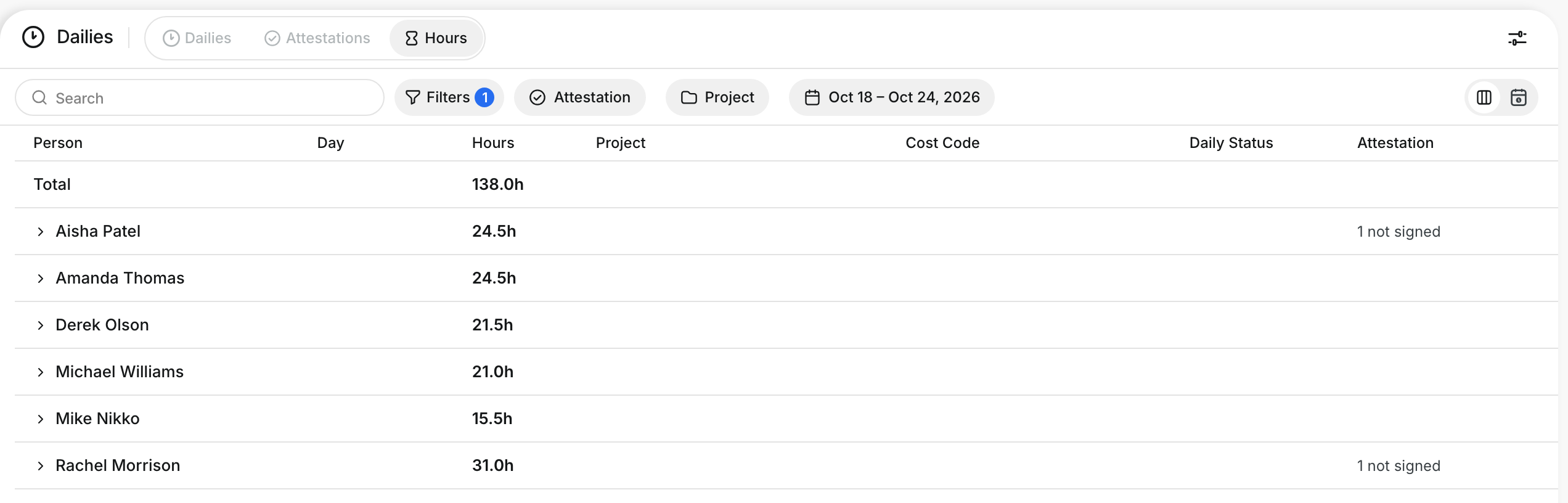
The Hours tab shows how many hours each person worked on your dailies. Pick a week or any other range of dates. Each person shows one total, and you can open the total to see each day, project and cost code. A calendar view shows the same hours as a grid of people and days. Open it from Operations > Dailies > Hours.
Who's this for?
- Payroll, check each person's hours for the week before you run payroll.
- Superintendent, see who worked where, and which hours are not signed yet.
- Project manager, find the days that have no daily for a project.
How to use it
Step 1: Open the Hours tab
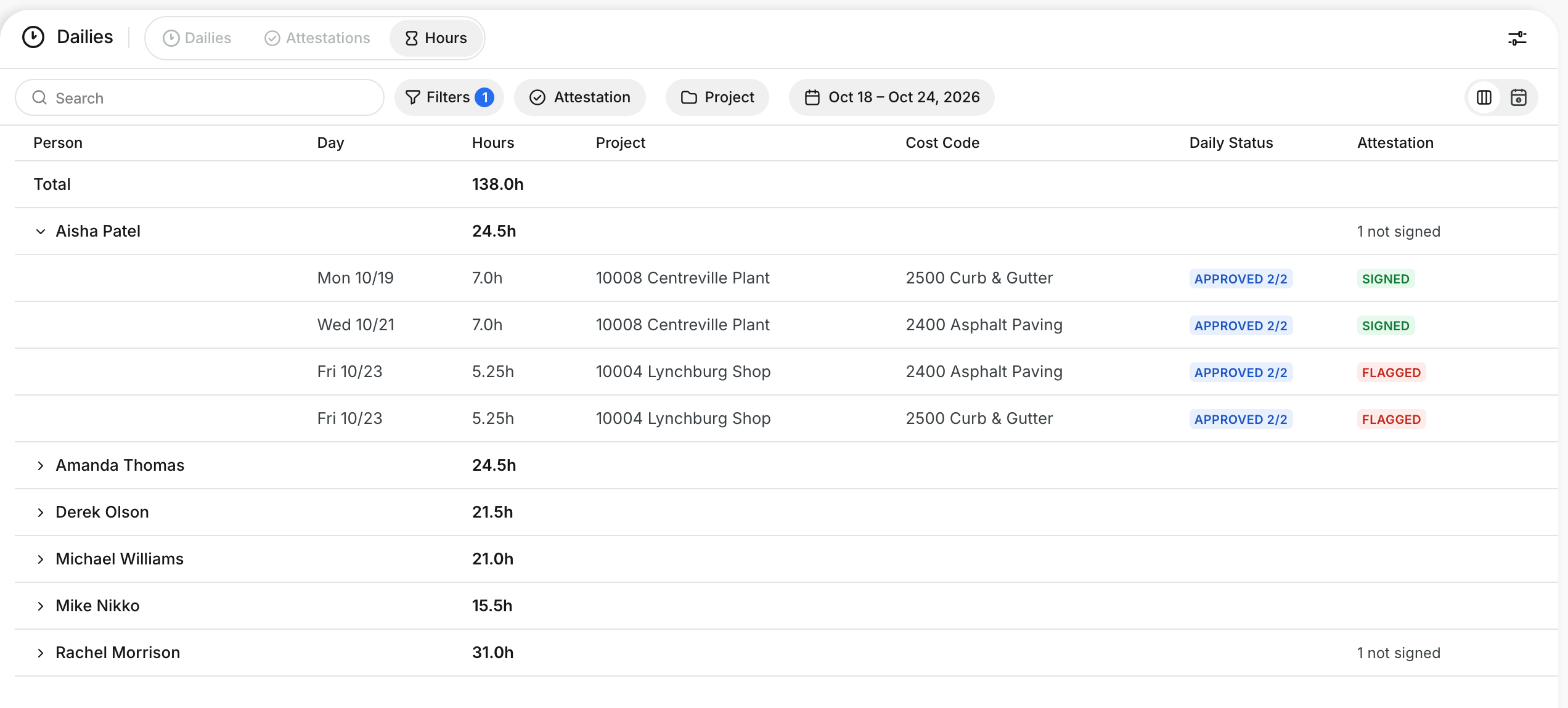
Go to Operations > Dailies and click the Hours tab. The table opens on this week. It shows one row per person with the total hours. The Total row adds up everyone in the table.
Step 2: See the days behind a total
Click a person. Clue shows one row for each daily and cost code: the day, the hours, the project, the cost code, the daily's status and the attestation. Click the person again to close the rows.
Step 3: Open the daily or the attestation
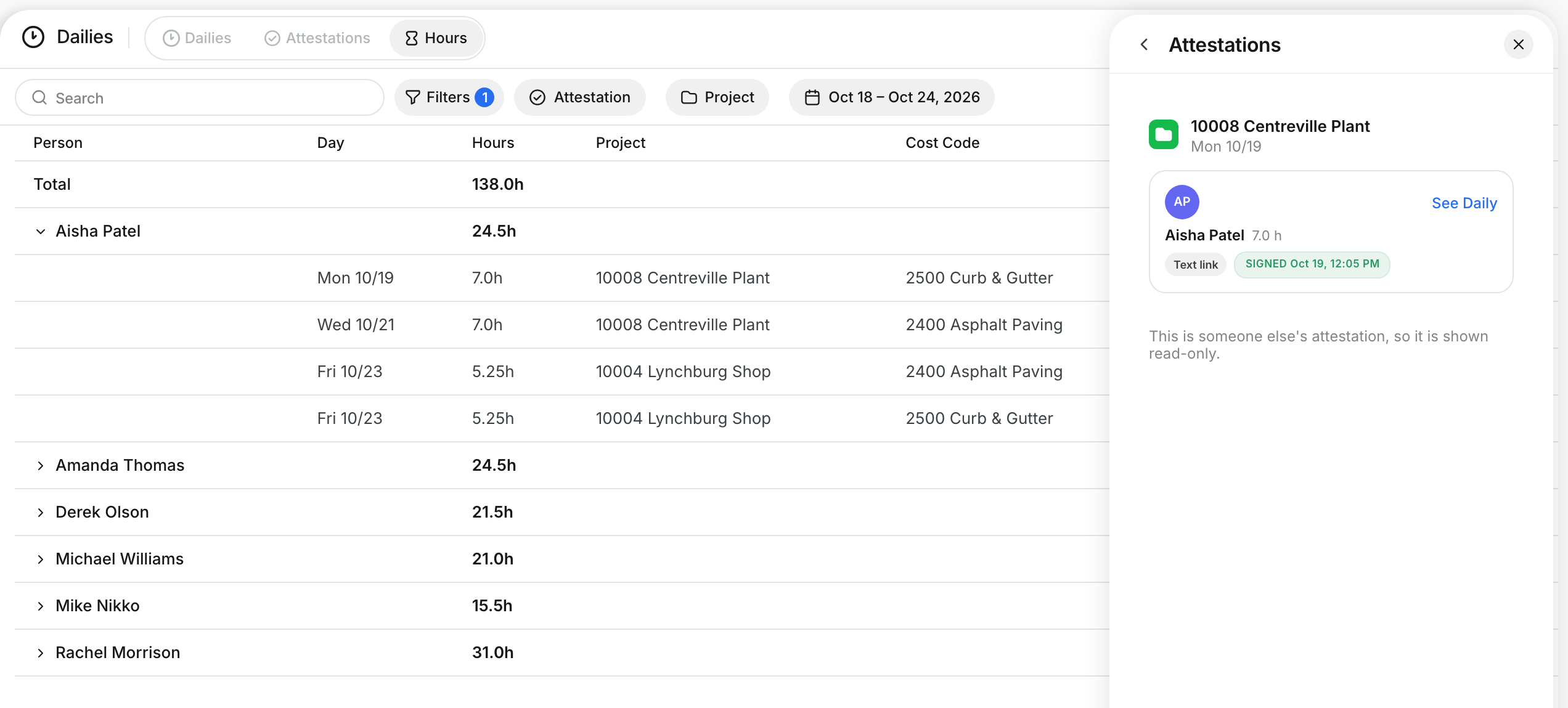
Click a day row to open that daily. When you go back, the Hours tab keeps your dates, filters and the people you opened. Click the attestation status, for example Signed or Flagged, to open the attestation. From there you can send it back to fix, or click See Daily.
Step 4: Filter the hours
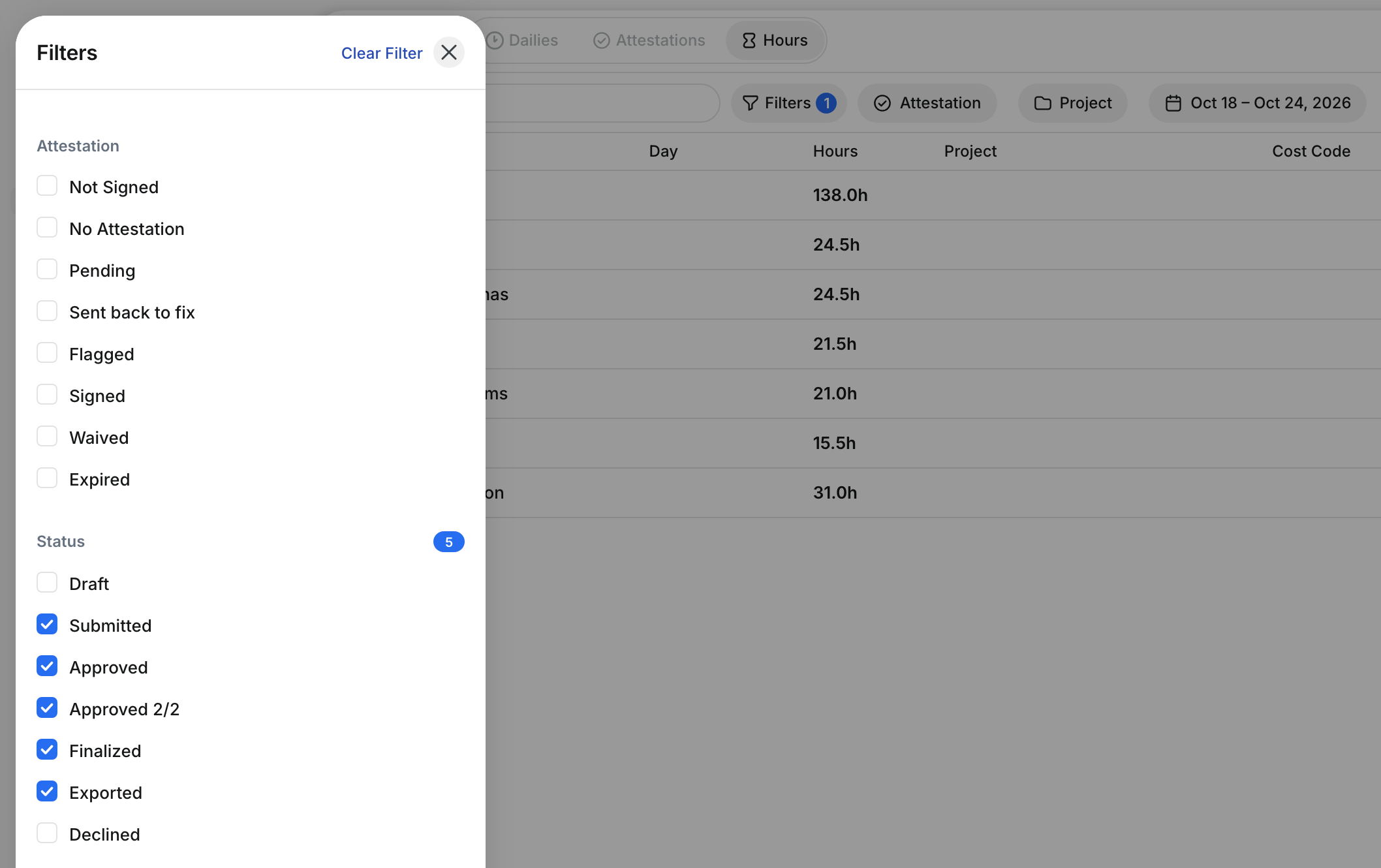
Type a name or an employee code in Search. Click Attestation and pick Not Signed to see only the hours that nobody signed yet. Click Filters to filter by attestation, daily status, project, sub-organization or foreman.
Step 5: Add more columns
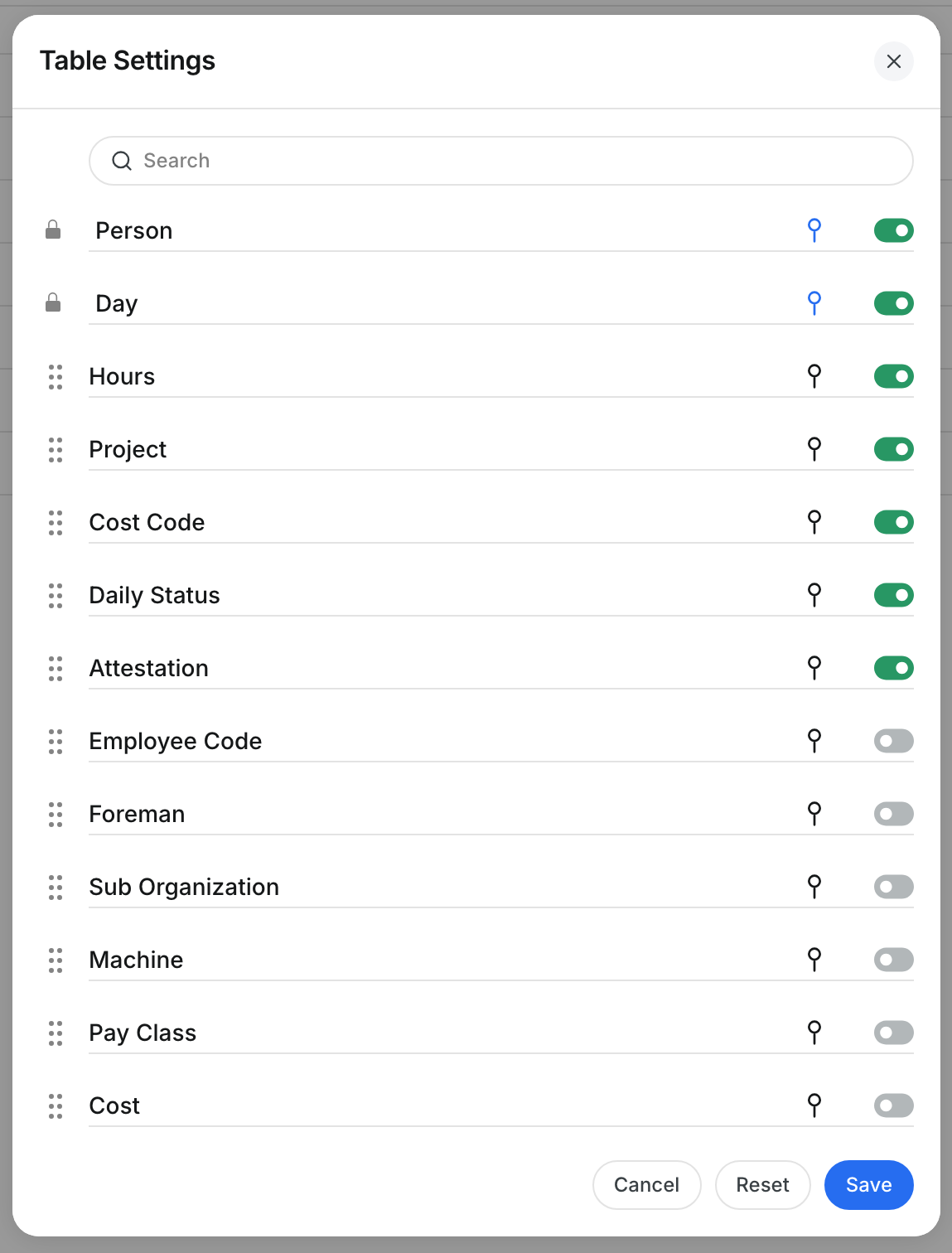
Click the Table Settings button at the top right. Turn on the columns that you need: Employee Code, Foreman, Sub Organization, Machine, Pay Class or Cost. Clue keeps your columns for the next time.
Step 6: See the week as a calendar
Click the calendar button at the right end of the filter bar. Each row is a person and each column is a day. The color of each cell shows the attestation of that day. The last column shows the total. Click a cell to open that daily.

The full details
- Which hours: the crew hours on the dailies, the same hours that the daily and the Attestations tab show. Hours on deleted dailies and on deleted or declined time are not counted.
- Which people: the people on the dailies of the projects that you can see.
- Dates: the table opens on this week, from your company's first day of the week. You can pick up to 93 days.
- Calendar view: shows up to 31 days. Pick a shorter range for a longer period.
- No Daily row: in the calendar view, this row shows the past working days (Monday to Friday) when a project in the range has no daily.
- Not signed: a person row shows how many days are not signed. Not Signed in the filter means pending, sent back to fix, flagged, expired or no attestation.
- Cost: the Cost column shows only if your role can see costs. Hours that have no rate show No Rate.
- Calendar tab: the old Calendar tab is now the calendar view of the Hours tab. Old links to it open the Hours tab.
Tips
- Pick your payroll week once. The Hours tab keeps it when you open a daily and come back.
- Use Not Signed before payroll to find the hours that you must still follow up.
- Turn on Employee Code to match the people with your payroll system.
- A cell in red in the calendar is a flagged attestation. Click it to open the daily.