What is this?
Every asset has a setting that decides whether it moves between projects on its own. When it is on, the asset joins a project as soon as it enters that project's geofence. When it is off, the asset stays on whatever project you put it on, no matter where it travels.
The setting lives on the asset itself, so you control it one machine at a time. That matters for rentals, low-boys and anything that gets hauled through other job sites on its way somewhere else.
Who's this for?
Anyone who owns where a machine shows up in Clue.
- Equipment managers, you decide which machines follow geofences and which ones hold their assignment.
- Dispatchers, you get accurate project assignments without moving every asset by hand.
- Rental coordinators, you keep a rented machine on the job it is billed to, even while it is in transit.
- Clue administrators, you fix the "my asset is on the wrong project" question in about ten seconds.
How to use it
Step 1: Open the asset
Go to Assets and click the asset name. Its details slide in from the right.

Step 2: Choose Edit Asset
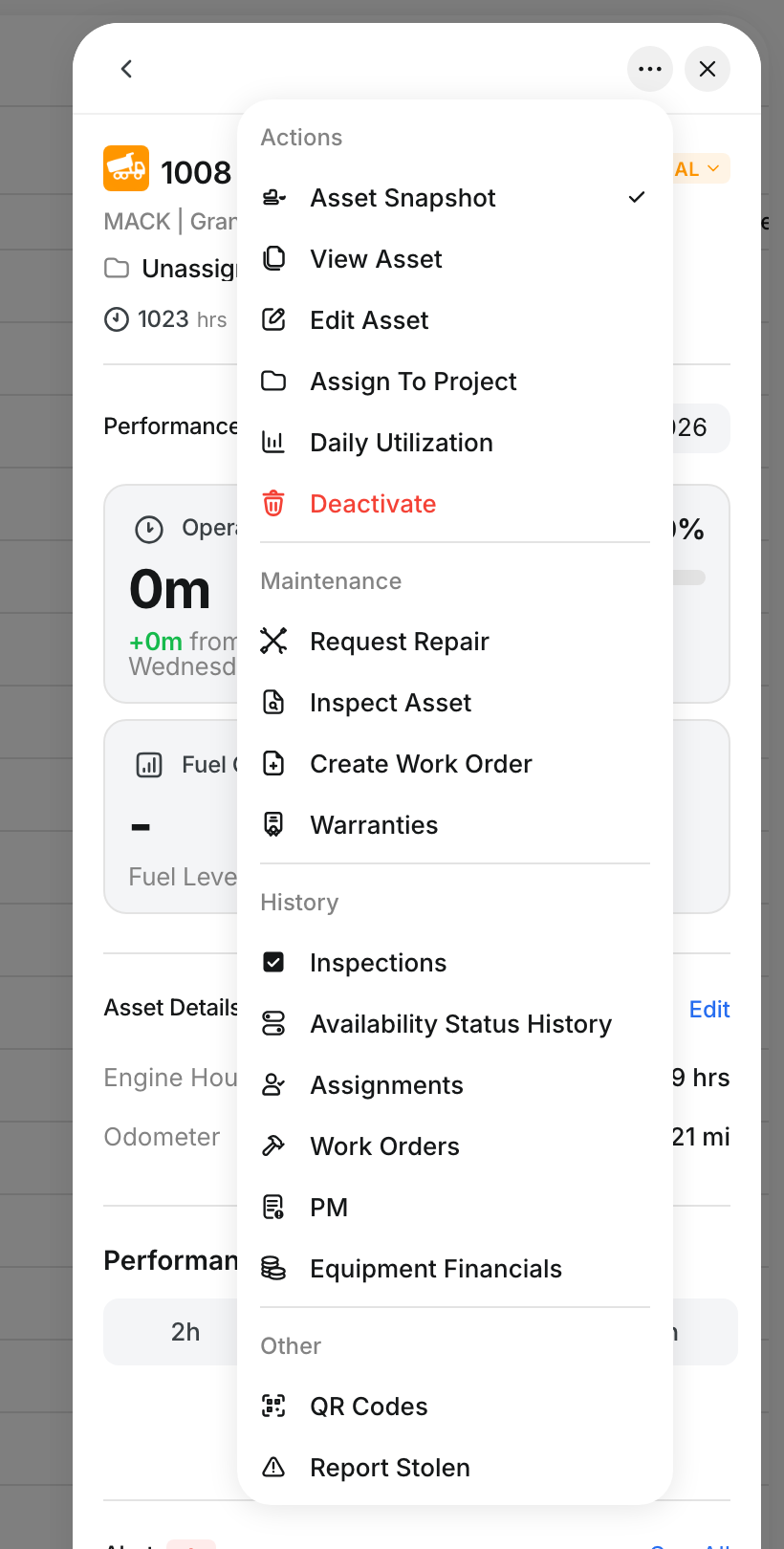
Click the ... button at the top of the panel, then Edit Asset.
Step 3: Tick the checkbox and save
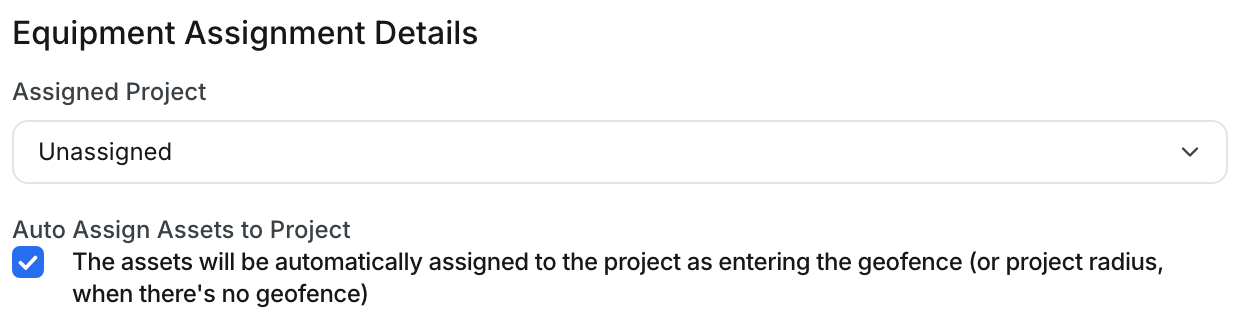
Open Equipment Assignment on the left. Tick Auto Assign Assets to Project, then click Save.
The asset starts following geofences straight away. Untick it to freeze the asset on its current project instead.

The full details
- Works on: web app
- Where to find it: Assets, click the asset name, ... menu, Edit Asset, Equipment Assignment
- Ticked: the asset joins a project when it enters that project's geofence
- Unticked: the asset holds the project you assign it to and ignores geofences
- Per asset: the setting applies to that one machine, not to the project and not to your whole fleet
- Owned and rented: the same checkbox works for both
- Needs a tracker: automatic assignment relies on the asset reporting its location
- Project radius: when a project has no geofence drawn, Clue uses the project radius instead
Tips
- Turn it off for anything that passes through other jobs. A machine hauled across three sites will pick up all three if the setting is on.
- Turn it on for machines that live on one site at a time. Excavators, dozers and loaders belong on whichever job they are parked at.
- Check this first when an asset shows the wrong project. It explains most cases before you go looking at geofences.
- Unticked does not mean untracked. You still see the machine's live location. Only its project assignment stops moving on its own.
- Set it when you add the asset. The same checkbox appears in the Add Asset window, so you never have to come back and fix it.