Work Order Magnet Board
What is this?
The Work Order Magnet Board shows all your open maintenance work on one screen. Each card is a job. Each row is a machine with open work.
Colored boxes on each row tell you what the machine needs. You assign the work to a mechanic crew, a mechanic, a vendor or a shop, right from the board.

Who's this for?
- Maintenance managers see every down machine and overdue PM across all jobs at a glance.
- Dispatchers send the right crew to the right job in a few clicks.
- Shop leads focus on one shift, one crew or one kind of work.
How to use it
Step 1: Open the Magnet Board
Go to Work Orders and click the Magnet Board tab. The buttons on top count the work by need: Breakdowns, Waiting on Parts, Overdue PM and Unassigned. Click one to see only that work.
Step 2: Read the boxes
Each row has five boxes. Red is down, orange is repair, blue is PM. The next box counts open inspection issues, and the last one counts fault codes. Hover a box to see the list. Click an item to open it.

Step 3: Open a work order
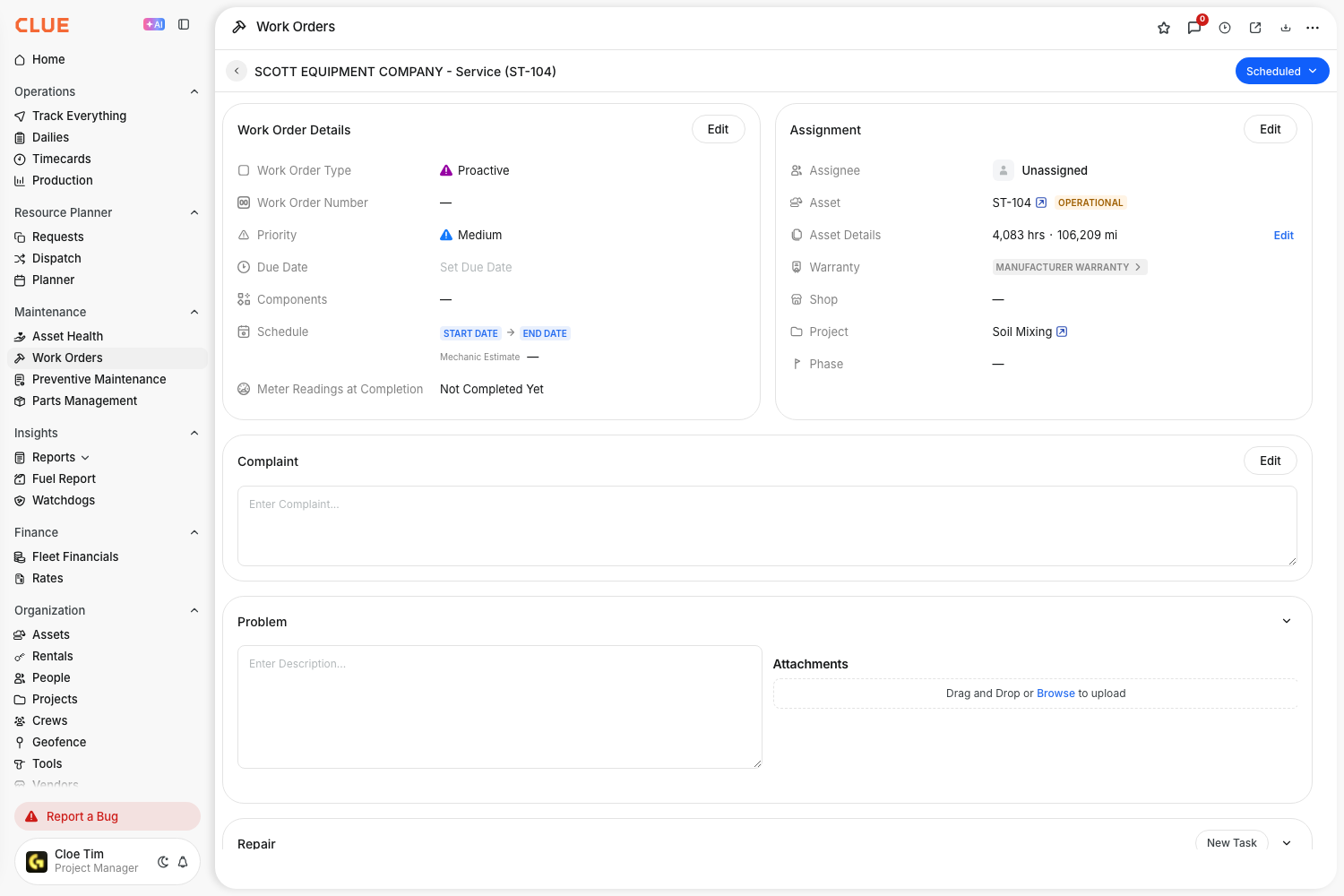
Click the work order in the list. Its details open on the right, so you never leave the board.

Step 4: Check the machine
Hover the machine name to see its make, model, year and serial number. Click the name to open the machine.

Step 5: Check the job site
Click the i button next to the job name. You see the crews that cover the job, the gate code, the working hours, the curfew and a note.

Step 6: Assign the work
Click the swap icon on a row, or the plus icon on a row with no one assigned. Pick a mechanic crew, a mechanic, a vendor or a shop. The crews that cover the job show first. A toast lets you undo the change.

Step 7: Assign many machines at once
Click Select. Check the machines, then click Assign and pick one crew. Or click Leave Unassigned.

Click Assign to open the same list as on one row. Pick a crew, a mechanic, a vendor or a shop. All checked machines get it at once.

Step 8: Show more or less
Use the expand button on top. Collapse Jobs shows only the job names. Expand Jobs shows the machines. Expand Work Orders shows every work order under its machine.


Step 9: Filter by mechanic crew
Click Filters, then Mechanic Crews. Check one or more crews. The board shows their work and the open work on the jobs they cover.

Step 10: Look at one shift
Click Day Shift or Night Shift next to the quick views. Click it again to see all shifts.

Step 11: Download or print the board
Click the Download icon at the top right. .pdf prints the board as you see it, with your filters on top. .xls gives one sheet of machines and one sheet of work orders. .csv is also available.

The full details
- Where: Work Orders > Magnet Board. Web app.
- Availability: Clue turns on the Magnet Board for your company. Write to support@getclue.com to ask for it.
- Job cards: machines sit on the job they are at now. Machines with no job show in the "No Job Site" card.
- Lock icon: a crew that already has time on a work order cannot be swapped out of it.
- Picker labels: "On Site" means the truck is at the job. "Truck Out" means the crew's truck is down.
- Saved views: click the plus button after the shift buttons to save the current view or open another.
- Sort: sort the cards by Priority or by Name (A to Z).
- Auto Refresh: turn it on to keep the board current on a shop TV.
- Tour: click the question mark icon for a short tour of the board.
Tips
- Start the day on Breakdowns. Down machines cost the most.
- Use Select when one crew takes a whole job. One assign covers every checked machine.
- Print the PDF for the morning meeting. It looks like the screen, page by page.
- Made a wrong assignment? Click Undo in the message at the bottom.