Set the Order of a Mechanic's Work Orders
What is this?
The Mechanic Schedule shows each mechanic as a row. Every work order they have sits on its own line underneath. You can drag a work order up or down to set the order that mechanic should work in. The order saves right away and stays the same for everyone who opens the schedule.
Who's this for?
Anyone who plans a mechanic's day, and anyone who needs to know what comes first.
- Shop foremen and schedulers, build each mechanic's day in the order the jobs should be done.
- Equipment managers, see at a glance what each mechanic will tackle first.
- Service managers, keep every mechanic's day in a set order that does not shuffle when the page reloads.
How to use it
Step 1: Open the Mechanic Schedule
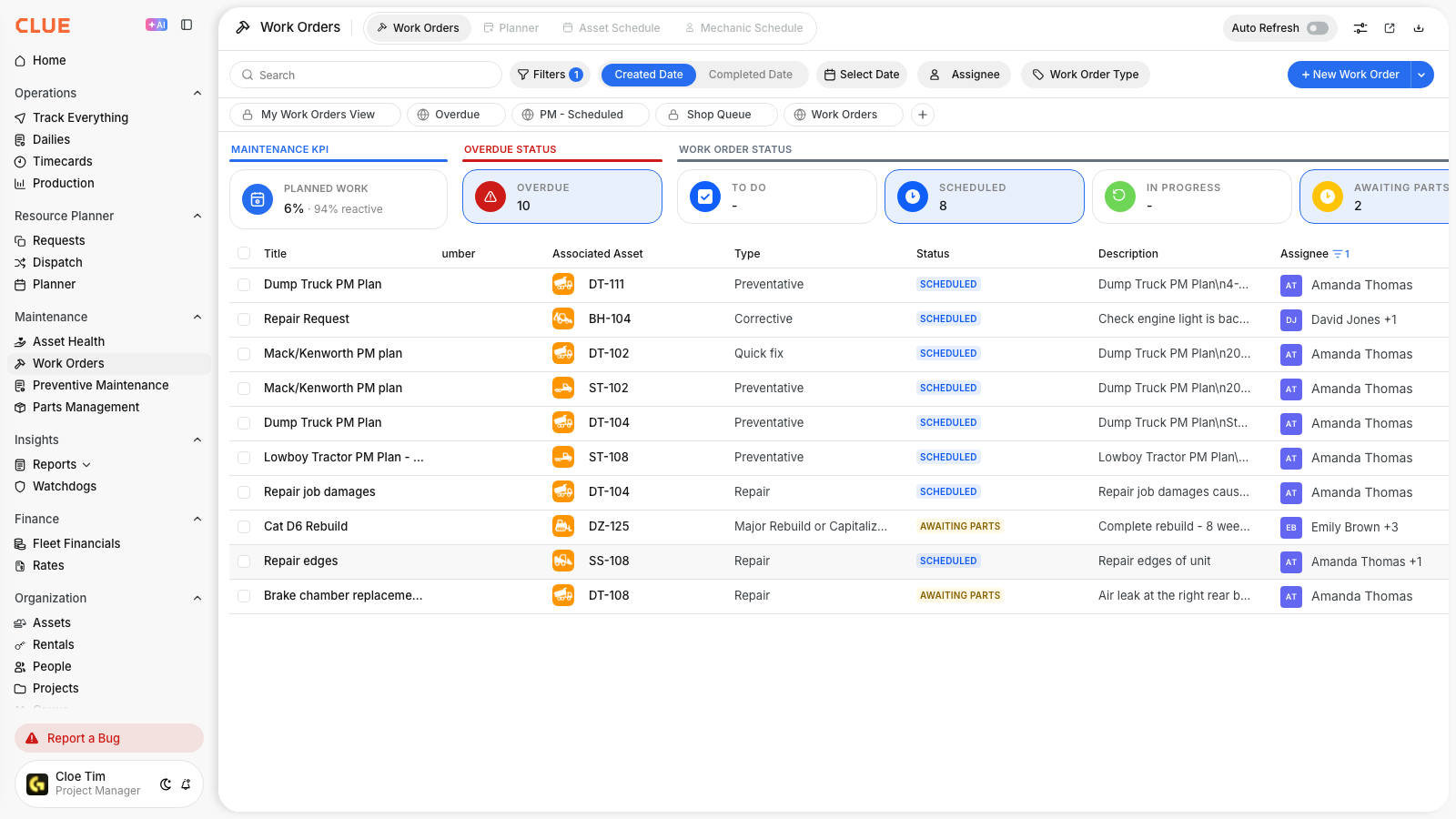
Go to Work Orders and click the Mechanic Schedule tab. Each work order has its own line under the mechanic it is assigned to.

Step 2: Pick the work order to move
Hover over a work order to check its number, status, asset and schedule dates.

Step 3: Drag it up or down
Click and hold the work order. Drag it straight up or down onto the line where you want it, then let go. The new order saves right away.

The full details
- Works on: Web app.
- Permission needed: The same permission that lets you reschedule or reassign work orders on this screen.
- Starting order: Until someone reorders a day, it lists work orders by scheduled start date, then by work order number.
- New work: A work order added to a day goes to the bottom of that mechanic's day.
- Any position: A work order can go anywhere in the day, even below one that starts later.
- Per mechanic: The order belongs to one mechanic and one day. A work order shared by two mechanics has its own place in each mechanic's day.
- Nothing else changes: Reordering does not change the work order's dates, status or priority.
- Multi-day work orders: They hold one place, on their scheduled start date.
- Removed work: When a work order leaves a day, the rest keep their order.
- Views: The order stays the same after a reload, a filter change, or a switch between day, week and month views.
- If a save fails: The day goes back to its previous order and a message asks you to refresh and try again.
Tips
- Drag straight up or down. Dragging sideways moves the work order to another day.
- Dropping a work order on another mechanic reassigns it. It lands at the bottom of their day.
- Plan the day by route. Put the jobs in the order the mechanic should drive to them.
- Open jobs that started earlier can go last. Drag them below today's priority work.