Filter Work Orders from Any Column
What is this?
Most columns in your Work Orders list have their own filter. Hover a column header and click the ... button. Pick a name, a status or a date range, or type a word to match. The list and the count tiles above it update right away.
Who's this for?
- Shop managers, to see one mechanic's work orders in two clicks.
- Equipment managers, to narrow the list by project, shop or due date.
- Mechanics, to find a work order by a word in its title or description.
How to use it
Step 1: Pick an assignee
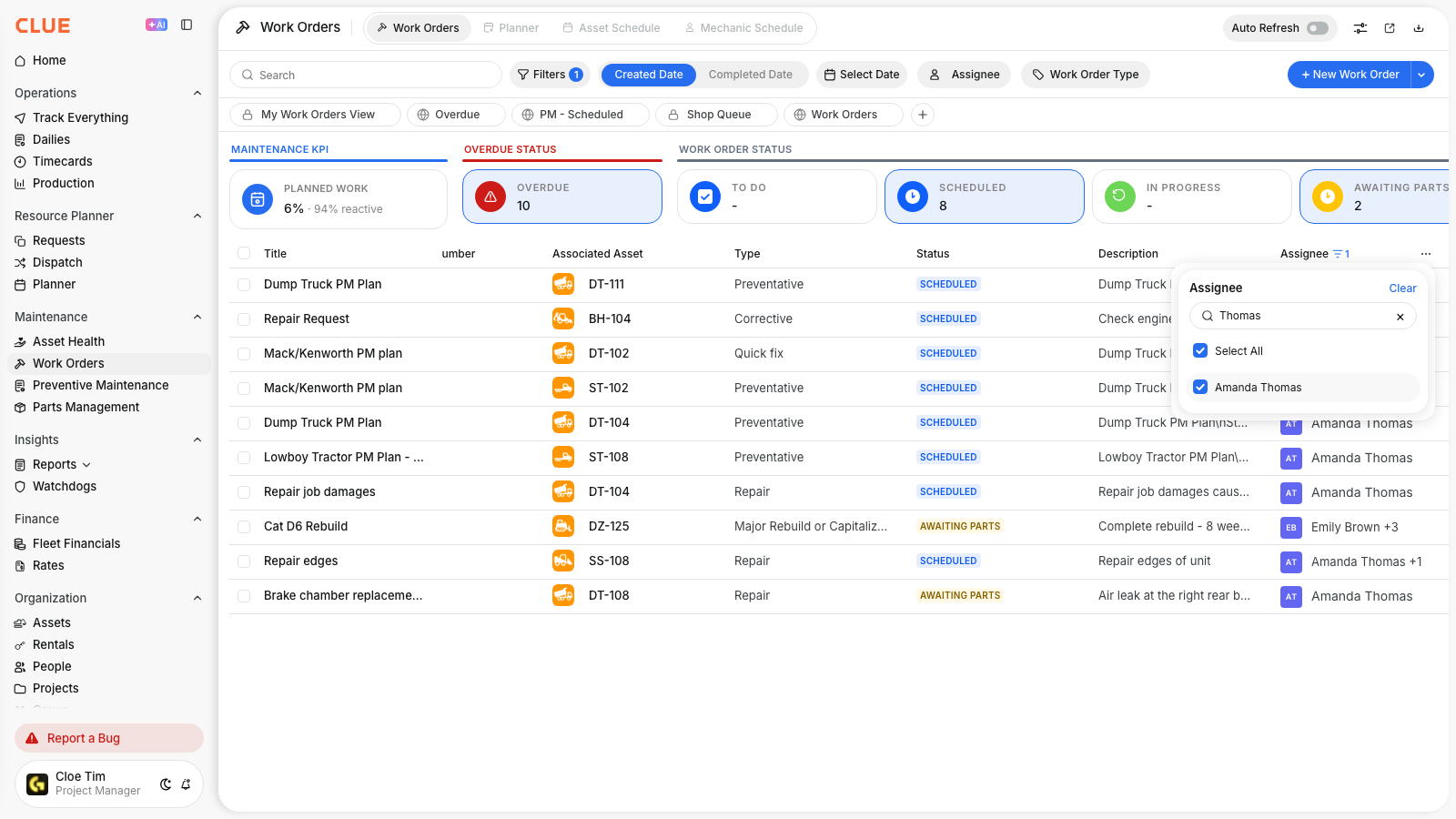
Go to Maintenance > Work Orders. Hover the Assignee header and click .... Type a name in Search values and tick it.
Step 2: Read the filtered list
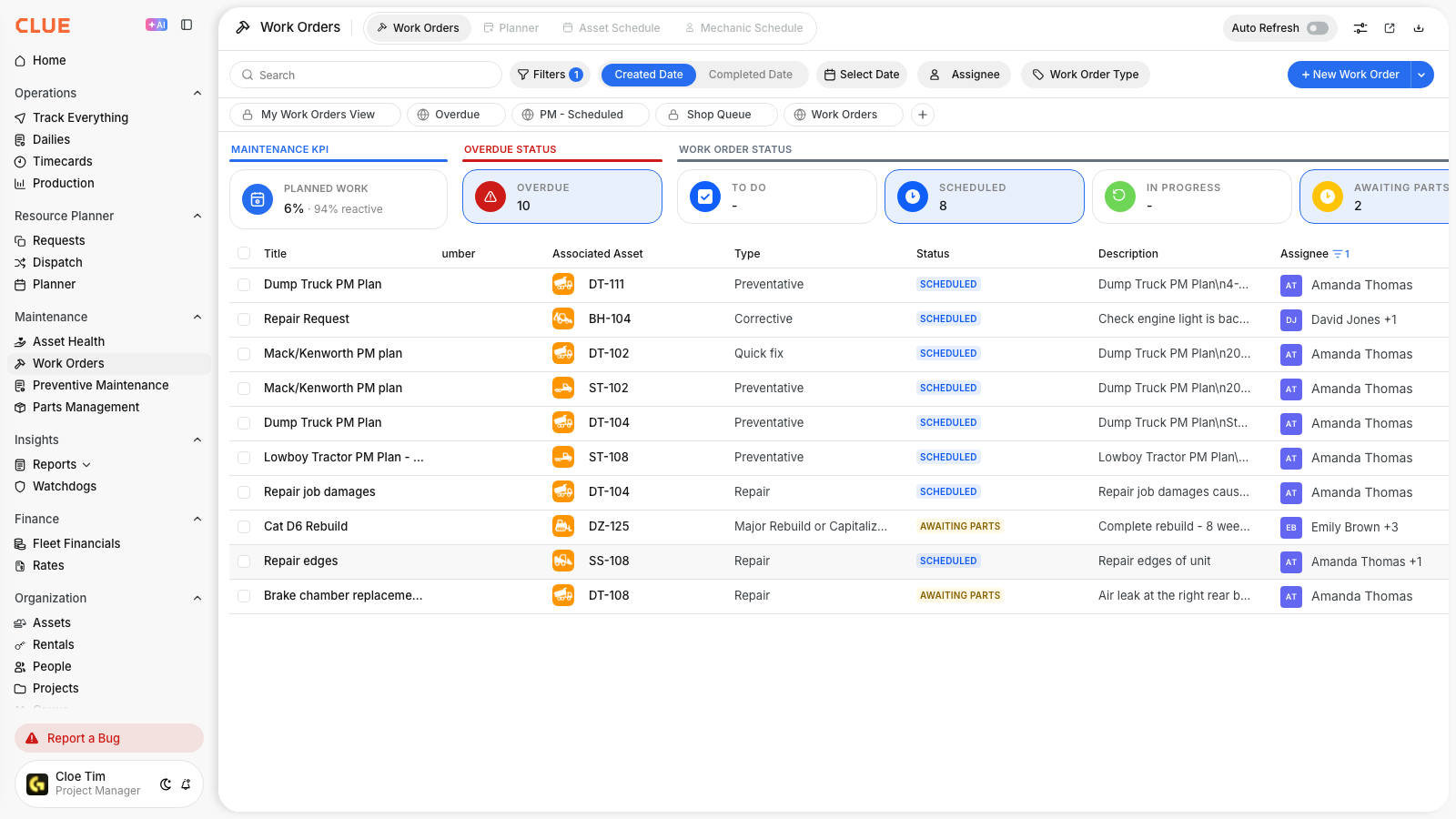
Press Escape to close the panel. The column shows a filter icon and a count. The Filters button and the status tiles now count only these work orders.
Step 3: Set a date range
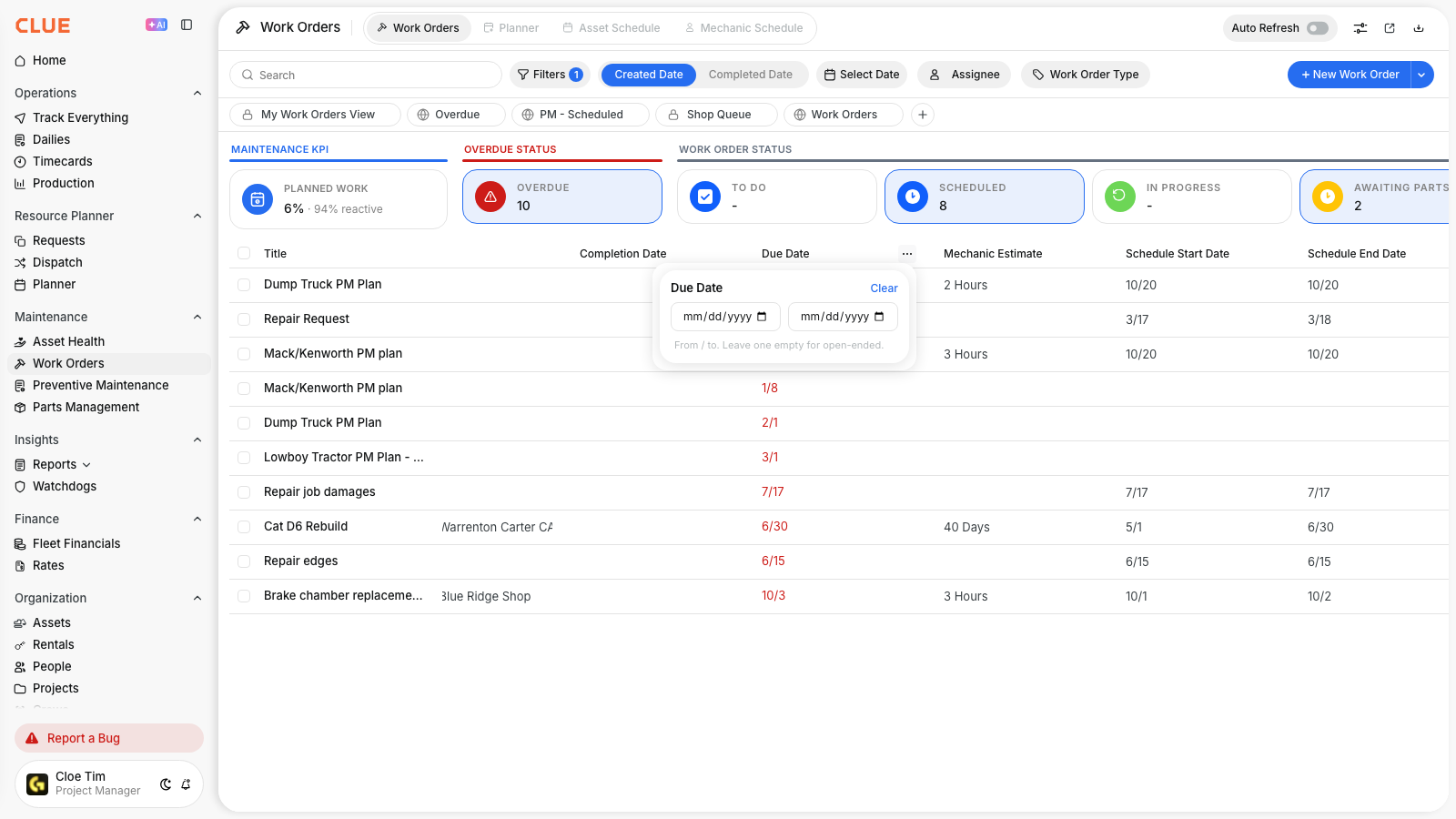
Click ... on Due Date or Completion Date. Choose a from date, a to date, or both.
Step 4: Search a text column
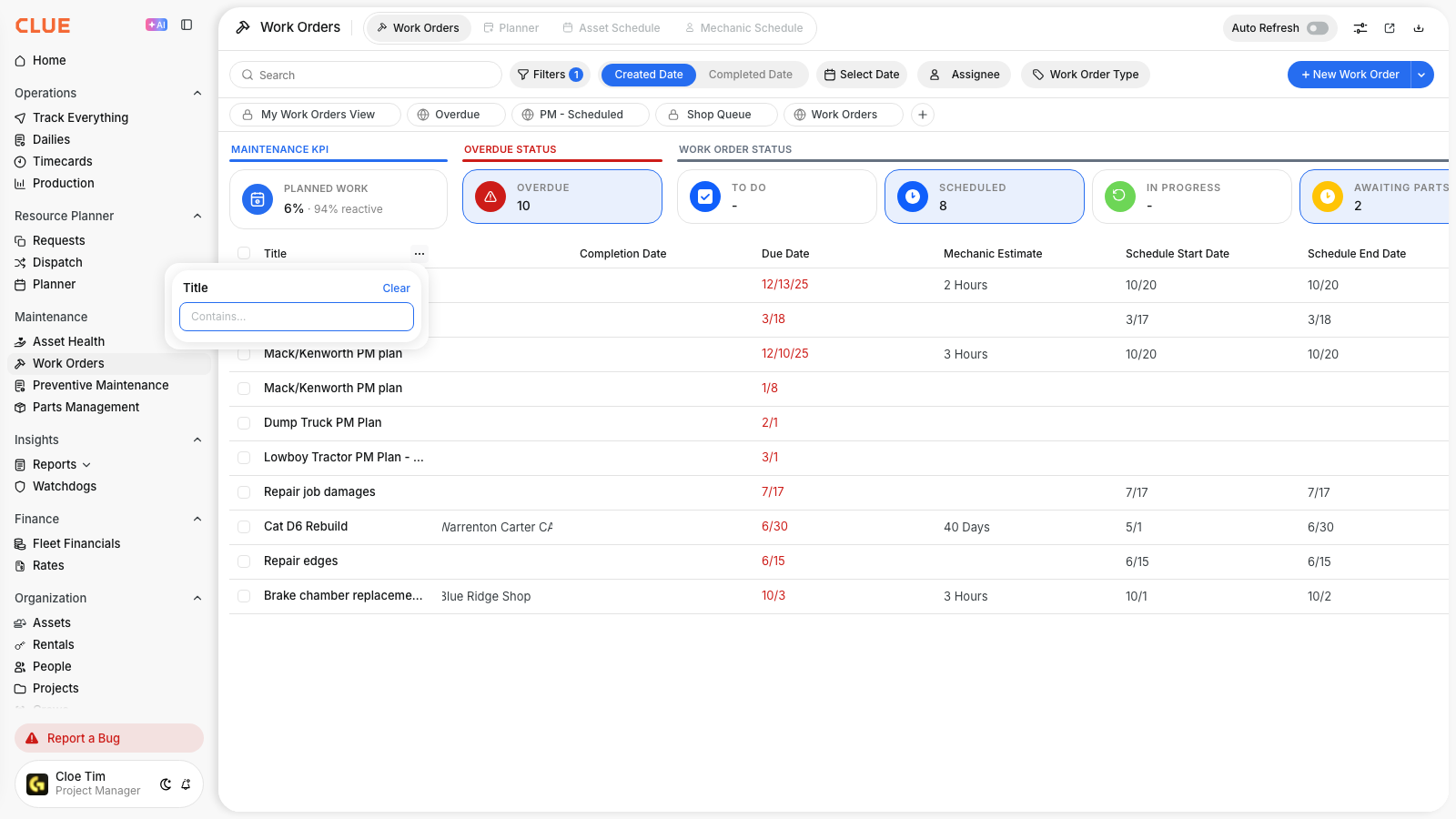
Click ... on Title or Description. Type a word. Only work orders that contain it stay in the list.
The full details
- Works on: Web app, Work Orders list.
- Value lists: Assignee, Status, Type, Priority, Shop, Project, Geofence and similar columns. Vendors are marked Vendor.
- (Blank): Tick it to find work orders with no value in that column, such as no assignee.
- Combining filters: Filters on different columns narrow the list together.
- Same filter, two places: A column filter and the matching filter in the Filters panel are the same setting.
- Clear: Open the column menu and click Clear to remove that filter.
- Not every column: Cost totals and a few other columns have no filter. No ... button means no filter.
Tips
- Clicking the column name still sorts the list. Use the ... button to filter.
- Leave one date empty to get an open-ended range, like everything due after the 1st.
- Pair an Assignee filter with the Overdue tile to see who is falling behind.