Understanding Work Order Status
Work order status shows where a job stands from start to finish. It helps your team see what has not started, what is in progress, what is paused, and what is complete. If you need help with the full workflow around creating or editing a job, this page fits naturally with Creating and Managing Work Orders and Updating a work order.
Work Order Status Workflow
Every work order moves through a defined status workflow in CLUE. Keeping the status up to date makes it easier for mechanics, foremen, and managers to track progress and spot work that still needs attention.
Status Types
Each status shows the current stage of the job. Use the one that best matches the work order as it moves through the repair process.
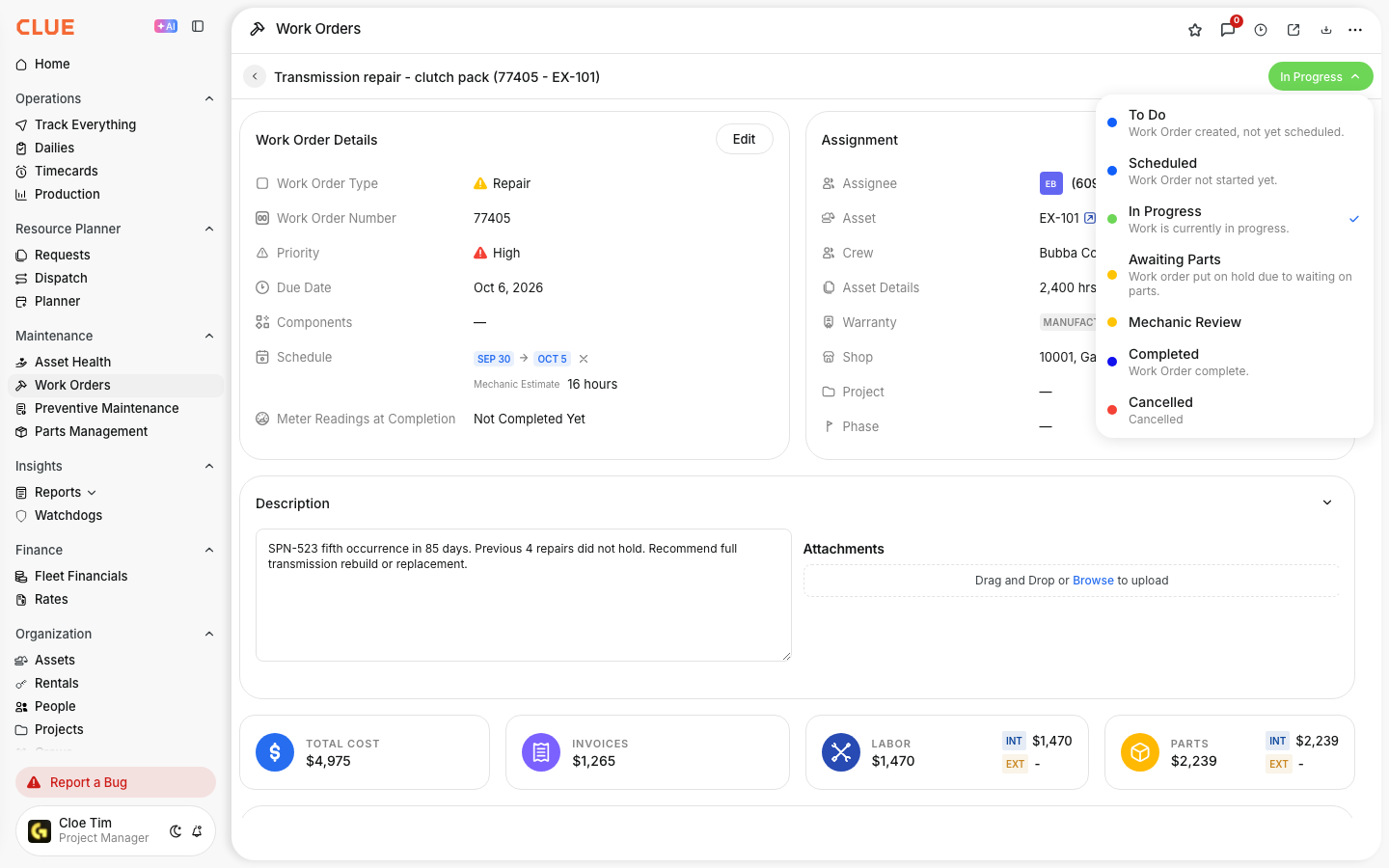
- To Do - the work order has been created but work has not started
- In Progress - the mechanic has started the work
- On Hold - the work is paused, often while waiting for parts, approval, or more information
- Done - the work has been completed
- Cancelled - the work order has been cancelled
These are the standard status types shown in CLUE’s current work order status lesson.
Changing Status
You can update the status from the top of the work order detail view. This is the same area where CLUE shows the work order header and other key actions. If you also need to change the rest of the job details, use Updating a Work Order.
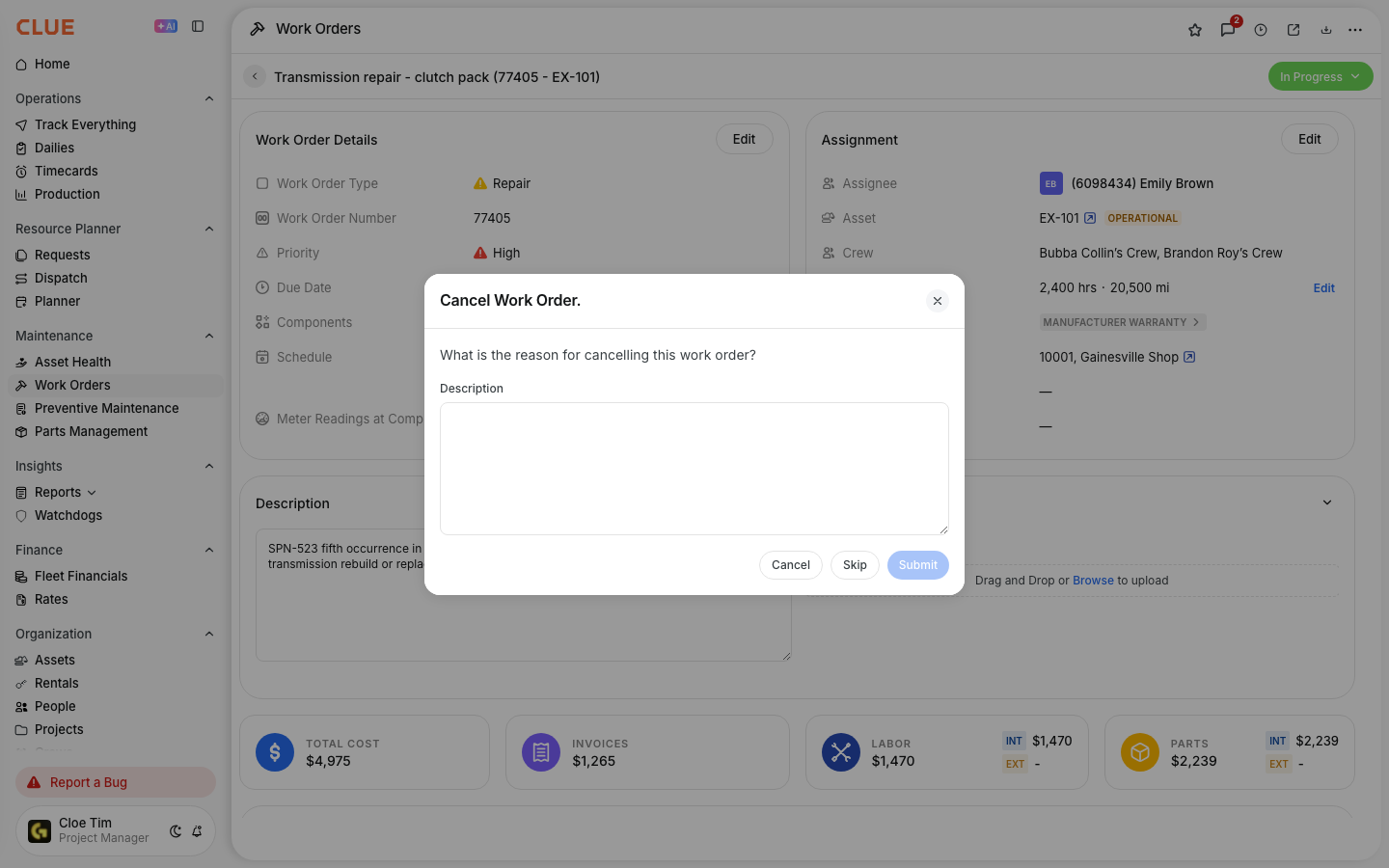
To update a work order status:
- Open the work order details
- Click the status dropdown at the top
- Select the new status
- Add a comment explaining the change if needed
Tracking Progress
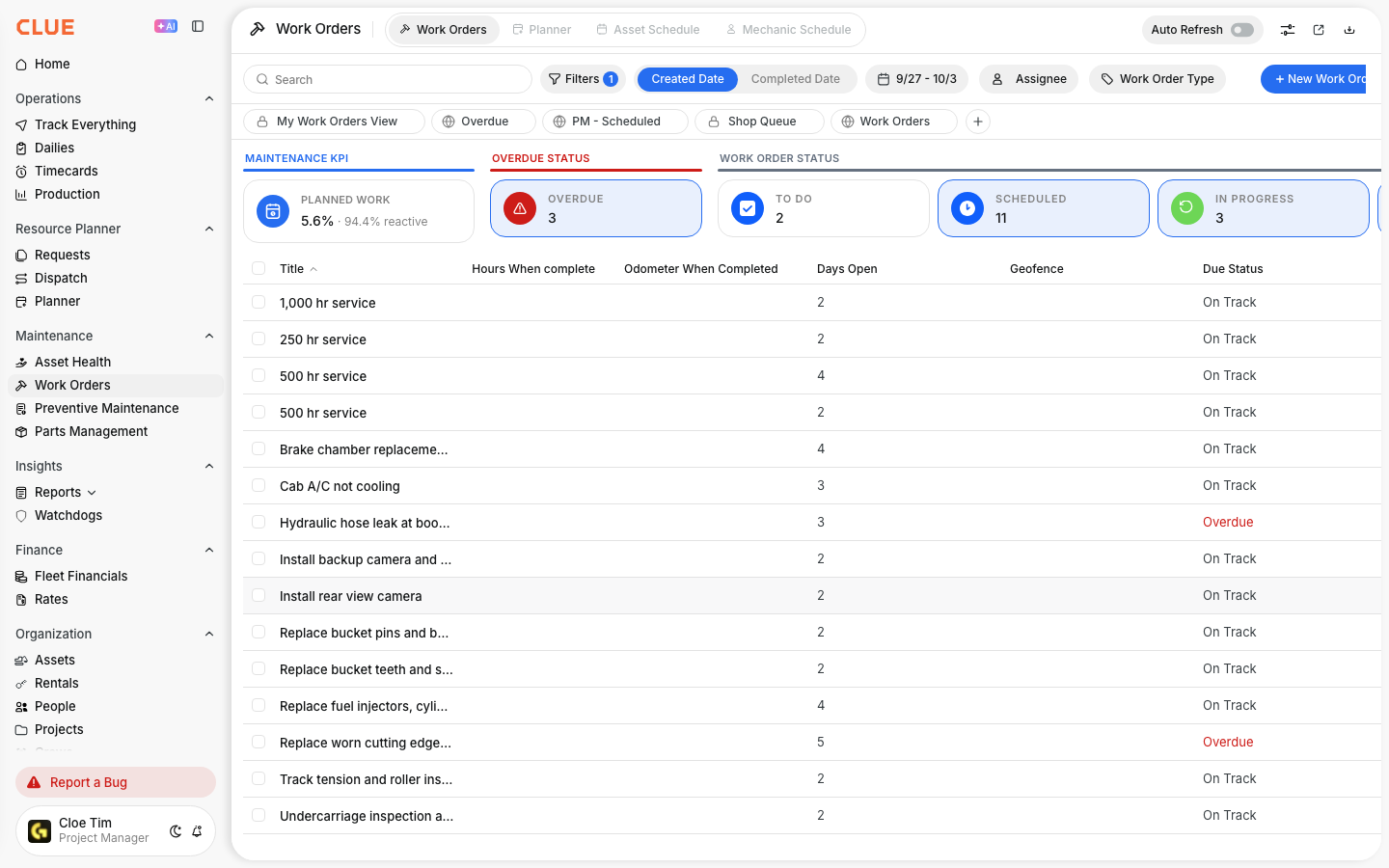
The work orders table shows each status with a badge, so your team can quickly scan what is active, paused, completed, or cancelled. This makes it easier to manage the list without opening every work order one by one.
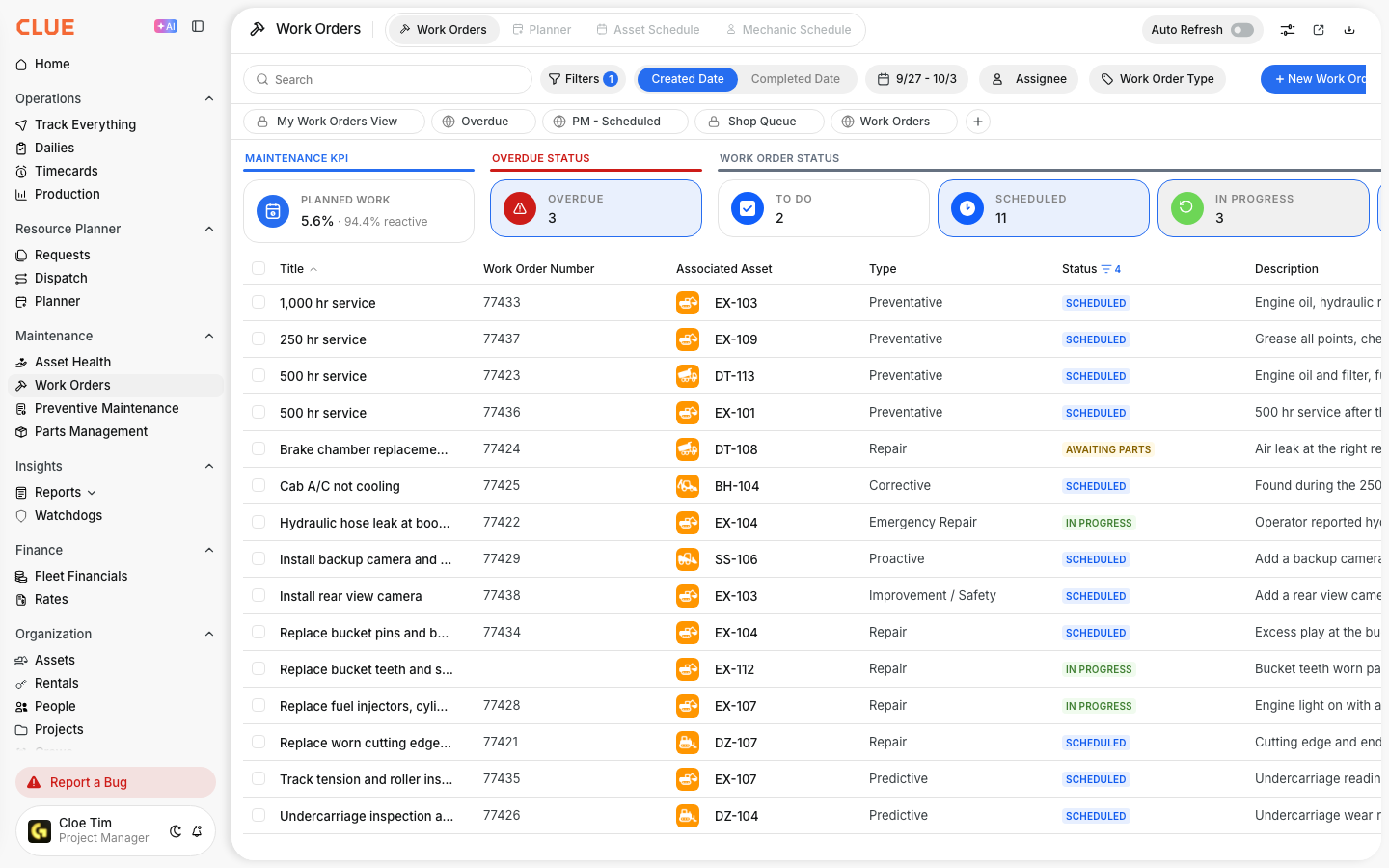
When you need to focus on a certain group of jobs, filter the work orders list by status. That works well alongside Filtering and Finding Work Orders when you need to narrow the list by mechanic, asset, date, or other fields.
Days Open Counter
Each work order shows how many days it has been open. This helps you spot aging jobs that may need follow-up, especially when they have been sitting in To Do or On Hold for too long.