CPR on Work Orders: Complaint, Problem and Repair
What is this?
CPR stands for Complaint, Problem and Repair. Many shops use these three words to write up every repair. When your company turns on CPR, each work order uses these names:
- Complaint: what the operator reported.
- Problem: what the mechanic found.
- Repair: what the mechanic did.
The names show on the web app and on the Clue mobile app. Your company can also make all three parts necessary before a work order can close.
Who's this for?
Everyone who opens, works on or checks a work order.
- Mechanics, write what you found and what you did in the right place on every job.
- Shop foremen and service managers, see the full story of each repair before the work order closes.
- Equipment managers, read a clear repair history for each machine.
- Company admins, choose if CPR is off, optional or required for the whole company.
How to use it
Step 1: Choose a CPR setting
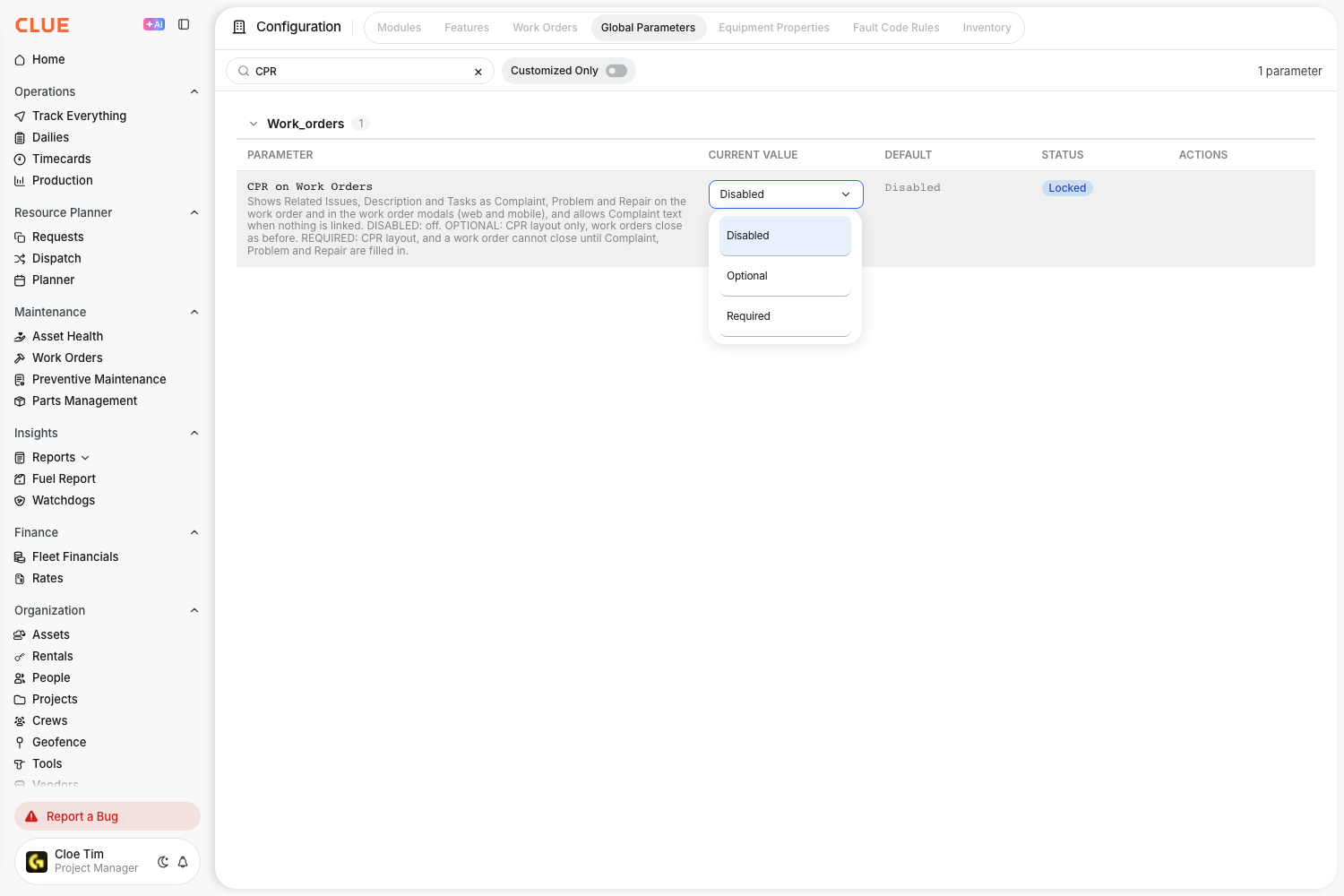
Go to Company Settings > Configuration and open the Global Parameters tab. Search for CPR. Click Edit on CPR on Work Orders, pick a setting, then click Save.
- Disabled: work orders show Related Issues, Description and Tasks. This is the default.
- Optional: work orders show Complaint, Problem and Repair. Work orders close as usual.
- Required: work orders show Complaint, Problem and Repair. A work order closes only when all three are filled in.
Step 2: Fill in CPR on a work order
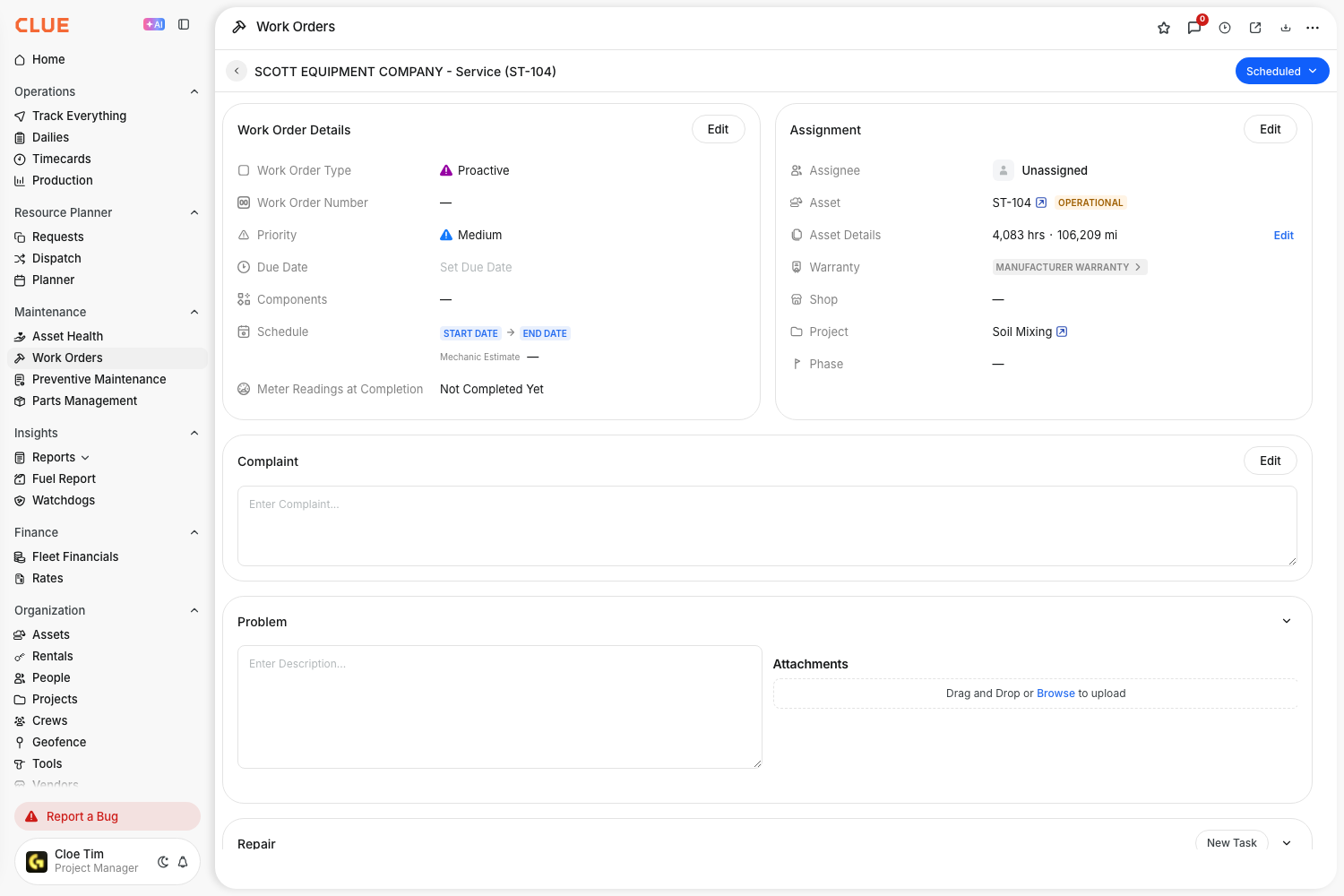
Open a work order. Complaint, Problem and Repair show as three sections.
- Complaint: the issues linked to the work order show here. If no issue is linked, type the complaint in the text box. Clue saves it for you.
- Problem: type what you found.
- Repair: click New Task to add each job you did.
Step 3: Create a work order with CPR
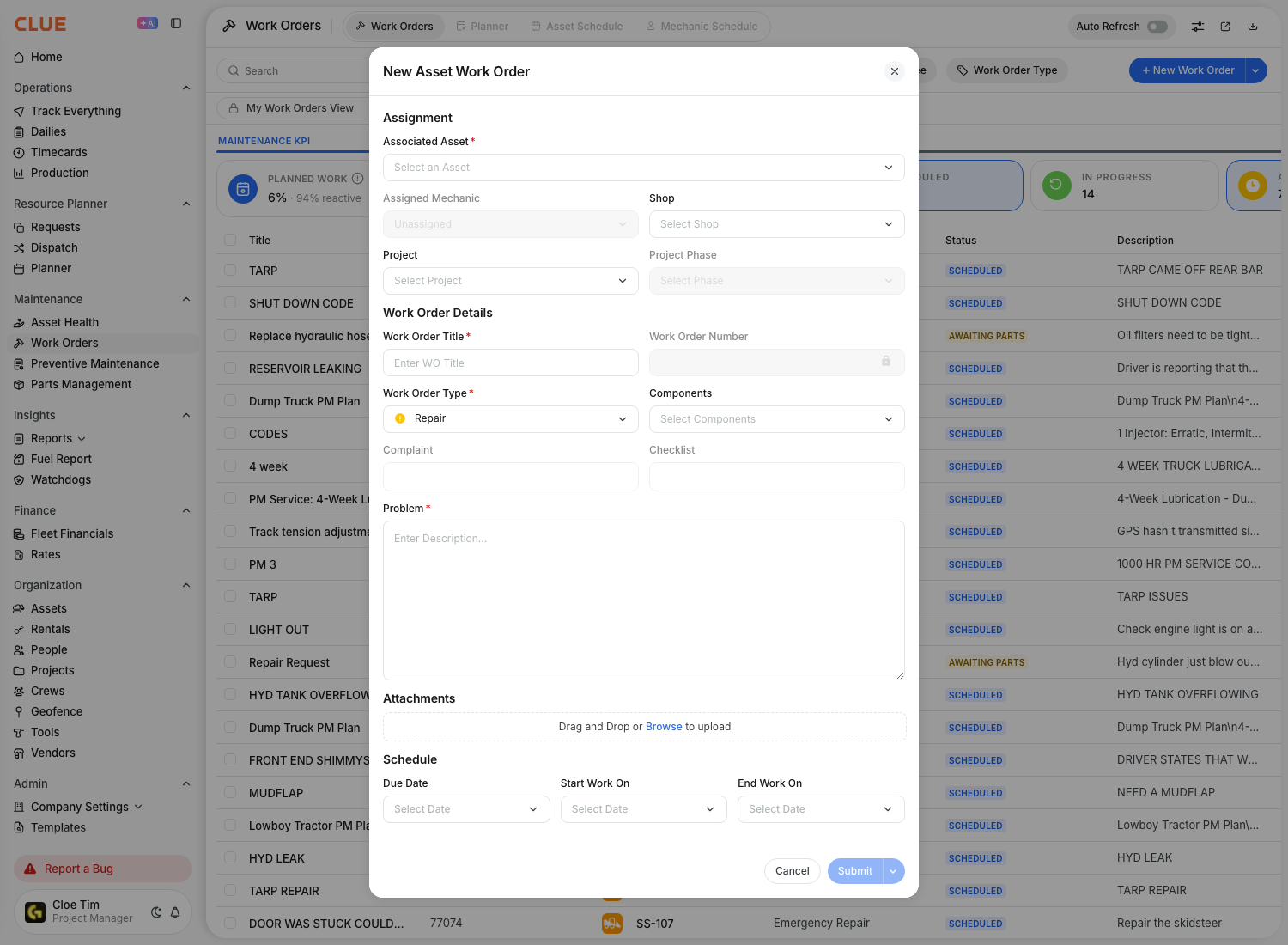
Click New Work Order. Use Complaint to pick the issues reported on the asset. Describe the problem in Problem. The Edit Work Order screen uses the same names.
Step 4: Use CPR on the mobile app
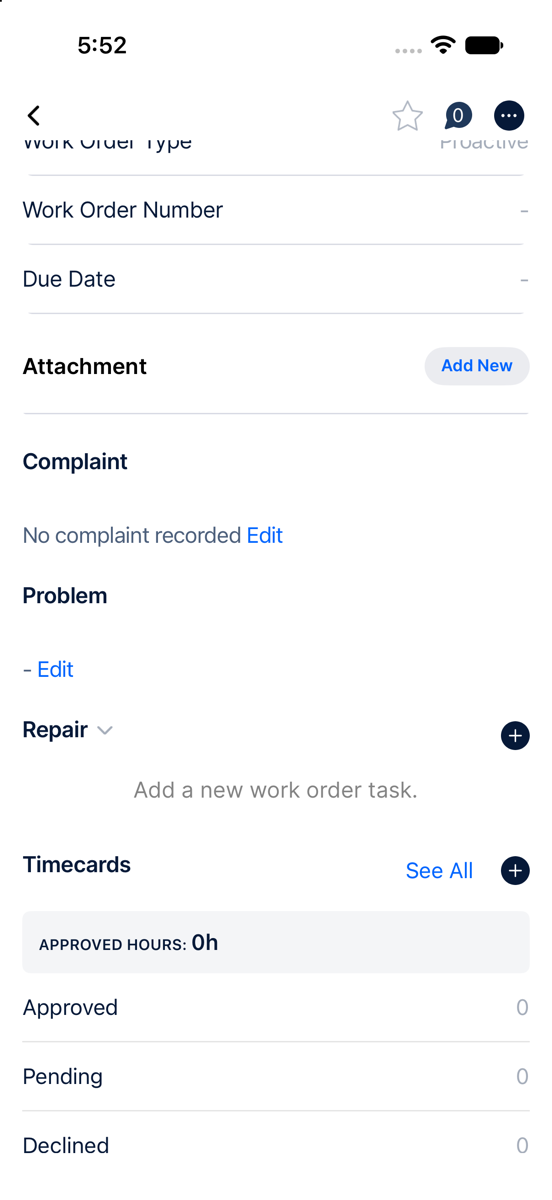
Open a work order in the Clue mobile app and scroll to Complaint. If no issue is linked, tap Edit to type the complaint. Tap + next to Repair to add a task.
Step 5: Create a work order on the mobile app
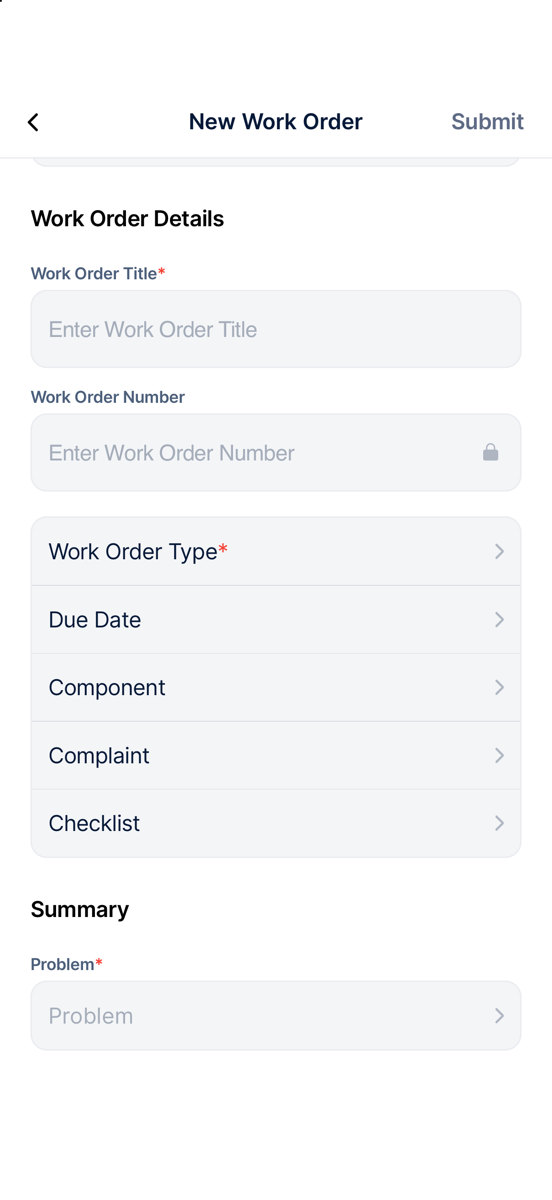
Start a new work order in the mobile app. Tap Complaint to pick the issues reported on the asset. Tap Problem to describe the problem.
Step 6: Close a work order on the web
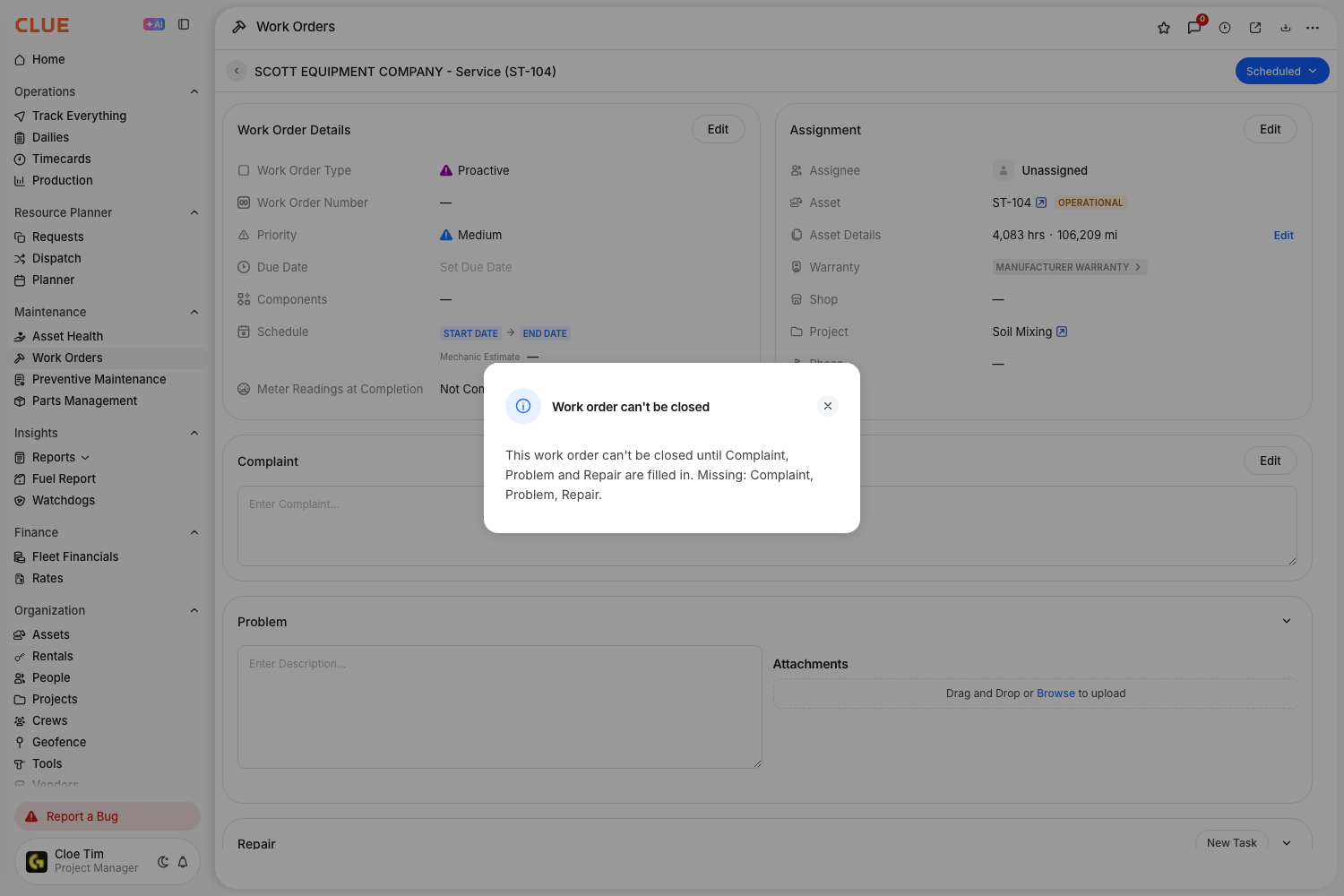
With CPR set to Required, set the status to Completed. If a part is empty, the Work order can't be closed window lists what is missing. Fill in the missing parts, then close the work order again.
Step 7: Close a work order on the mobile app
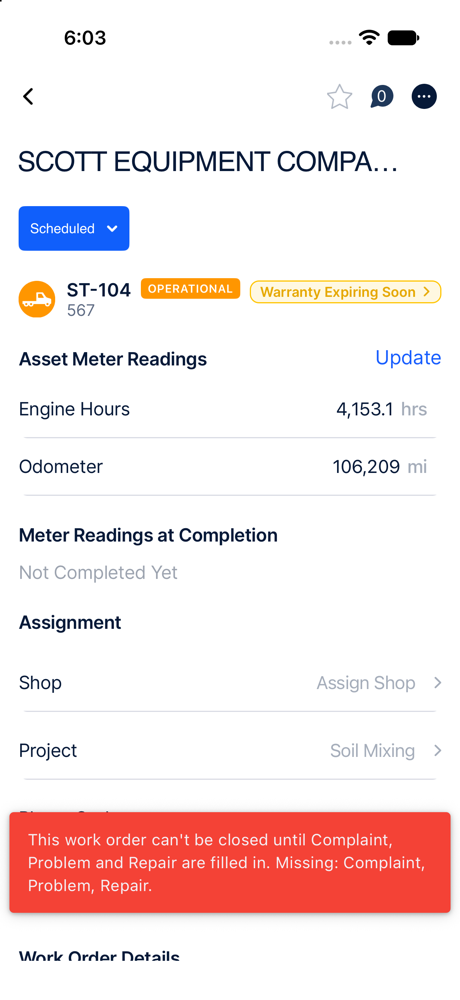
The mobile app uses the same rule. If a part is empty, a red message tells you what is missing. The work order stays open.
The full details
- Works on: the web app and the Clue mobile app, version 2.30.7 or newer.
- Where it shows: the work order page, New Work Order and Edit Work Order, on the web and on the mobile app.
- Who can change the setting: your company admin.
- Default: Disabled. Nothing changes until your company picks Optional or Required.
- What counts as filled in: Complaint has typed text or a linked issue, fault code or preventive maintenance item. Problem has text. Repair has at least one task.
- Project work orders: they have no asset, so they do not need a Complaint.
- Bulk Update Status: with Required, Clue closes the complete work orders. It lists the others and shows what each one is missing.
- Required to Optional: blocked work orders can close again. No data changes.
- Optional to Disabled: the typed Complaint text hides, but Clue keeps it. It shows again when you turn CPR back on.
- Older mobile app versions: an app older than 2.30.7 shows Related Issues, Description and Tasks. With Required, the close is still blocked and the app tells you why.
Tips
- Start with Optional. Your team learns the new names before the close rule starts.
- Ask every mechanic to update the Clue mobile app to version 2.30.7 or newer.
- Link the reported issue when you can. A linked issue fills in Complaint, so you do not need to type it again.
- Add one Repair task for each job. A clear task list makes the repair history easy to read.