Turn reports on or off for your company
What is this?
Company admins can turn each report on or off for the whole company. A report that is off leaves the menu for everyone. Turn it on again any time, with no call to support.

Who's this for?
- Company admins, to show the reports your team uses and hide the rest.
- Managers, to keep the menu short for the field team.
How to use it
Step 1: Open the Reports tab
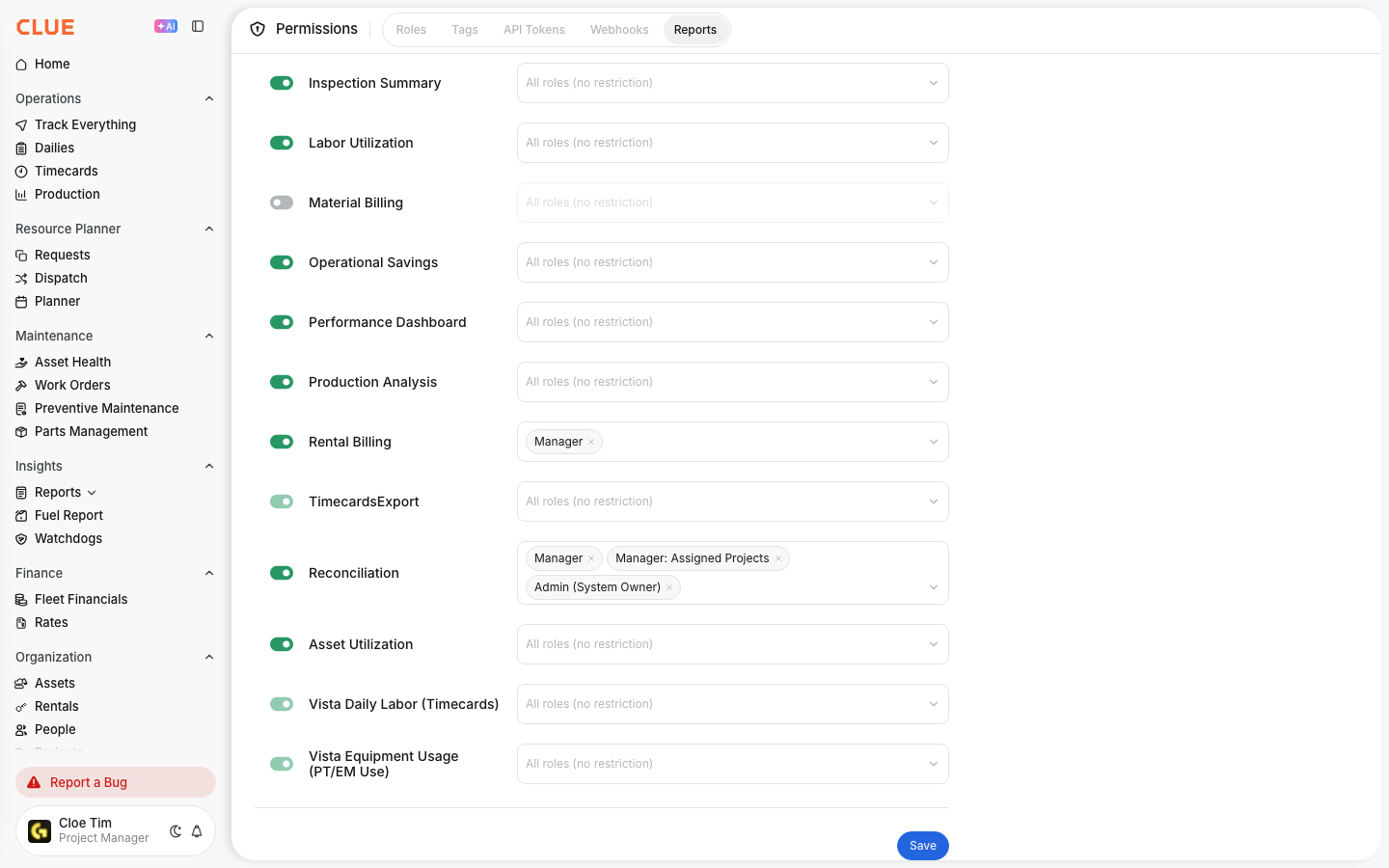
Go to Company Settings > Permissions > Reports.
Step 2: Turn a report on or off
Click the switch next to the report. Green is on. Grey is off.
Step 3: Save
Click Save at the bottom. The menu changes for everyone in your company.
The full details
- Who can do this: people who can change the roles of other users in your company.
- Off: the report leaves the Reports menu for everyone in your company.
- On: the report shows in the menu for the roles you pick. No roles means every role.
- Greyed-out switch: some reports are set up for you by Clue, such as file exports. Ask your Clue contact to change them.
Tips
- Use the roles field to show a report to some roles only, instead of turning it off.
- Turn a report on, try it, and turn it off again if your team does not need it.