Template Library: Ready-Made Checklists
The Template Library is a built-in collection of ready-made inspection and preventative maintenance (PM) checklist templates provided by CLUE. Instead of building every checklist from scratch, you can browse the library we provide, preview the full structure, and add any of these pre-created templates to your account with one click!
Each template from the library follows industry standards and best practices. Once you add a template from the Template Library to your templates you can customize it to match your specific equipment, team, or workflow requirements.
Who Is This For?
This feature is useful to anyone setting up or expanding their inspection and maintenance templates and checklists library in CLUE.
- Equipment Managers use library templates as a starting point for standardizing pre-shift and post-shift inspections across the fleet.
- Shop Managers use PM checklist templates to ensure technicians follow a consistent and documented service process for scheduled maintenance.
- Safety and Compliance Teams use ready-made inspection templates to quickly establish a documented checklist process without building forms from the ground up.
How to Use It
1. Open the Template Library
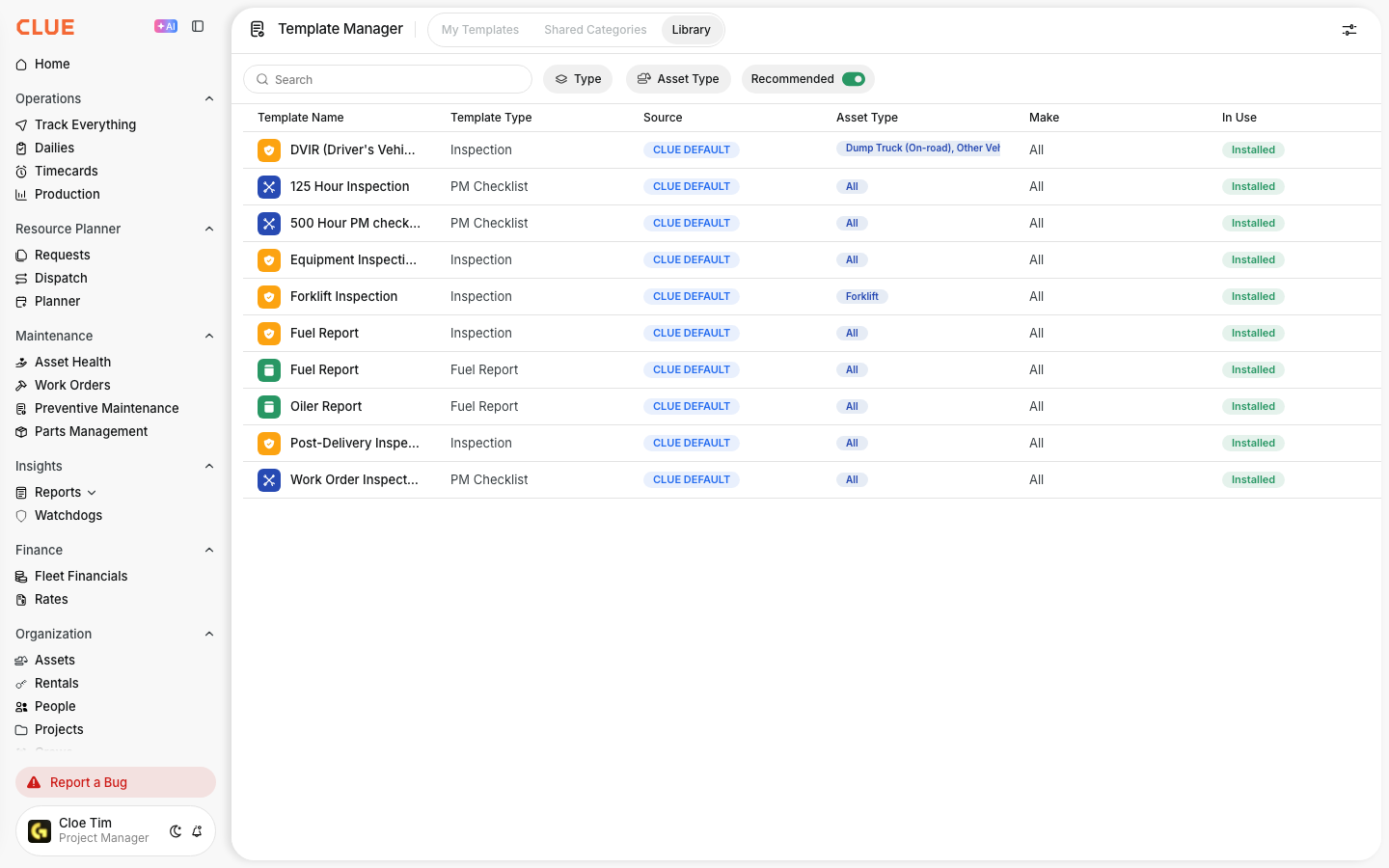
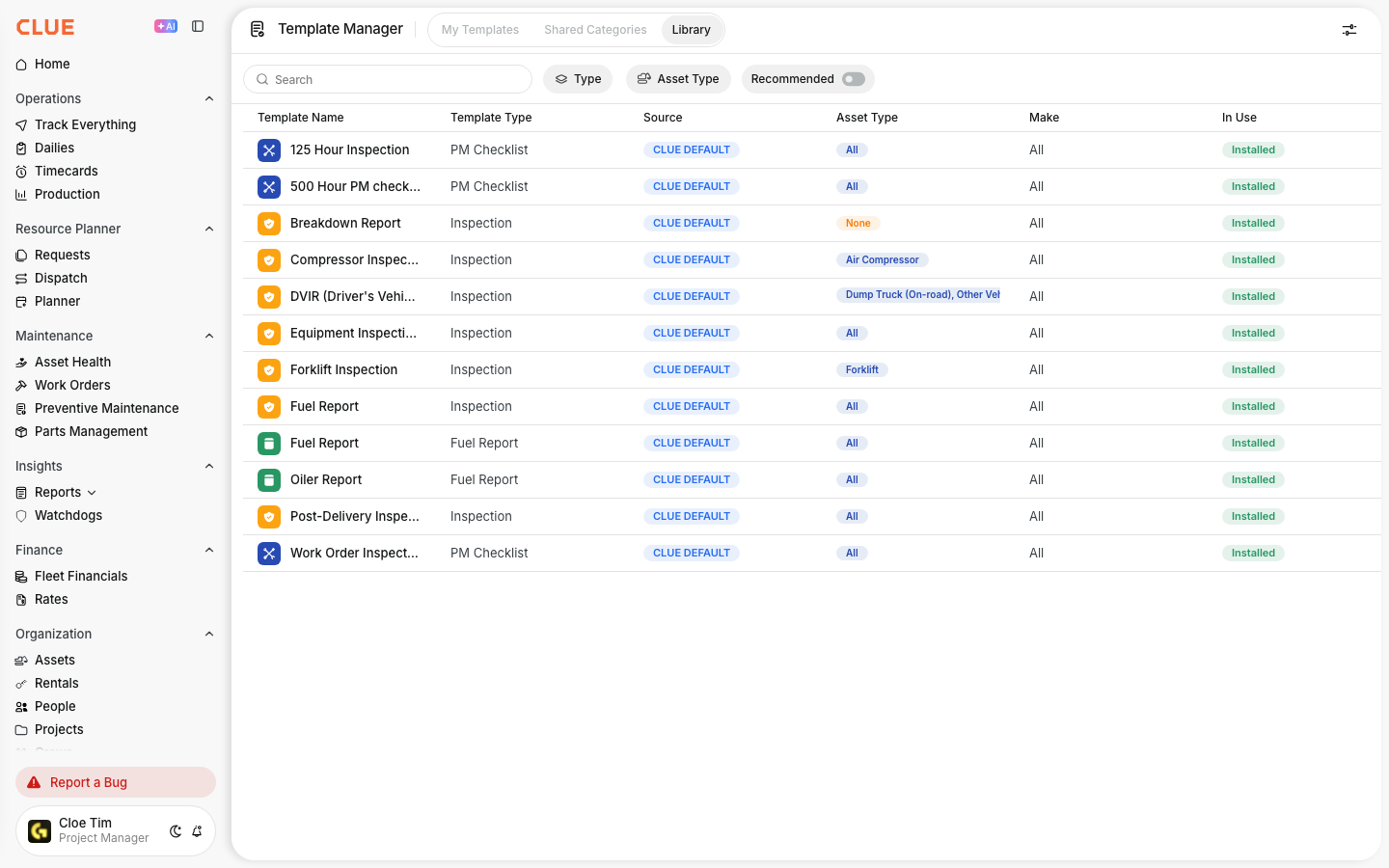
Go to Company Settings > Template Manager > Library. All available templates are listed here with their name, type, source (CLUE DEFAULT), asset type, make, and whether the template is currently in use.
2. Preview a Template
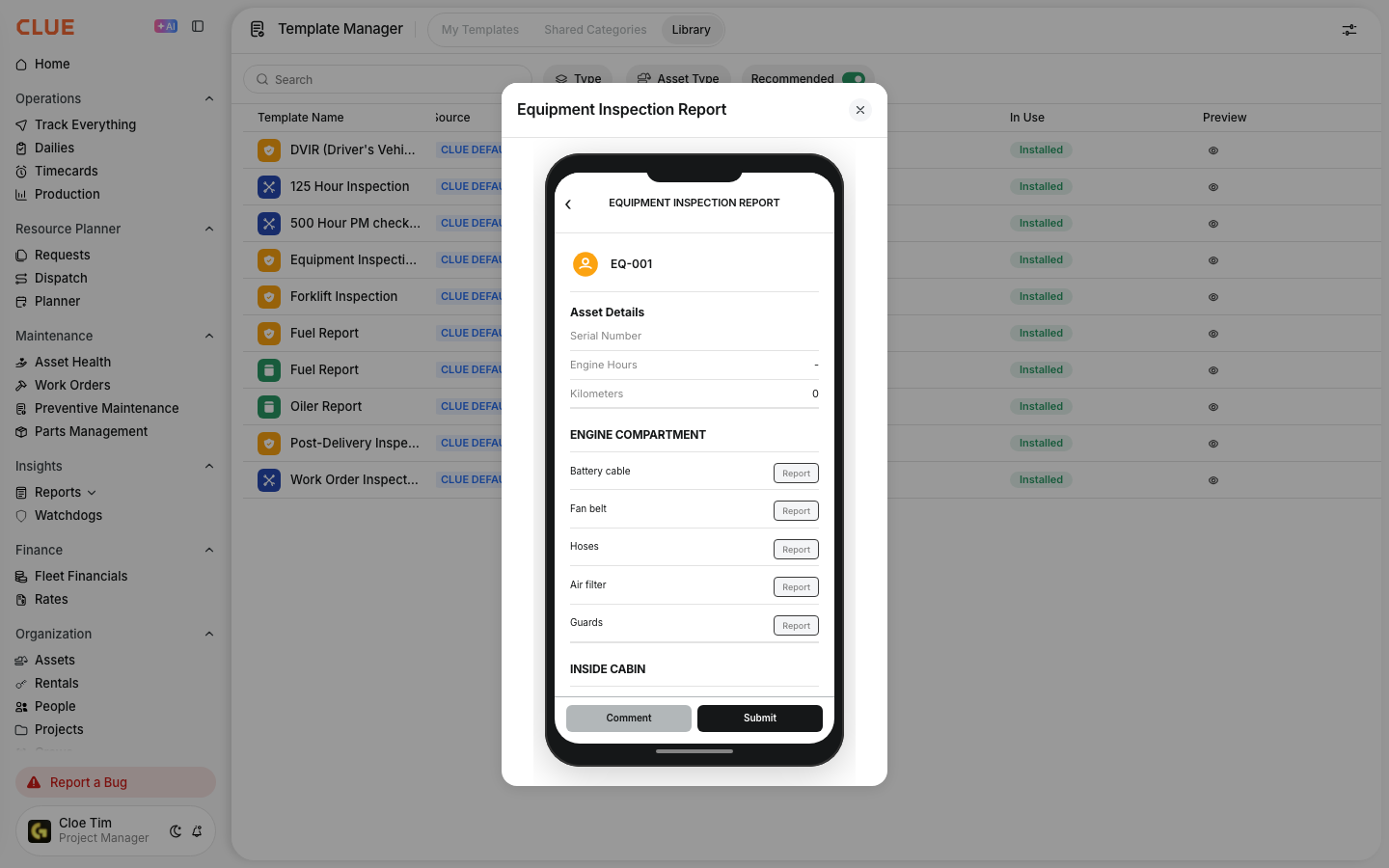
Click on the eye icon on any template to preview it before adding it to your templates. The preview shows the full checklist structure that includes all categories, items, and displays exactly how it will appear to the mechanic or operator on their mobile device.
3. Add to Your Templates
Click on the + Add to My Templates button or toggle the In Use switch. The template will be copied to into your My Templates section. From there you can rename the template, add or remove checklist items, change response types, and adjust settings to fit your specific needs.
Key Behaviors and Limitations
- Adding a template from the Template Library creates a copy. Any changes you make to your version do not affect the original template in the library. The library version remains unchanged.
- CLUE DEFAULT templates are maintained by CLUE. These templates are built to reflect industry standards and best practices. CLUE adds new templates to the library as requirements evolve and change. It's worth checking the Library templates periodically.
- Filter by Type and Asset Type. Use these filters to narrow down the library and find templates relevant to specific equipment or use cases. The Recommended toggle surfaces CLUE-recommended templates suited to your fleet.
- Templates must be customized after adding. Library templates are designed as starting points. Review each template after adding it to your templates and adjust the items, response types, and settings before making it available to your team.
Tips
- Start with a library template, then customize. The 500 Hour PM Checklist covers most standard heavy equipment checks. Use it as a base and then add or remove items specific to your machines rather than building a template from scratch.
- Use the Equipment Inspection Report as your daily inspection base. This template covers the core walk-around categories including Outside, Engine Compartment, Inside Cabin, and Fluids with standard pass/fail items already in place.
- Use the Preview on mobile feature before publishing a template. The mobile preview shows exactly what your operators or technicians will see in the field on their mobile devices. Confirm the layout and item order make sense before committing to a template.
- Check the Library when setting up new asset types. If you add a new type of equipment to your fleet, check the Library first. A relevant template may already exist and save you significant set up time.
- Pair library templates with the Template Manager. Once a template from the Library has been added to your templates, use the Template Manager to finish configuring settings, add shared categories, and tailor the checklist before publishing it to your team.