Template Manager: Creating Templates
CLUE provides a built-in template management tool that lets you design and manage the checklists your team fills out in the field. Each template you create becomes a structured form that operators, inspectors, or technicians complete during an inspection, a preventive maintenance (PM) check, or a fuel report. You control the questions on the form, what responses are required, and how the form behaves within the mobile apps. Once the template is published, they become available for your team to use directly through CLUE's Inspections feature.
Who Is This For?
This feature is primarily used by anyone that is responsible for defining what gets checked in the field.
- Equipment Managers build inspection templates to standardize what operators check before and after every shift.
- Shop Managers create PM checklist templates to ensure technicians follow a consistent service process for every asset.
- Safety and Compliance Teams use templates to capture required safety checks, enforce photo documentation, and maintain a consistent audit record across the fleet.
How to Use It
1. View Your Templates
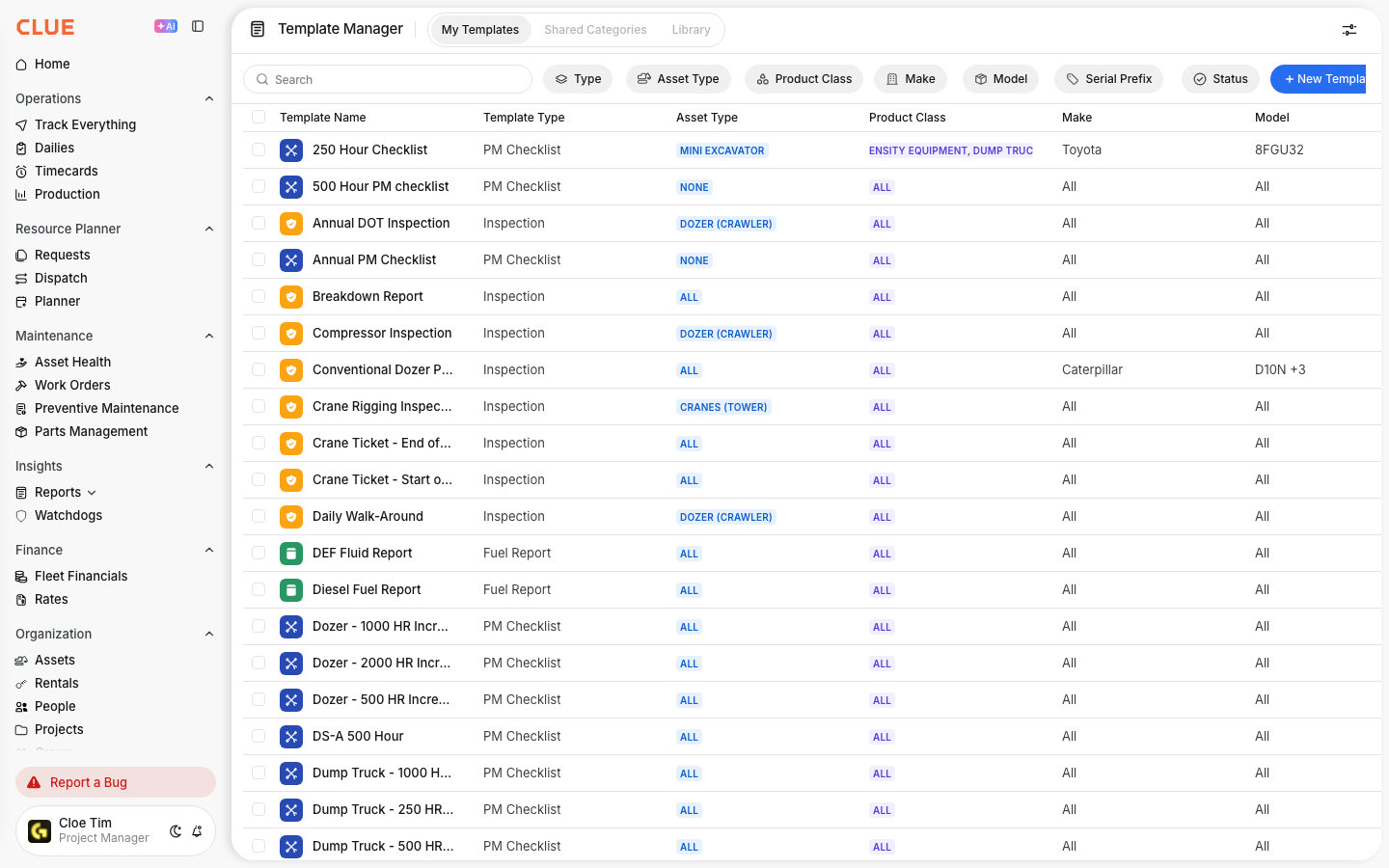
Within your CLUE dashboard go to Company Settings > Template Manager > My Templates. This is where all existing templates are listed. From here you can view, edit, or duplicate any template.
2. Creating a New Template
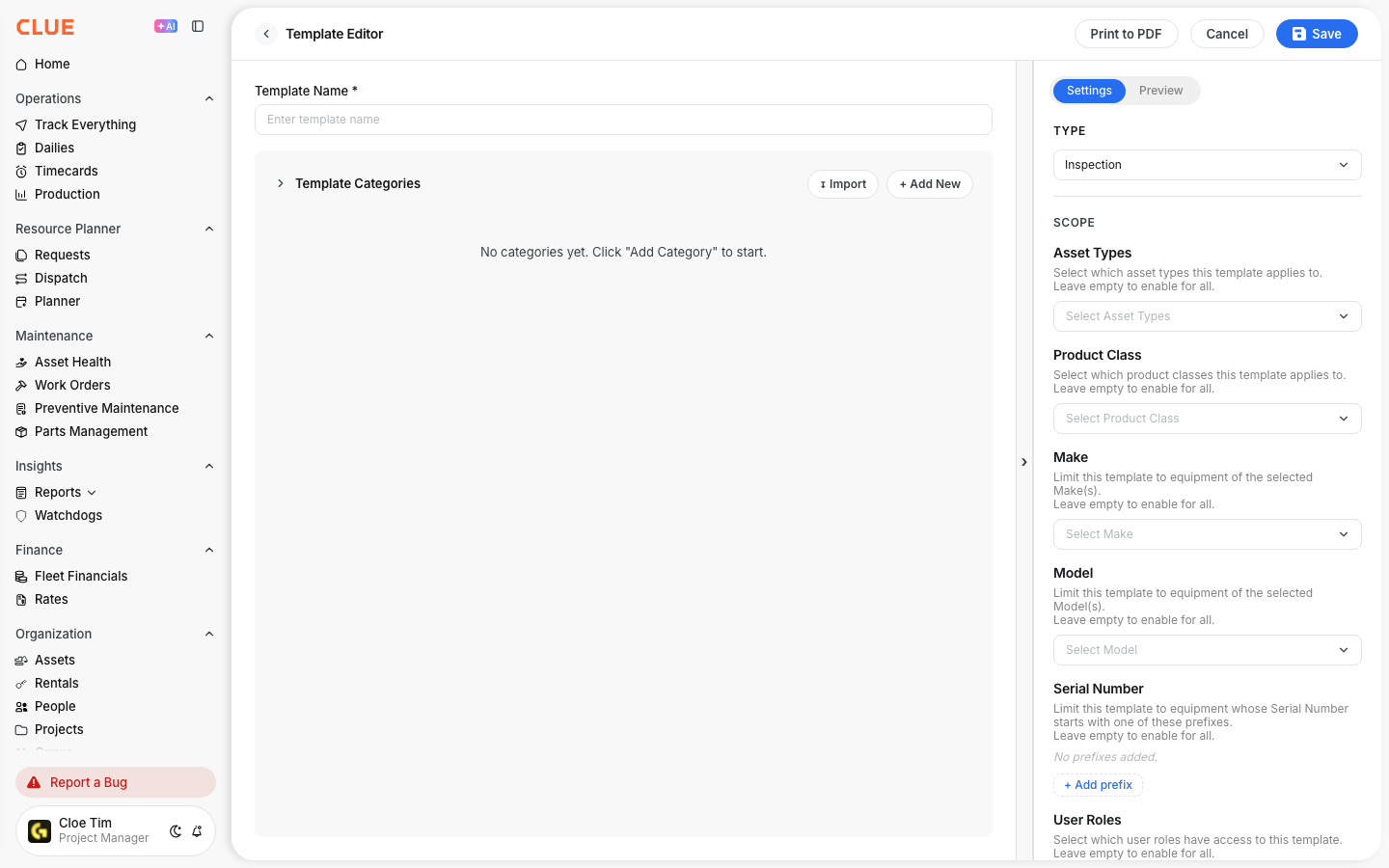
While on the My Templates page, click on the + New Template button. You have three options to get started:
- Build from scratch - to create a fully custom checklist
- Import from PDF - to convert an existing paper form into a digital template
- Import from Excel - to build from a spreadsheet-based checklist
3. Configure Settings
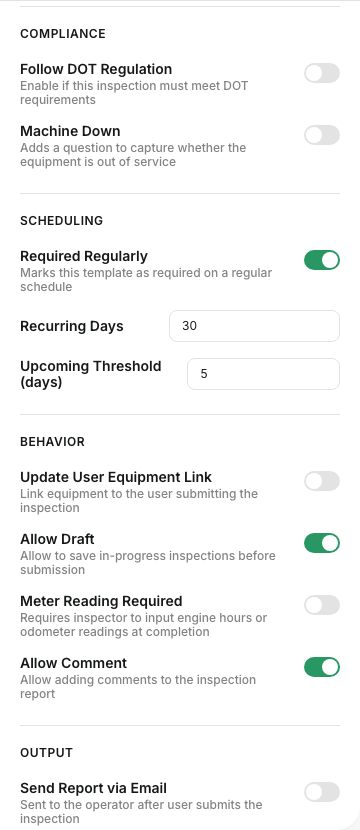
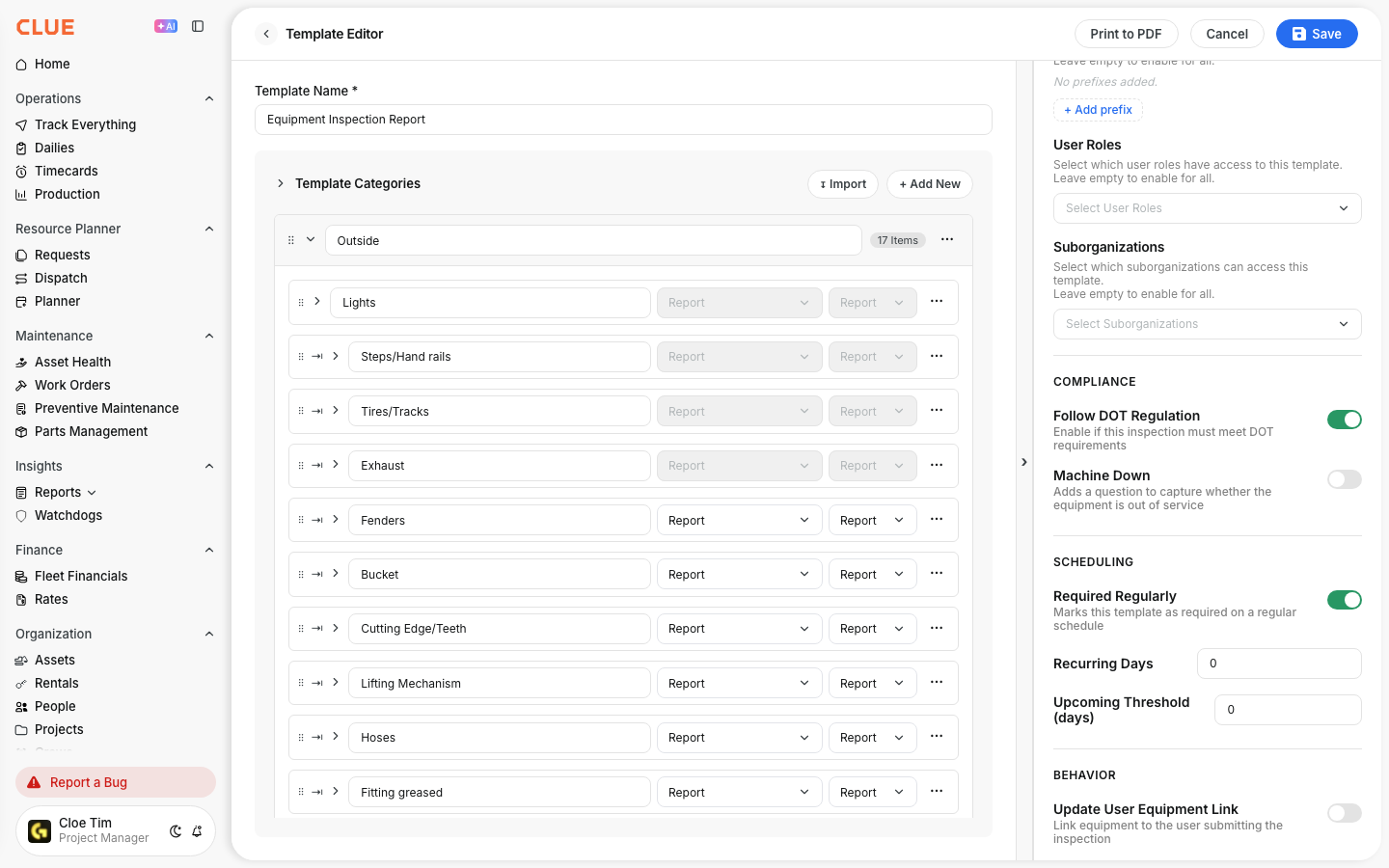
Before building out your checklist, configure the template settings. This includes selecting the template type, defining the scope of who and what it applies to, and setting compliance and behavior rules that control how the form is submitted.
4. Build Your Checklist
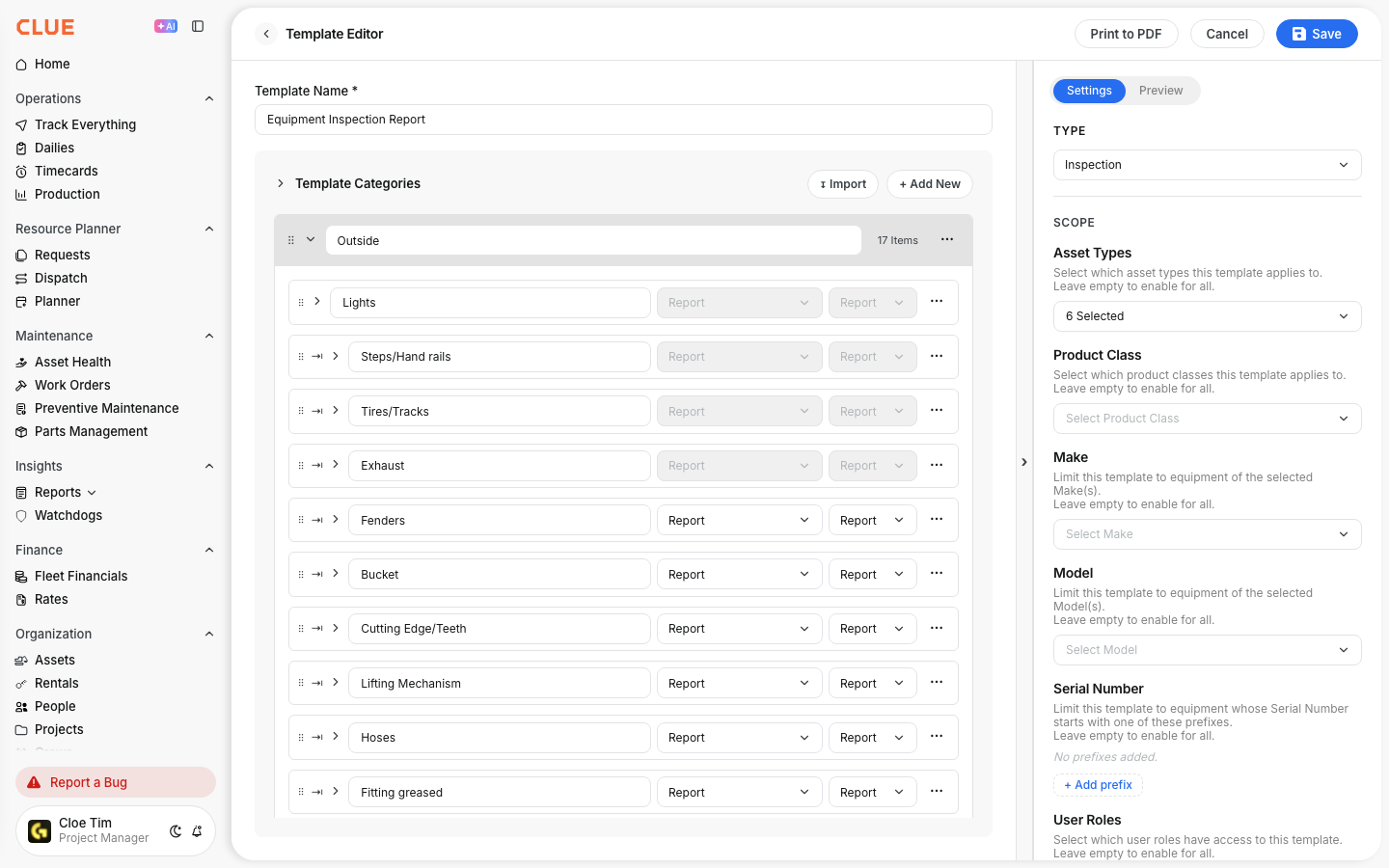
Building your checklist involves adding categories that will group related items. Then add individual checklist items within each of the categories you've defined. For each item, select the appropriate response type such as pass or fail, text input, a numeric value, or a photo capture.
5. Preview on Mobile
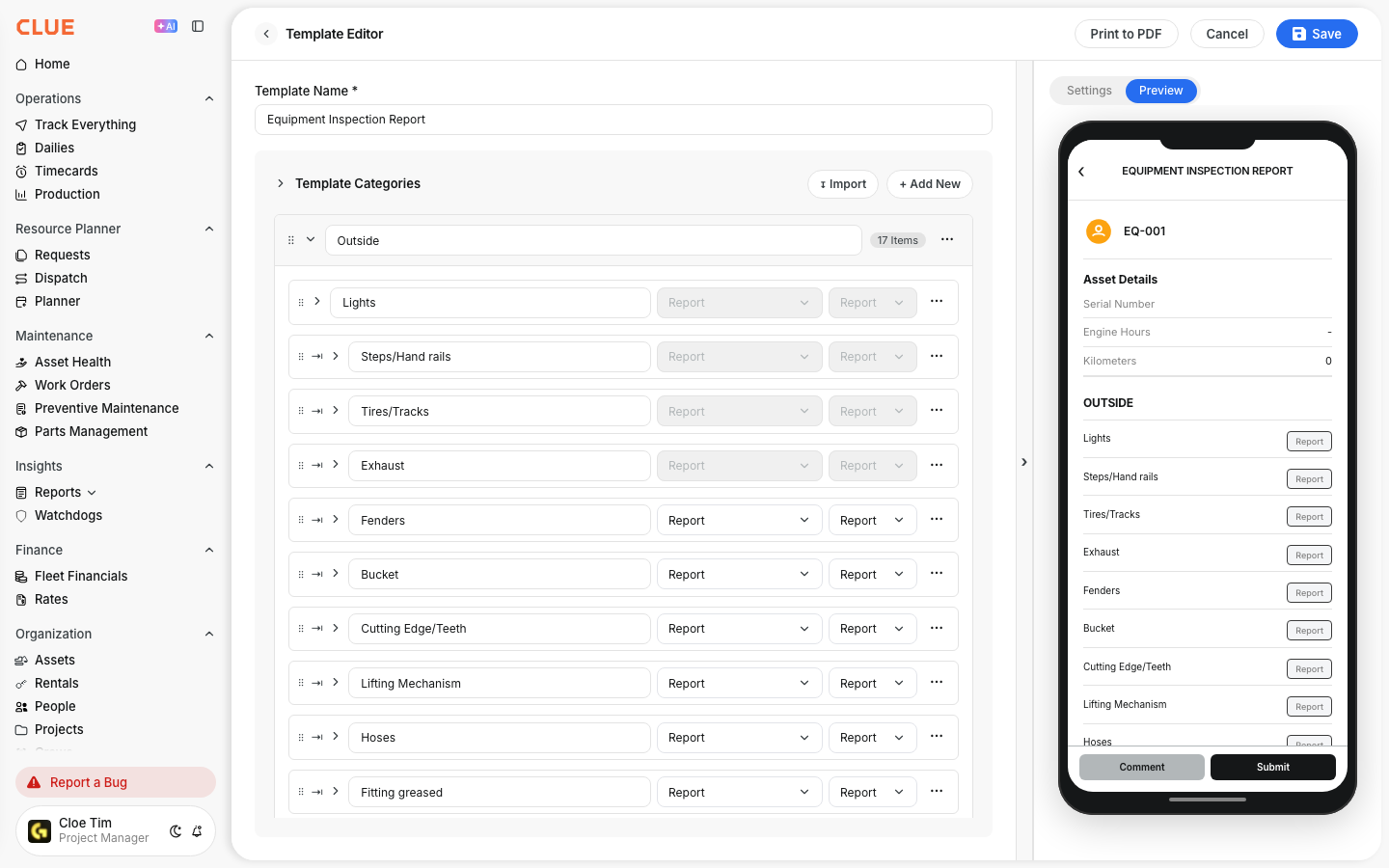
Click on the Preview button to see exactly how the template will appear to operators on their mobile devices. Review the layout and item ordering before publishing to ensure it's clear and easy to complete in the field.
Key Behaviors and Limitations
There are three template types. Each type serves a specific purpose and determines how the completed form is processed in CLUE.
- Inspection templates are used for pre-shift, post-shift, or job site equipment checks.
- PM Checklist templates are used during scheduled preventive maintenance services and connect directly to CLUE's Preventive Maintenance workflows.
- Fuel Report templates are used to capture fuel activity and usage data in the field.
Import options convert existing forms into CLUE templates. If your team already uses paper forms or spreadsheet-based checklists, you can import them directly rather than rebuilding them from scratch. Review all imported items after the import is complete to confirm the structure and response types are correct.
Templates must be published before they are available to use in the field. A draft template will not appear for operators or inspectors until it has been fully configured and published.
Editing a published template applies changes going forward only. Completed inspections or checklists that used a previous version of the template are not affected by changes made after the fact.
Tips
- Organize items by walk-around path. Structure your checklist categories in the order an operator physically moves around the equipment. This reduces missed items and speeds up completion time in the field.
- Set Photo Required on safety-critical items. For any item where visual documentation matters, such as fluid levels, tire condition, or visible damage, require a photo. This creates a stronger audit record and helps to reduce disputes.
- Always preview before publishing. When creating your template check the mobile preview before making the template live. What looks straightforward in the template editor can feel cluttered or unclear on a small screen.
- Duplicate existing templates when creating variations. If you need a similar checklist for a different asset type or project, duplicate an existing template and modify it rather than starting from scratch. This will save you time!
- Keep category names short and clear. Operators complete these forms in the field, and often quickly. Category names like "Engine Checks" or "Exterior Walk-Around" are faster to scan than longer and more descriptive labels.