Available now on Beta, This feature is in beta testing and will roll out to everyone soon.
What is this?
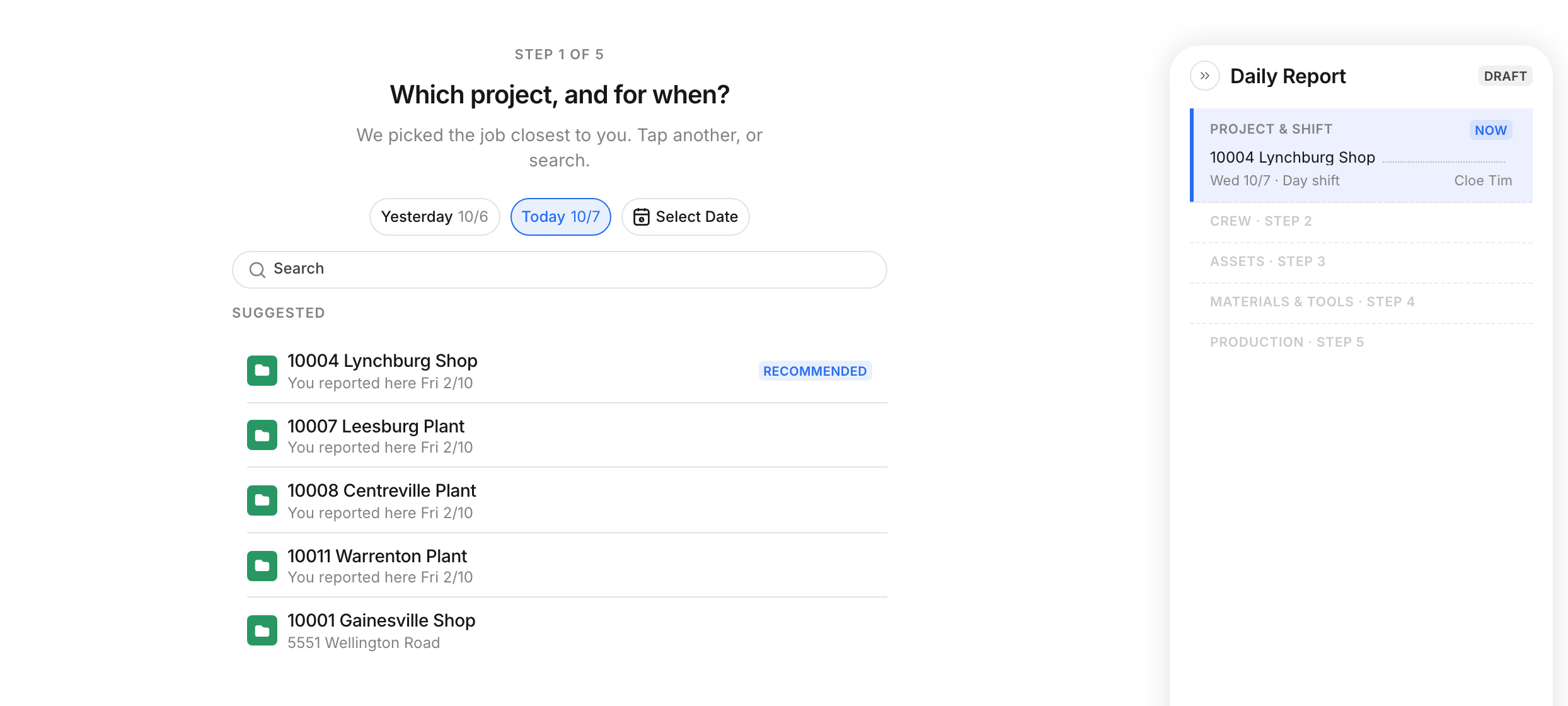
A daily report starts with a project and a date. Clue suggests the job closest to you, so most days take one tap. Tap a project and Clue creates the daily and opens the crew step.
Who's this for?
- Foreman, start the daily for your job each shift.
- Superintendent, start a daily for a crew that has no foreman on site.
How to use it
Step 1: Click New Daily
Go to Operations > Dailies and click New Daily.

Step 2: Pick the date
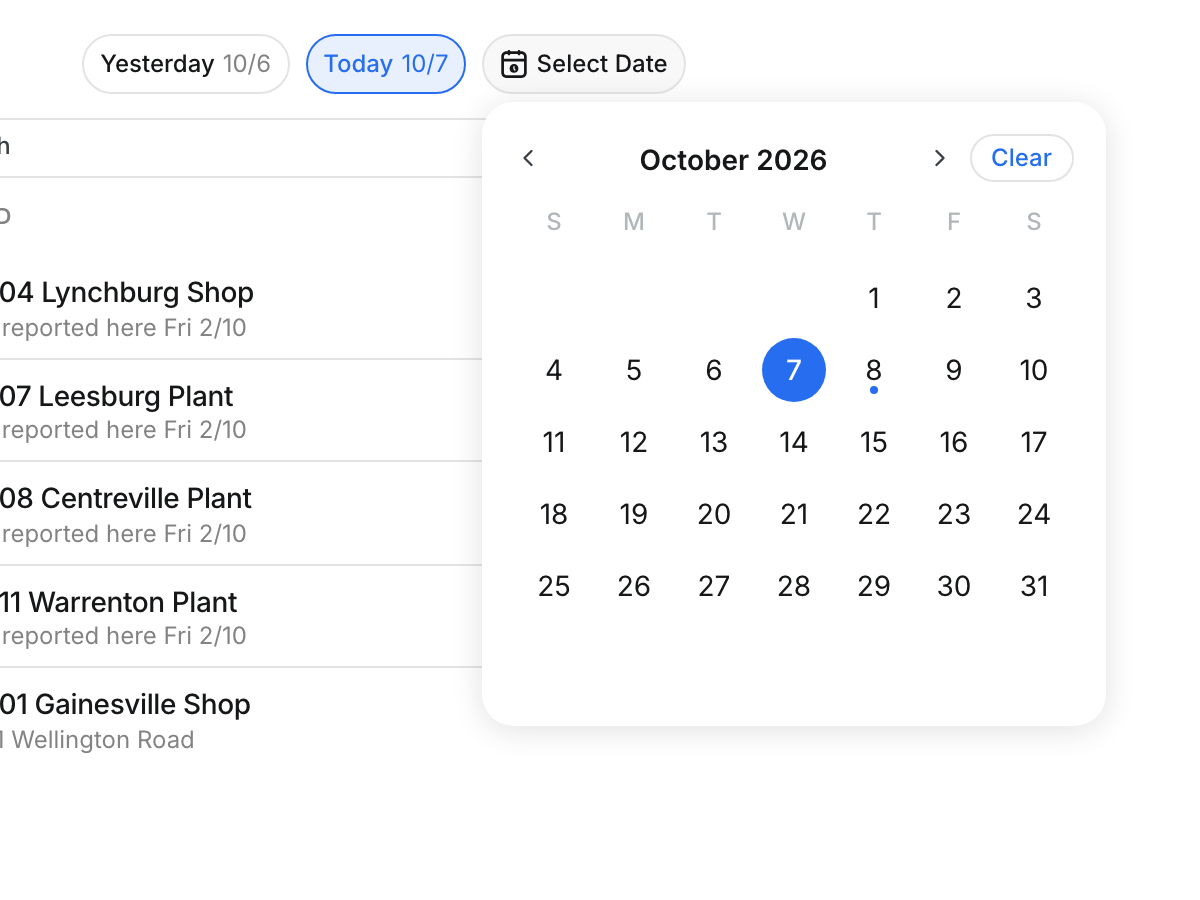
The daily opens on Step 1 of 5. Choose Yesterday, Today, or click Select Date for any other day.
Step 3: Find your project
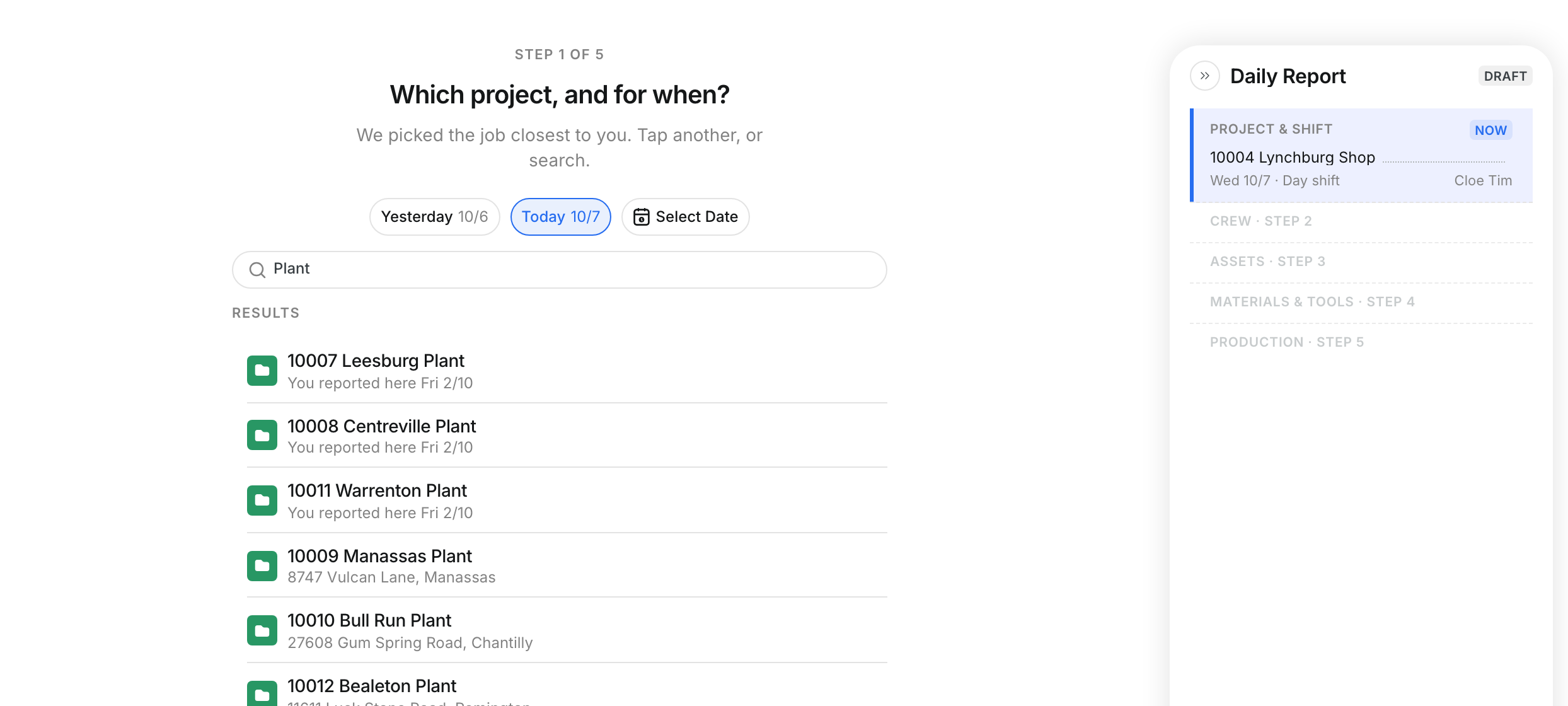
Clue lists Suggested projects and marks the best match RECOMMENDED. To find another job, type in Search.
Step 4: Check the shift
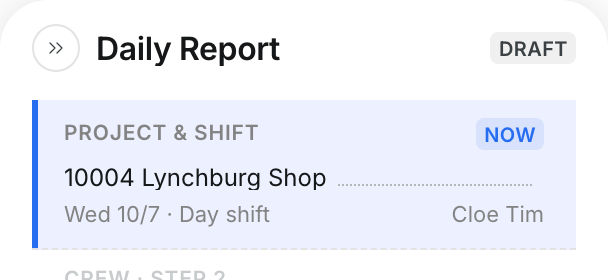
The Daily Report panel shows the project, the date and the shift, for example Day shift.
Step 5: Tap the project, or go back
Tap a project to create the daily and move to the crew step. Click Back to leave without creating a daily.

The full details
- Suggested: Projects near you and projects you reported on recently.
- You reported here: The last date you filed a daily on that project.
- RECOMMENDED: The project Clue thinks you want today.
- Copy Yesterday's Daily: When it shows, it starts a new daily on the project of your last daily.
- Shifts: If a project has more than one shift, tap the project, then pick the shift.
- Daily Report panel: Shows each step of the daily. The step you are on is marked NOW.
Tips
- Set the date before you tap a project. The tap creates the daily right away.
- If you picked the wrong date, open the daily and use Change Date. Every hour moves with it.