What is this?
An attestation is a short form you sign on your phone at the end of a shift. It asks you to confirm your hours, your shift times, and your breaks. You open it from the text link your foreman sends. Your signature records that your time is correct.

Who's this for?
- Crew members, who sign their own attestation each day.
- Foremen, who help a crew member sign in person.
- Payroll, who need to know what the crew sees and signs.
How to use it
Step 1: Open the link
Tap the link in the text. The form shows the project, the day, and your hours on record. Tap the globe at the top to change the language.
Step 2: Answer the questions
Tap an answer for each question, for example I confirm or Not correct. Some questions appear because of the length of your day.
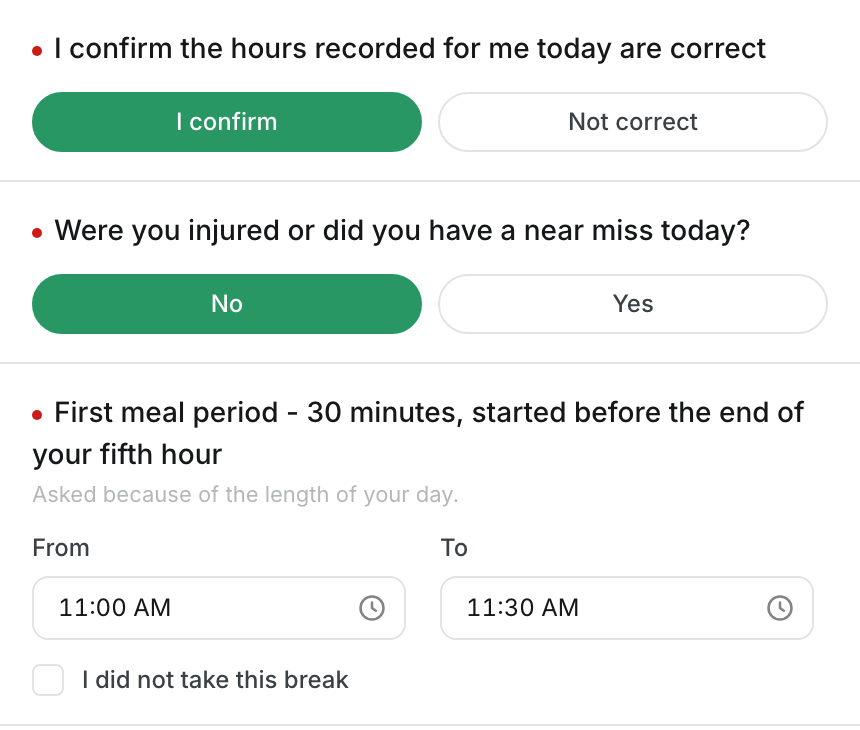
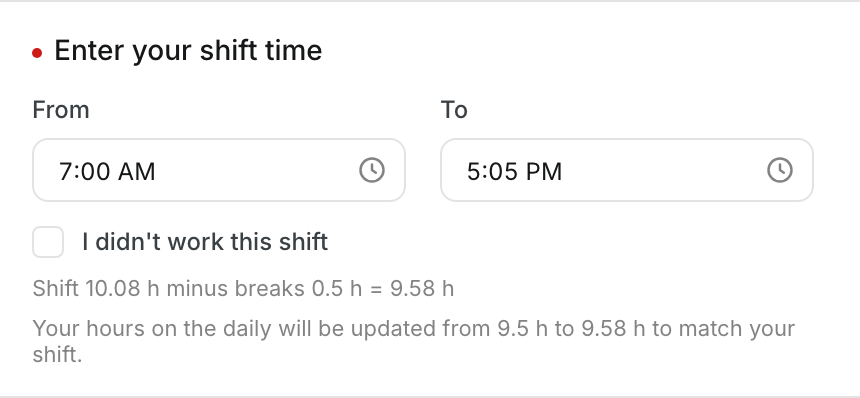
Step 3: Enter your shift and break times
Type the From and To times. The form adds up your shift minus your breaks. Check I didn't work this shift or I did not take this break when that applies.
Step 4: Explain a difference
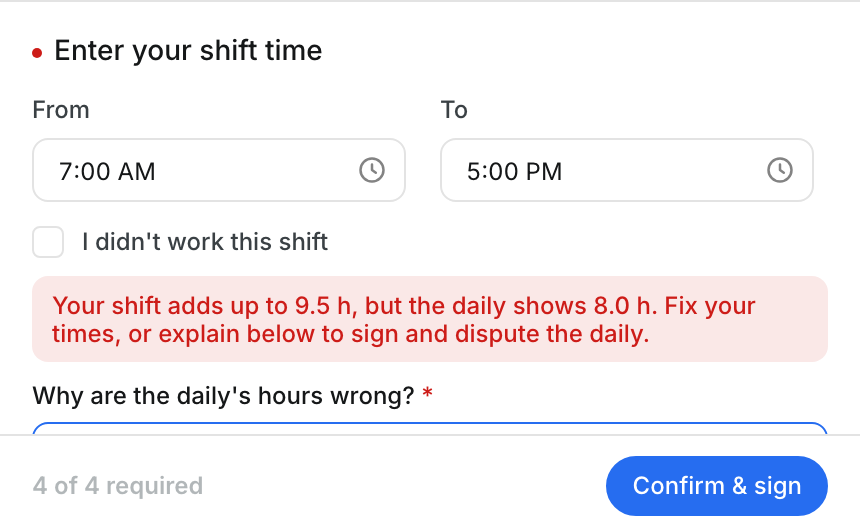
If your shift does not match the hours on the daily, a red message appears. Fix your times, or explain why the daily is wrong. You can then sign and dispute the daily.
Step 5: Read what you certify, then sign
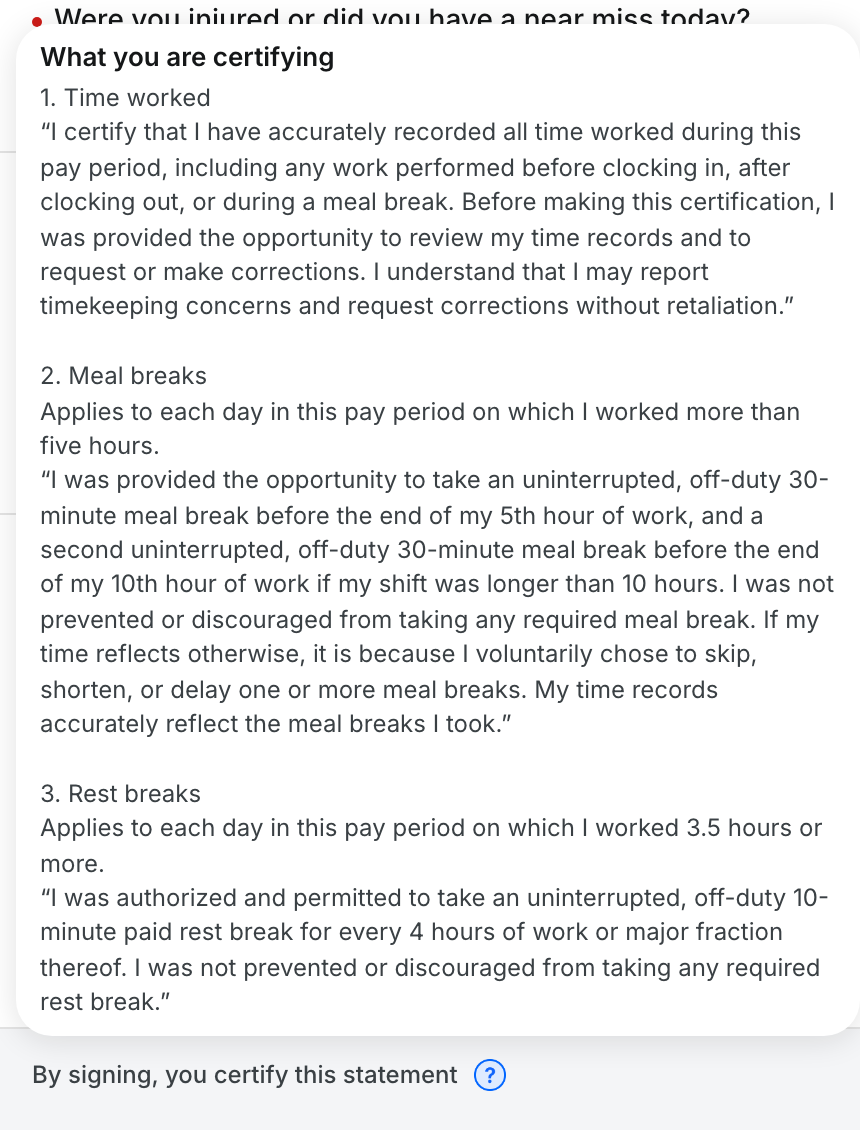
Tap the question mark next to By signing, you certify this statement to read it. When every required answer is in, tap Confirm & sign.
Step 6: Fix an attestation that was sent back
Sometimes the office sends an attestation back to you. The form shows their note at the top, with your last answers filled in. Correct them and sign again.

The full details
- Required questions: a red dot marks each one. The counter at the bottom shows how many are done.
- Shift math: the form shows your shift, your breaks, and the hours they add up to.
- Small differences: your company can let the daily's hours update to match your shift. The form tells you before you sign.
- Disputes: a reason is required when your shift does not match the daily. The attestation is then flagged for review.
- Sent back: the earlier version stays on record. You sign a new version.
Tips
- Enter your real start and end times, even if they differ from the daily.
- Write a short, clear reason, for example "I left at 5:30 PM."
- No text? Ask your foreman to sign in person on their device.