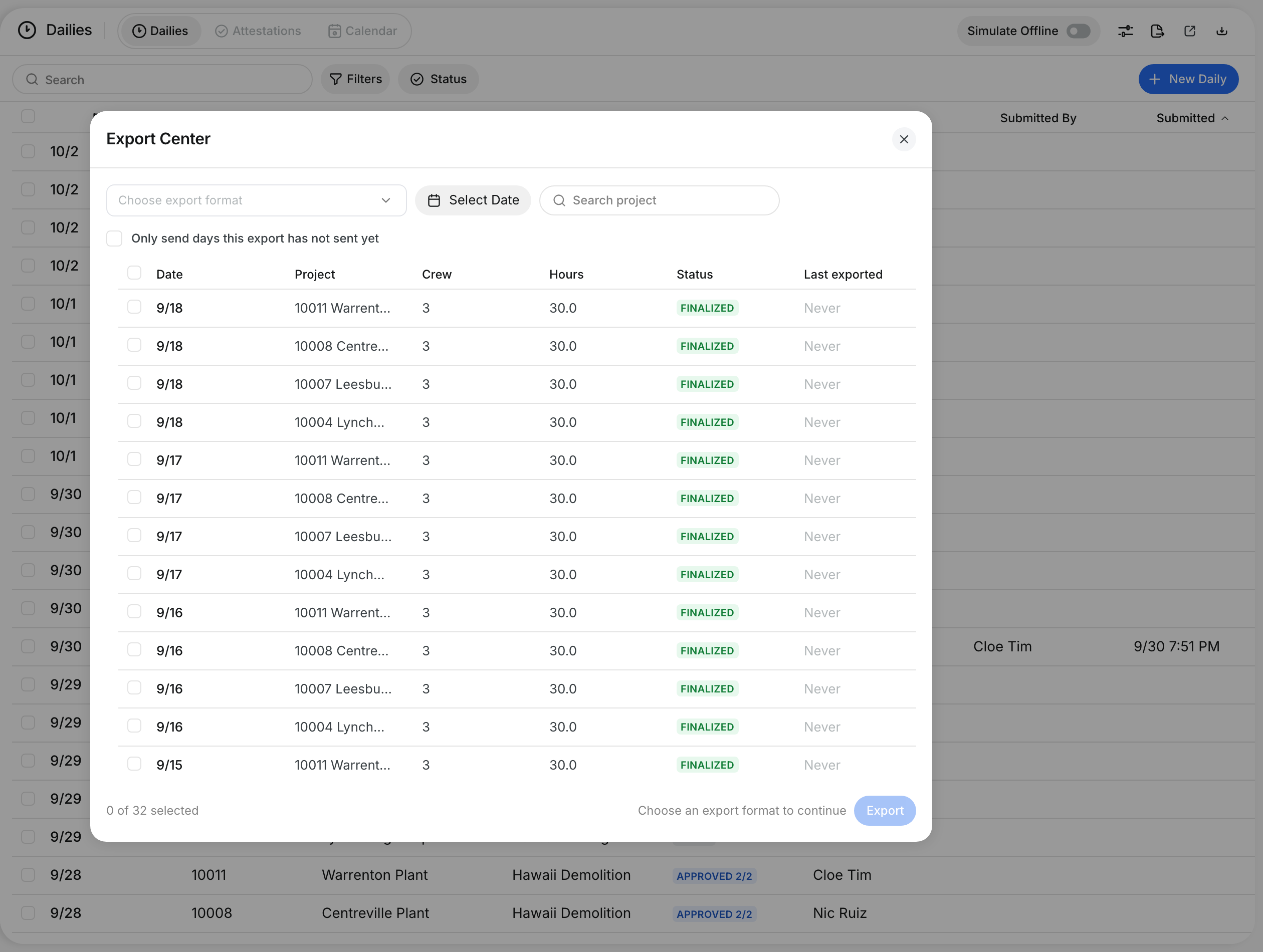
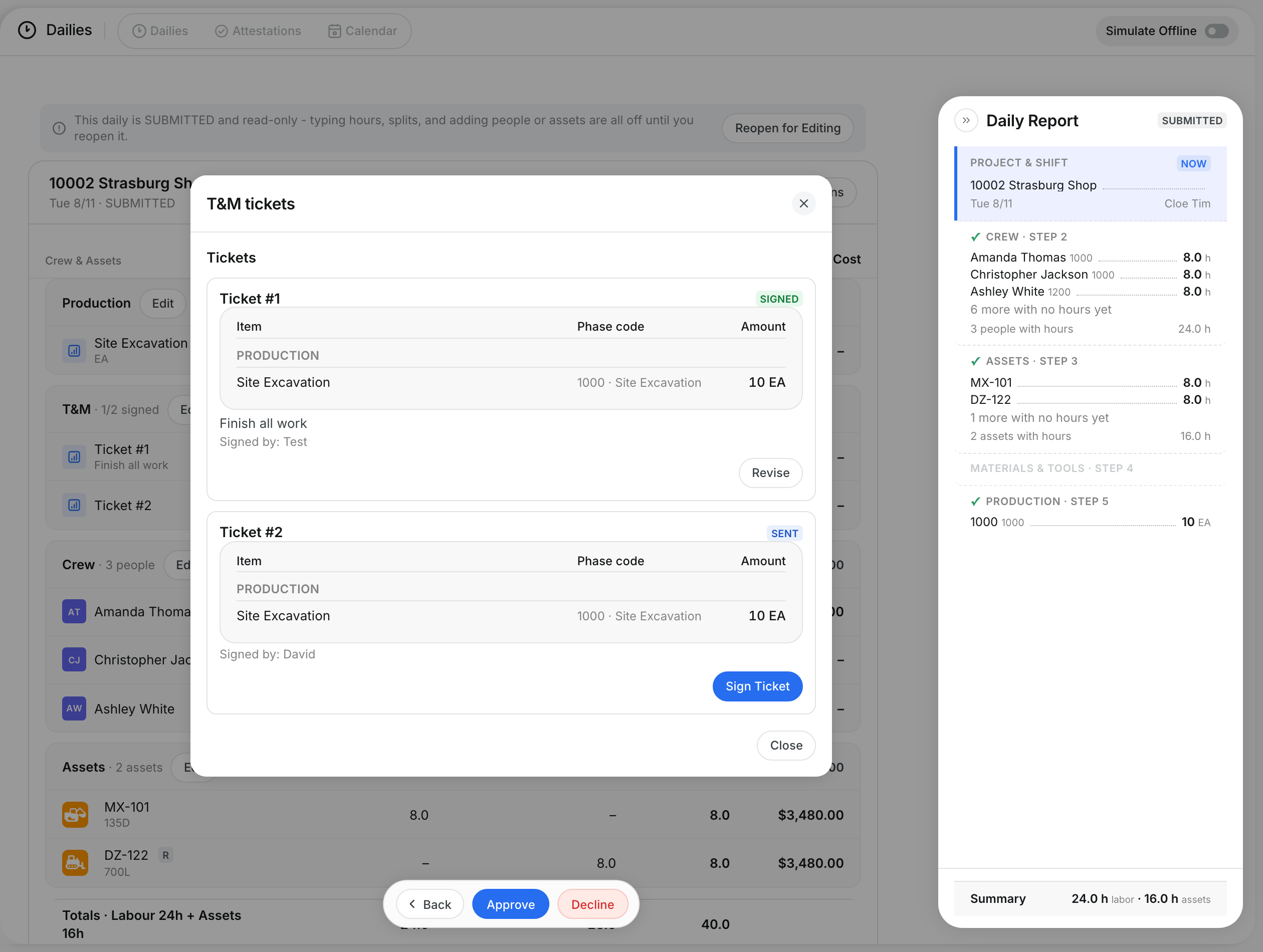
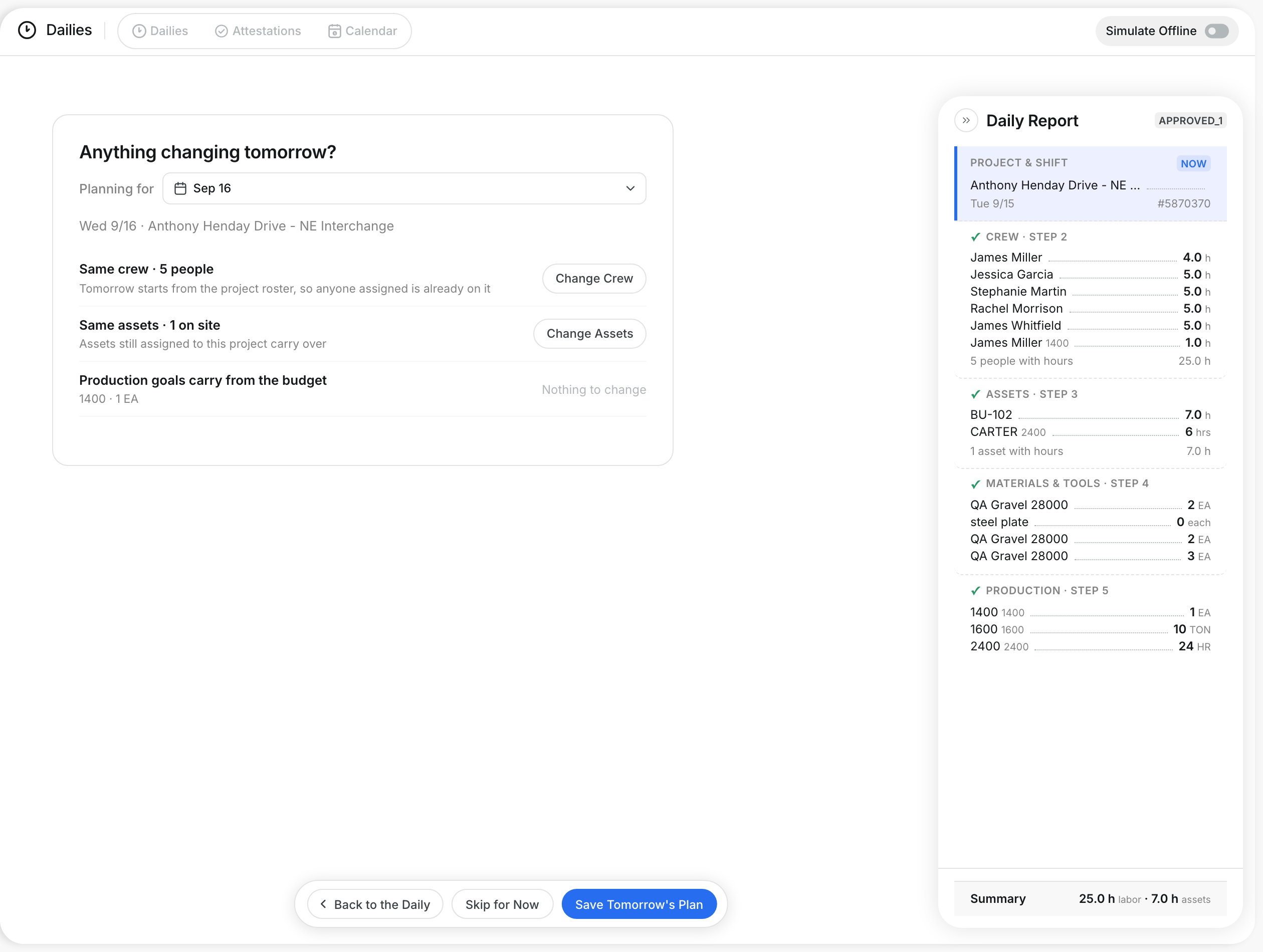
What is this?
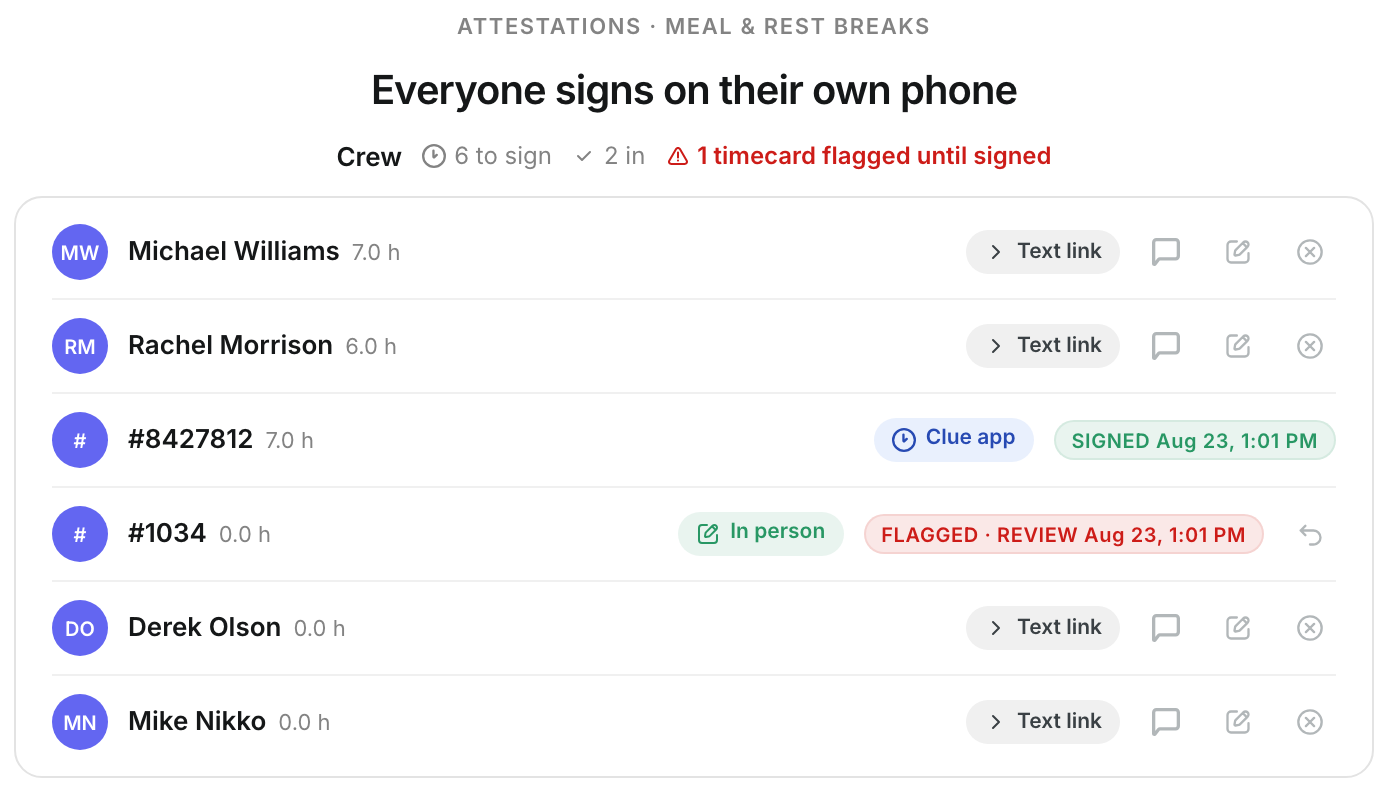
The Attestations step asks every person on a daily to confirm their hours and breaks. Each person signs on their own phone, from a text link or the Clue app. You can also hand them your device and sign in person. The step shows who still needs to sign, who is done, and who is flagged.
Who's this for?
- Foremen, who send the attestations at the end of the day and collect signatures.
- Superintendents, who check that every crew member signed before the daily moves on.
- Payroll, who see which timecards stay flagged until a person signs.
How to use it
Step 1: Open the Attestations step
Open the daily in Dailies. On the report, click Attestations. The button shows how many people signed out of how many were asked, for example Attestations 0/1.

Step 2: Check who needs to sign
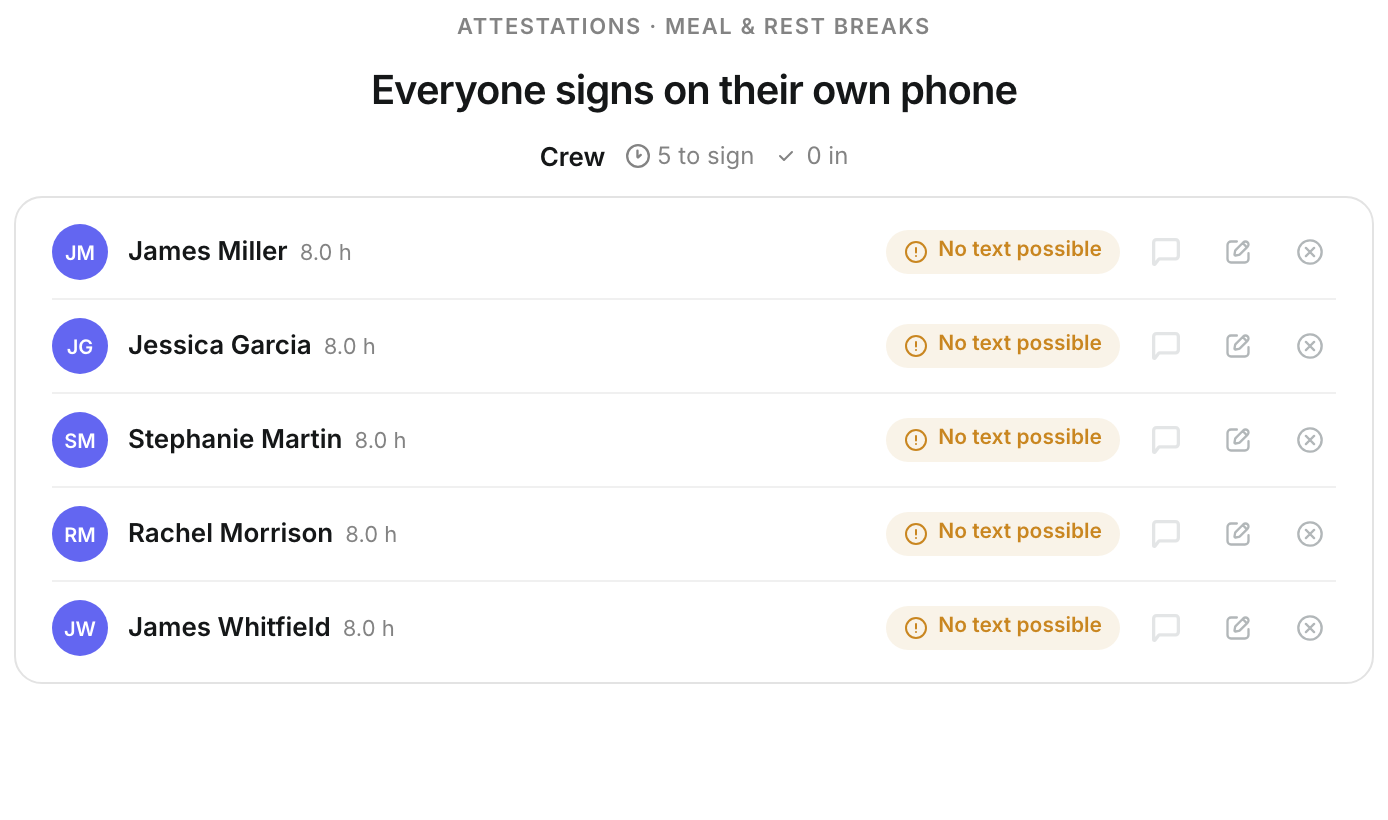
Every person on the crew has a row with their hours for the day. The counter at the top shows how many are left to sign and how many are in. No text possible means their phone number cannot get a text.
Step 3: Send the attestations
Click Send Attestations at the bottom of the step. Each person gets a text link or a notification in the Clue app.

Step 4: Send to the people still waiting
After the first send, the button changes to Send to N remaining. Click it to reach the people who are still waiting. To text one person, click the speech bubble on their row.

Step 5: Sign in person
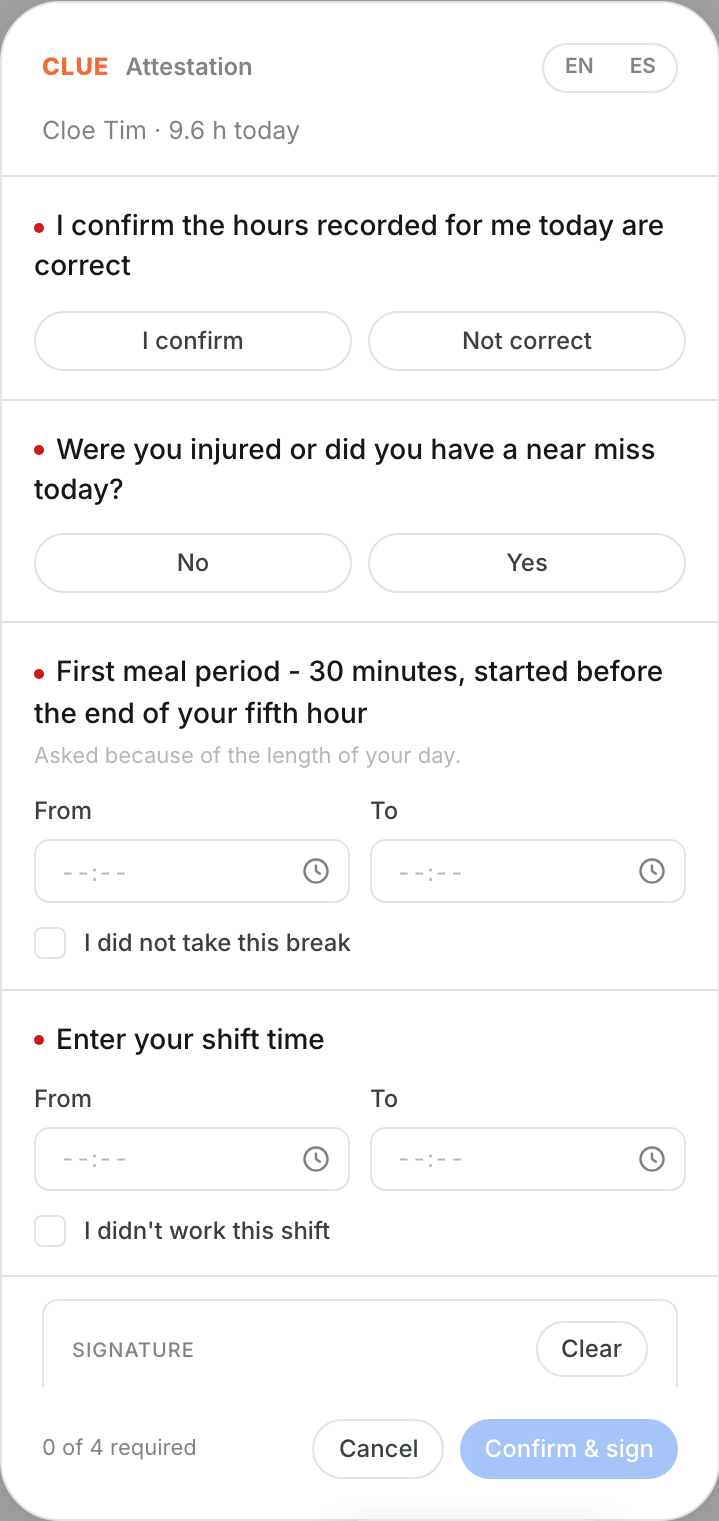
Click the pencil on a person's row to sign in person on this device. Hand them the device. They answer the questions, sign, and tap Confirm & sign.
Step 6: Mark someone as not present
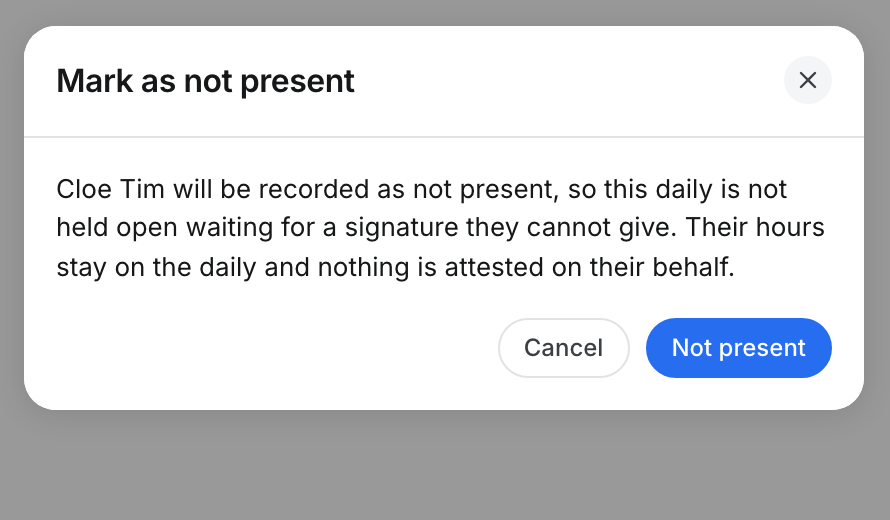
If a person was not on site, click the circled X on their row. Read the message, then click Not present to confirm, or Cancel to go back.
The full details
- Counter: shows how many people are left to sign, how many are in, and how many timecards stay flagged until signed.
- Text link: click it to see the text message the person gets.
- Clue app: the person gets a notification in their Clue app.
- No text possible: their number cannot receive a text. Sign in person with them.
- Status pills: SENT, SEEN, SIGNED, FLAGGED · REVIEW, and WAIVED show where each person is.
- Not present: the person's hours stay on the daily. Nothing is attested for them.
- Text failed: the text did not reach the person. Try again or sign in person.
Tips
- Send attestations before the crew leaves the site. People sign faster while the day is fresh.
- Use In person for anyone marked No text possible.
- Hover over any icon on a row to see what it does.