Store Purchase Paperwork with Each Asset, Privately
What is this?
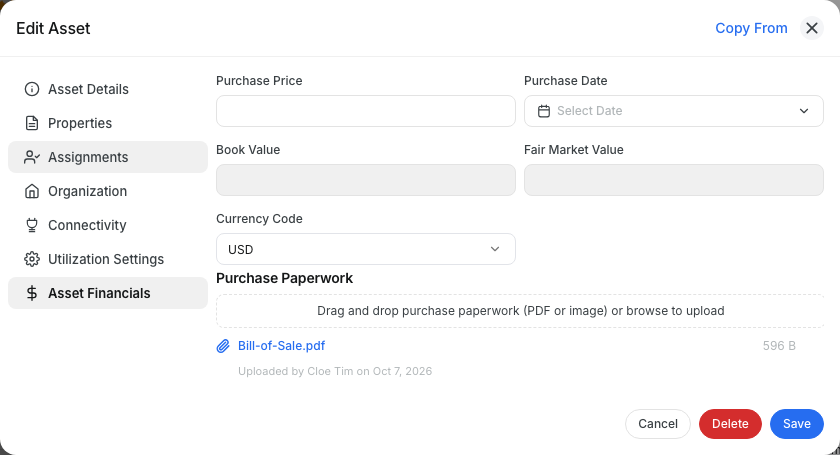
Every asset has a Purchase Paperwork area in its Asset Financials. Drop in the invoice, bill of sale, or title, and it stays with the purchase price and date it backs up. Only people allowed to see what you paid for a machine can see these documents. Everyone else never sees the area at all.
Who's this for?
- Equipment managers, keep the bill of sale and title on the asset, not in a filing cabinet.
- Office and accounting staff, find the purchase invoice in seconds when an auditor or insurer asks.
- Company owners and admins, keep purchase prices private from operators, mechanics, and parts staff.
How to use it
Step 1: Open the asset
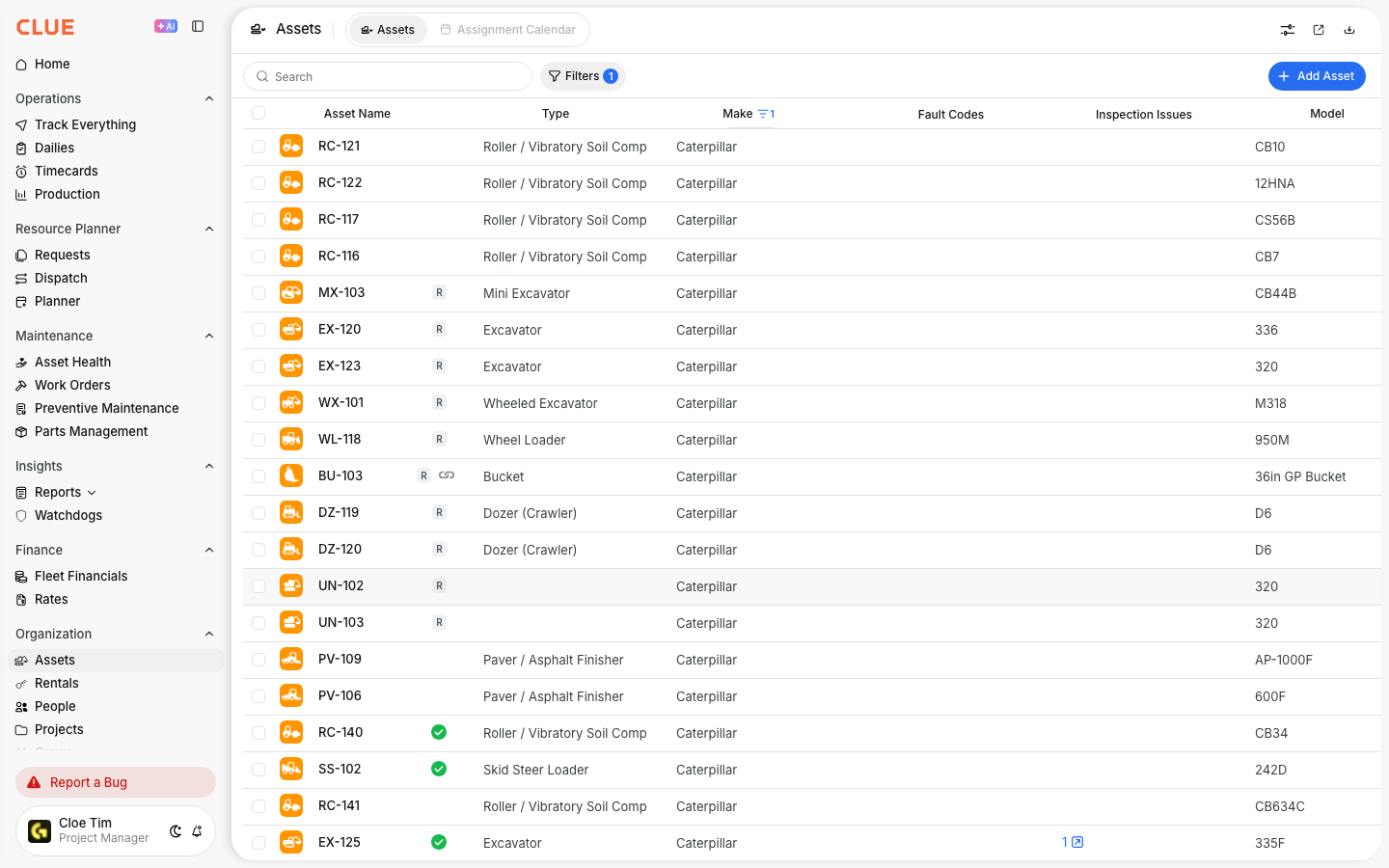
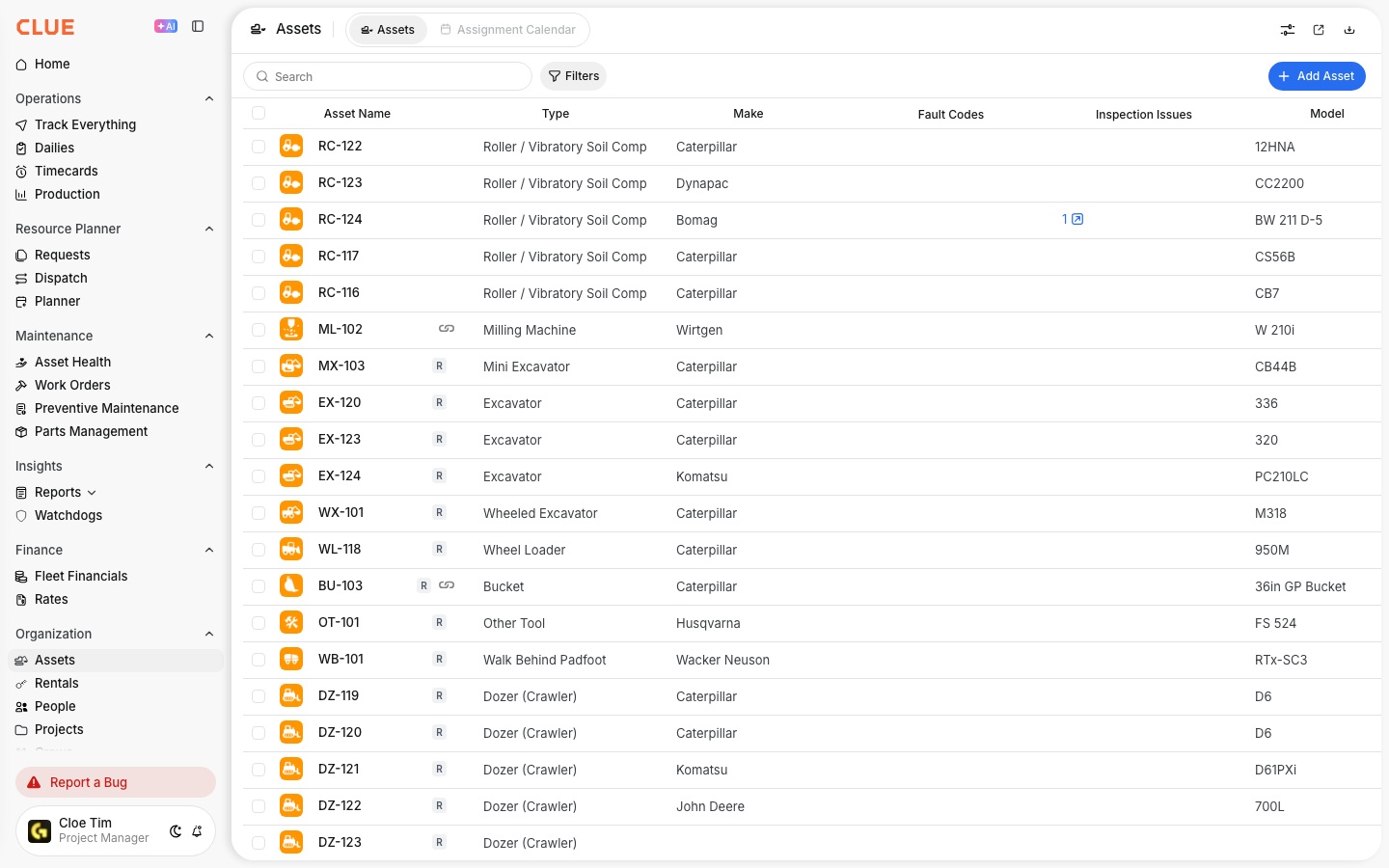
Go to Organization > Assets and click the asset you bought.
Step 2: Click Edit Asset
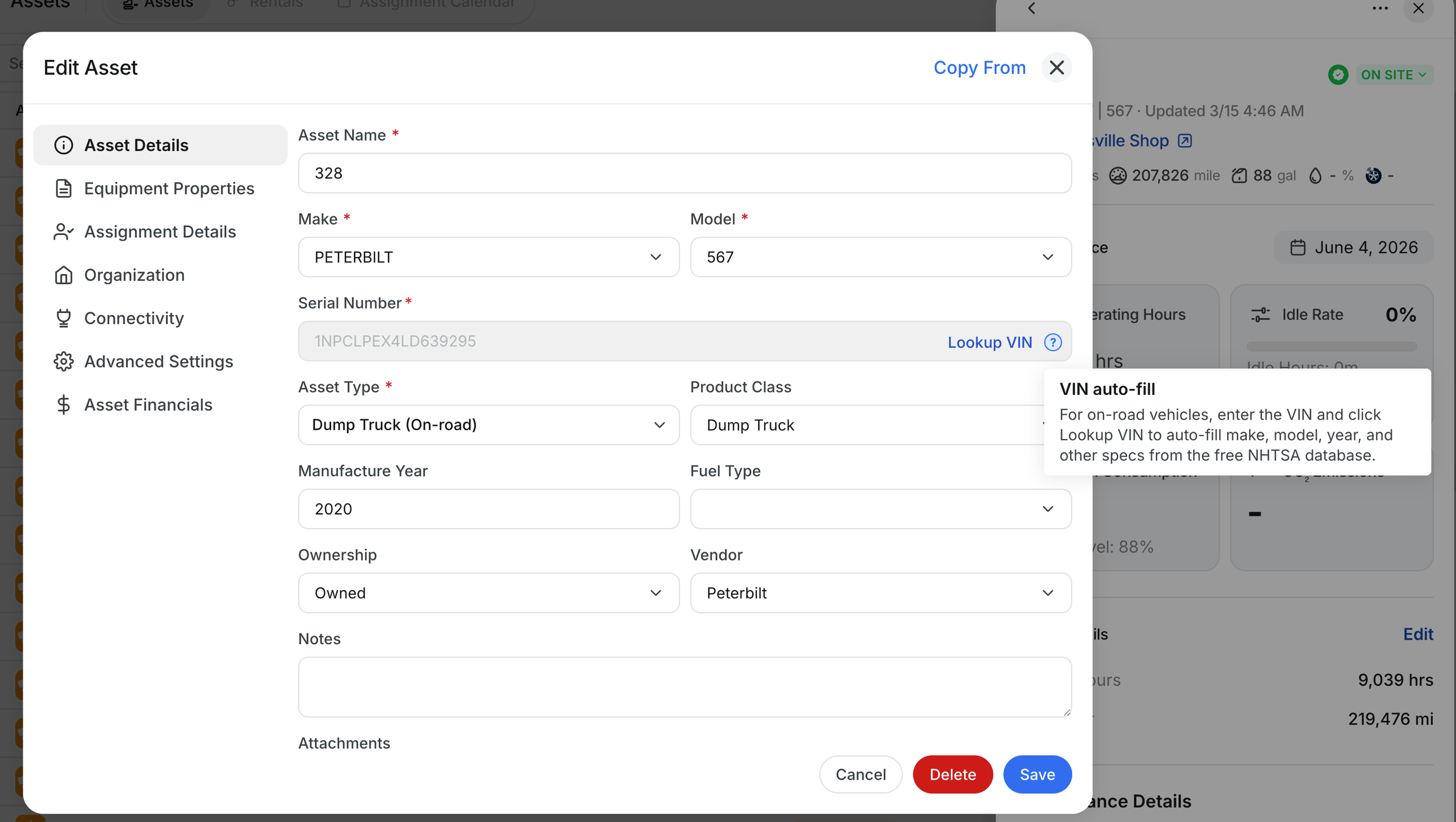
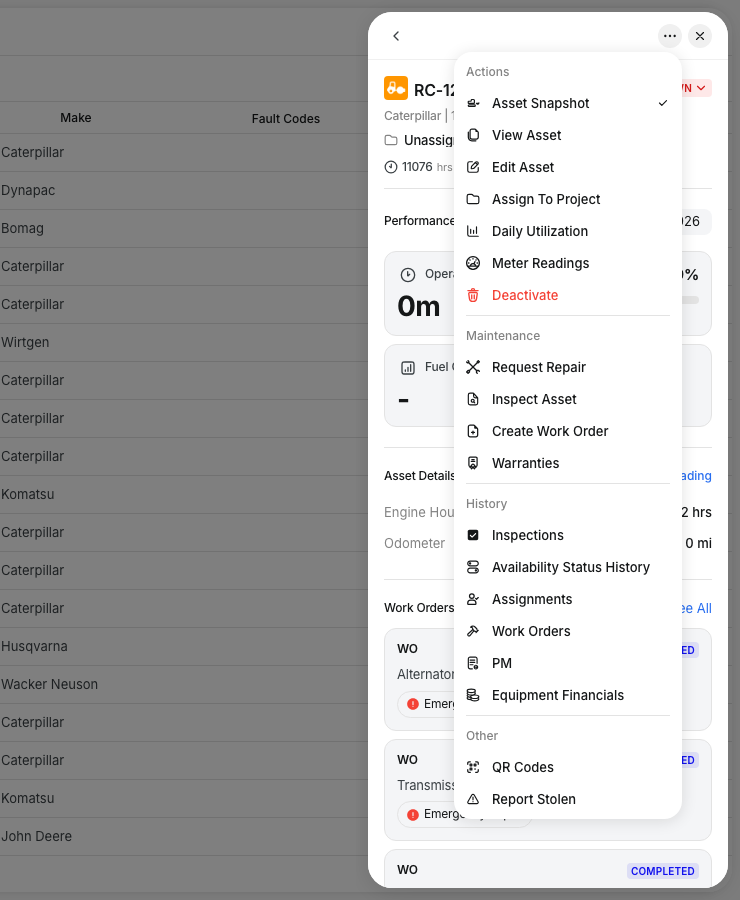
Click the three dots at the top of the asset panel, then click Edit Asset.
Step 3: Open Asset Financials
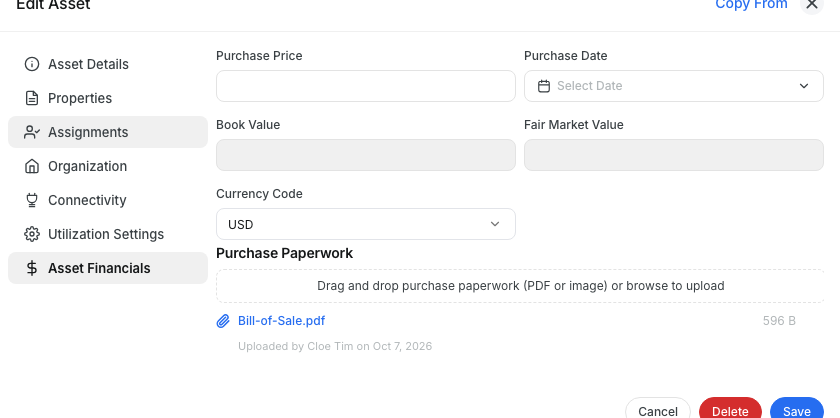
Click Asset Financials on the left. The Purchase Paperwork area sits below the purchase price and date.
Step 4: Drop in your paperwork
Drag a PDF or photo onto the dashed box, or click it to browse. You can add several files at once. Each one shows who added it and when.
The full details
- Works on: Web app.
- File types: PDF and images (JPG, PNG, HEIC, WebP, GIF, AVIF). Other files are turned away with a message.
- Saving: Files save as soon as they upload. You don't need to click Save.
- Open or download: Click the file name.
- Remove: Click the remove icon on one file. The other files stay put.
- Who can see it: Only roles with the equipment purchase cost permission. By default, that is every role that can both add and edit assets, usually admins and managers.
- Everyone else: The Purchase Paperwork area and the purchase price are hidden completely. There is no lock icon or empty box to hint that documents exist.
- Separate from other attachments: Manuals and photos added to the asset's regular attachments keep working the same way and are not affected.
Tips
- Add the paperwork the day the machine arrives, while the deal is fresh and the papers are on your desk.
- A phone photo of a paper title works fine. You don't need a scanner.
- Keep purchase documents here, not in the asset's regular attachments. Regular attachments can be seen by anyone in your company.
- If a manager can't see the area, ask your admin to check that their role can add and edit assets.