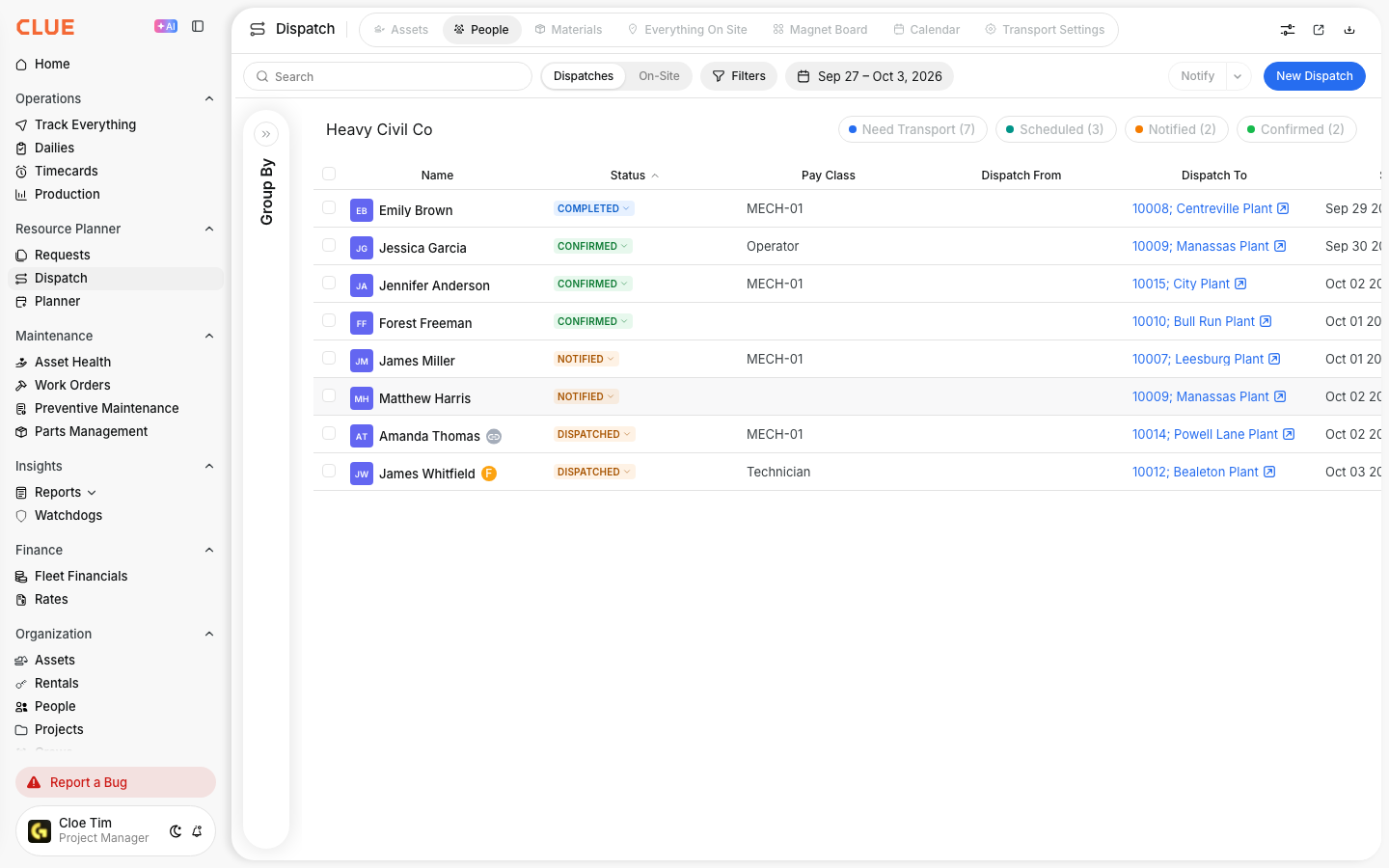
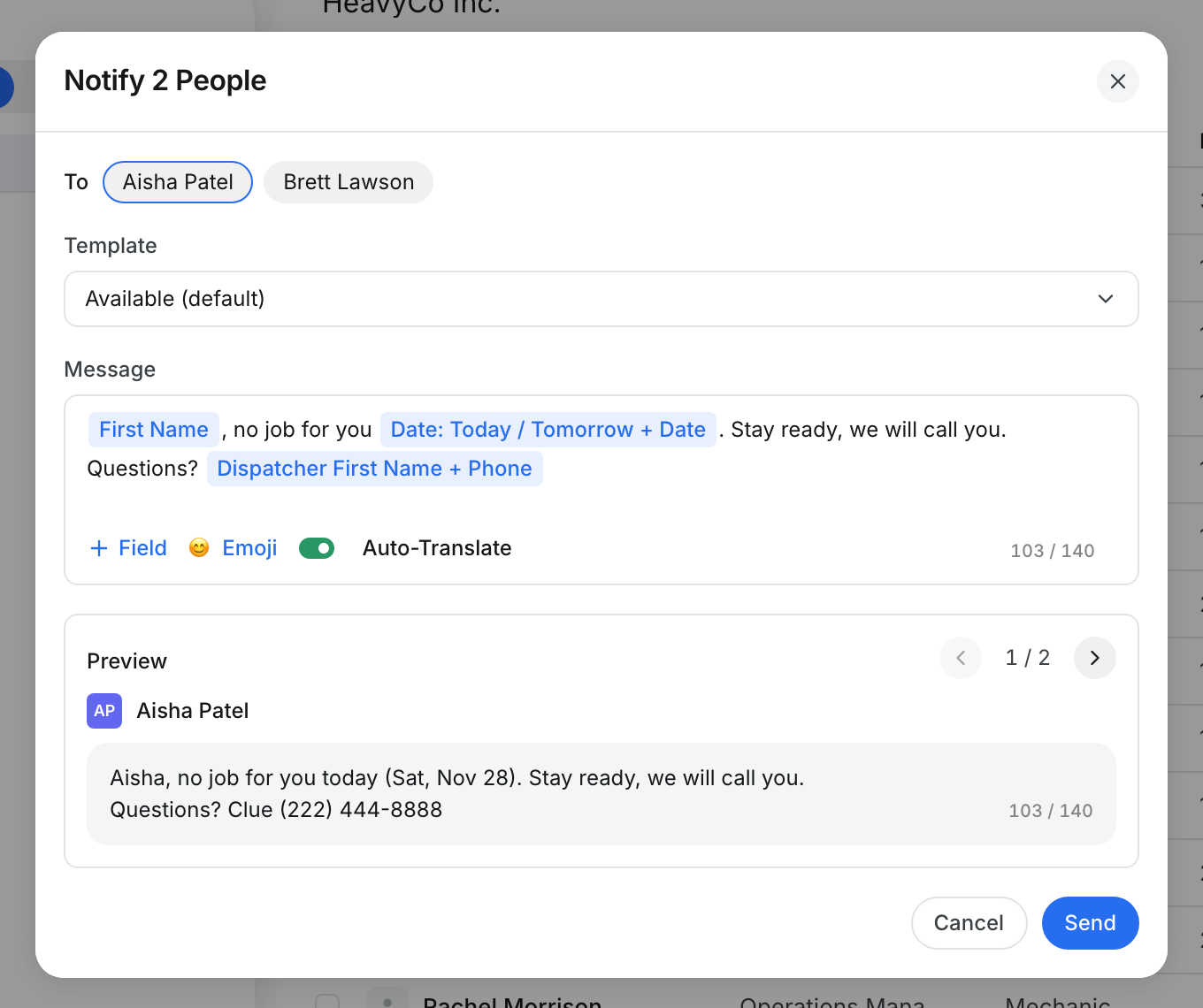
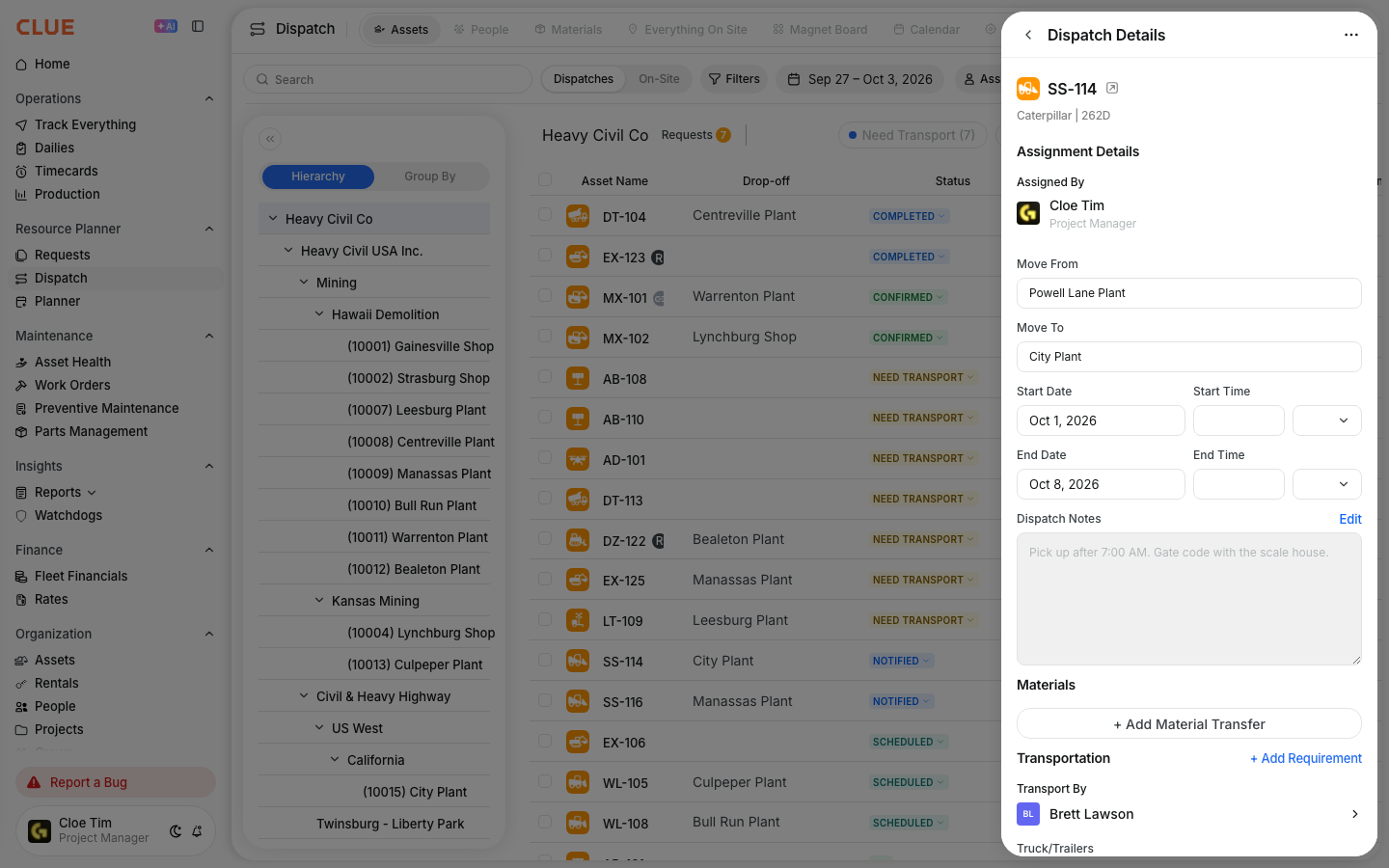
What is this?
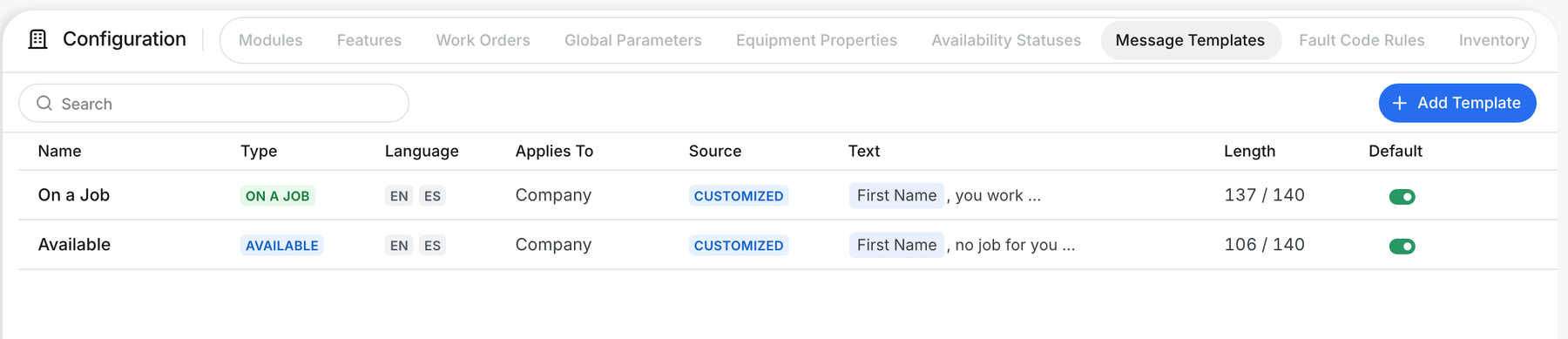
Message templates set the words that the Notify window starts with, so everyone who sends uses the same words. Clue gives you two templates: On a Job, for people with a job that day, and Available, for people with no job. You can change them, add your own, and keep a version in each language your crew speaks.
Who's this for?
- Admins, who set the company words once.
- Dispatchers, who pick a template in Notify and send.
How to use it
Step 1: Open the templates
Go to Company Settings > Configuration > Message Templates. Click Customize the first time to make your own copy of Clue's templates.
Step 2: Change the words
Click a template. Type the message and click Field to add details such as the start time or the map link. The preview shows a real example.
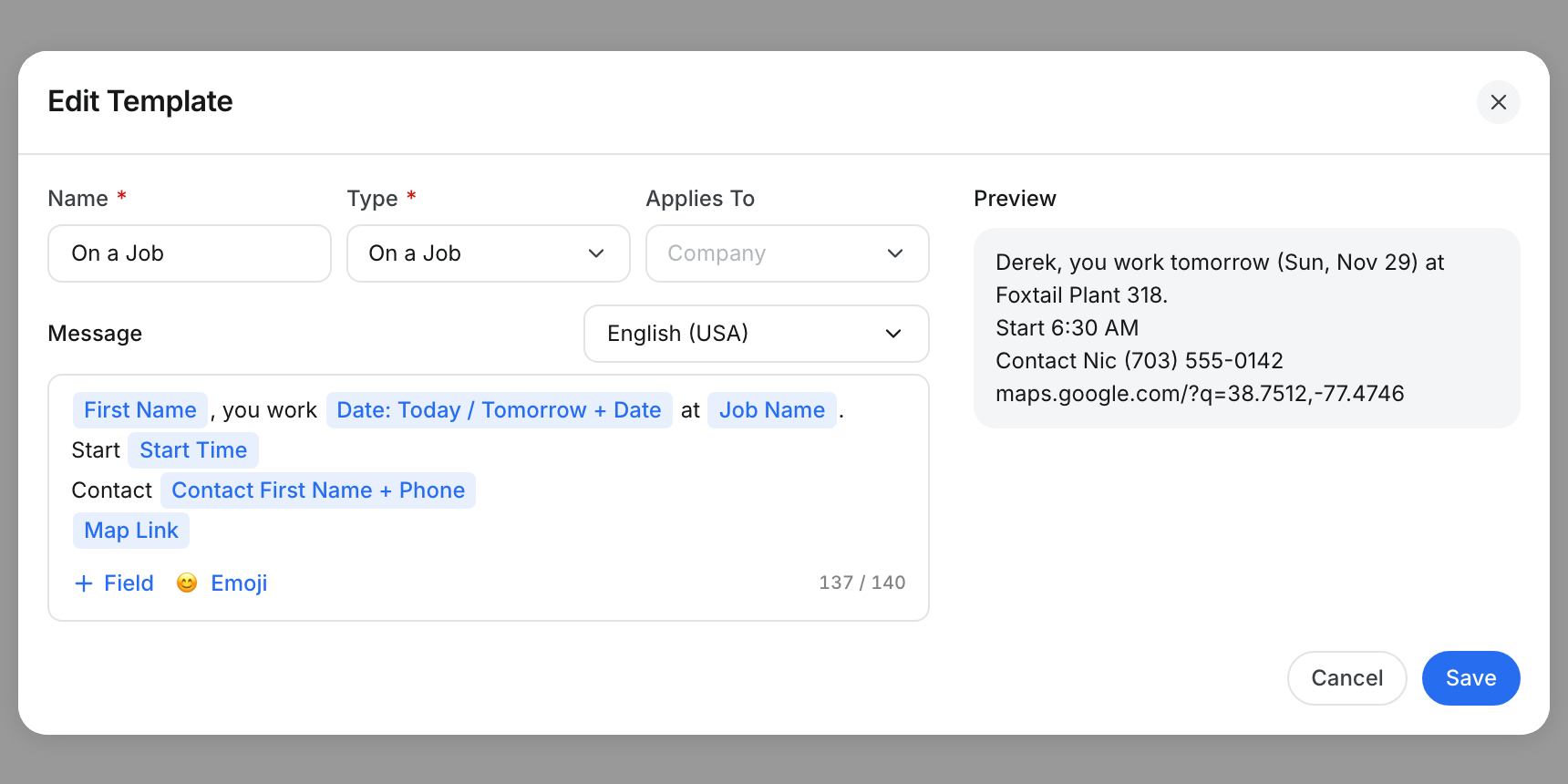
Step 3: Add a language
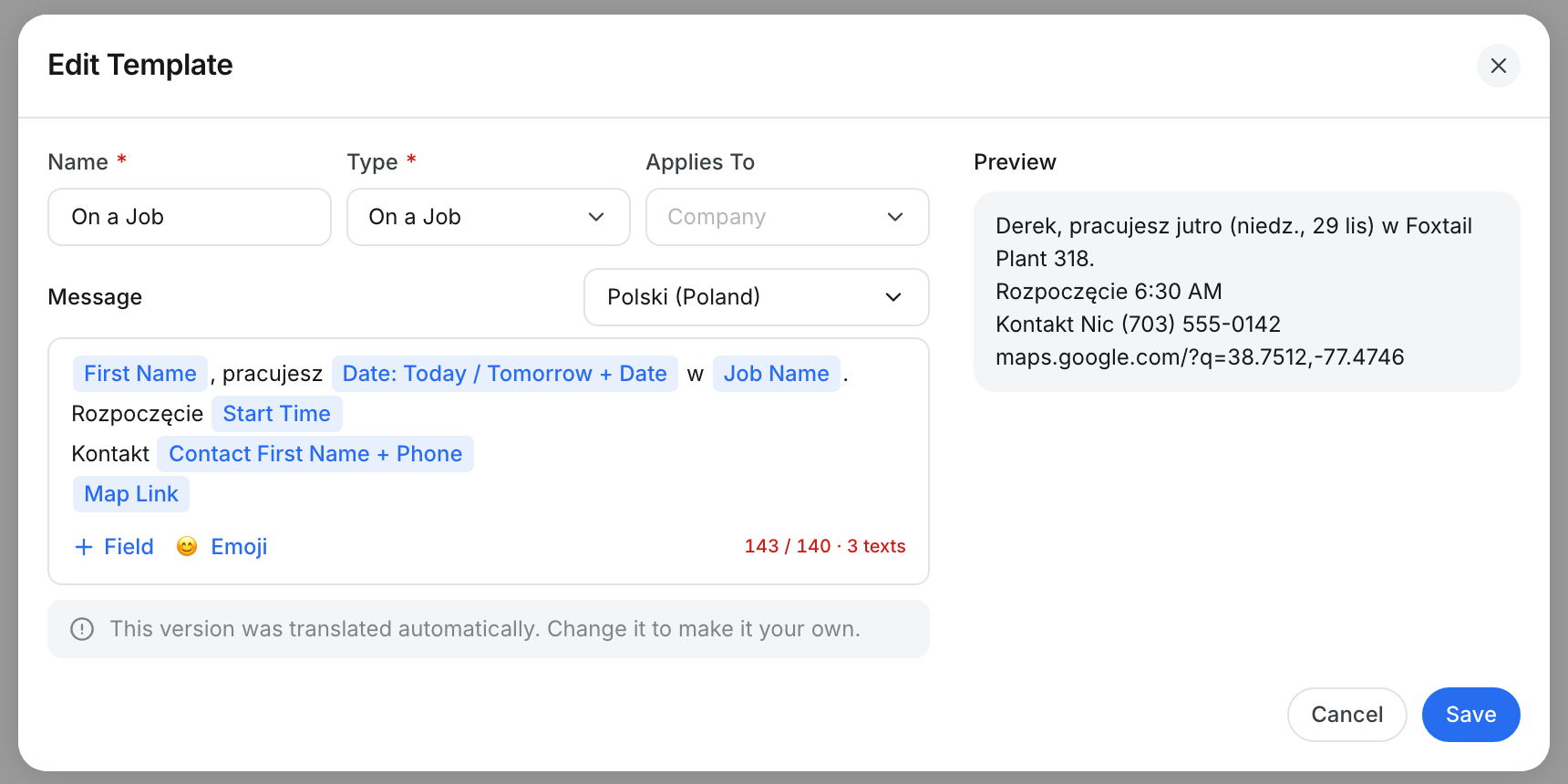
Click the language button above the message, then + Add Language, and pick the language. Clue translates the text for you. Change the words if you want, then click Save.
The full details
- Default: the template Notify opens with, one for each type.
- Applies To: a sub-company can have its own words.
- Automatic translation: a translated version is marked as such. When you change the English text, the translated versions follow when you save.
- Permission: users who can change the company configuration edit templates. Everyone who can dispatch uses them.
- Works on: Web app.
Tips
- Add a "Rain Day" template so a call-off text takes one click.
- Read the translated text once. Change any word your crew would say differently.
- Keep each template under 140 characters so it goes out as one text.