What is this?
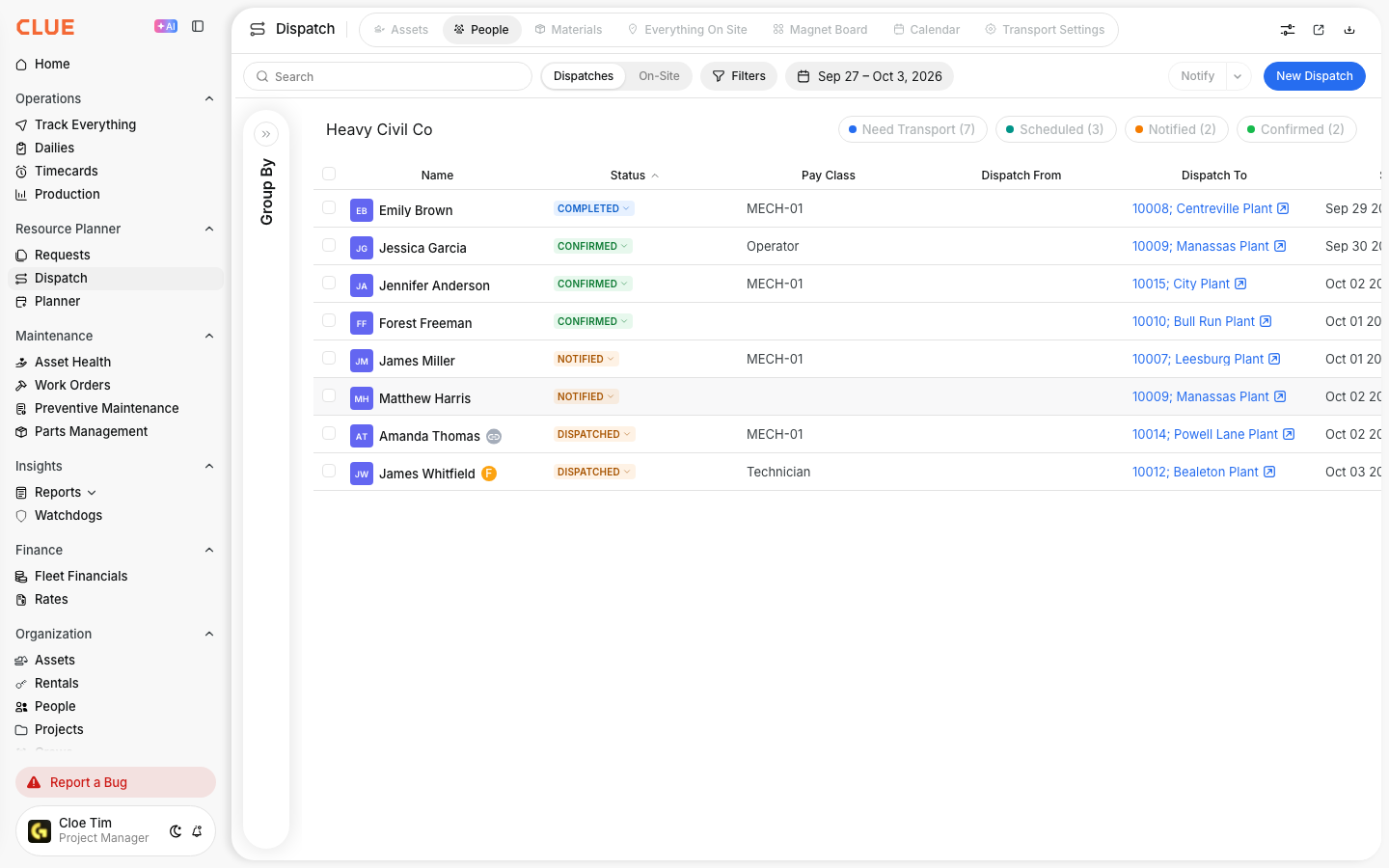
Dispatch > People shows who has no job on a day, and who was called off. You tick people and click Notify. Each person gets a text with their own name, job, day, start time and contact. People whose phone is set to another language get the text in that language.
Who's this for?
- Dispatchers, who tell the crew where to go tomorrow, or that there is no job.
- Field workers, who get one clear text with the job, the start time and who to call.
How to use it
Step 1: Open the Available view
Go to Resource Planner > Dispatch > People and click Available. The list shows people with no job that day who worked in the last 14 days. Click Called Off to see only the people a foreman called off.
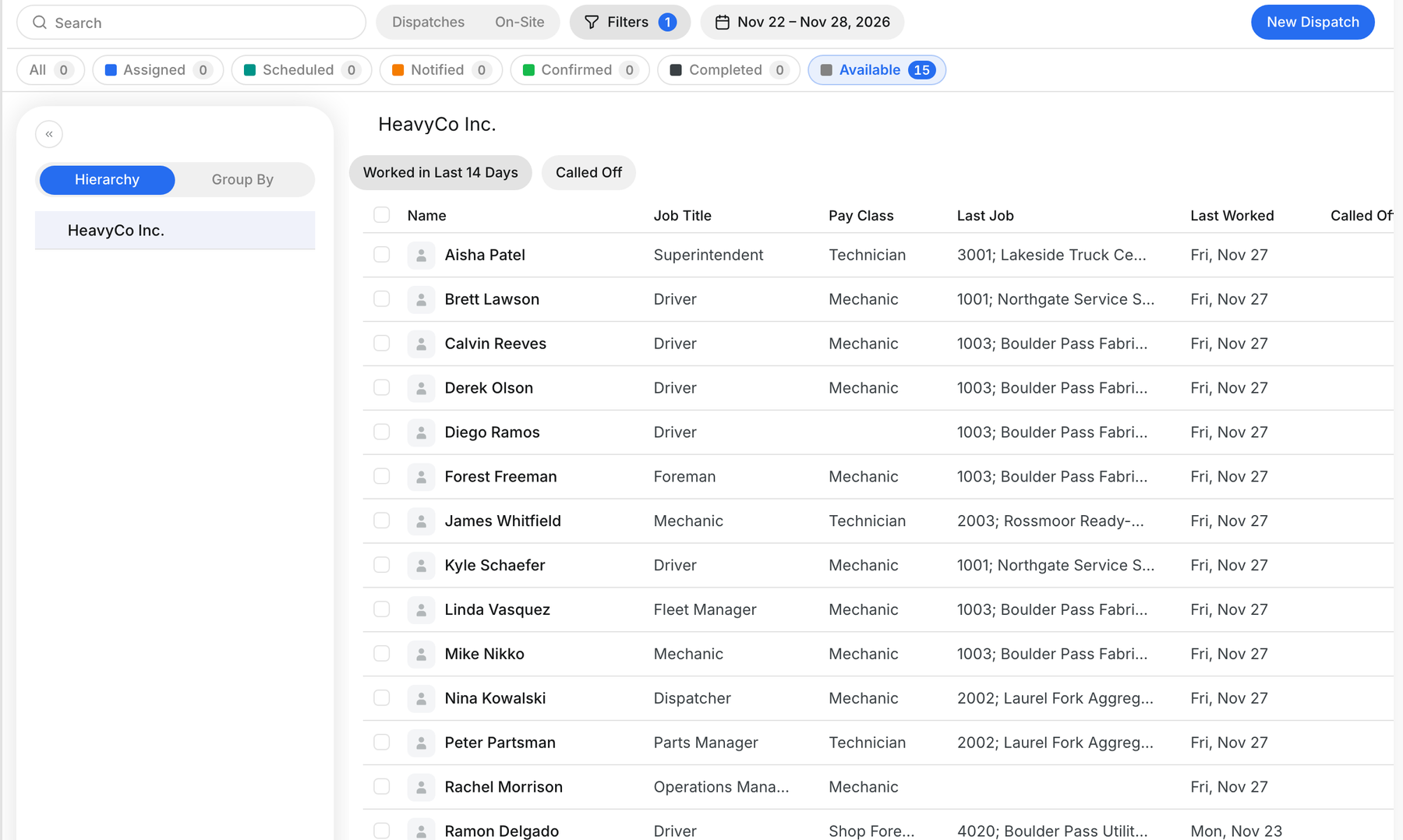
Step 2: Pick the people
Tick the people you want to text. Use Filters to show one sub-company. The count follows the filter.
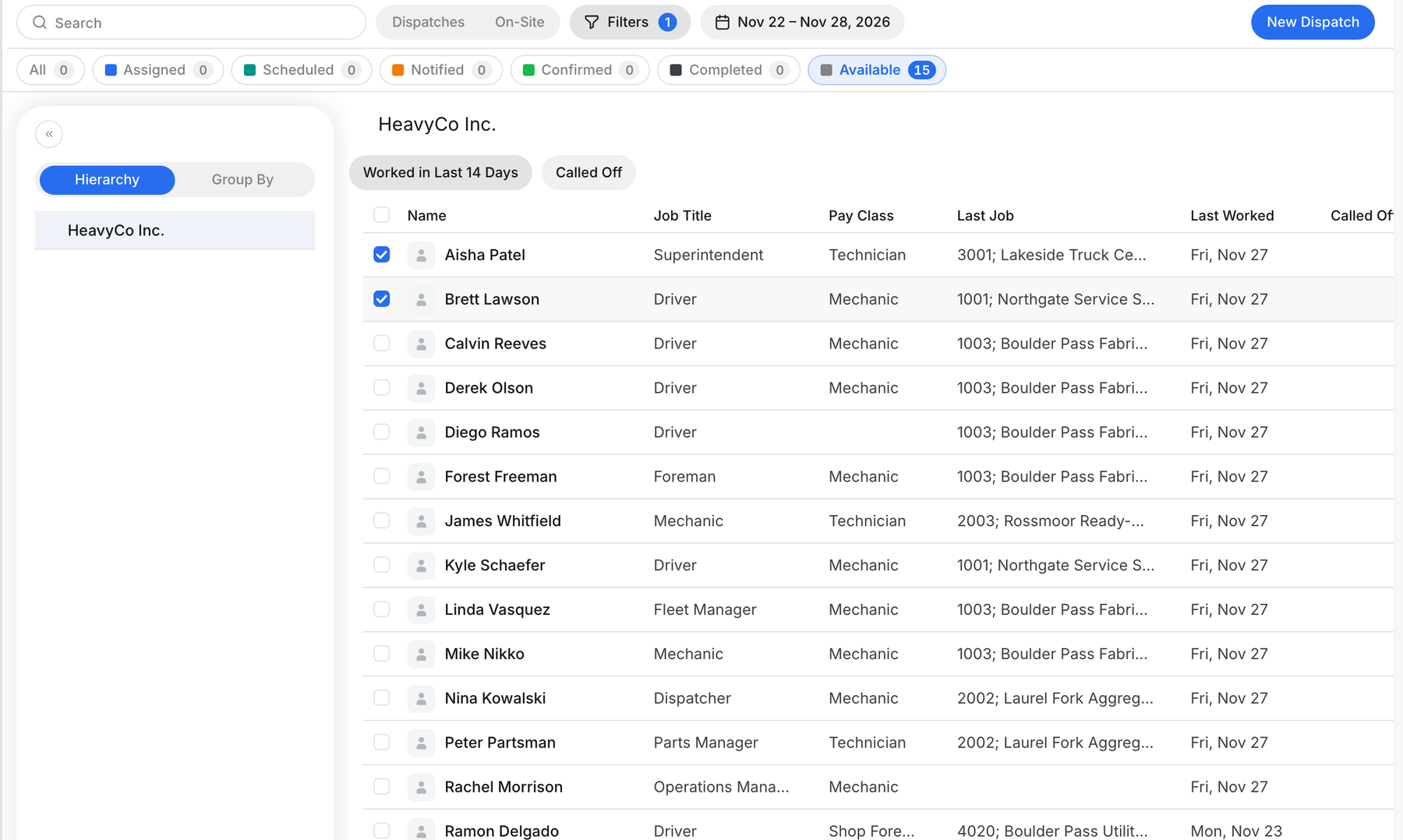
Step 3: Check the text and send
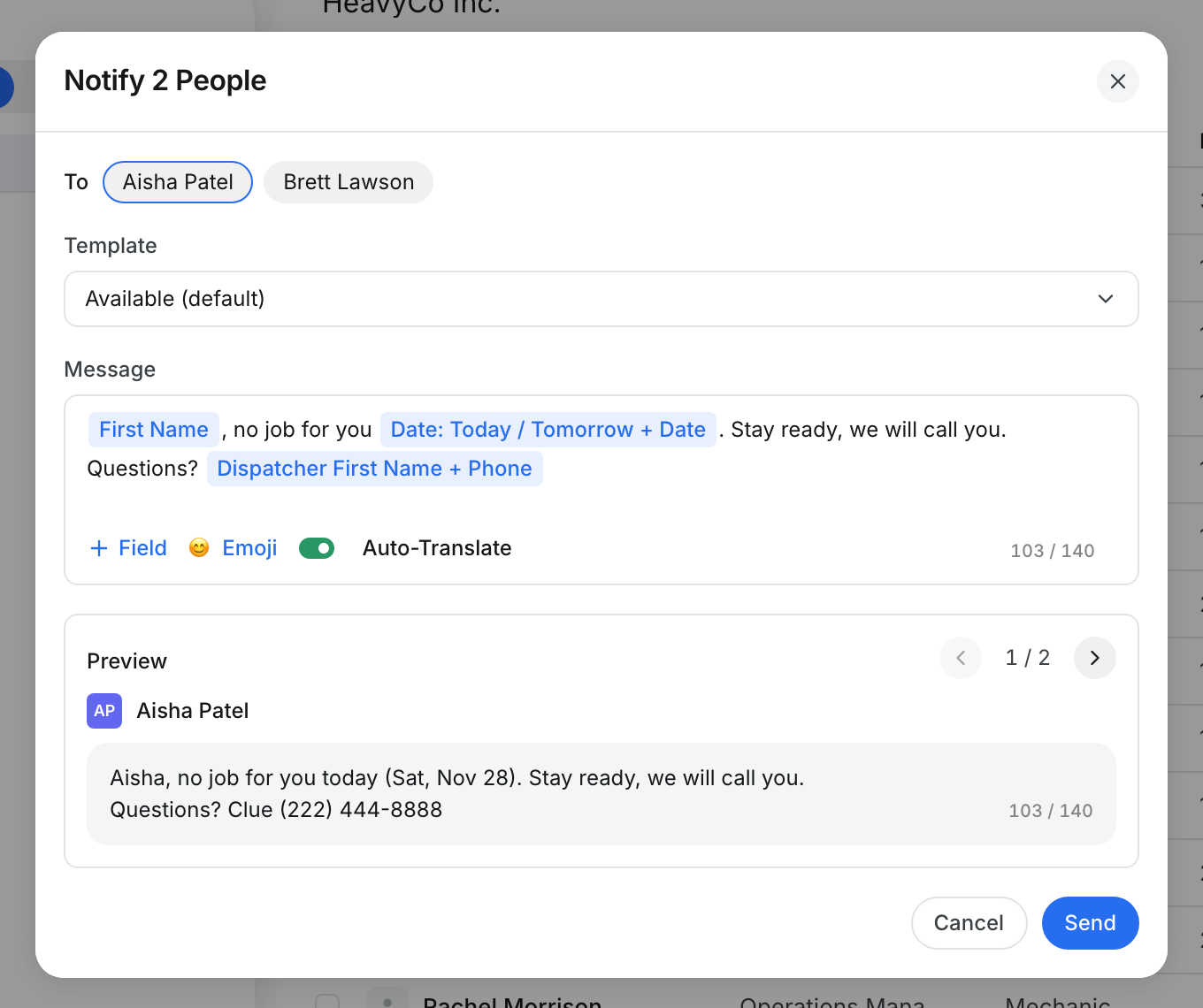
Click Notify. Pick a template, change the words for this send if you want, and check the preview for each person with the arrows. Click Send.
The full details
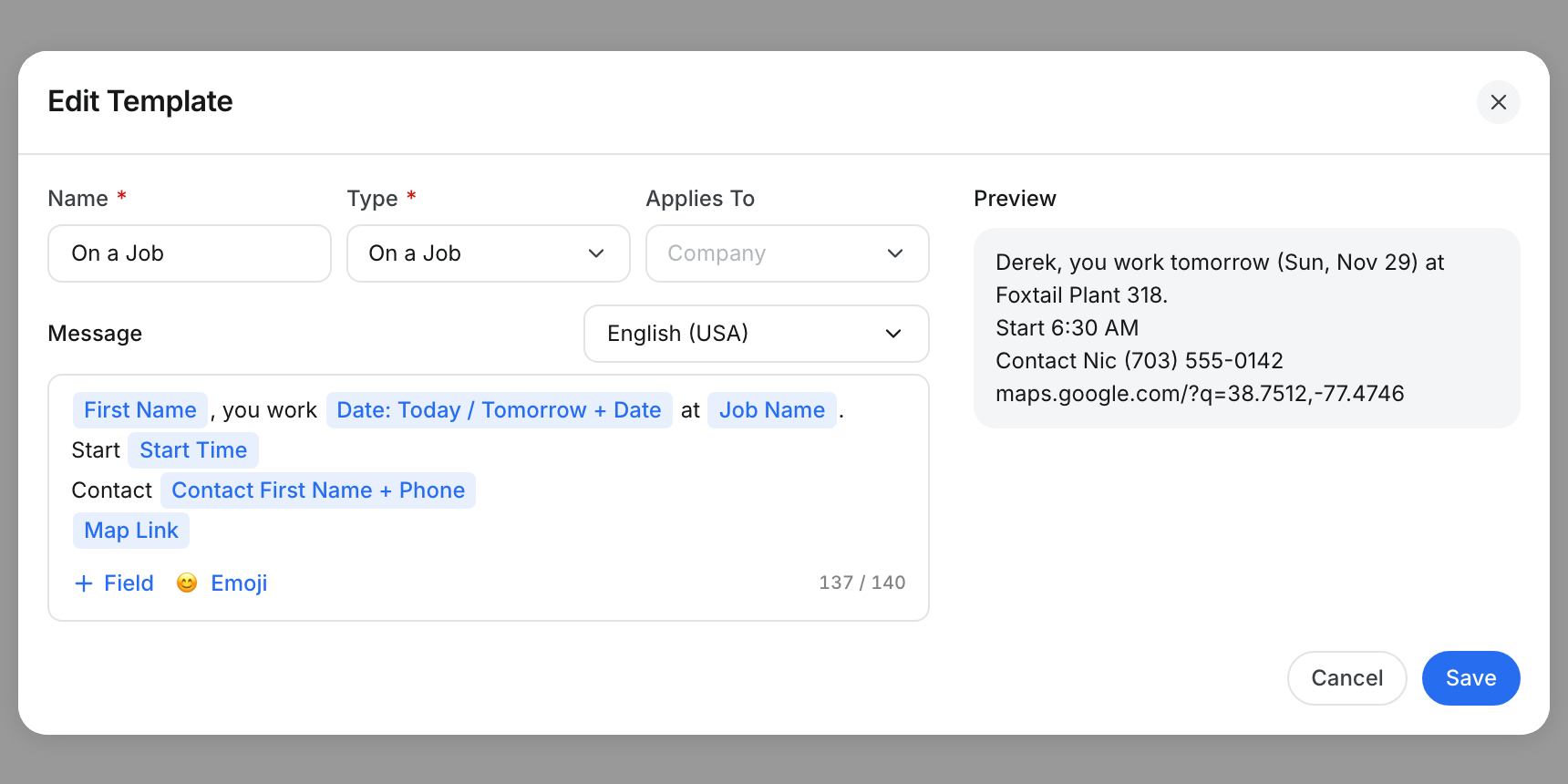
- Fields: name, day, job, start time, contact and map link. A field with no value drops its line.
- Auto-Translate: on by default. A person whose app language is not English gets the text in that language.
- Length: the counter shows the characters. 140 fit in one text message.
- Other channels: each person also gets the message in the Clue app and by email when their notification settings allow it.
- Not approved yet: people whose request waits for approval do not get a text. The window lists them.
- Available view: part of the dispatch screens your company turns on. Ask Clue support. Notify with templates works for every company.
- Works on: Web app.
Tips
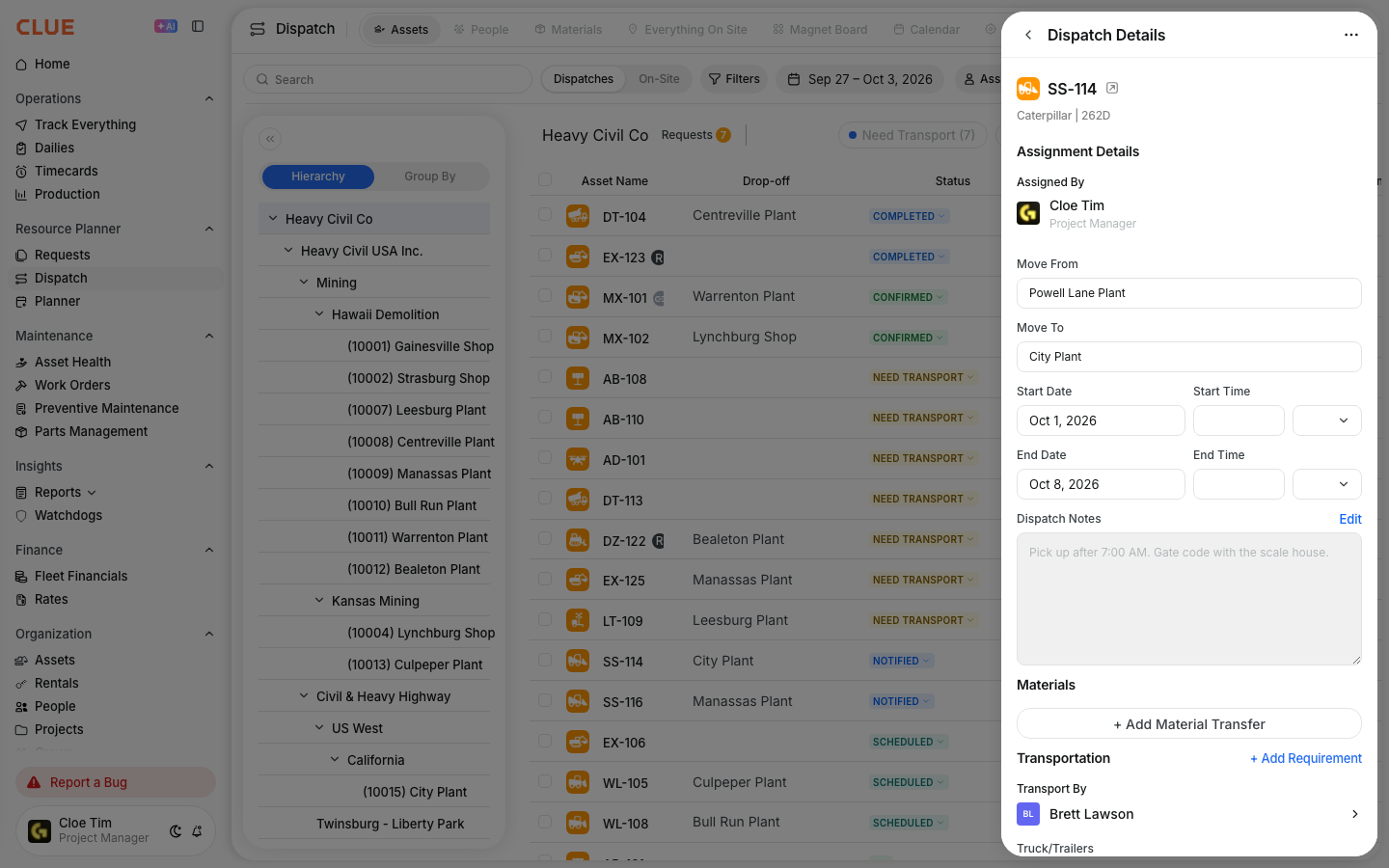
- Use the Dispatches view to text people who have a job, and Available for people who do not.
- Check one person in each language in the preview before you send.
- Keep the text short. Two texts cost more and can arrive out of order.