Your Work Order Clock-In on the iPhone Lock Screen
What is this?
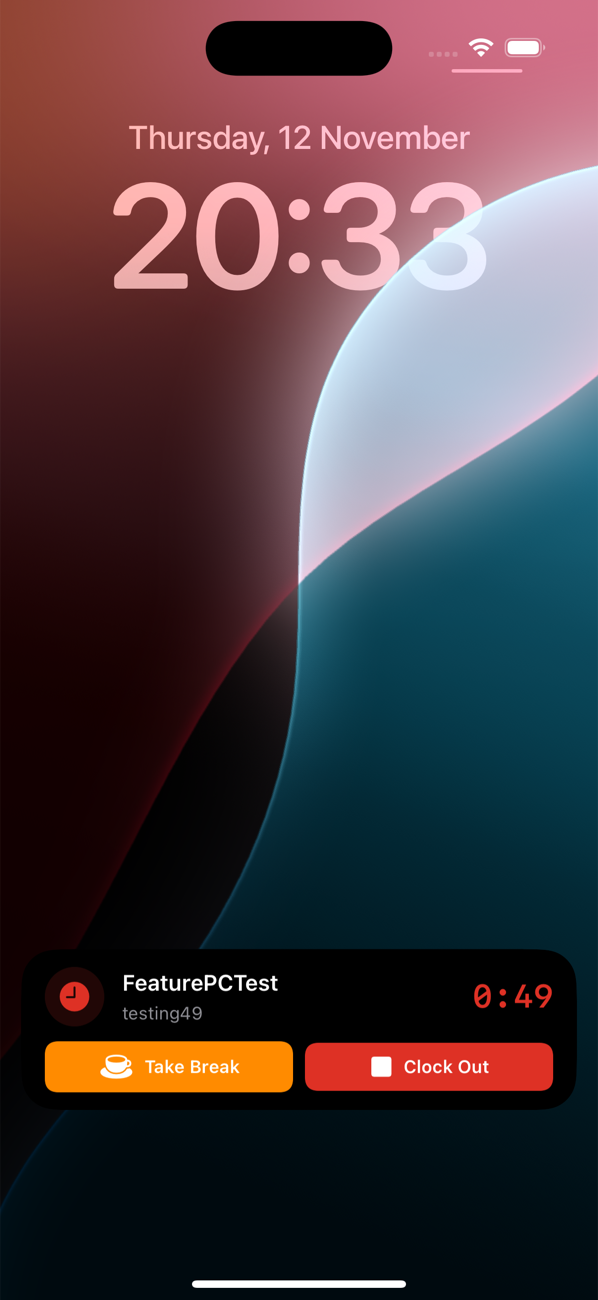
When you clock in to a work order on your iPhone, Clue puts your shift on the Lock Screen. You see the work order, your pay class and a running timer. On iPhones with a Dynamic Island, the timer also stays at the top of the screen. Buttons on the Lock Screen let you take a break, end it or clock out in one tap.
Who's this for?
Anyone who clocks in to work orders from an iPhone.
- Mechanics, see the job and the time worked without unlocking the phone.
- Field crews, keep track of the shift while using other apps.
- Shop foremen and payroll, get breaks logged when they happen and complete timecards at clock-out.
How to use it
Step 1: Clock in to a work order
Open a work order, go to Timecards and tap Clock In. Lock your phone. Your work order, pay class and timer are on the Lock Screen.
Step 2: Glance at the Dynamic Island
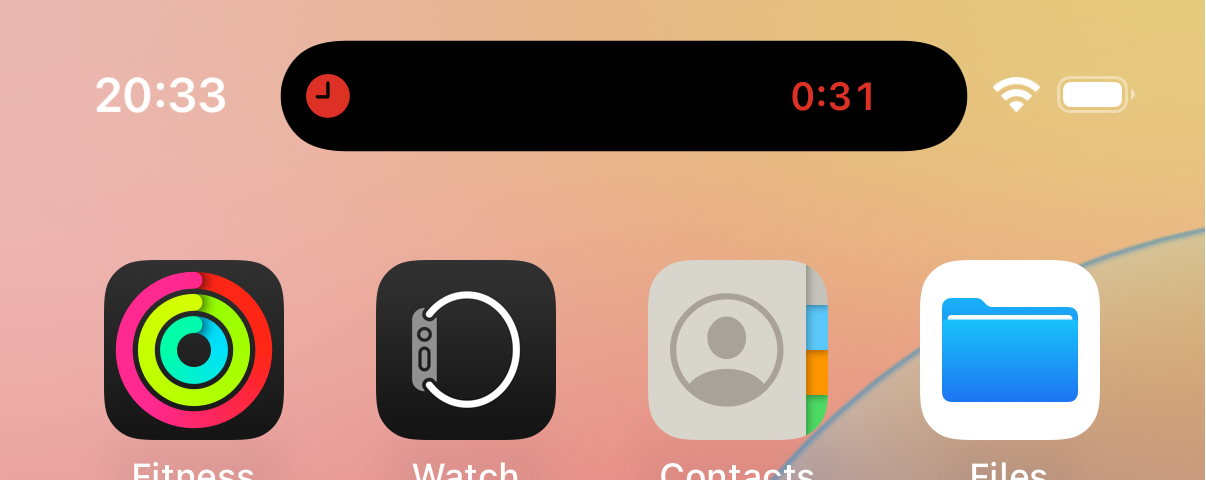
On iPhones with a Dynamic Island, the clock icon and timer stay at the top while you use other apps. Tap it to open the Time Clock.
Step 3: Take a break
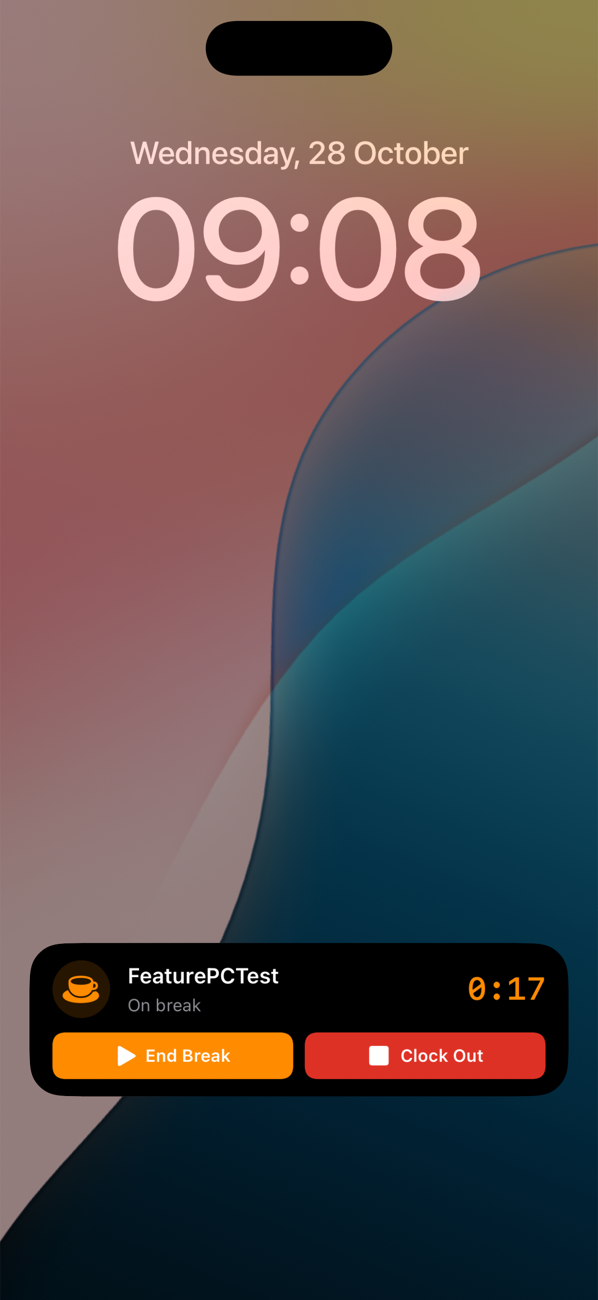
Tap Take Break. Clue opens and logs the break. The Lock Screen turns orange, shows On break and counts your break time. Tap End Break to get back to work.
Step 4: Tap Clock Out
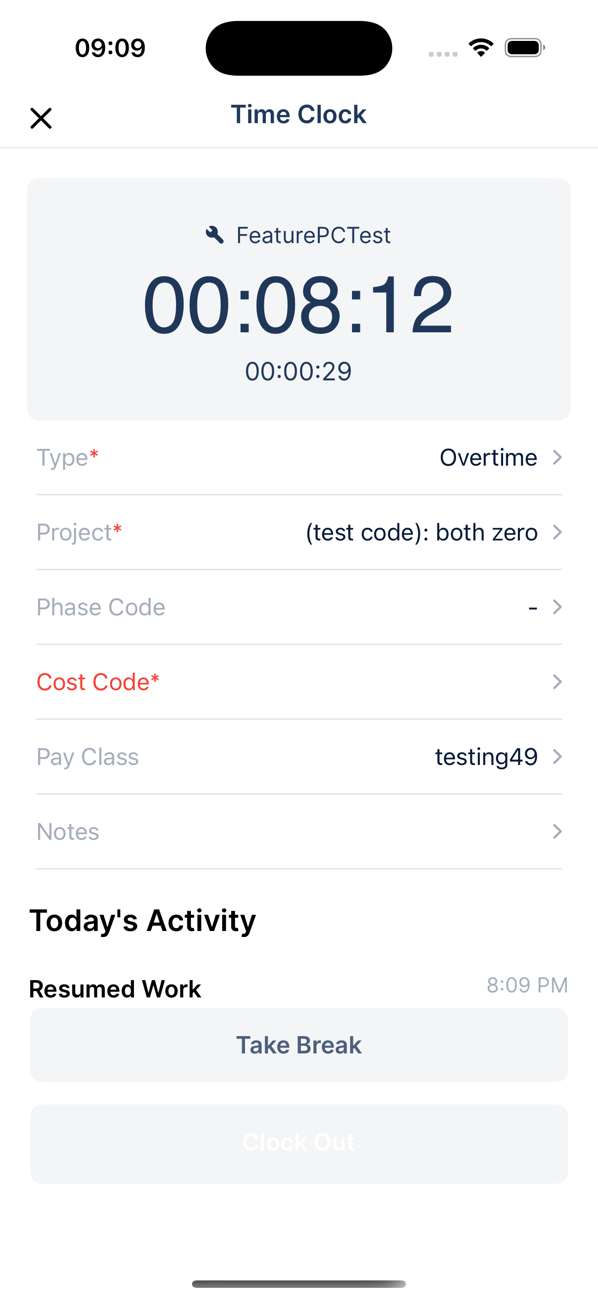
Tap Clock Out. Clue opens the Time Clock and checks your required fields. Anything missing shows in red. Fill it in before you clock out.
Step 5: Confirm and submit
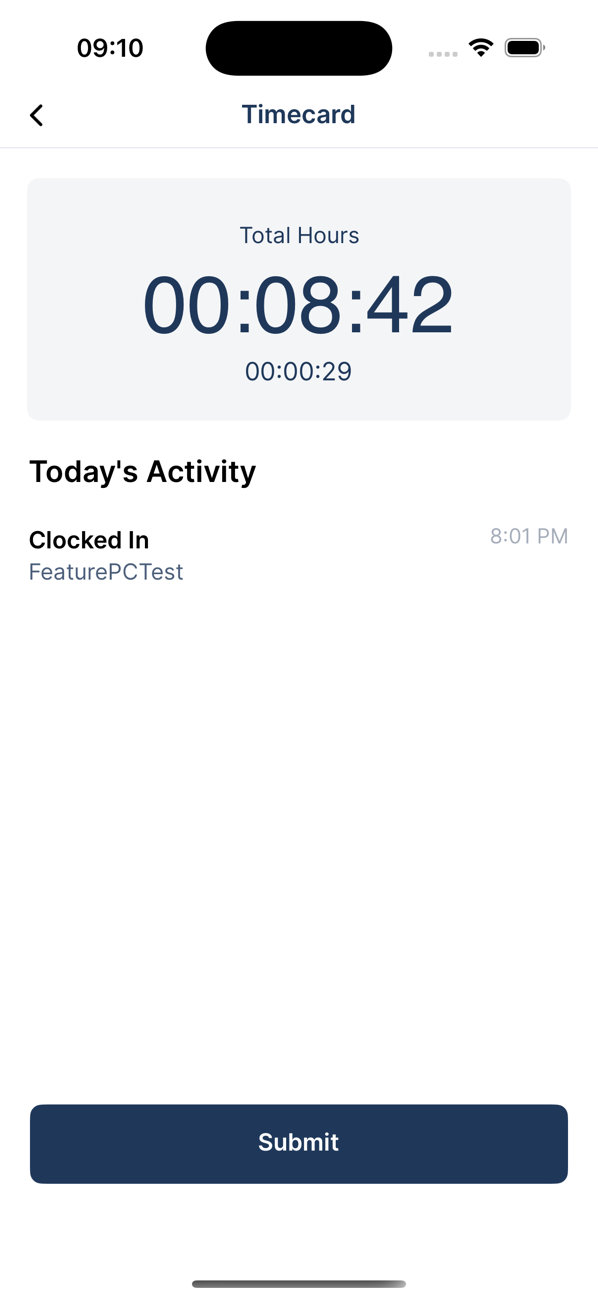
With every field filled in, you land on the Timecard screen. Tap Submit. The Lock Screen timer goes away.
The full details
- Works on: Clue mobile app on iPhone, iOS 16.1 or later.
- Turn it on: iPhone Settings > Clue > Live Activities. For a locked phone, also Settings > Face ID & Passcode > Live Activities.
- Starts: on its own, every time you clock in to a work order.
- Clock Out checks: the same required fields as the Clock Out button in the app. You always confirm before the timecard closes.
- Pay class: changes you make on the Time Clock show on the Lock Screen too.
- Restarts: open Clue after a phone restart and the Lock Screen matches your real clock-in status.
- One phone: the timer lives on the phone you clocked in from.
- Android: not available. The app works as usual.
Tips
- Nothing on the Lock Screen? Check that Live Activities are on for Clue and that the app is up to date.
- Fill in cost code and notes when you clock in. Clock Out then takes one tap and one Submit.
- Tap the timer itself, not a button, to jump straight to the Time Clock.