Link Timecard Entries to Work Orders
Add labor directly to a work order so repair time stays tied to the job, the mechanic, and the final cost. This helps your team track repair labor more clearly and keeps time records easier to review later.
Timecard management
Labor linked to work orders gives CLUE a clearer view of repair time and labor cost. This also fits naturally with Logging Time with Timecards, Creating and Managing Work Orders, and Managing Timecard Entries.
Overview
When a time entry is linked to a work order, CLUE can use that labor record for maintenance cost tracking, labor review, and repair history. This helps the team see how much time was spent on a job and who worked on it.
Adding Time from Work Order Detail
This is the easiest option when the mechanic or foreman is already working inside the repair record. It keeps the time entry tied to the job from the start instead of linking it later.
Step 1: Open the work order
Go to Maintenance > Work Orders and open the work order you want to update. This is also a natural place to link to Creating and Managing Work Orders or Updating a Work Order.
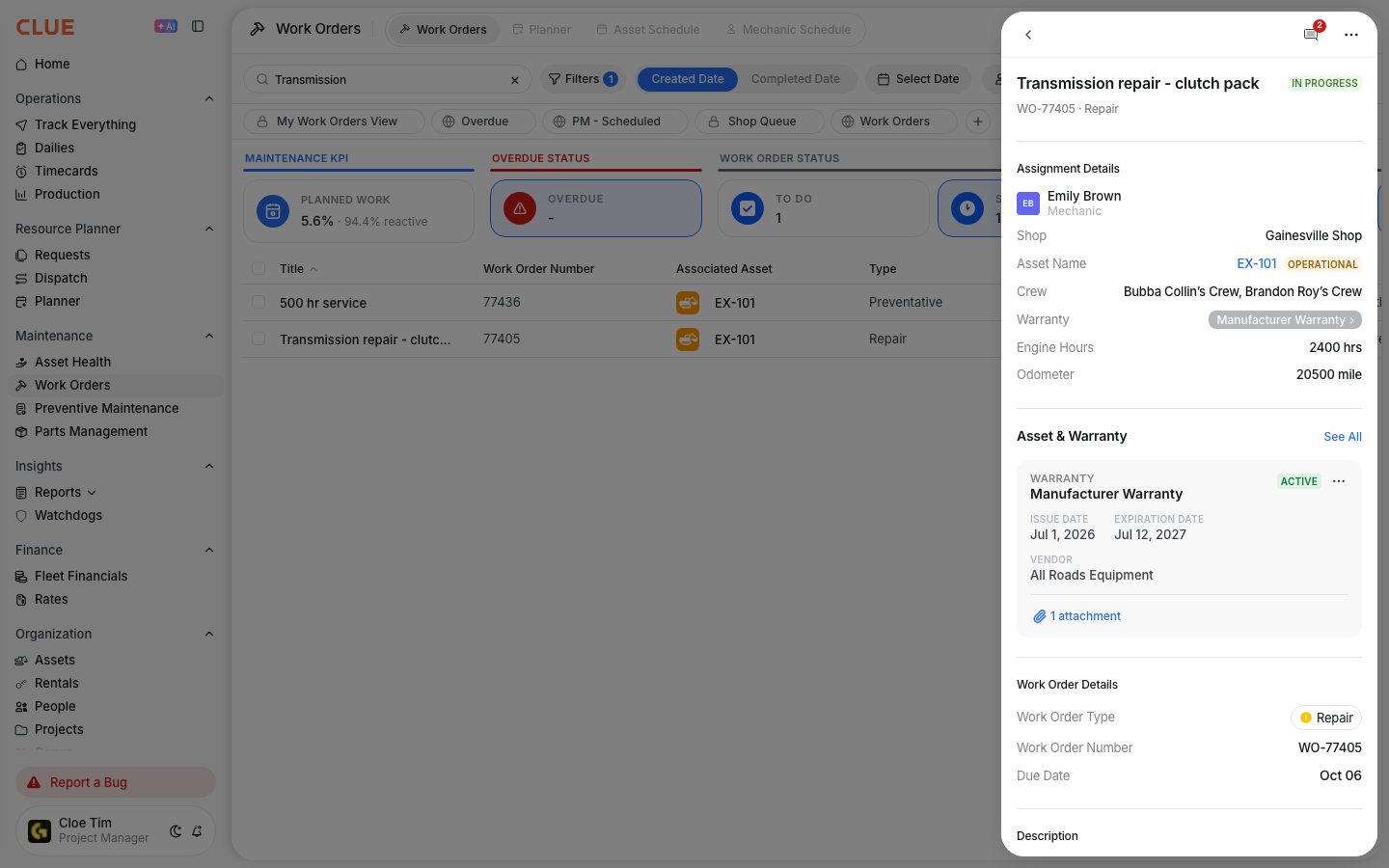
Step 2: Open the Labor or Time section
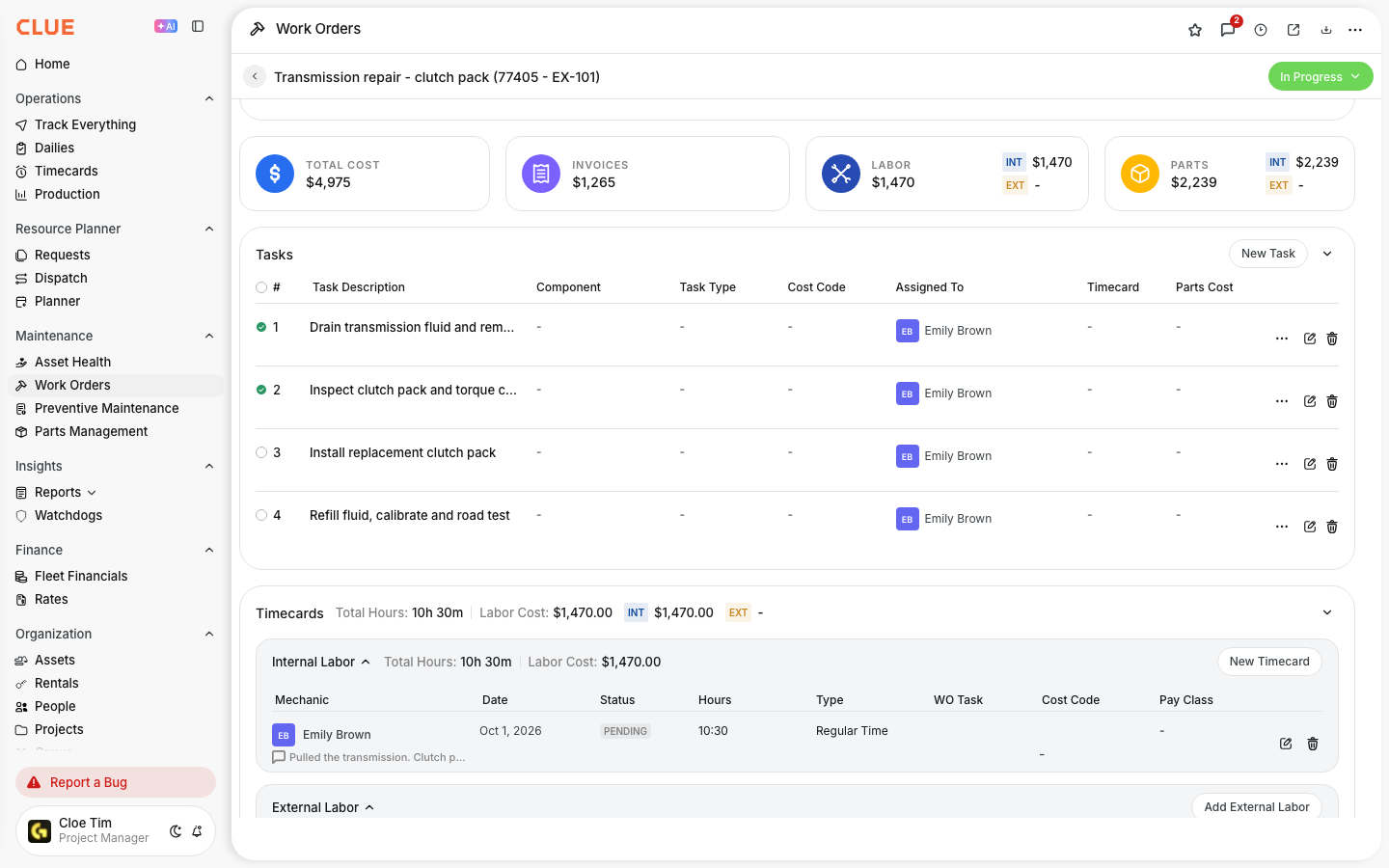
In the work order detail, go to the Labor or Time section. This is where labor entries for that repair are added and reviewed.
Step 3: Click Add Time
Click Add Time or Log Hours to open a new labor entry. CLUE then lets you enter the time details for that repair.

Step 4: Enter the time details
Fill in the labor entry with the key details the team needs to track the work correctly. Typical fields include mechanic name, hours worked, date of work, and notes when needed.

Step 5: Save the time entry
Click Save to attach the labor entry to the work order. Once saved, that time becomes part of the repair record and can be included in labor totals and reporting.
Linking Existing Timecards
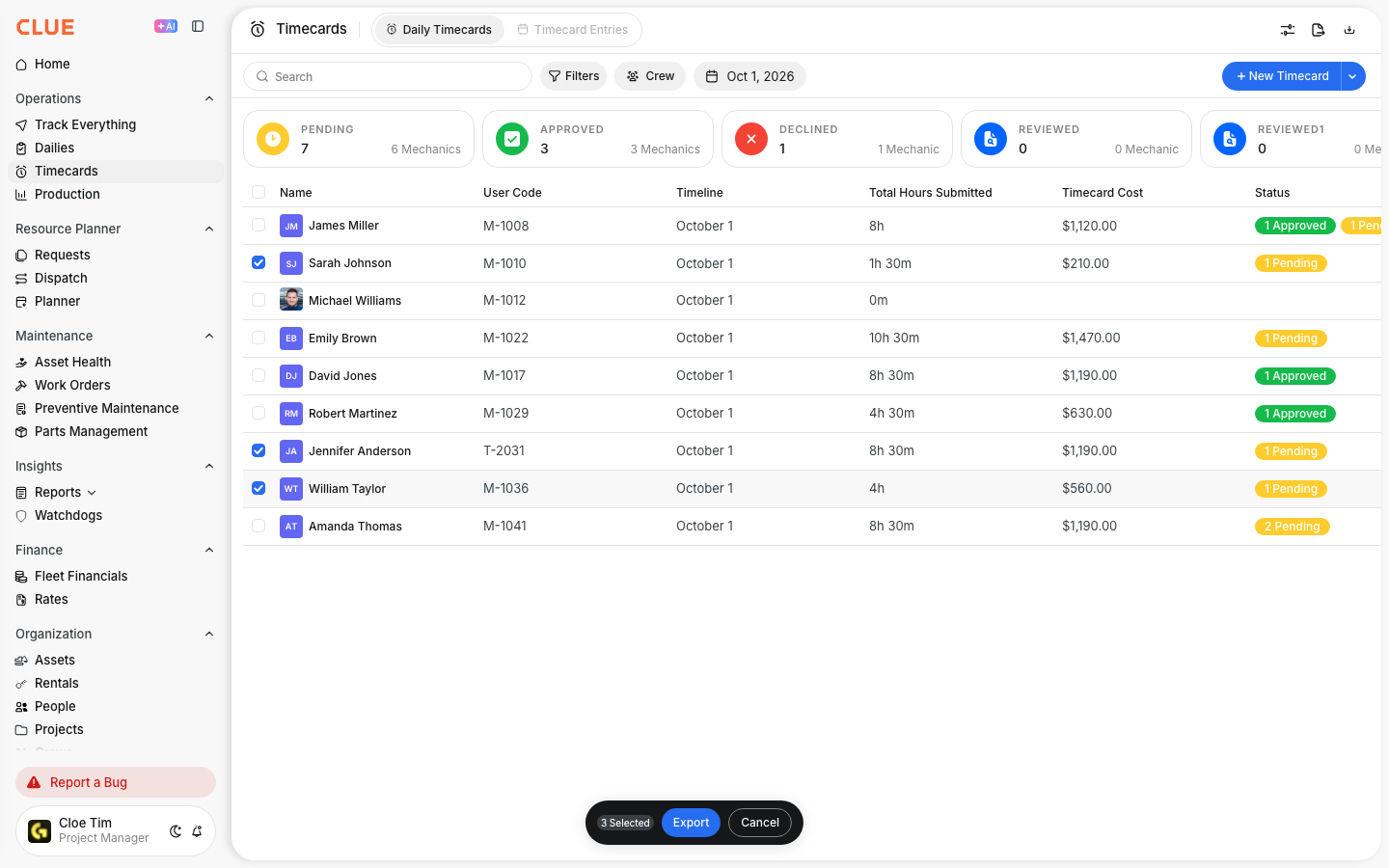
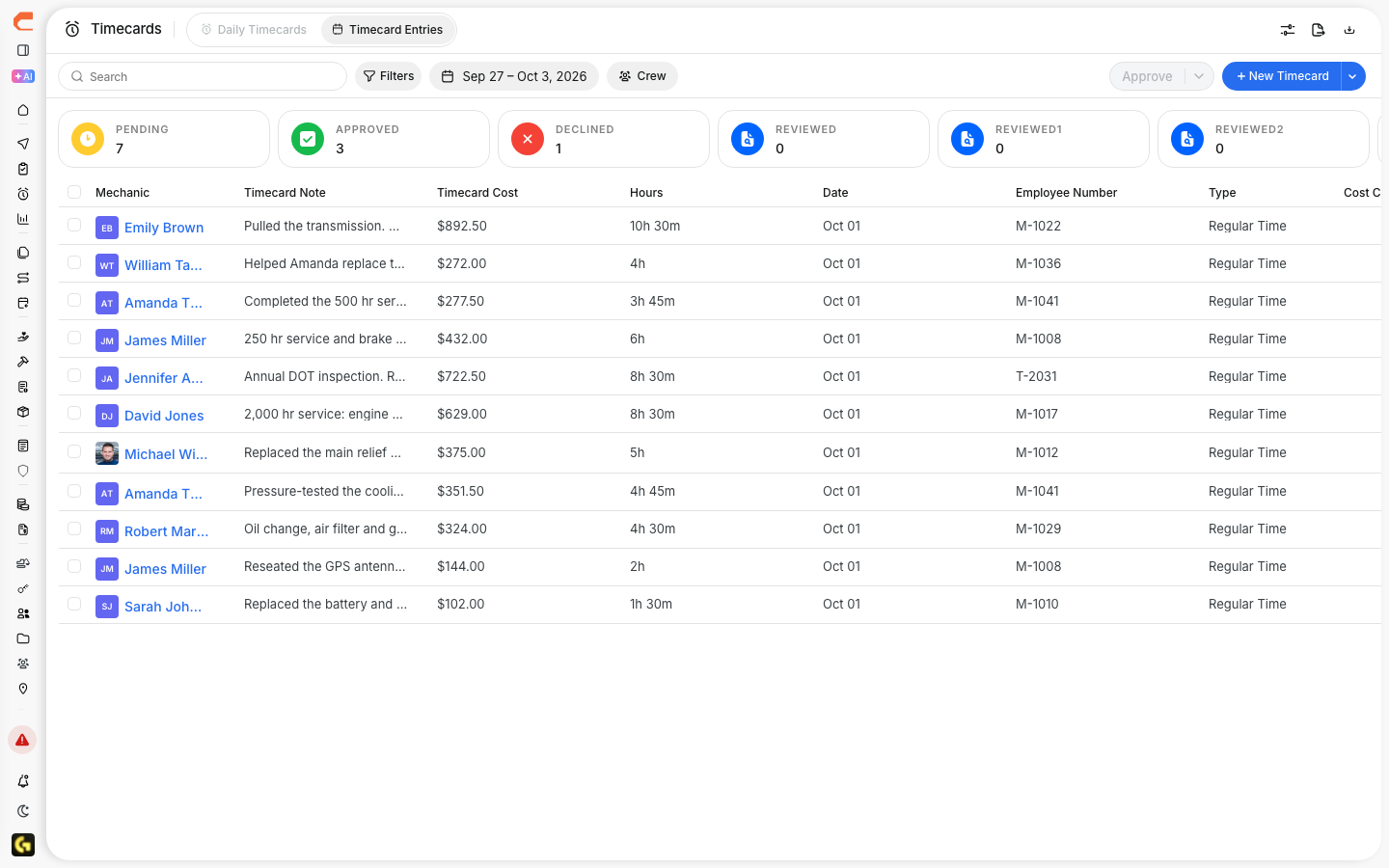
Sometimes time is already entered in the Timecards area before it is tied to a repair. In that case, you can update the existing timecard instead of creating a second labor entry.
Step 1: Open the timecard entry
Go to Timecards and open the time entry you want to update. This section pairs well with Logging Time with Timecards and Managing Timecard Entries.
Step 2: Find the Work Order field
In the timecard entry, look for the Work Order field. This is where you connect that labor entry to the correct repair job.

Step 3: Select the work order
Search for the correct work order and select it from the list. This ties the existing time entry back to the repair record without re-entering the hours.
Step 4: Save the update
Click Save to keep the link. After that, the work order can show the labor entry as part of its time and cost history.
Viewing Labor on Work Orders
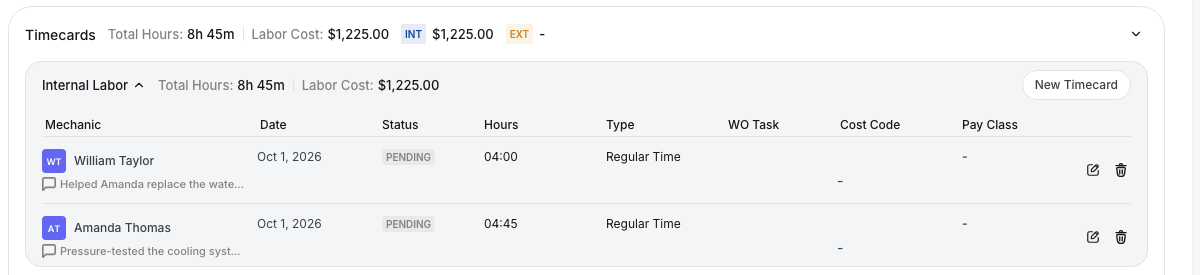
Once labor is linked, the work order gives the team a clearer view of time spent on the repair. This makes it easier to review labor totals, see who worked on the job, and check when the work was done.
You can use the work order to review total hours, labor cost when rates are configured, the people who worked on the repair, and the dates the work was performed. This is also a good internal linking spot for Work Order Workflow if the reader needs the broader job view.
Benefits of Linking
Linking labor to work orders helps the team track the full repair picture instead of keeping labor in a separate place. It makes reporting more useful and gives managers a better view of where maintenance time is going.
Main benefits include:
- clearer labor cost tracking on each repair
- better visibility into time spent by repair type
- support for billing workflows when labor needs to be tied to a job
- easier review of high-labor assets over time
Tips
A few simple habits make labor tracking more accurate. The main goal is to log time while details are still fresh and keep work order labor records complete.
- Log time daily so the hours stay accurate.
- Include travel time if it counts as part of the job.
- Use notes to explain unusual time amounts or job conditions.
- Connect this workflow to Reviewing Team Timecards if foremen also need to approve labor entries later.