Filter the Asset Directory from Any Column
What is this?
You can filter the Asset Directory straight from a column header. Pick the values you want, and the table shows only the matching assets. The values come from your own fleet, so you never have to guess how something is spelled. Equipment properties your company tracks can also be added to the table as columns.
Who's this for?
- Equipment managers, to narrow a big fleet to one make, status, or property in a few clicks.
- Dispatchers, to find the right type of machine fast without opening the full filter list.
- Shop foremen, to pull up every unit that shares a detail, like a tire size, before planning work.
How to use it
Step 1: Open the column menu
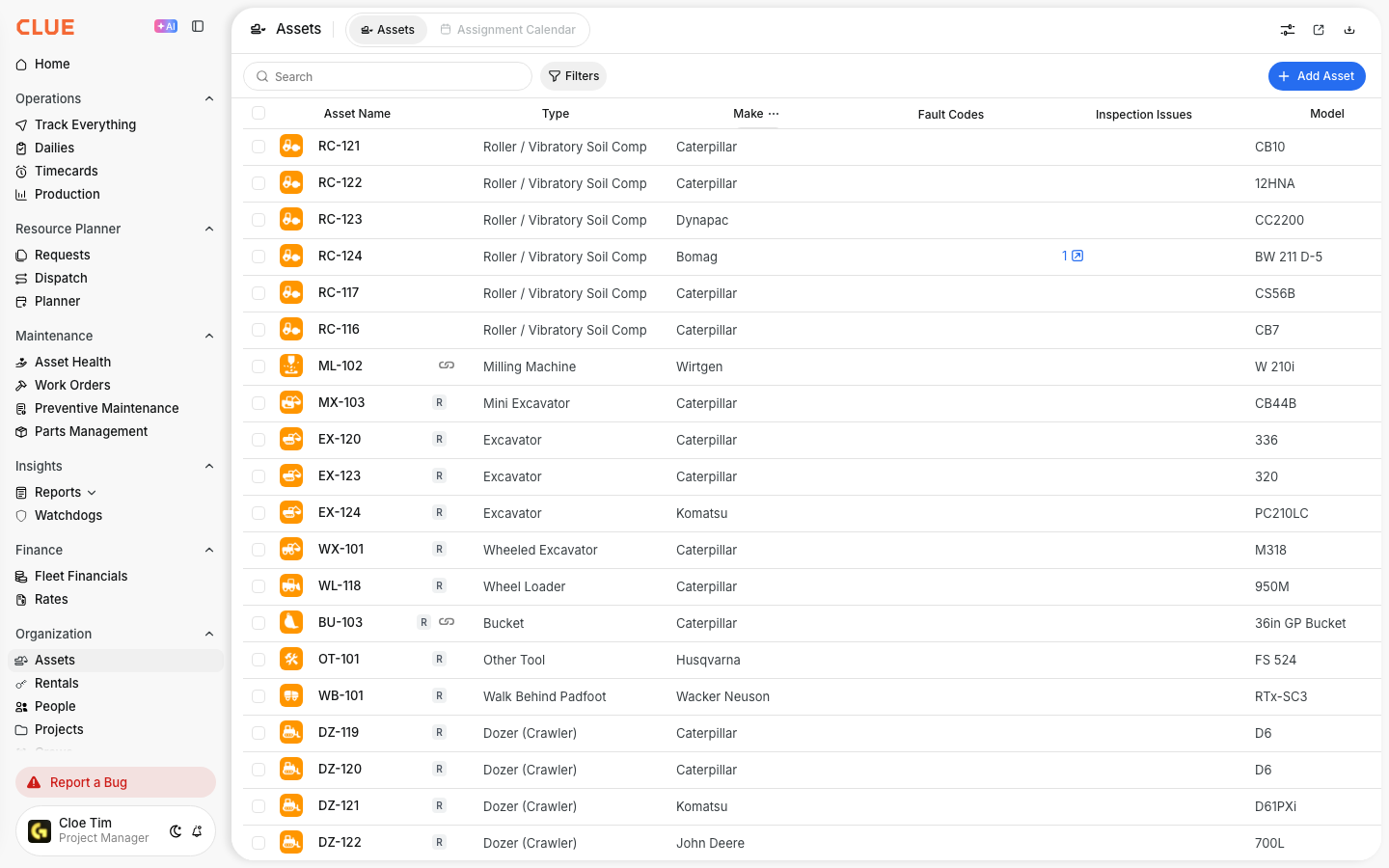
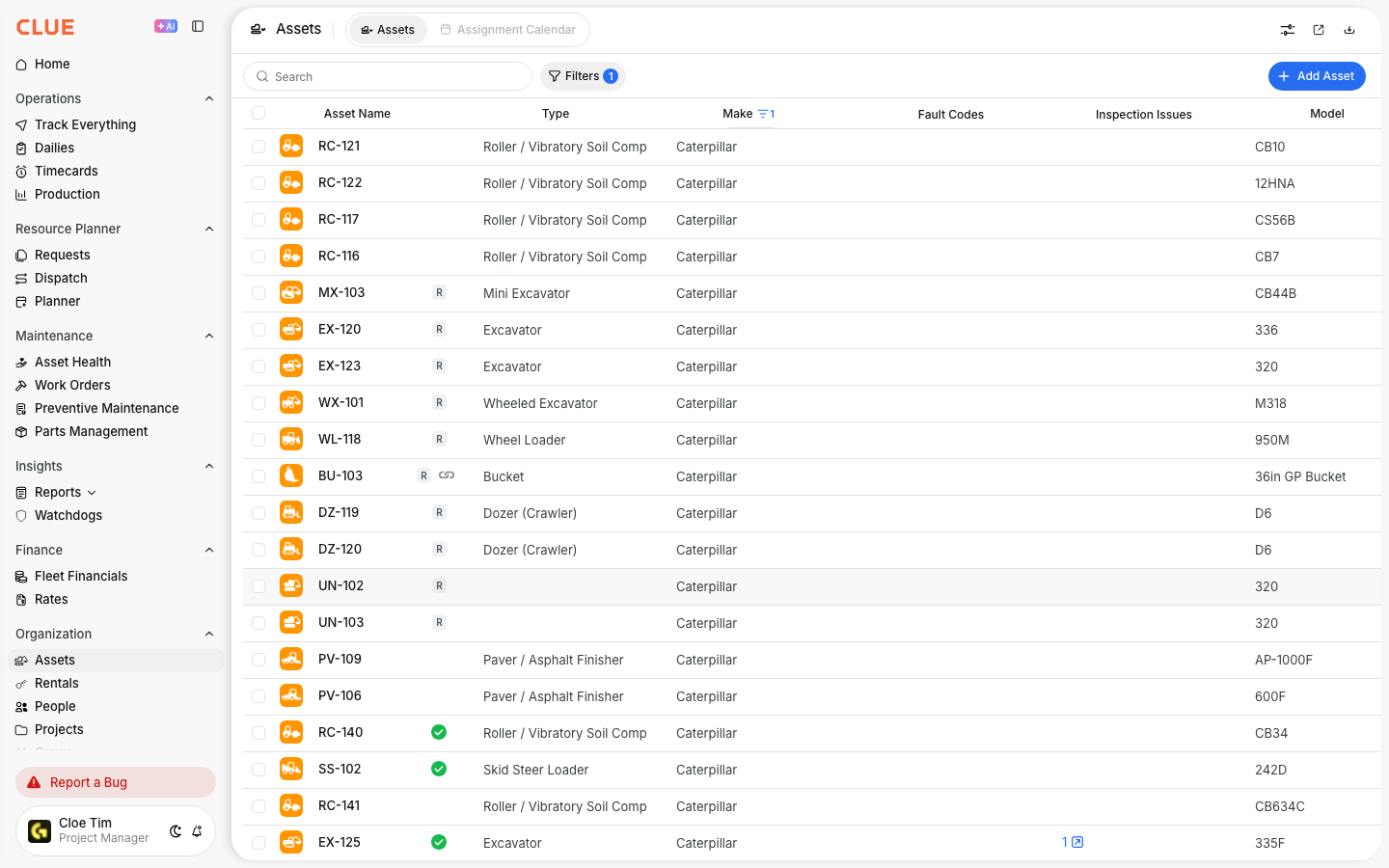
Go to Assets in the main menu. Hover over a column header, like Make, and click the ... button that appears next to its name.
Step 2: Pick your values
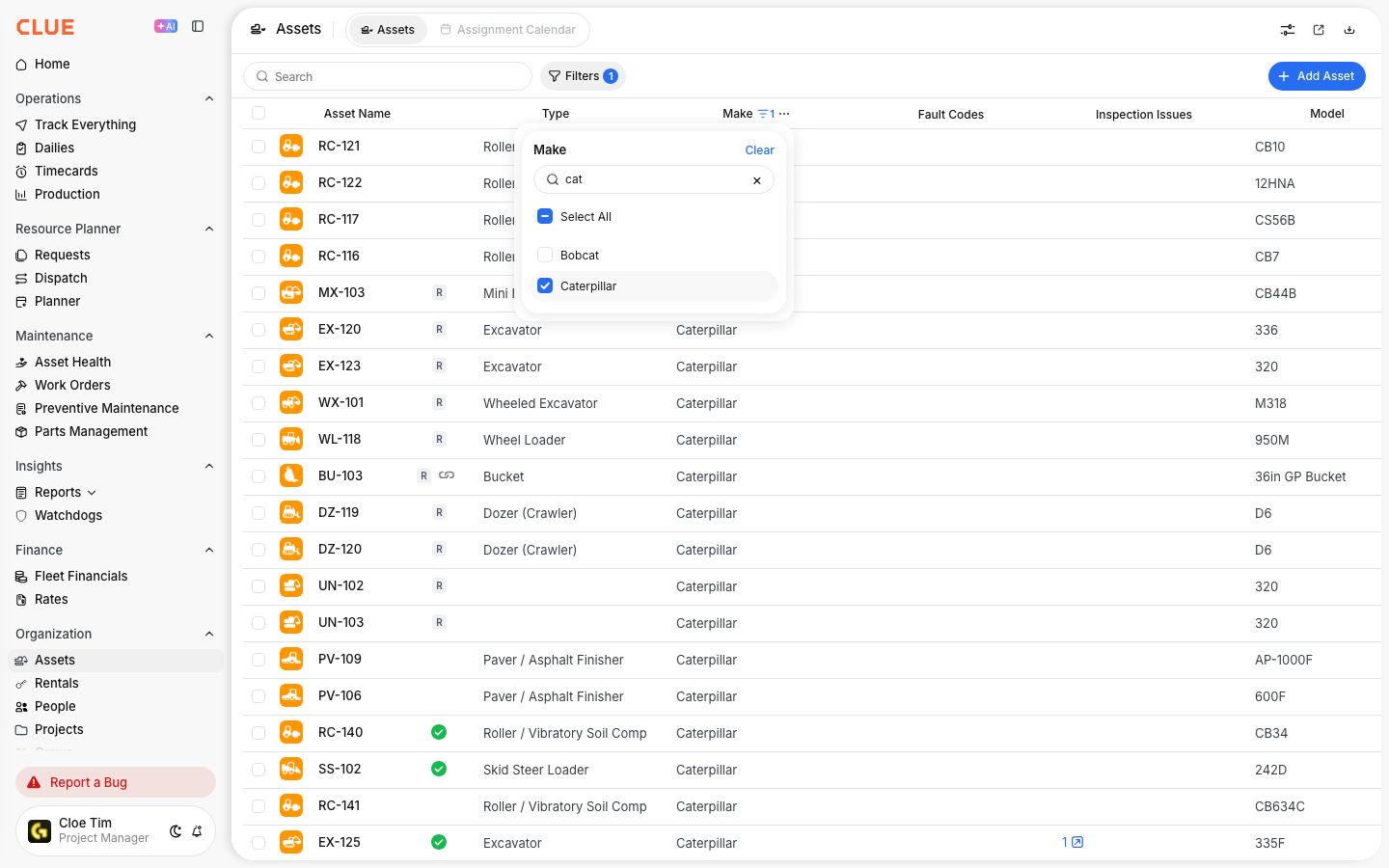
A list of the values in that column opens. Type in Search values to narrow the list, then check one or more values. The table updates as soon as you check a box.
Step 3: Review your results
Close the list by clicking anywhere outside it. A filter icon on the column header shows the column is filtered. The number on the Filters button includes it too.
Step 4: Add equipment properties as columns
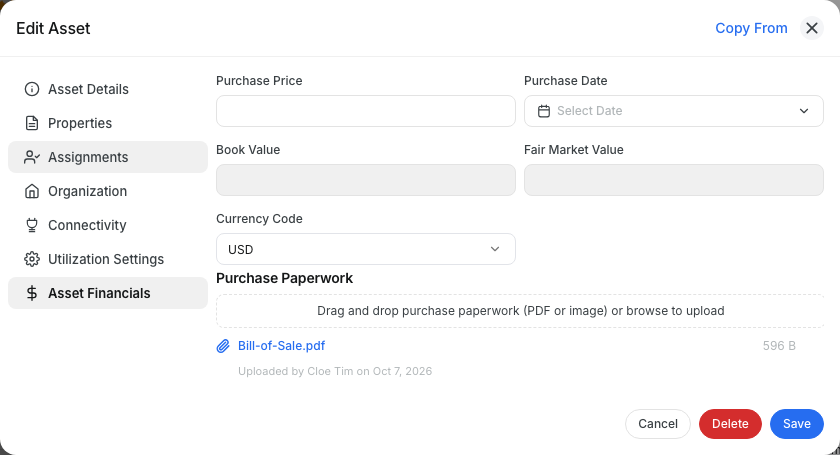
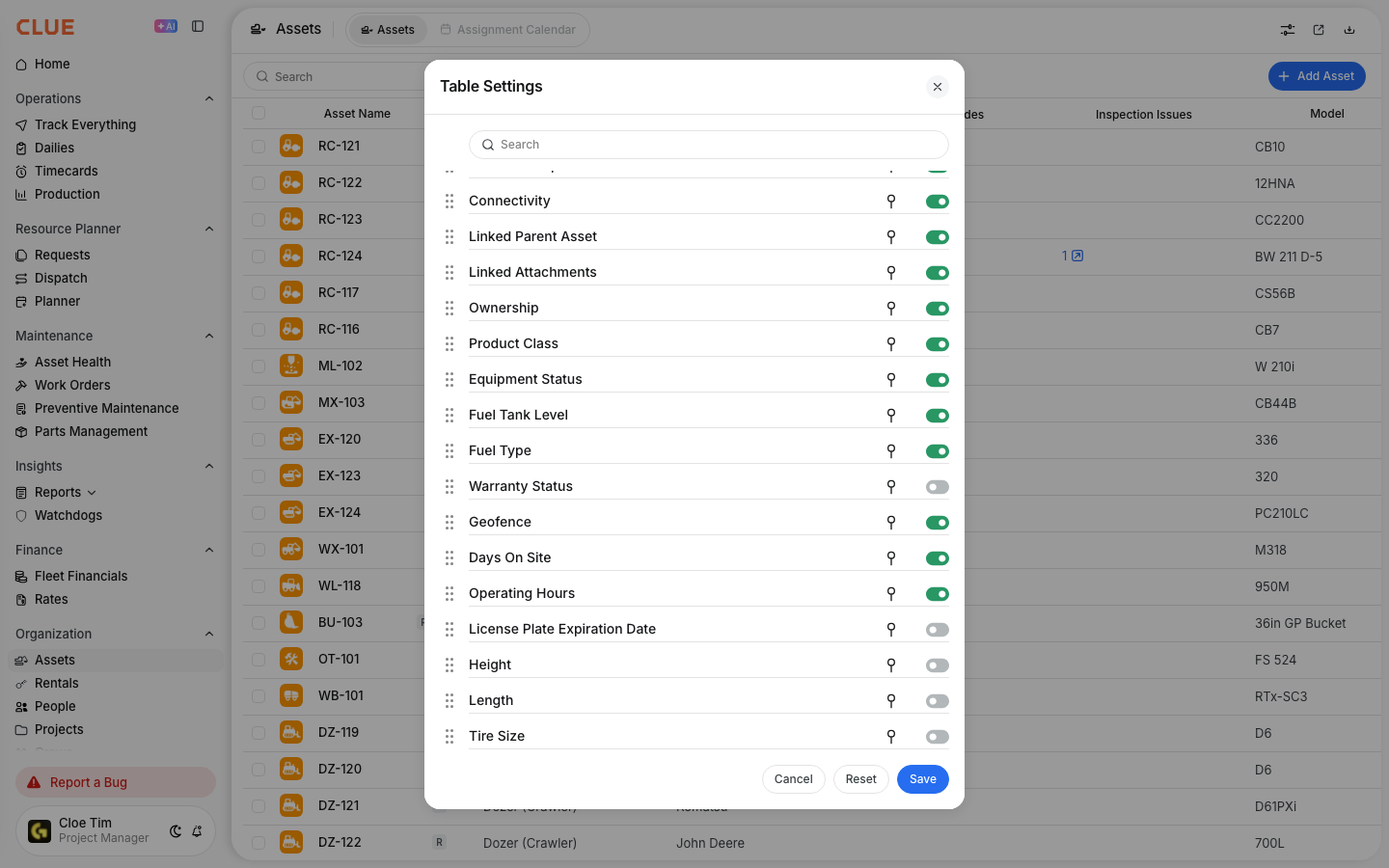
Click the Table Settings icon at the top right of the table. Turn on any equipment property your company uses, like Tire Size, and click Save.
The full details
- Works on: Web app, Asset Directory.
- Which columns: Columns that can be filtered show the ... button on hover. Columns without it cannot be filtered.
- Blank values: Choose (Blank) to find assets where that field is empty.
- Long lists: The list shows the first values only. Keep typing in the search box to find the one you need.
- What you see: The list only shows values from assets you already have access to.
- Clearing: Click Clear in the column's list to remove that column's filter.
- Sorting: Clicking the column name sorts the table.
- New properties: When your company turns on a new equipment property, it appears in Table Settings switched off. Your saved layout does not change.
Tips
- Combine filters on two or three columns to get to a short list fast, like one make with one tire size.
- Rows missing? Look for the filter icon on the headers. It tells you which column is hiding them.