Turn Related Inspection Issues into Work Order Tasks
What is this?
When you link inspection issues to a work order, Clue can add a task for each one automatically. Every issue becomes its own To Do task on the work order. Your mechanics see exactly what failed, and nothing gets missed. There is no need to type them in by hand.
Who's this for?
Anyone who turns inspection problems into repair work.
- Equipment managers, every reported problem shows up as a task, so nothing slips through.
- Shop foremen, link the issues and the task list builds itself.
- Mechanics, each task names the checklist, the item that failed, and what the operator reported.
How to use it
Step 1: Add issues to a work order
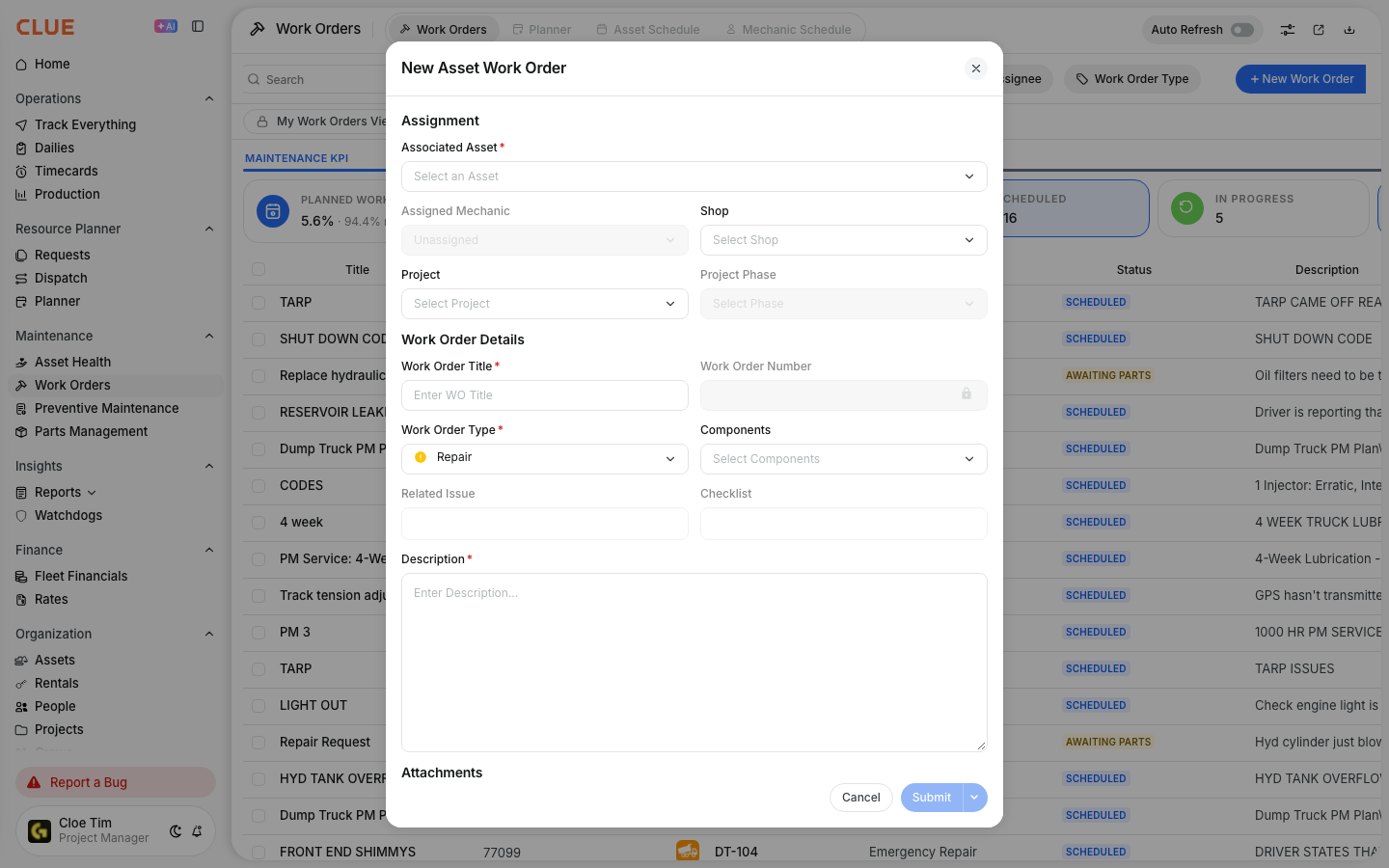
Go to Work Orders and click New Work Order. Pick the asset, then choose one or more issues in Related Issue. You can also add issues to a work order that already exists.
Step 2: Save the work order
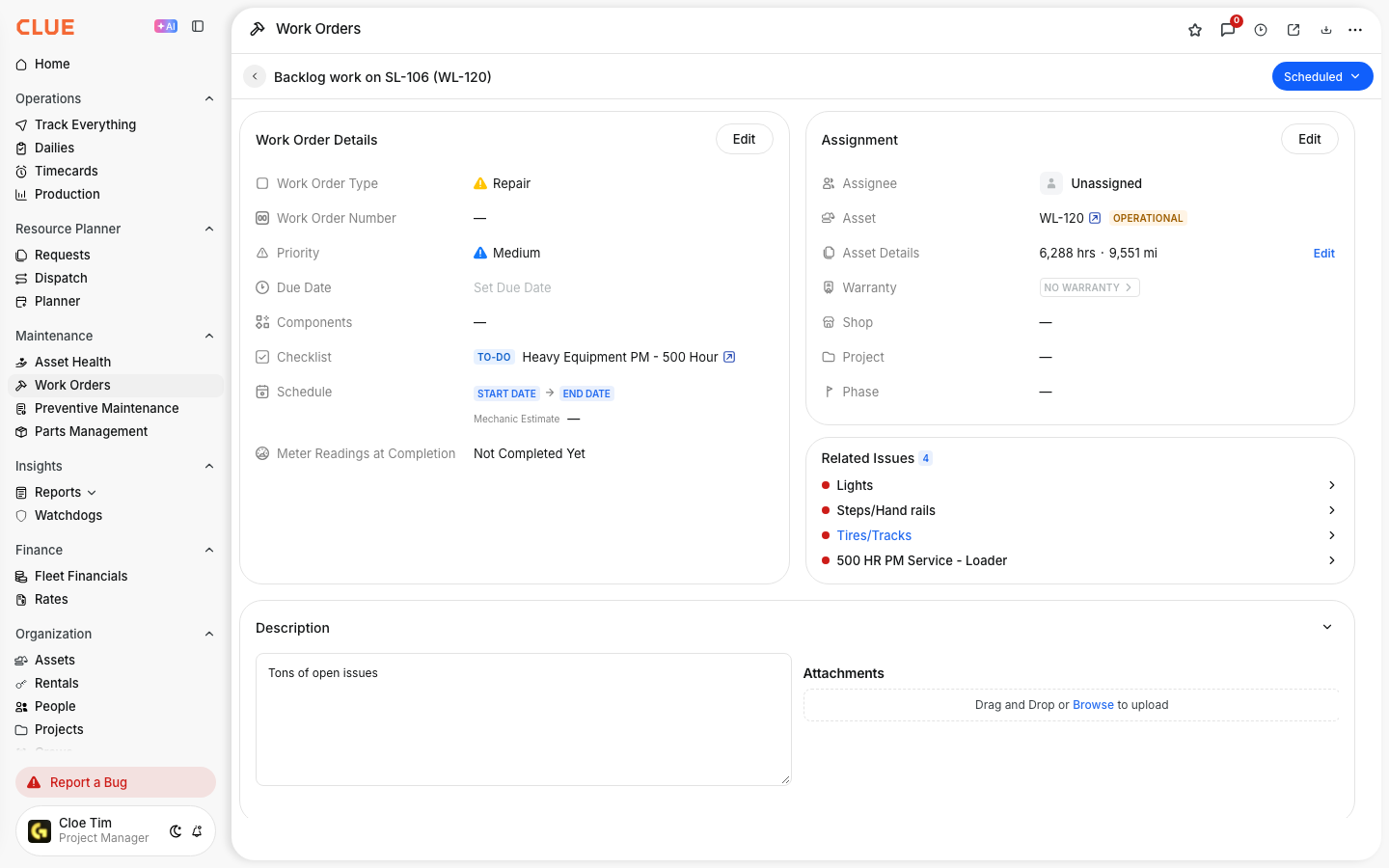
Click Submit. The issues now appear under Related Issues on the work order.
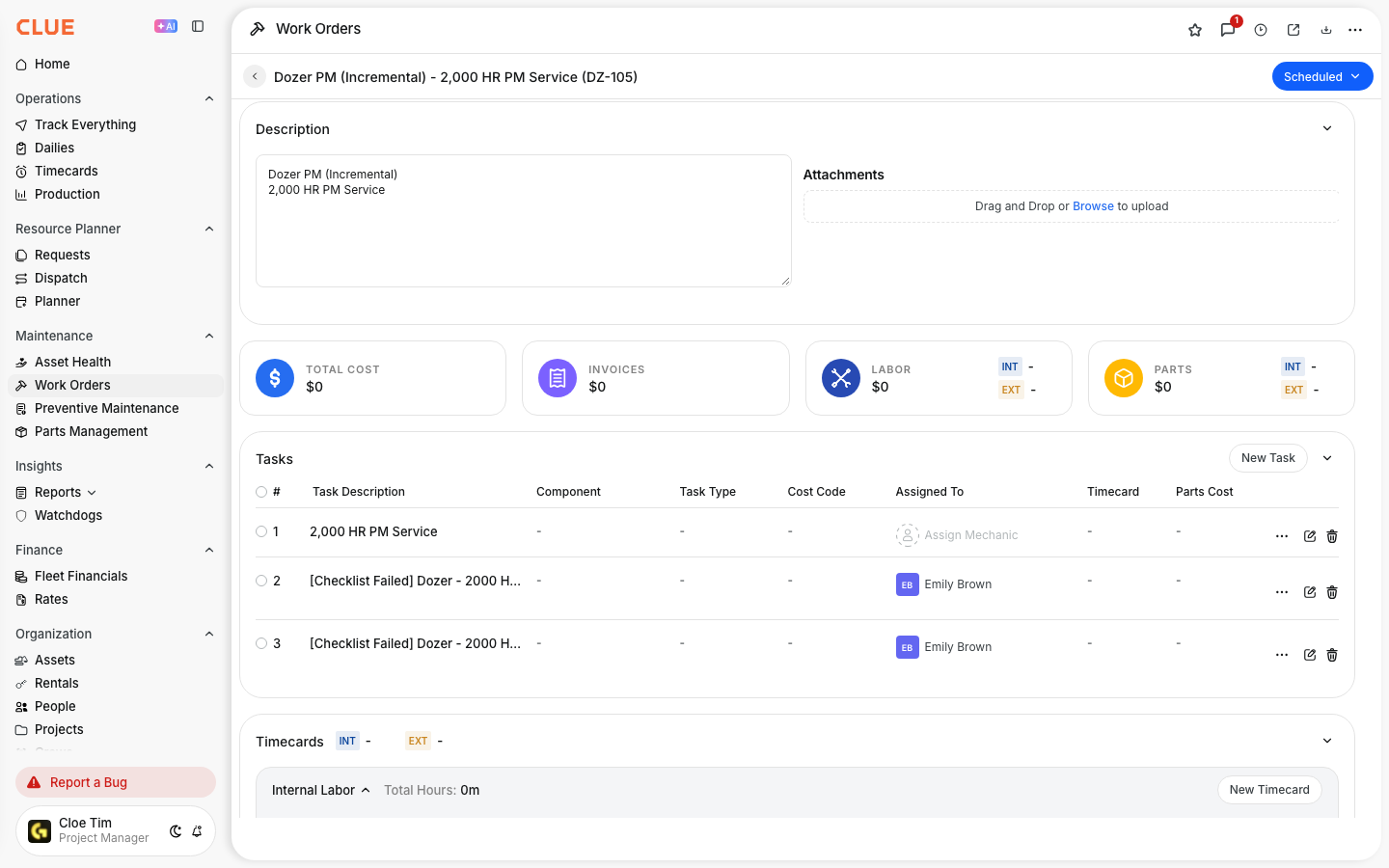
Step 3: Check the Tasks list
Scroll down to Tasks. Each issue has its own task, marked [Checklist Failed], with the checklist name, the failed item, and the operator's note.
The full details
- When it runs: Whenever a work order is created with issues, or issues are added to an existing work order.
- Turning it on: It is off by default. Ask your Clue team to turn it on for your company.
- Task name: [Checklist Failed] Checklist name: Item - Issue description. If the issue has no checklist item, the task uses the issue description.
- Task status: To Do.
- Assigned to: The person who saved the work order.
- Task number: The next number on the work order.
- Skipped issues: Issues marked Fixed on Site or Closed do not get a task.
- No duplicates: An issue gets one task per work order. Saving again does not add a second one.
- Older work orders: Once it is on, an older work order gets its missing tasks the next time issues are added to it.
Tips
- Add all the issues for an asset in one go. Clue creates every task at once.
- Reassign the tasks after saving if someone else will do the work.
- Edit a task's description to add parts or extra notes for the mechanic.
- Close or mark an issue Fixed on Site first if it no longer needs a repair. It will not get a task.