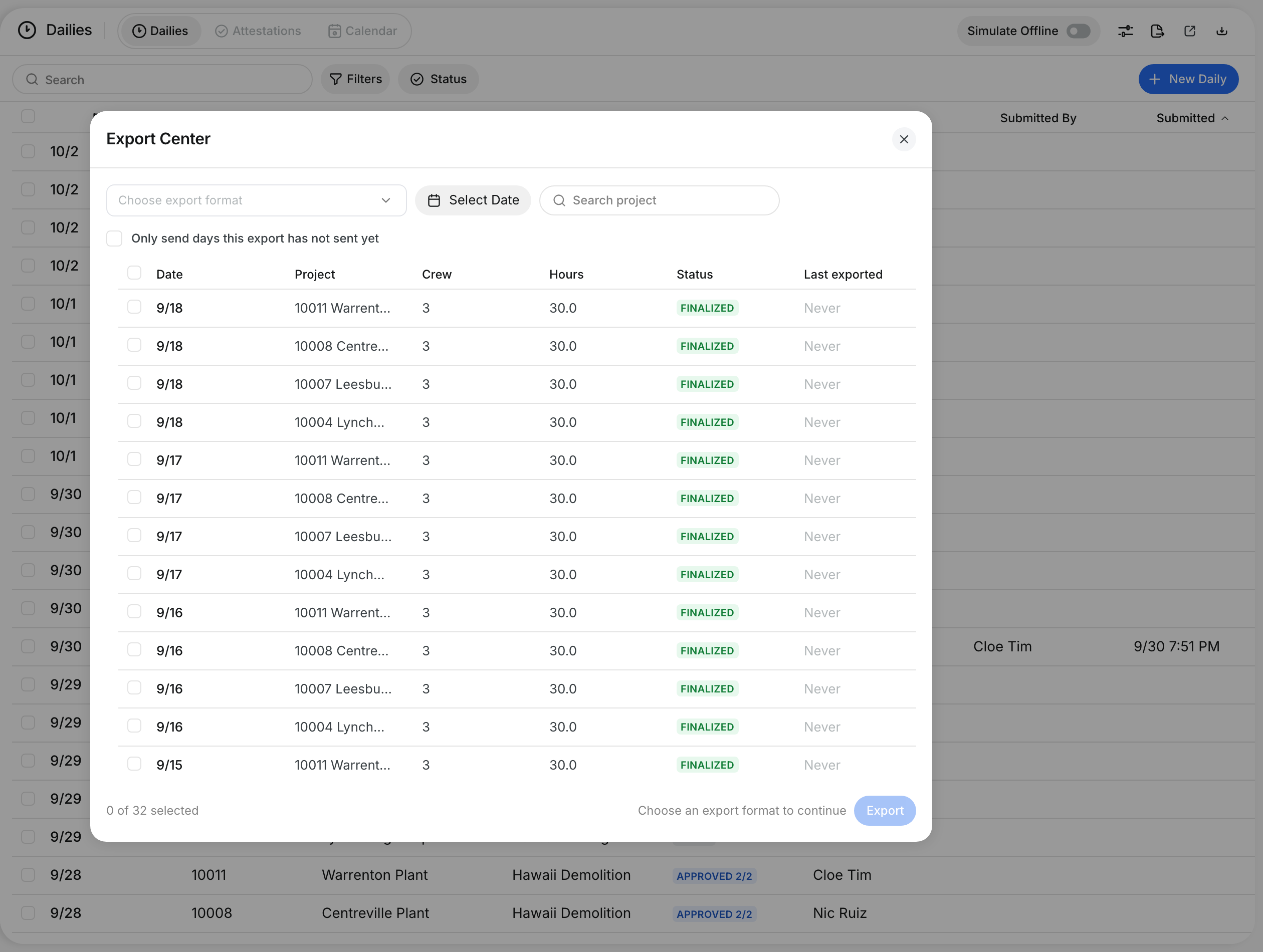
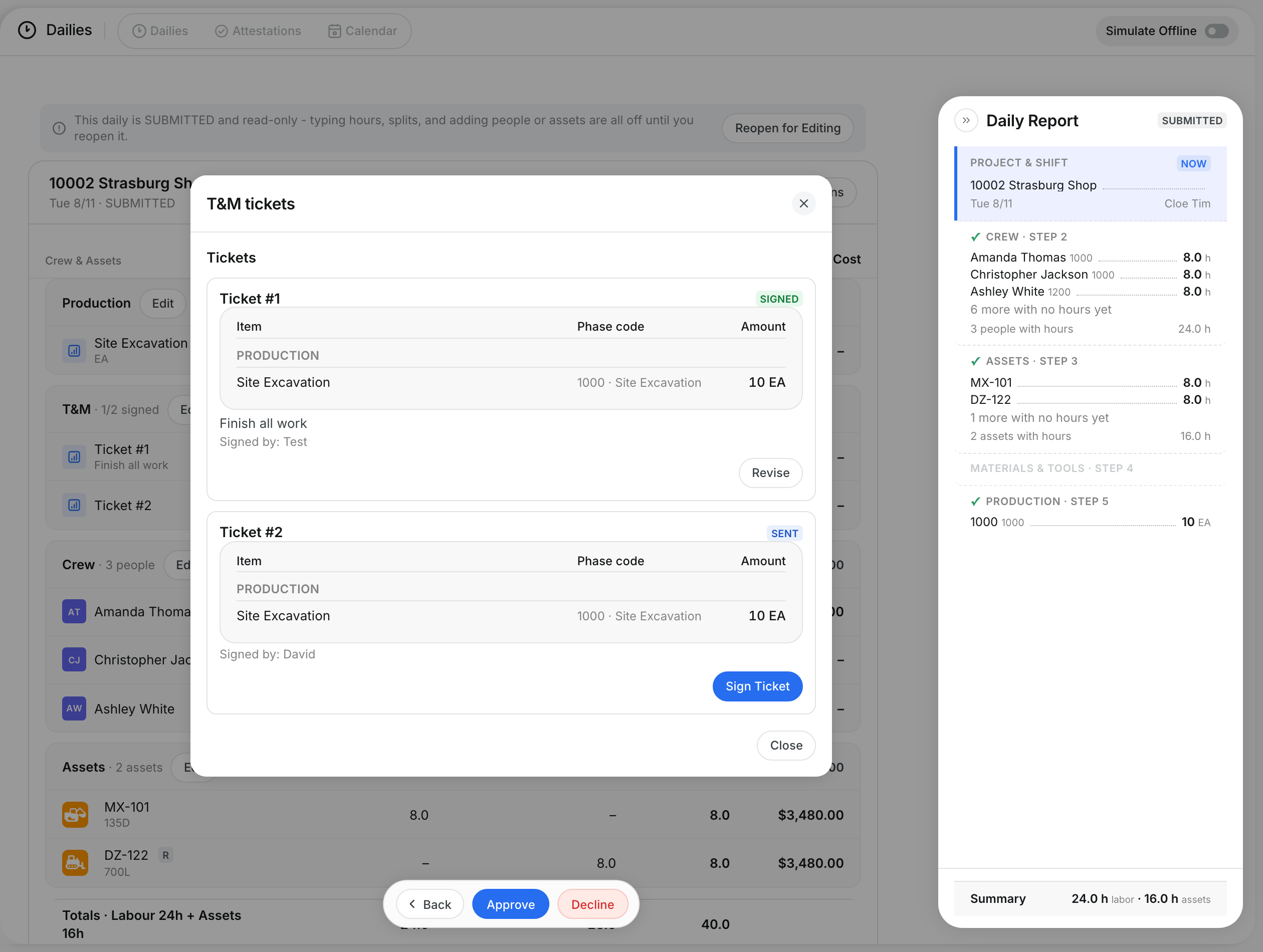
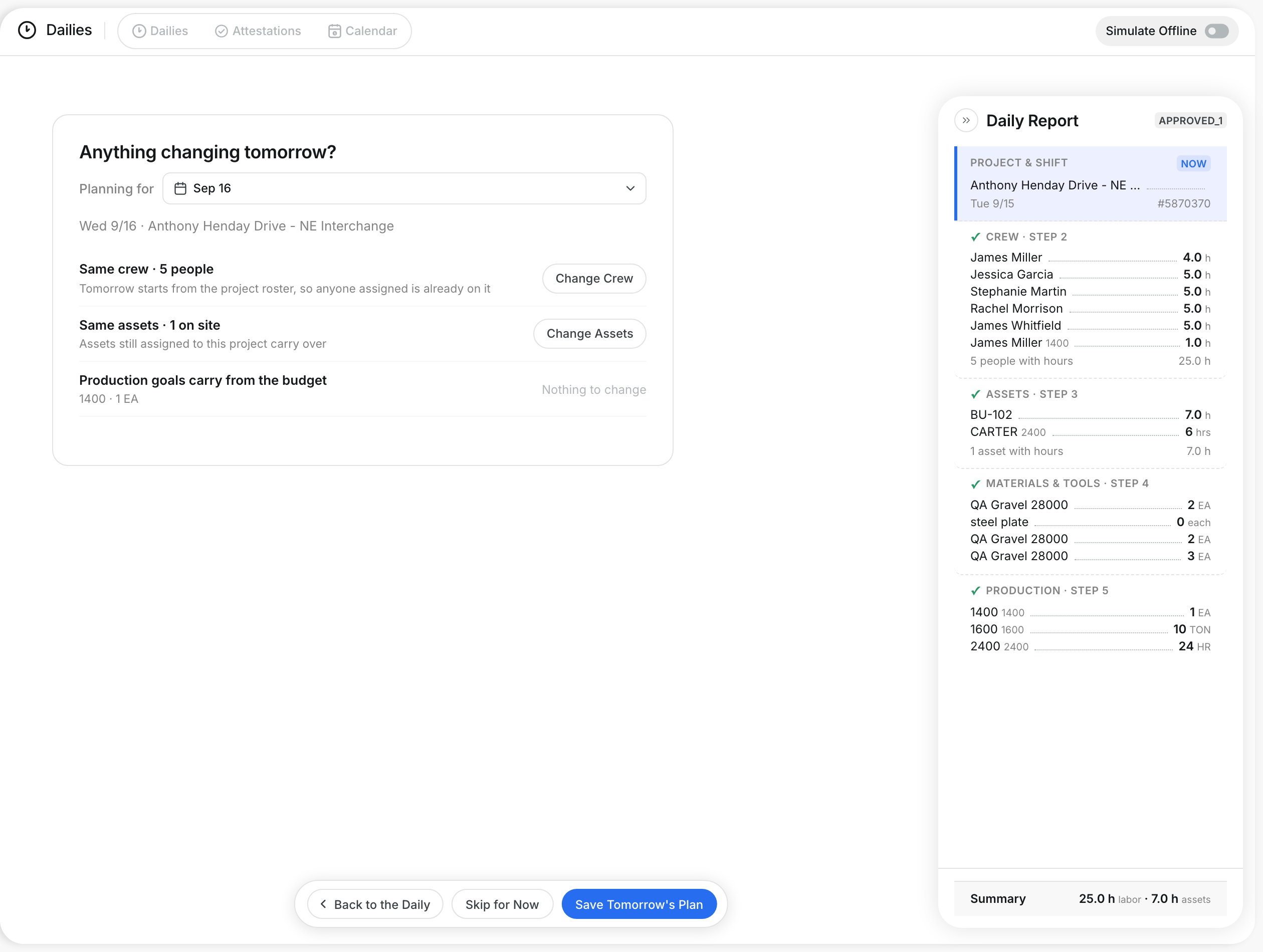
What is this?
The shift hours check compares a person's shift, minus breaks, with the hours on the daily. Your company sets how big a difference the daily can absorb, for example 10 minutes. A small difference updates the daily's hours to match the shift. A bigger difference flags the attestation so payroll can decide.
Who's this for?
- Payroll, who decide flagged hours differences.
- Foremen, who see the flag on their daily and the crew's reasons.
- Project managers, who review hours before a daily is finalized.
How to use it
Step 1: A small difference updates the daily
When the difference is within your company's limit, the person sees the change before they sign. The daily's hours update to match the shift, and the change is recorded.
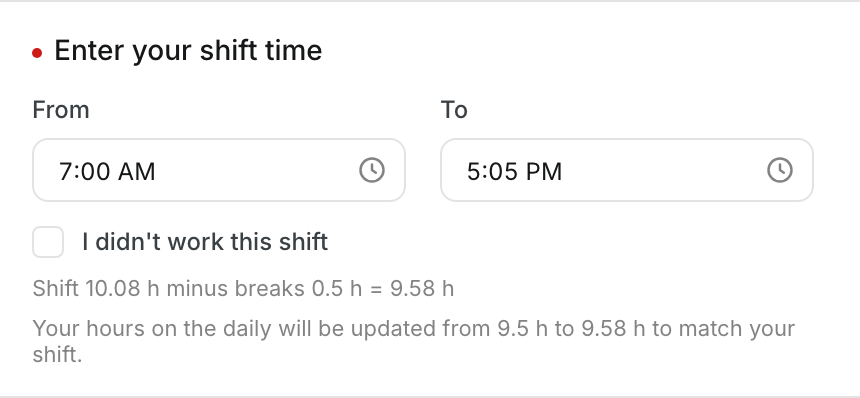
Step 2: A bigger difference needs a reason
When the difference is over the limit, the hours on the daily stay as they are. The person explains why the daily is wrong, signs, and the attestation is flagged.
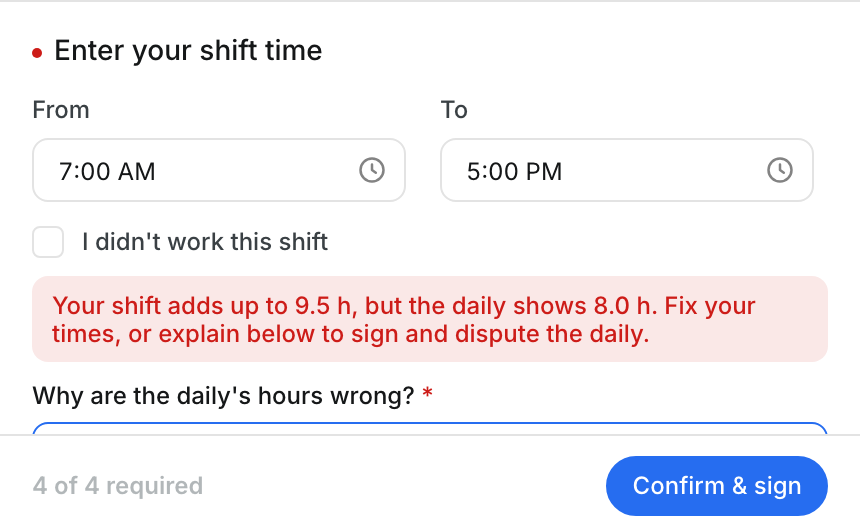
Step 3: Spot the flag on the daily
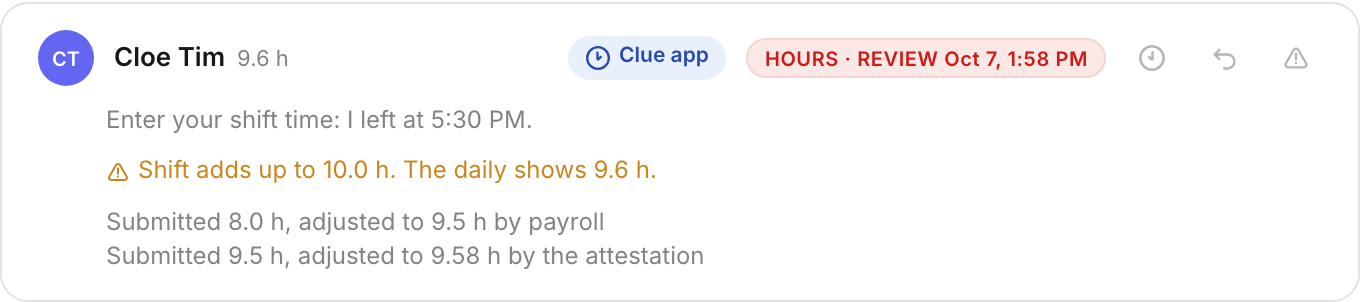
A warning icon appears next to the person's hours on the crew step and on the report. Hover over it to see the attested hours and the daily's hours.


Step 4: Read the details
Open Attestations on the daily. The row shows HOURS · REVIEW, the person's reason, and both totals. Every earlier change to the hours is listed under the row.
Step 5: Open Resolve Hours
Go to Dailies > Attestations. Hover over the row, click the three dots, and select Resolve Hours.

Step 6: Decide the hours
Compare Daily and Attested. Add a note if you want. Click Accept Attested Hours to use the person's figure, or Keep Daily Hours to keep the daily as submitted.

Step 7: Check the result
The row now shows HOURS ACCEPTED or HOURS KEPT. If you accepted, the daily shows the attested hours.

The full details
- Shift hours: the shift from start to end, minus the meal breaks the person enters.
- Limit: your company sets the largest difference the daily absorbs, for example 10 minutes.
- Lock stage: your company picks the stage when hours stop updating. Finalized is the default.
- After the lock stage: the form warns that payroll for the day is locked. Any difference is flagged.
- Accept Attested Hours: the daily's hours change to the attested hours. The change is recorded with your name.
- Keep Daily Hours: the daily stays as the foreman submitted it.
- Your own hours: you cannot resolve a difference on your own attestation.
- One decision: a resolved difference cannot be resolved again.
Tips
- Read the person's reason before you decide. It often names a gate log or a late finish.
- Add a note to every decision, so the next reviewer knows why.
- Resolve differences before you export, so payroll gets the final hours.