Shared Categories Across Templates
Shared Categories are reusable groups of inspection items that can be linked to multiple templates at once. Instead of rebuilding the same "Engine Compartment" or "Fluid Levels" checks on every template individually, you can create the category once, and then assign it to all of the templates that need it. You can manage shared categories from a single place. Any changes made to a shared category will automatically updates every template it is linked to, ensuring your checklists stay consistent across the board.
Who Is This For?
- Equipment Managers can use shared categories to standardize common inspection areas across all templates. Instead of managing the same items in multiple places, shared categories give you one source of truth for checks that should appear fleet-wide.
- Safety Managers use them to ensure DOT-required inspection items appear consistently on every relevant template. When compliance requirements change, updating the shared category pushes the change to all assigned templates instantly. This works hand in hand with CLUE's safety management solution to keep your compliance process airtight.
How to Use It
1. Open Shared Categories
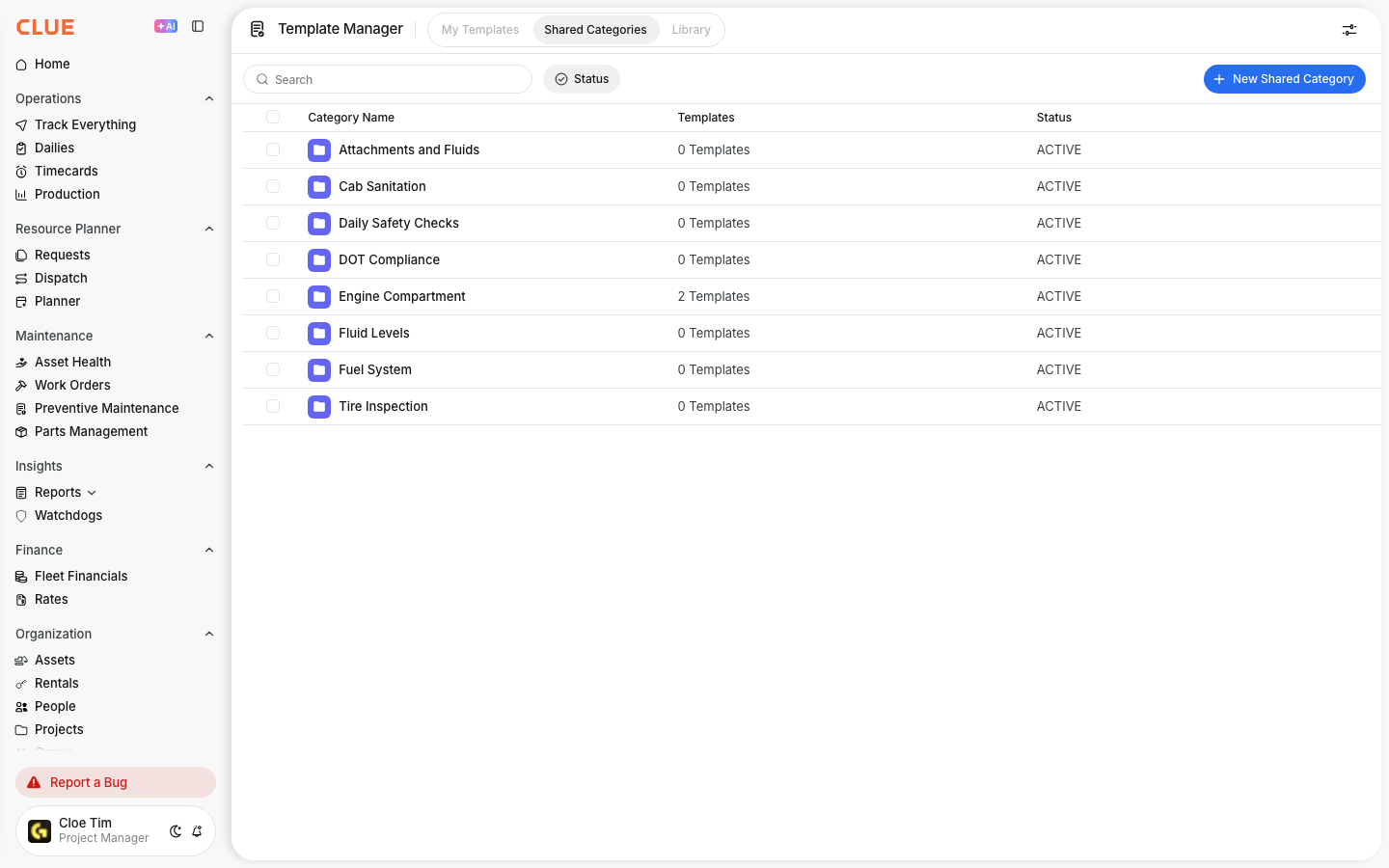
Within the CLUE dashboard, go to Company Settings > Template Manager > Shared Categories. This page lists all existing shared categories along with their name, the number of templates currently using them, and their status.
2. Create or Edit a Shared Category
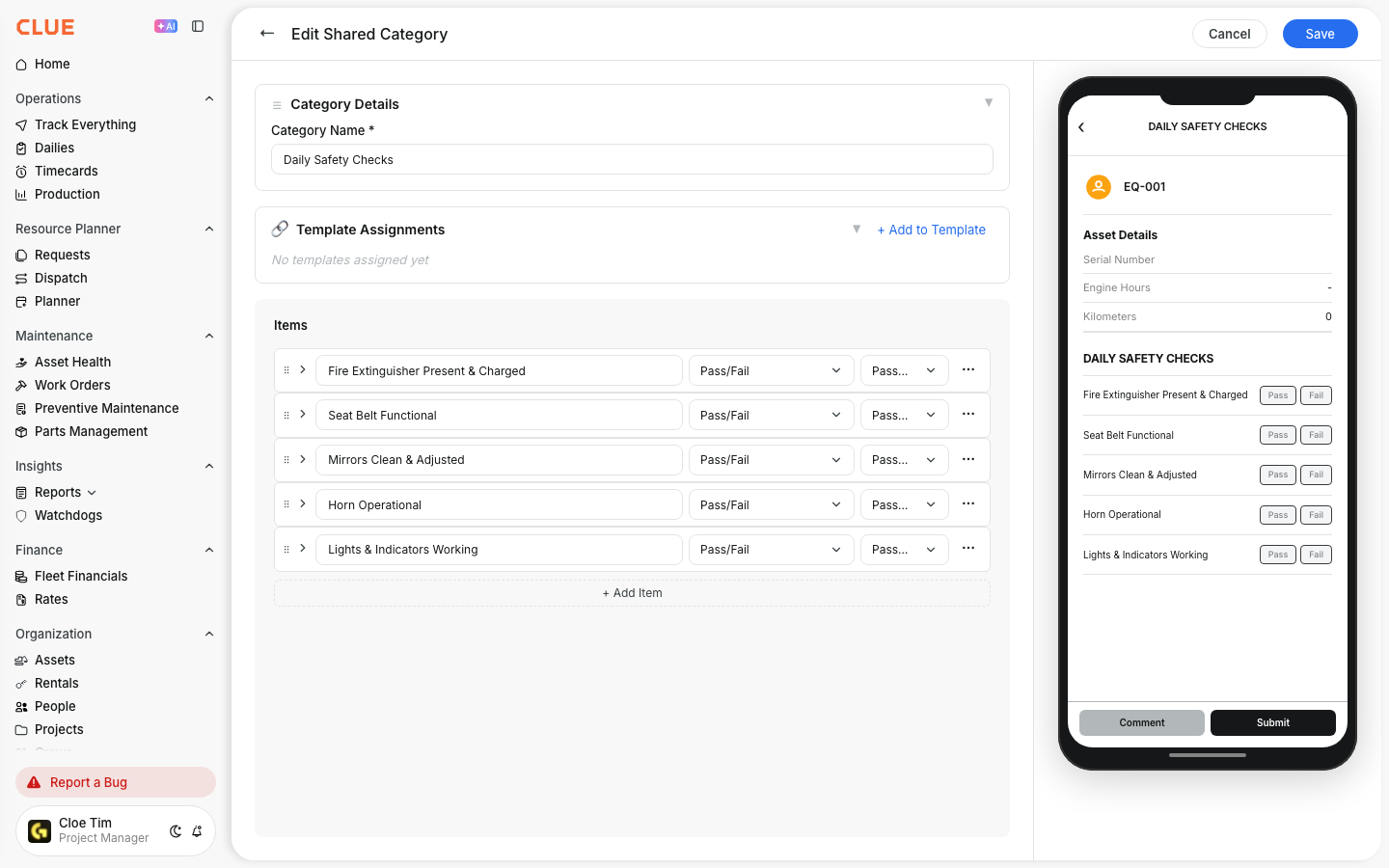
Click on any existing category to open and edit it, or click on the + New Shared Category button to create a new one. You can set the categories name, add checklist items, assign the appropriate response type for each item such as pass or fail or report, as well as configure any required flags or instructions.
3. Assign to Templates
Click the + Add to Template button to link the shared category to one or more templates. Once assigned, the category and all its items appear on every selected template automatically.

Key Behaviors and Limitations
- Changes update across all linked templates. When you edit and save a shared category, each template that uses it reflects the changes immediately. You do not need to make the same change across individual templates manually.
- All item settings carry through. Response types, instructions, and required flags defined in the shared category apply consistently across all templates the shared category is linked to. There are no template-level overrides for shared category items.
- Templates can mix shared and custom categories. Each template can include a combination of shared categories for common inspection areas and custom categories for checks specific to that template or asset type. This is managed directly inside CLUE's Inspections feature.
- Deleting a shared category removes it from all linked templates. Before deleting a shared category, check the Templates column to confirm which templates will be affected.
Tips
- Create shared categories for checks that appear on most templates. Common candidates include Engine Compartment, Fluid Levels, Safety Equipment, and Tire or Track checks. These are the areas most likely to be repeated across inspection types.
- Use the Templates column to track usage. If a shared category shows 0 Templates, it has not been linked to any template yet. We recommend either assigning it to a template or removing it to keep your shared categories list clean and organized.
- Standardize DOT-required items as a shared category. By grouping all DOT-required checks into a single shared category, you can guarantee those items will appear identically on every template they're attached to. This removes the risk of items being missed or inconsistently worded across different checklists.
- Review shared categories before editing. Because changes apply everywhere, confirm which templates are linked before making edits. A change intended for one template may affect others if the shared category is widely assigned.
- Pair shared categories with the Template Manager. Use the Template Manager to see how shared categories fit into the full structure of each template before publishing.