Setting Up Pay Classes
Pay classes define hourly rates for different roles in CLUE. They help your team track labor costs more accurately and keep pay rates consistent across job titles and time records.
Accessing Pay Classes
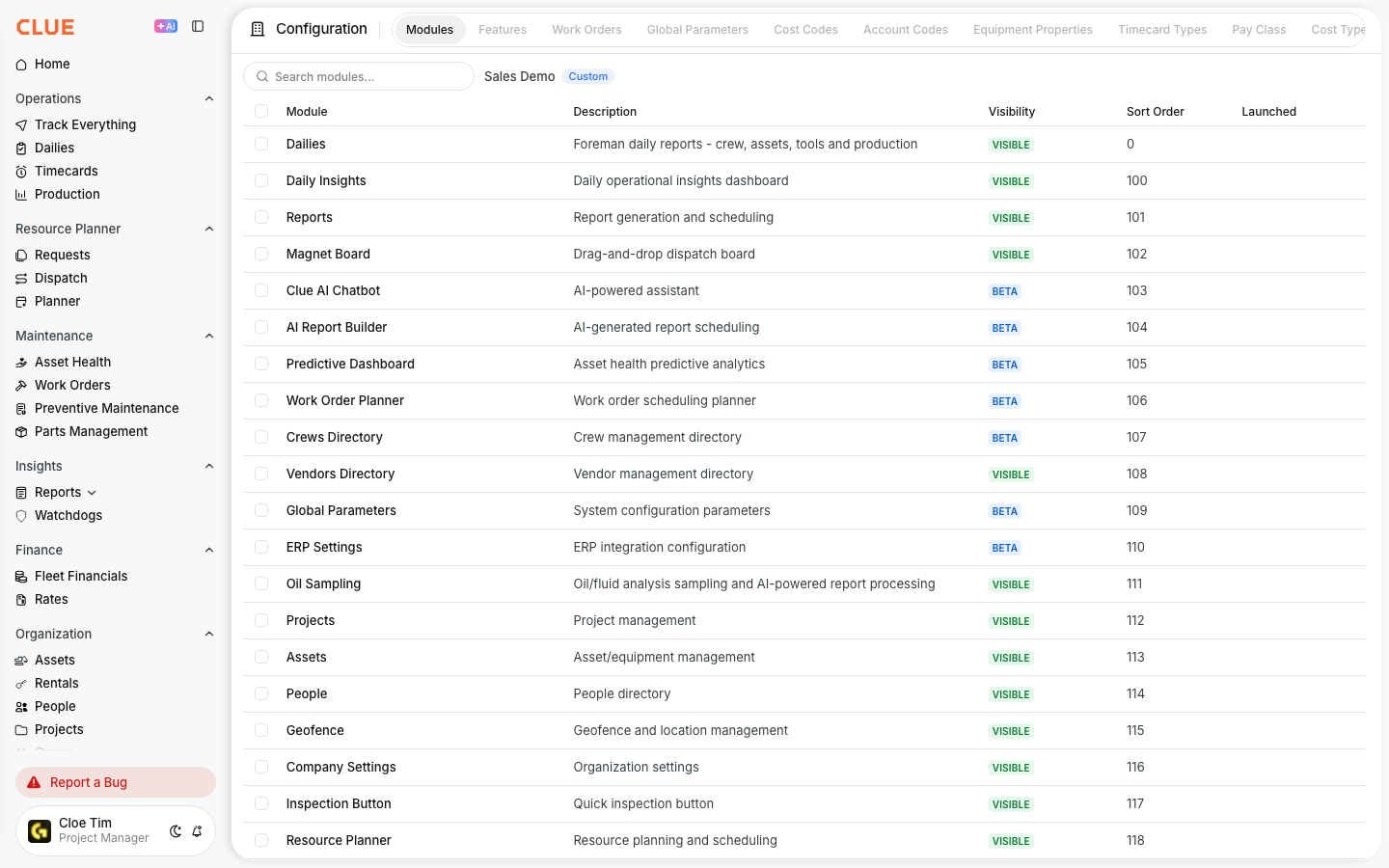
Start in Admin > Company Settings, then open Pay Classes. This is where you can view your current pay classes or add a new one.
Creating a Pay Class
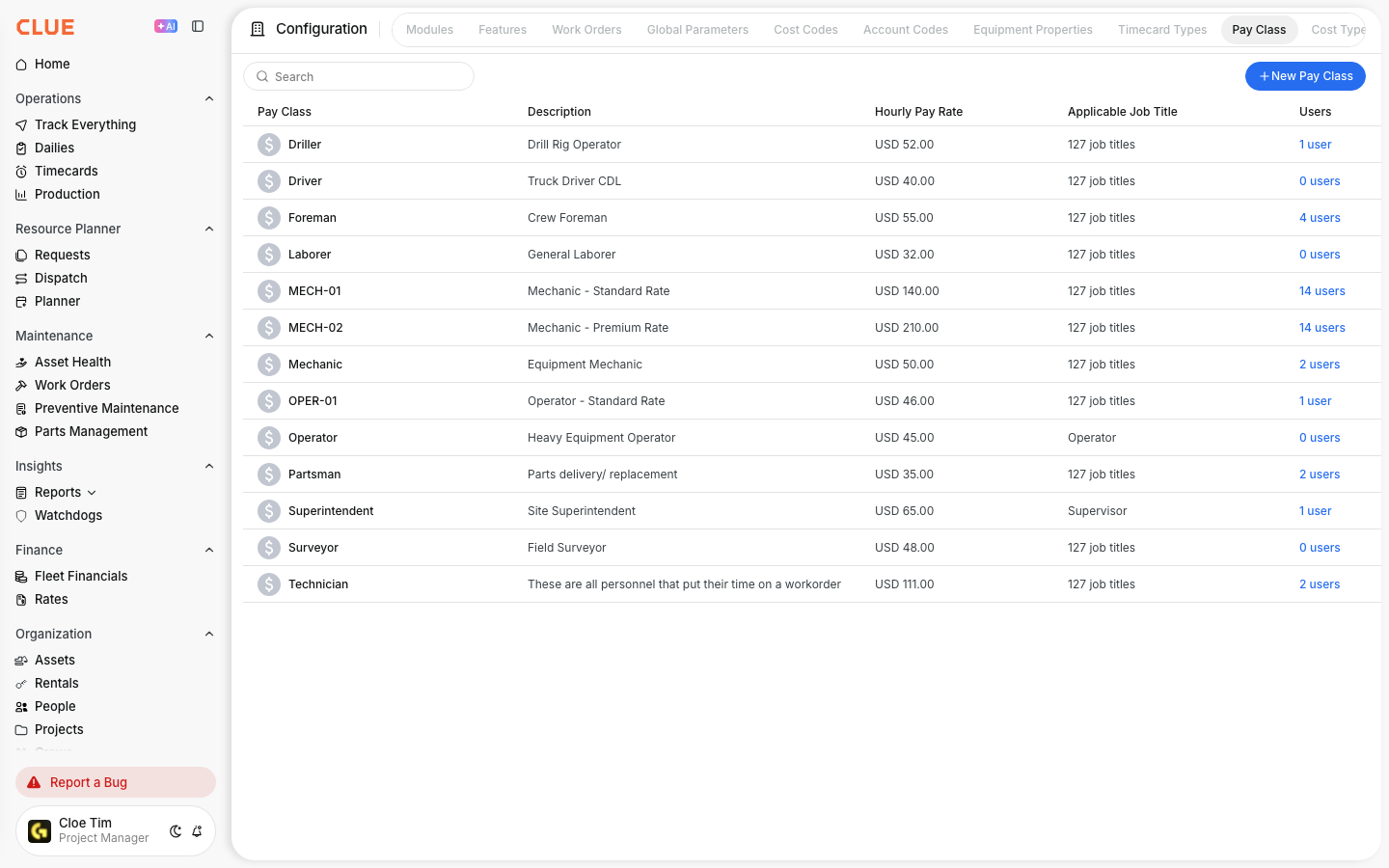
Create a pay class when you need a standard rate for a role or pay group. This is useful for roles like mechanics, operators, or different union and non-union groups.
Click Add Pay Class, then enter the main details:
- Name - a clear name, such as Mechanic - Standard
- Standard Rate - the regular hourly rate
- Overtime Rate - the overtime rate, if needed
- Double Time - the double-time rate, if needed
When you are done, click Save.
Pay Class Fields
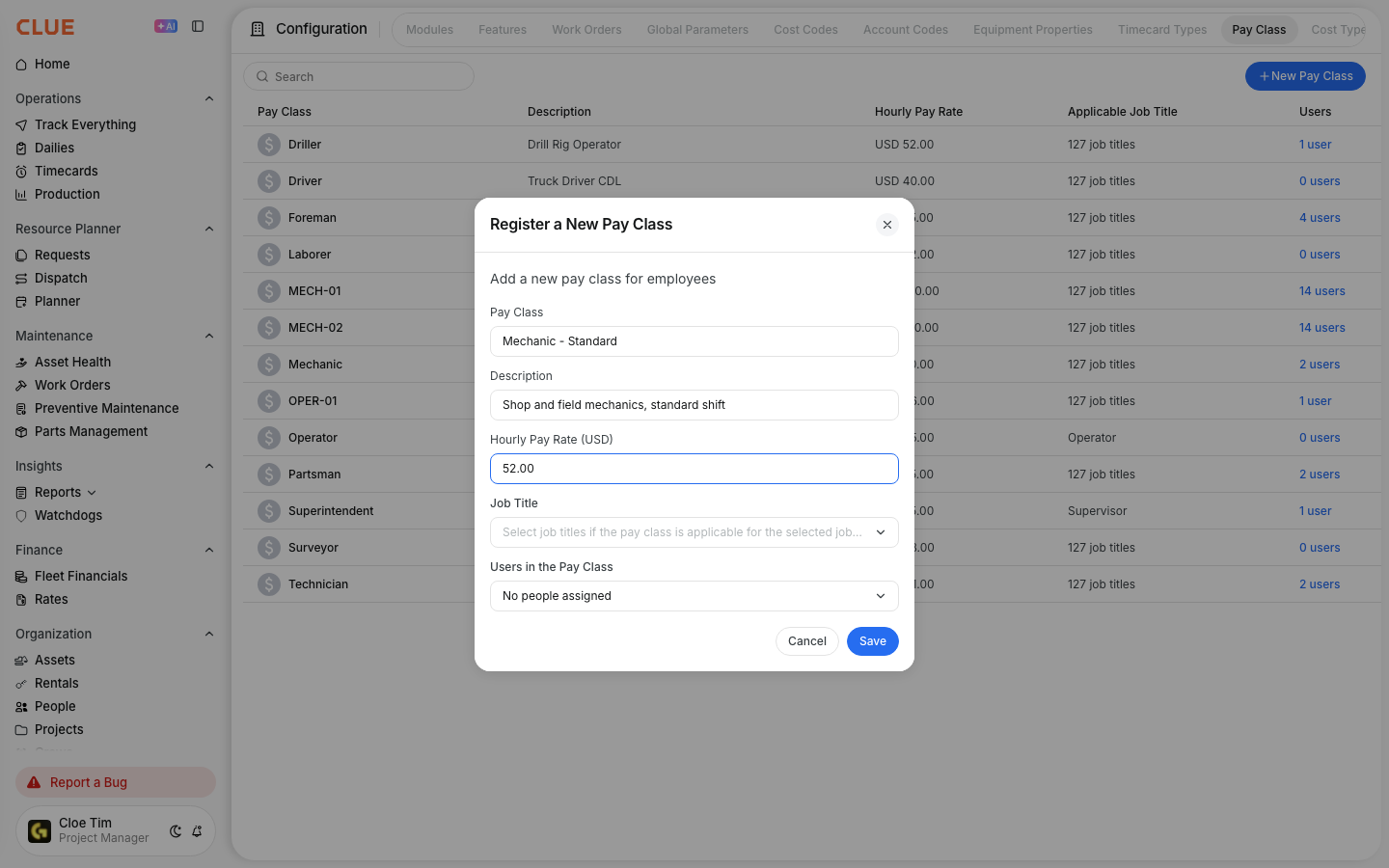
Each pay class includes a few basic fields. Keeping these fields clear makes labor costing easier to manage later.
- Name - a descriptive label for the pay class
- Standard Rate - regular hourly pay
- Overtime Rate - pay rate for overtime hours
- Double Time - pay rate for holidays or extended overtime
Linking to Job Titles
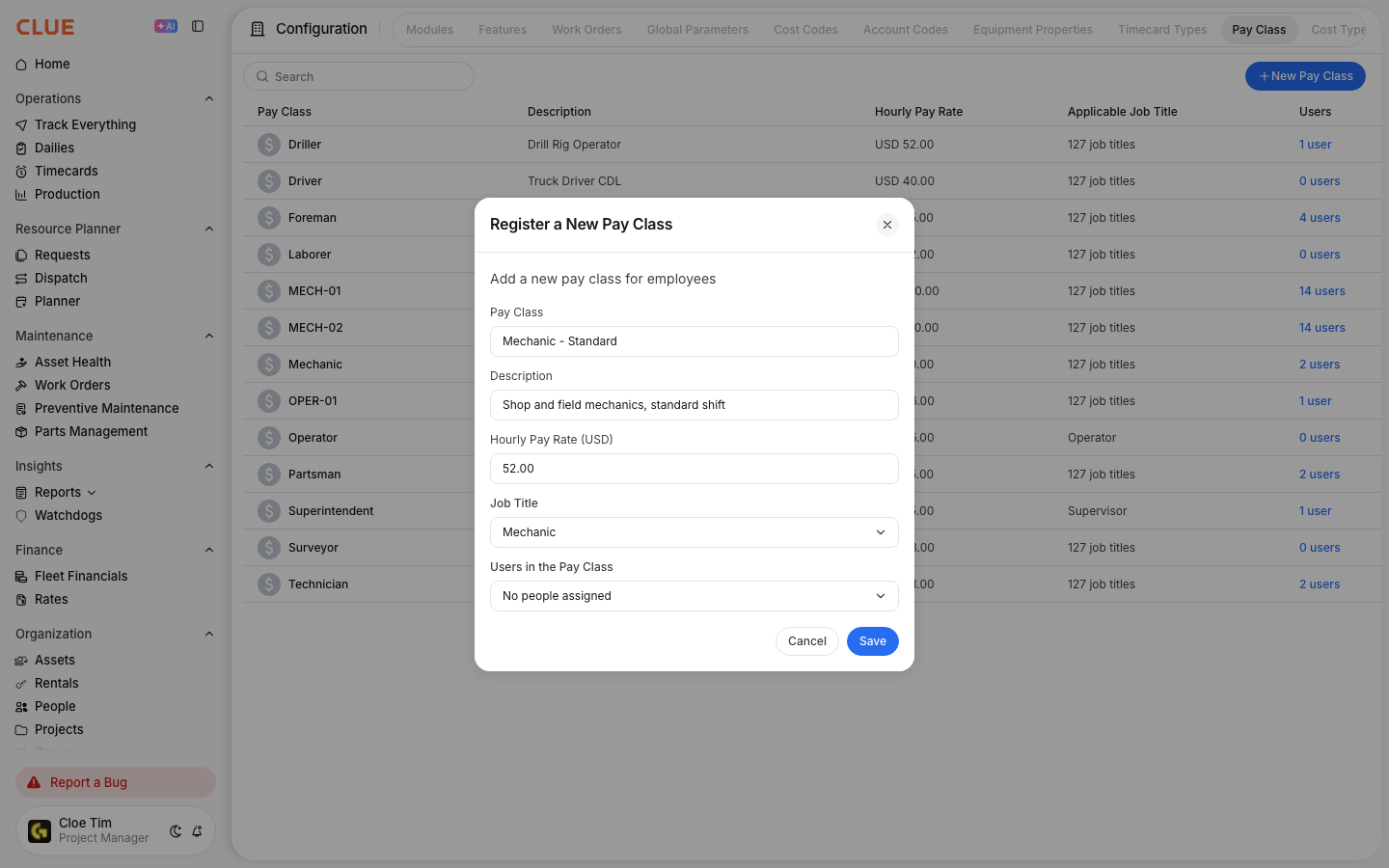
You can link a pay class to a job title so CLUE uses the right default rate automatically. This saves time and helps keep labor records more consistent.
To do that, open the job title, select the default pay class, and save the change. If you also need to update roles, titles, or default setup, see Managing Job Titles.
Tips
A few simple habits can make pay classes easier to manage over time.
- review rates regularly so they stay current
- create separate pay classes when different groups are paid differently
- use clear names so the right class is easy to pick
- keep pay classes aligned with job titles for better labor costing