What is this?
Set Rate lets you type a charge amount right on the Rate Assignments tab. It works on a single asset, a product class or an asset type. Clue charges that amount on every uninvoiced charge for those rows. One machine that costs more to run no longer needs its own rate book line.
Who's this for?
Anyone who sets or checks equipment rates.
- Equipment managers, set the real rate on a machine that costs more or less to run than the rest of its class.
- Controllers and accounting, make sure the rate on screen matches what lands on the invoice.
- Fleet administrators, give assets with no rate book line a manual rate so they stop showing as Needs Rate.
How to use it
Step 1: Open Rate Assignments
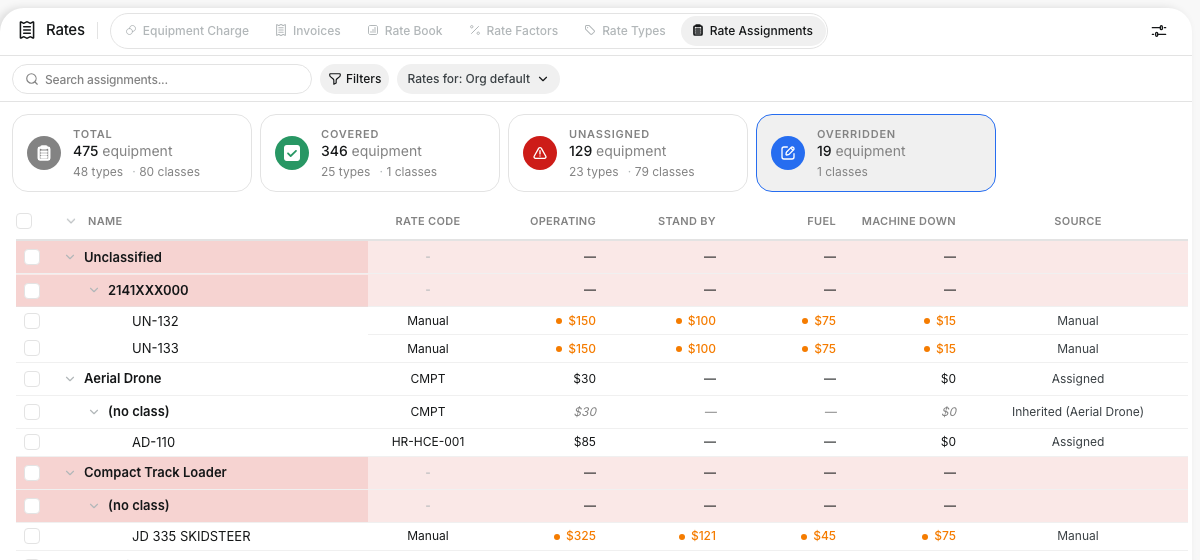
Go to Rates in the left menu and select the Rate Assignments tab. Rows are grouped by asset type, product class, then asset.
Step 2: Tick the rows to price
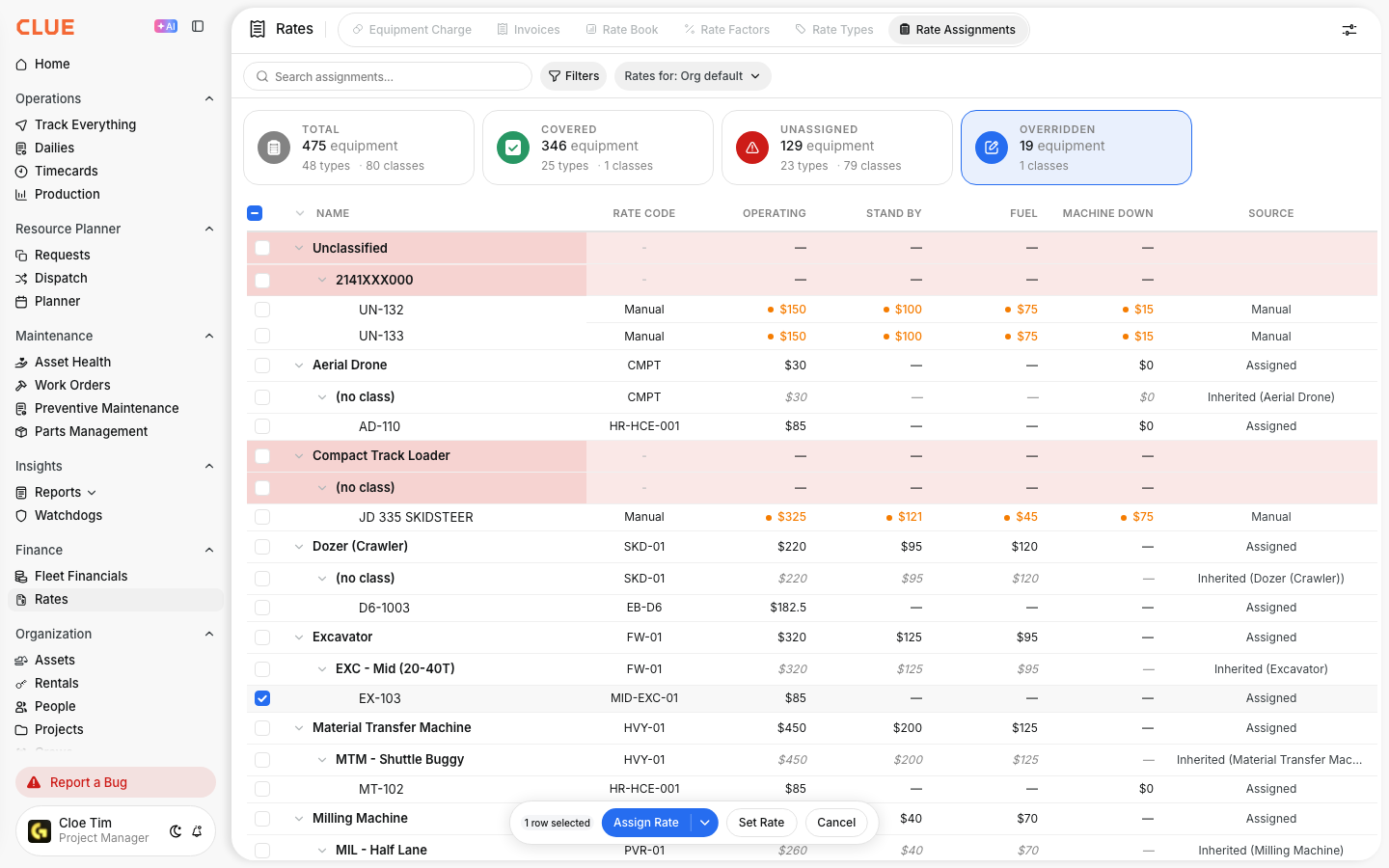
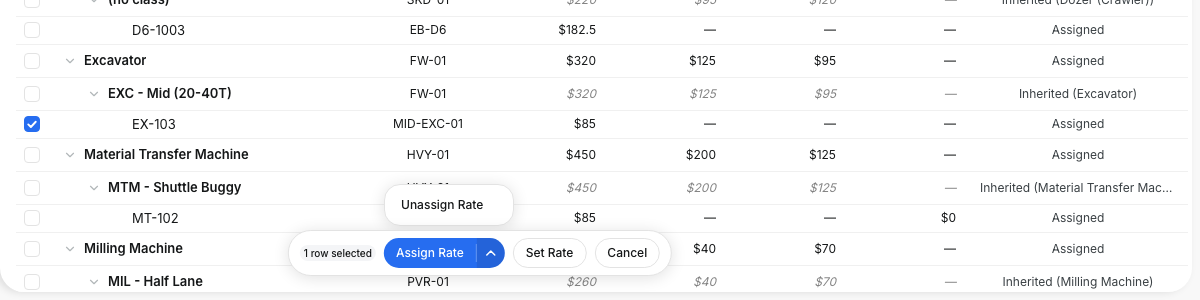
Tick one or more rows. You can mix an asset with a product class or an asset type. A bar appears at the bottom of the page.
Step 3: Type the amounts
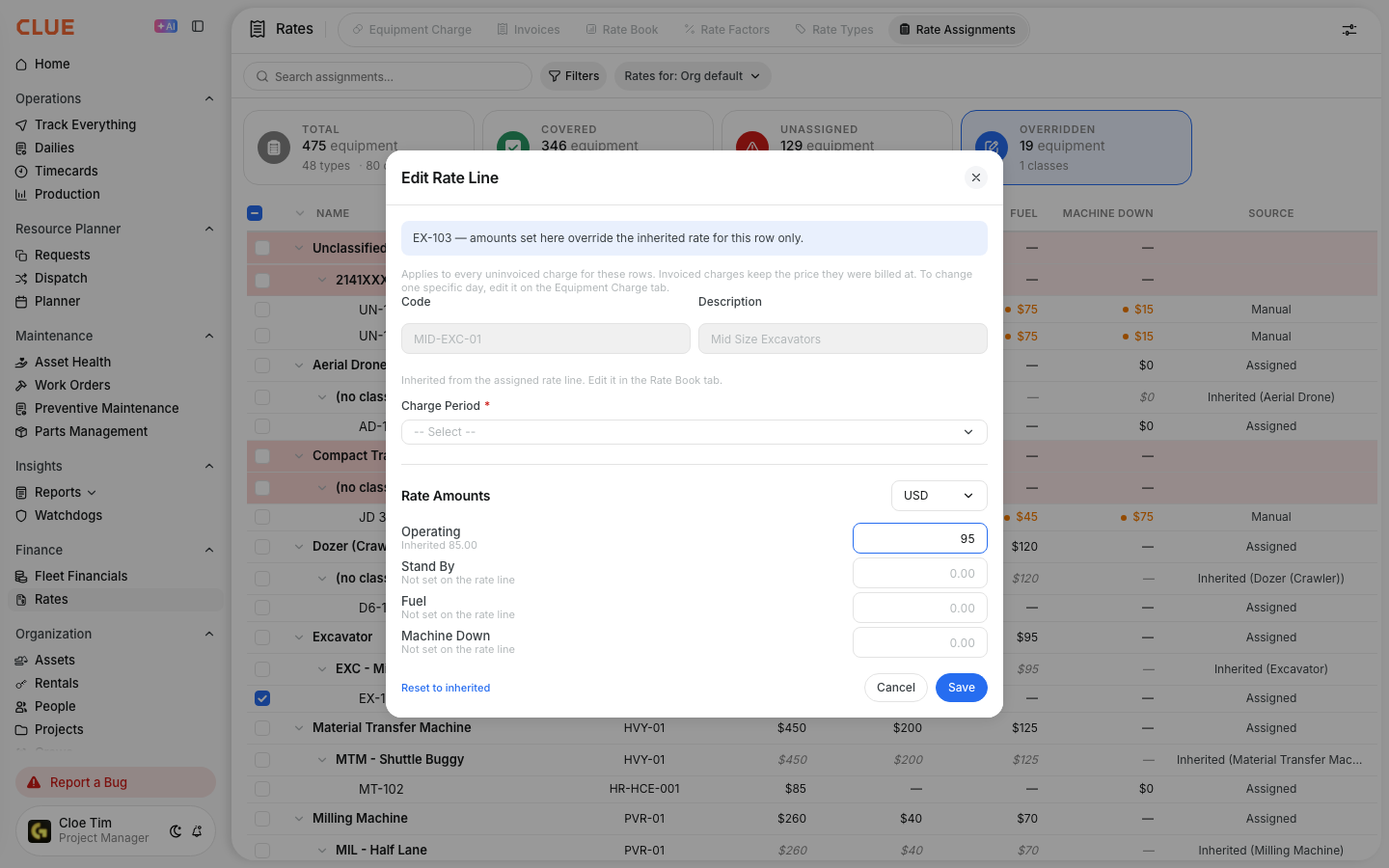
Click Set Rate. Choose a Charge Period, check the currency, and type an amount next to each rate type you want to change. The inherited amount shows under each name.
Step 4: Save and check the table
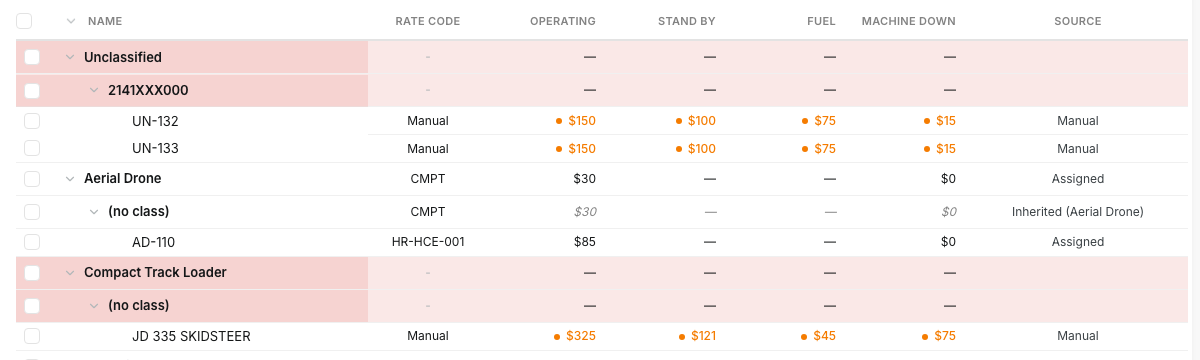
Click Save. Typed amounts show in orange with a small dot. The Source column shows where the amount was set. Rows with no rate line read Manual.
Step 5: Find Unassign Rate
Unassign Rate is in the small arrow menu next to Assign Rate. It works the same way, with the same confirmation.
The full details
- Works on: Web app, Rates > Rate Assignments tab.
- Permission needed: Create or update rates.
- Which amount wins: Asset first, then product class, then asset type.
- Blank vs zero: A blank field keeps the inherited amount. Type 0 to charge nothing.
- Charge Period: Required. Save stays blocked until you pick one.
- When it applies: Every uninvoiced charge for those rows, as soon as you save. Invoiced charges keep the price they were billed at.
- Source column: Asset Override, Product Class Override, Asset Type Override, or Manual.
- Undo: Click Set Rate, then Reset to inherited, to remove every typed amount on the selected rows.
Tips
- Price one odd machine at the asset level. The rest of its class keeps the class rate.
- Only fill in the rate types you want to change. Leave the others blank.
- To fix one specific day instead of the standing rate, edit that charge on the Equipment Charge tab.
- Code and Description are read-only in this window. Change the rate line itself on the Rate Book tab.


