Materials in Resource Planner: Request, Source and Track Stock
What is this?
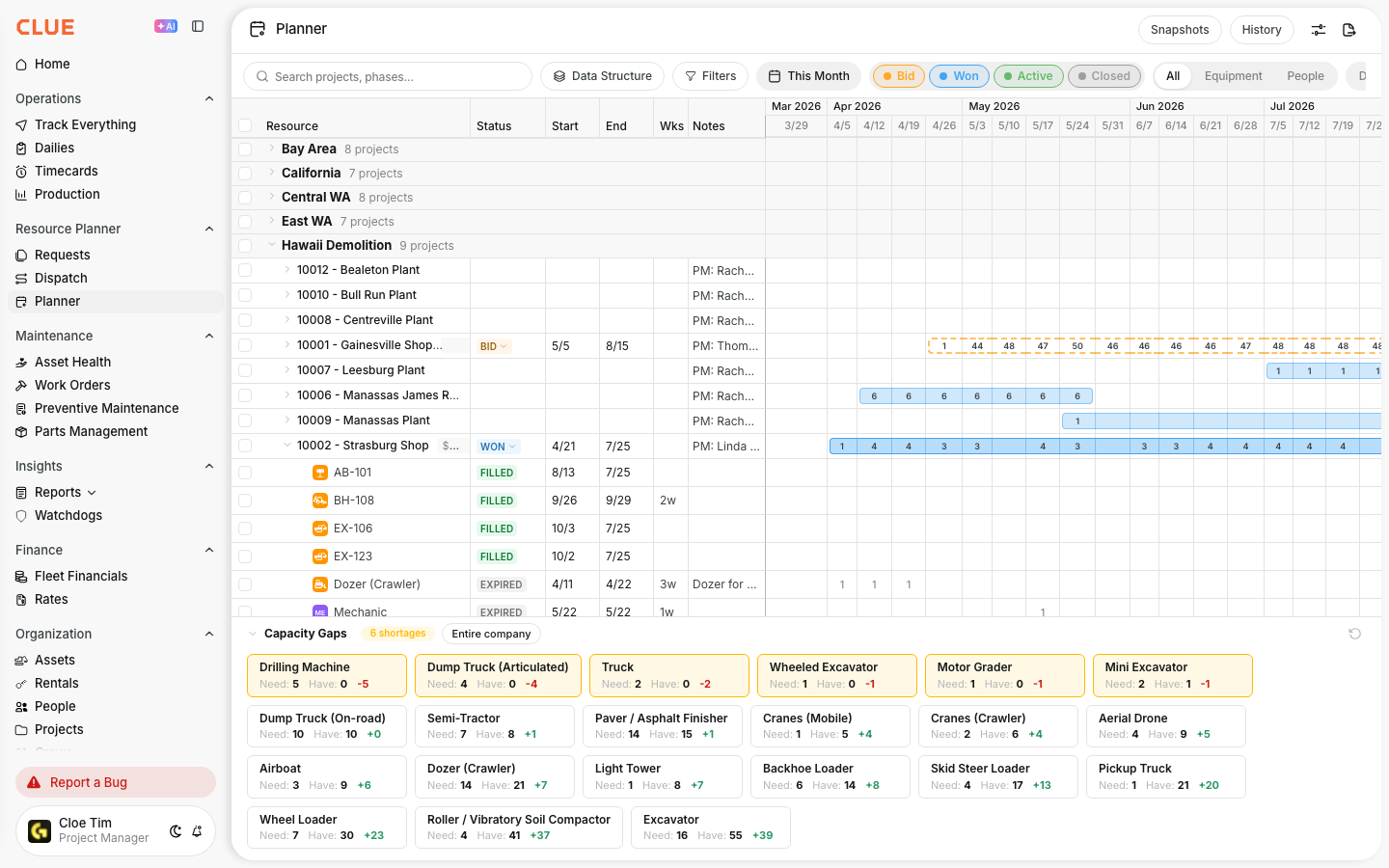
Resource Planner has a full set of tools for job site materials. Ask for several materials on one request. See which of your job sites already hold a reusable item. Order from a vendor and record what it cost. Then check how much of each material sits on every job.
Who's this for?
Anyone who asks for, moves, or pays for job site materials.
- Project and field managers, request everything a job needs on one form.
- Materials coordinators, move stock from another job before buying, and record order costs.
- Dispatchers, track every order and transfer, and send material along with a machine.
- Approvers, approve or reject material requests from the team.
How to use it
Step 1: Request materials
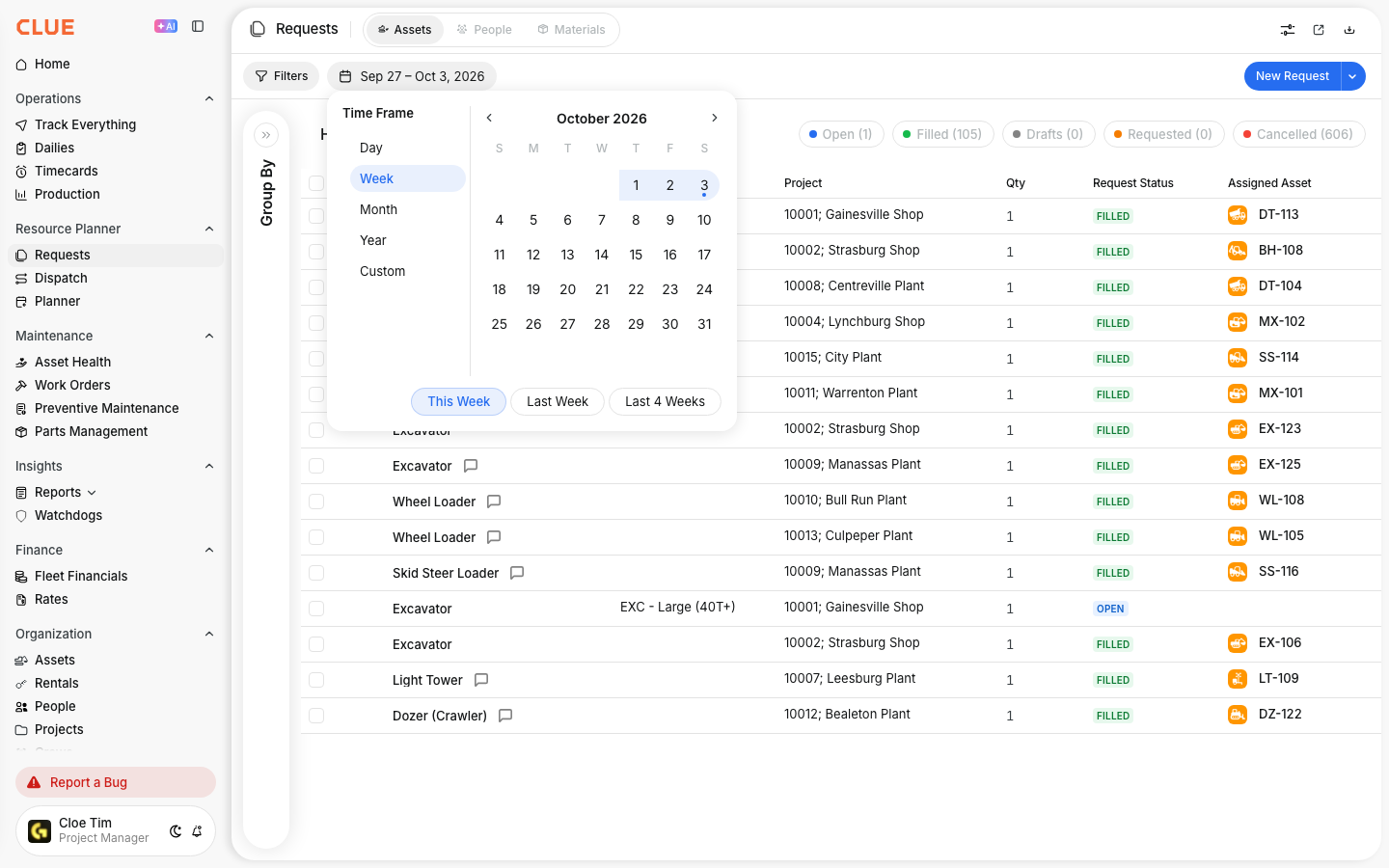
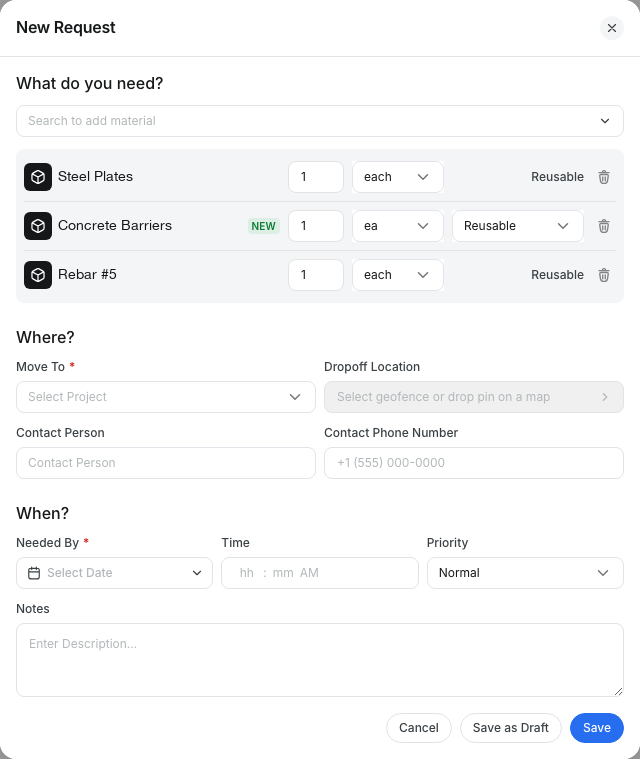
Go to Resource Planner > Requests > Materials and click New Request. Search for each material and add it. Set the quantity and unit, then fill in Move To and Needed By. Click Save.
Step 2: Choose where it comes from
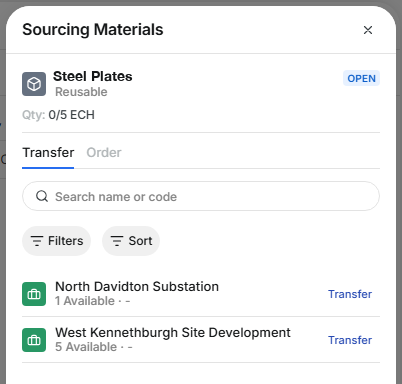
Click a request to open Sourcing Materials. The Transfer tab lists job sites that hold the material and how many are available. The Order tab lists vendors.
Step 3: Order and record the cost
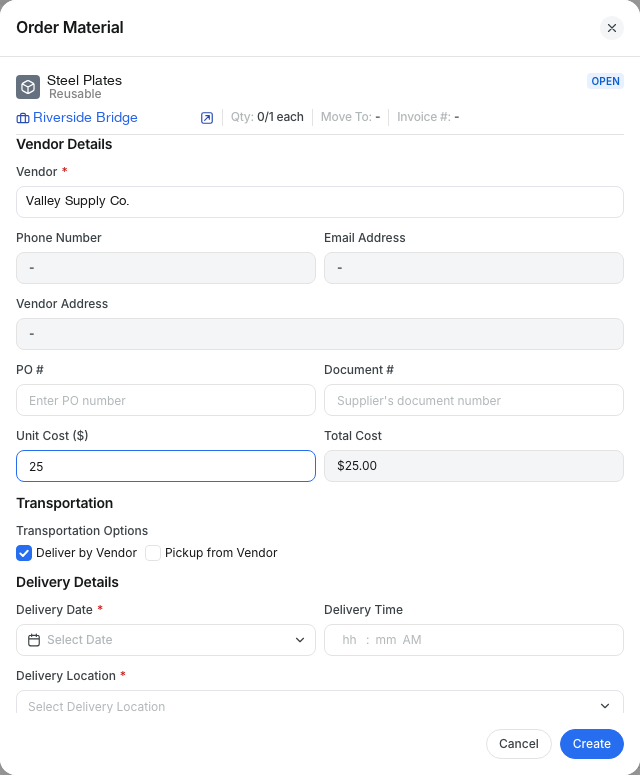
Click Order next to a vendor. Enter the PO number, document number, and Unit Cost. Total Cost fills in for you. Choose Deliver by Vendor or Pickup from Vendor, then click Create.
Step 4: Track orders and transfers
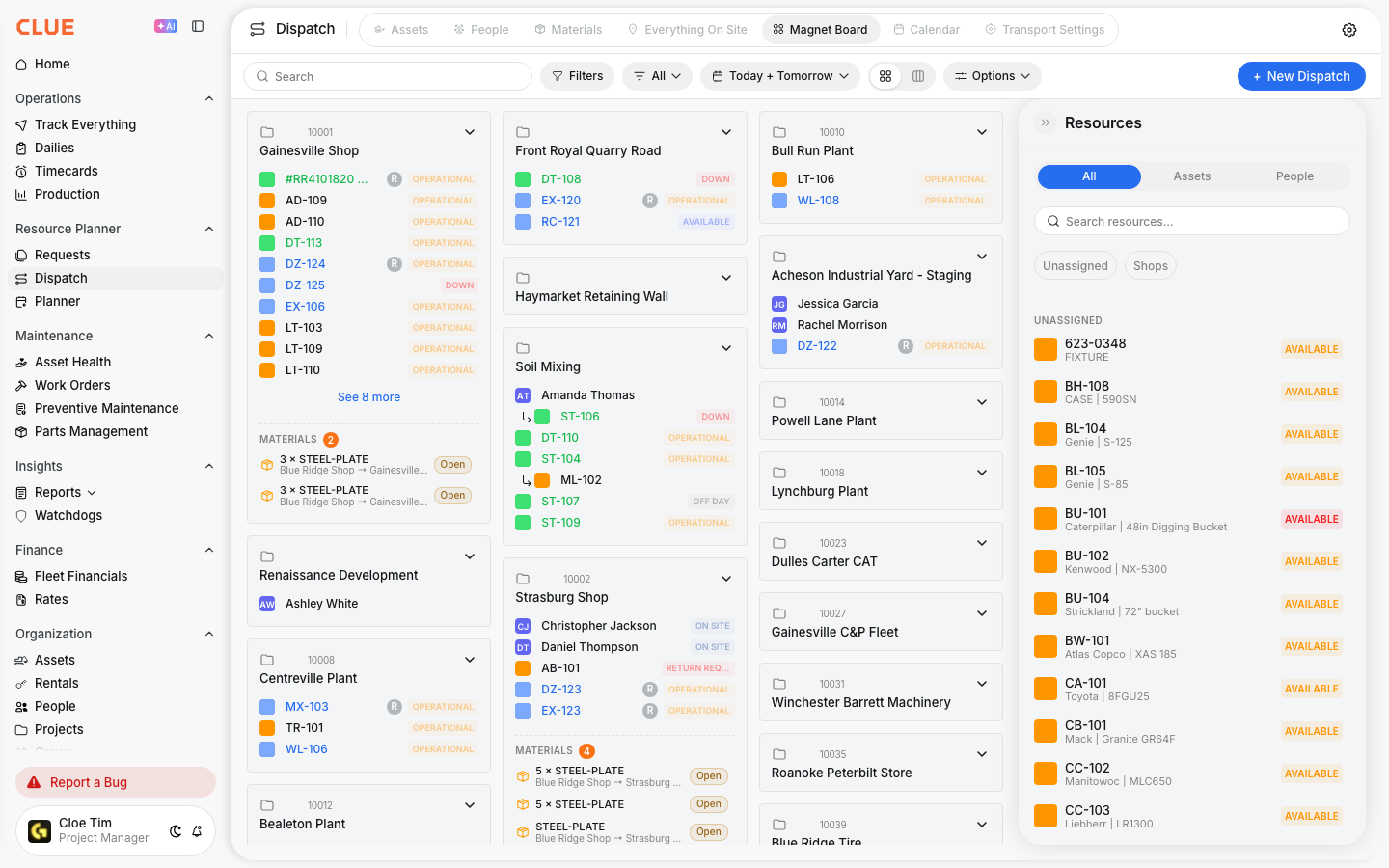
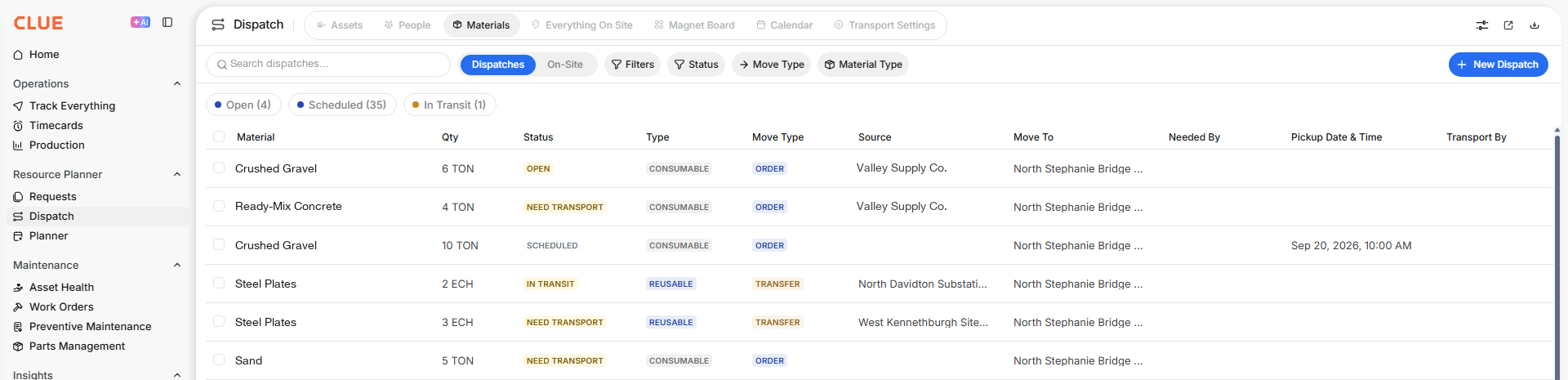
Go to Resource Planner > Dispatch > Materials. Every order and transfer is listed with its status, source and destination. Use the status chips and filters to narrow the list.
Step 5: Check stock on each job
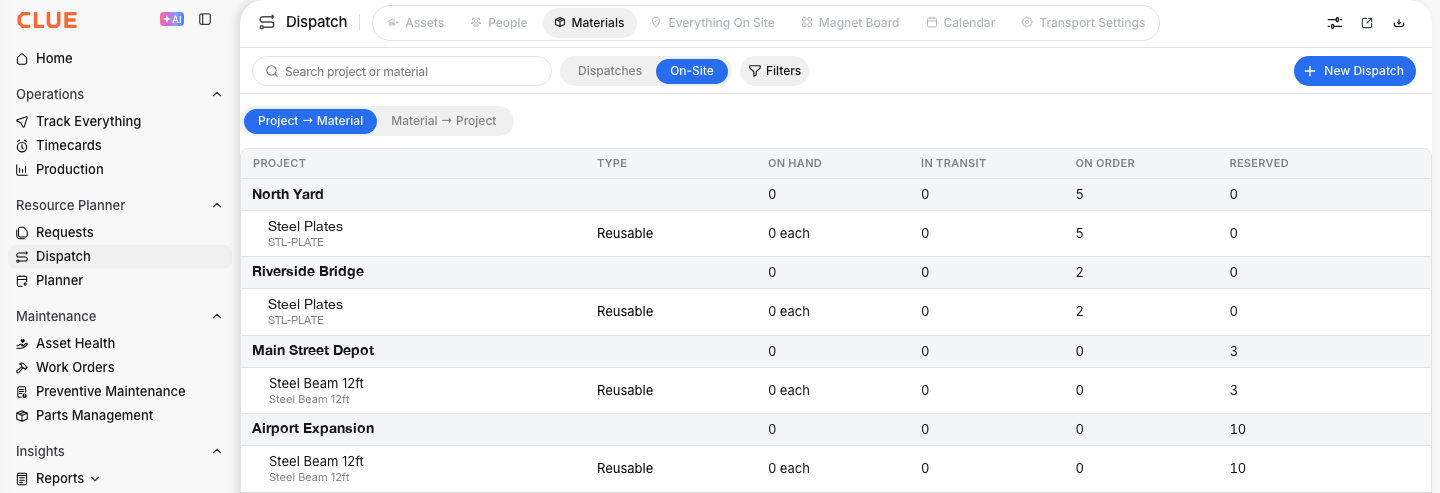
Switch to On-Site. You see On Hand, In Transit, On Order and Reserved for every material at every project. Switch to Material → Project to see where one material is.
The full details
- Works on: Web app.
- Material type: Consumable or Reusable comes from your catalog. You only set it for a new material.
- Approvals: Requests from people without approve permission wait for an approver. Approvers click Approve or Reject.
- Before sourcing: A request must be approved before it can be ordered or transferred.
- Row menu on On-Site: Order, Transfer, Adjust and History.
- Adjust: Records a counted quantity. A note is required. It uses its own permission.
- History: Shows every change to a material's quantity on that job, including the reason for each adjustment.
- Machines: On an asset dispatch, use + Add Material Transfer to send material on the same run.
Tips
- Check the Transfer tab before ordering. The material you need may already sit on another job.
- Count the yard now and then. Use Adjust when the numbers differ, and write a clear note.
- Click Save as Draft to finish a long request later.
- Ask for plates or barriers on the same request as the machine that needs them.