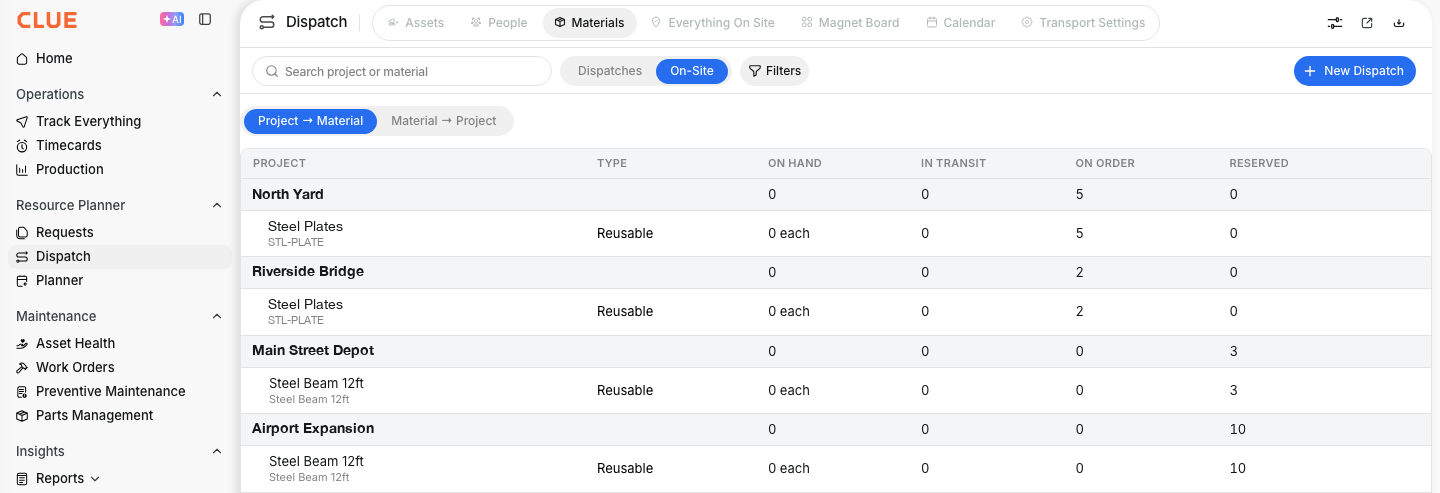
What is this?
Material orders now start from the request and carry the field's answer back. The Order Material form fills in the job, the delivery date, the location and the contact from the request. The order keeps a history of what each daily reported. Each order and request has its own comments, so the office and the field talk in one place.
Who's this for?
- Dispatchers order material in fewer clicks and see what came without a phone call.
- Foremen request material for tomorrow and leave notes on the order.
- Project managers see the full story of an order in one place.
How to use it
Step 1: Open the request
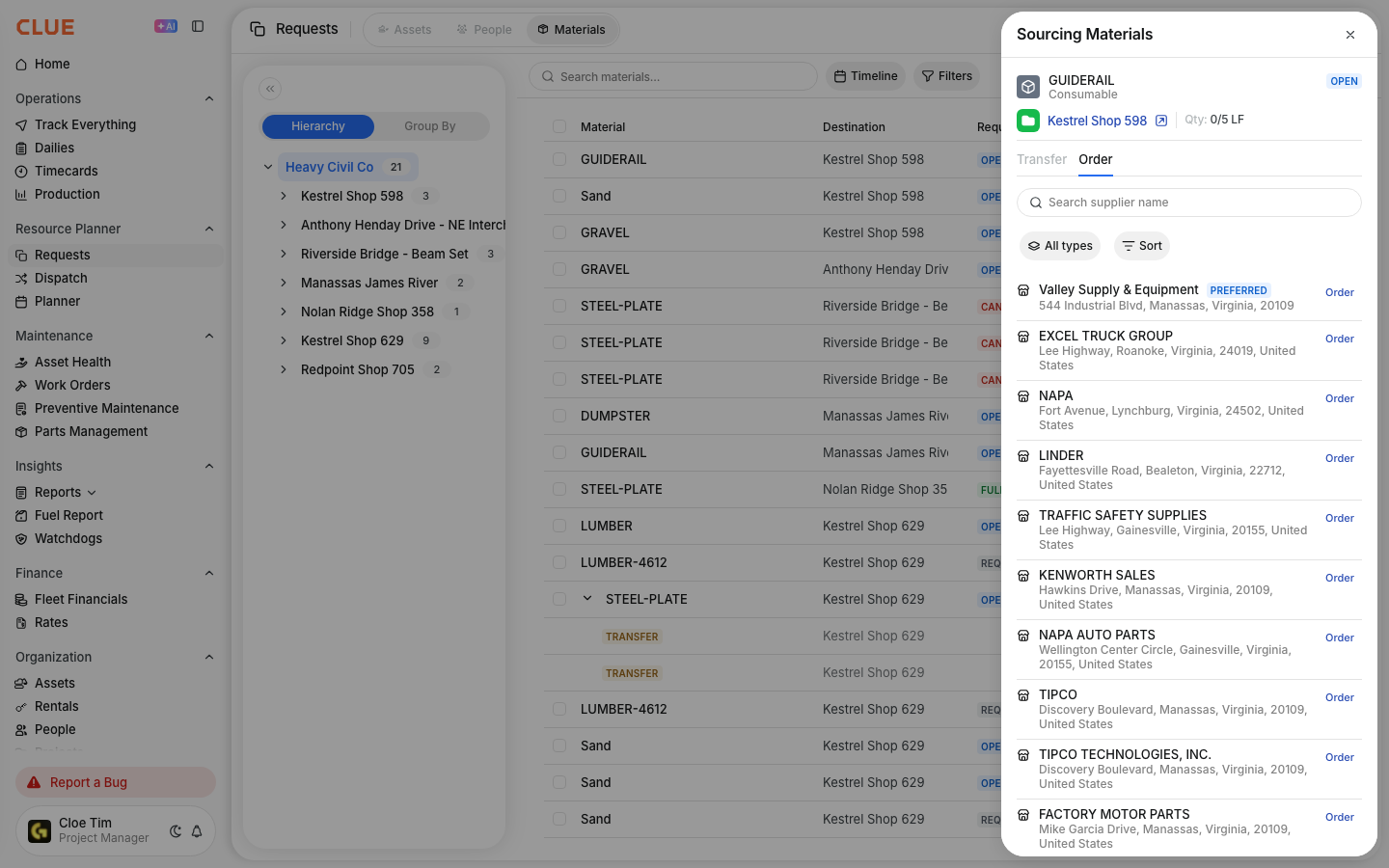
Go to Requests and open the Materials tab. Click a request, then open the Order tab. The vendor the foreman asked for shows first, with a Preferred badge.
Step 2: Order the material
Click Order next to the vendor. The form fills in the PO number, the delivery date, the delivery location and the contact from the request. Check it and click Create.

Step 3: See what the daily reported
Open the order. Under History, each daily shows what was delivered, and each date change shows where the rest moved.

Step 4: Read and add comments
Click the Comments icon at the top of the order. The foreman's notes from the daily show here. Type a reply and press send.

The full details
- Works on: Web app.
- PO number: fills in with the job number when your company turns this on.
- Edit Request: saves quantity changes to each line. A line that is already ordered keeps its material and cannot go below the ordered amount.
- Comments: the order shows its own comments and the comments of its request. The request shows the comments of all its orders.
- Who sees comments: anyone who can see material dispatches or material requests.
Tips
- Check the Comments count on the icon. A number means someone left a note.
- Change the quantity on the request before you order. The order then uses the right amount.
- Reply on the order, not by text message. The whole crew sees the same story.