Managing Your Profile and Notifications
Personalize Your CLUE Experience
Access your profile settings to customize how CLUE works for you, including language, date formats, and notification preferences.
Accessing Profile Settings
Click Profile & Settings at the bottom of the left sidebar to open your user preferences.
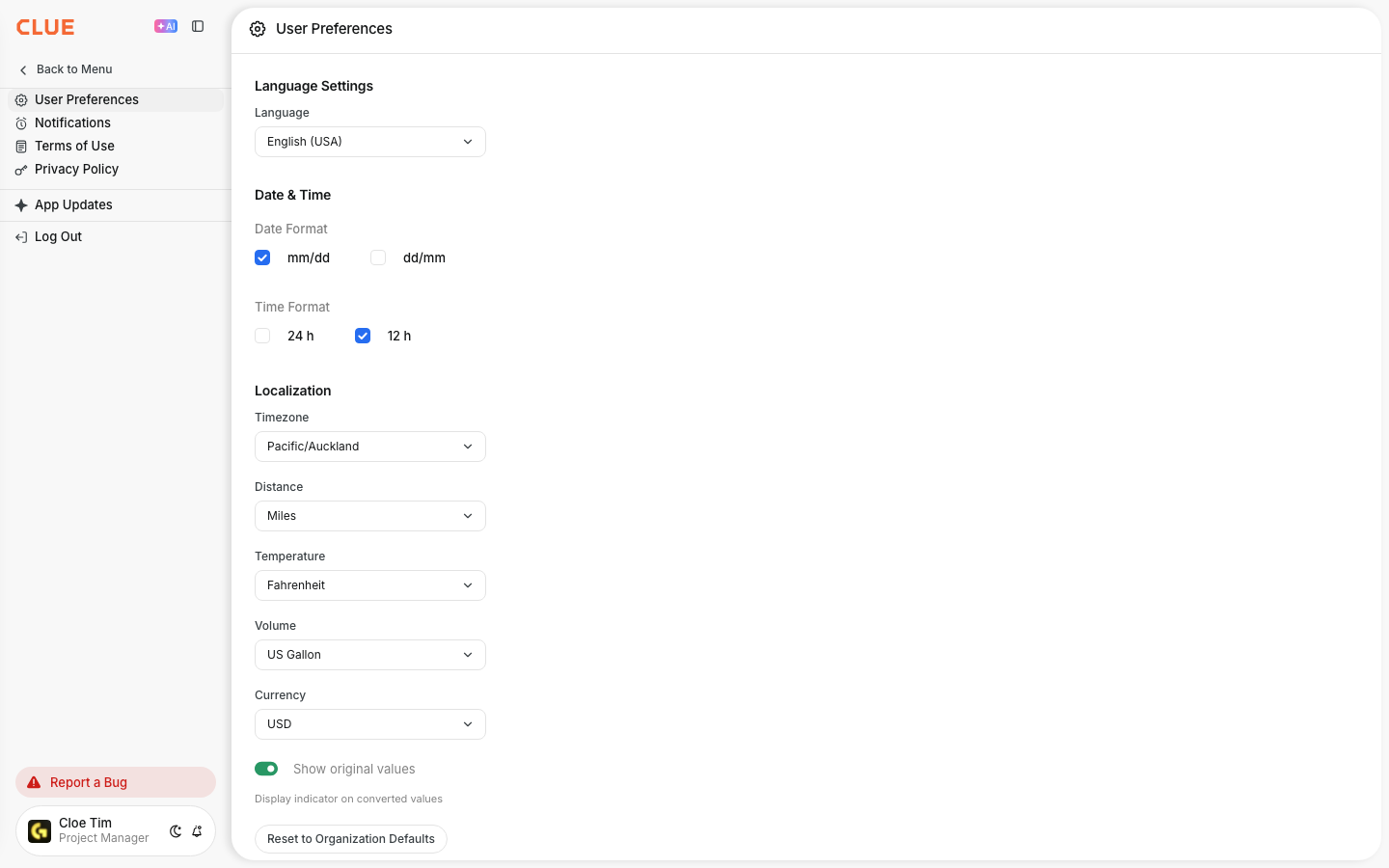
App Settings
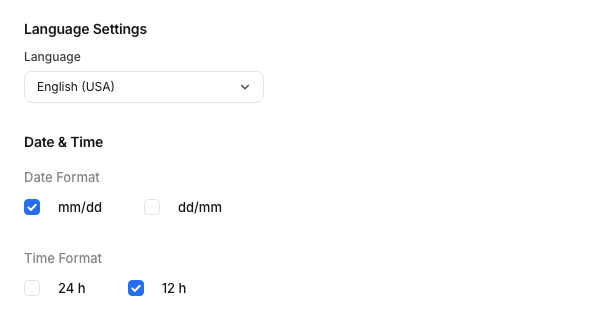
Language Settings
Choose your preferred language from the dropdown. CLUE supports English and Spanish.
Date and Time
- Date Format - Choose mm/dd or dd/mm format
- Time Format - Select 12h or 24h clock
Privacy Settings
- Share my Location - Toggle to allow other users in your organization to see your location in Track Everything and User Details
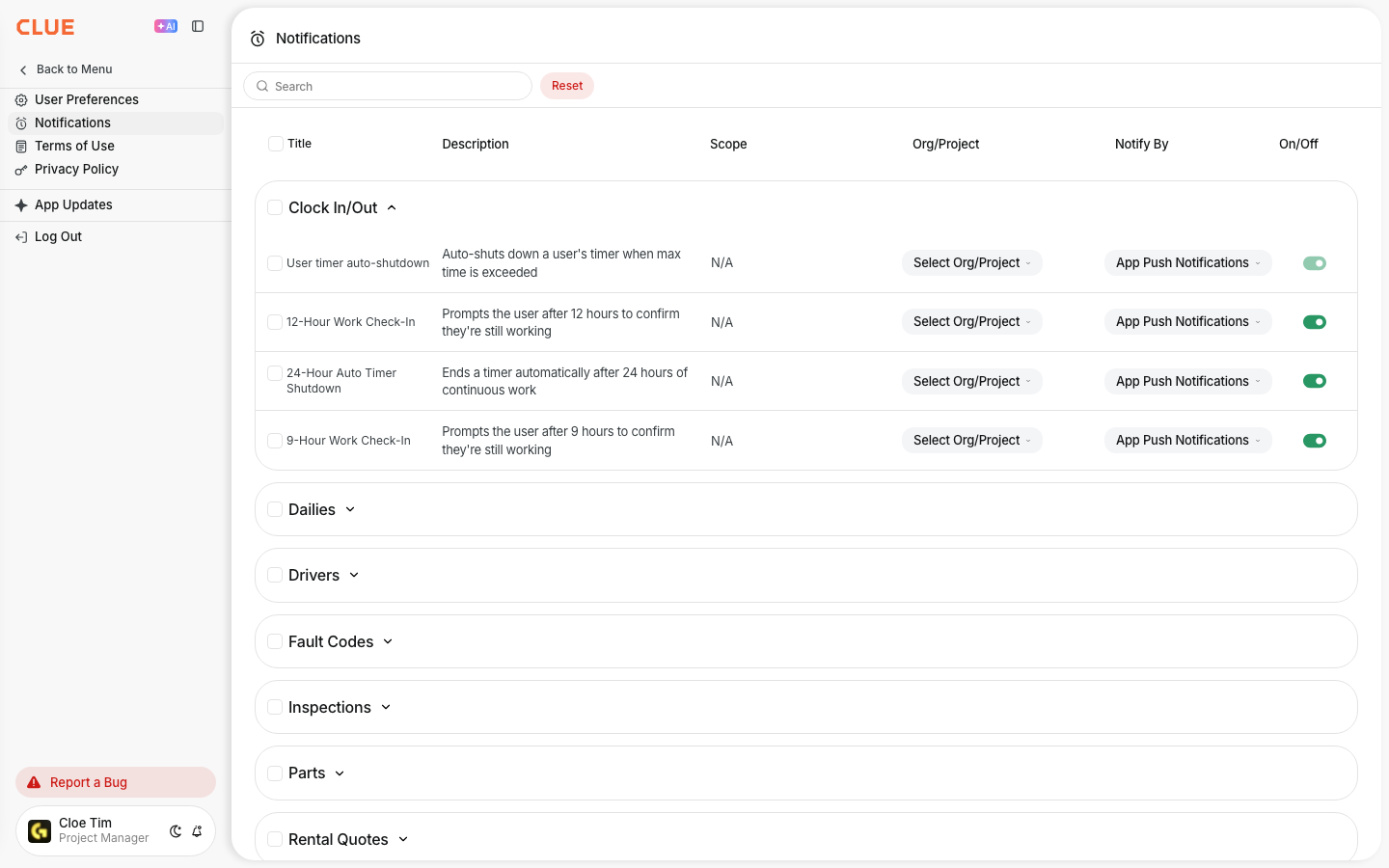
Notification Preferences
Control which alerts you receive:
- Work order assignments
- PM due alerts
- Fault code notifications
- Inspection reminders
- Geofence alerts
Saving Changes
Most settings save automatically. Look for the confirmation message after making changes.
Tips
- Set your preferred date format to match your region
- Enable location sharing for better team coordination
- Customize notifications to reduce alert fatigue